Torcherino Mod Wiki › Guides › Torcherino Mechanics and GUI
Torcherino Mechanics and GUI
After placing a Torcherino, it is deactivated by default to prevent accidental lag. Players must interact with the block to configure its behavior.
The Interface
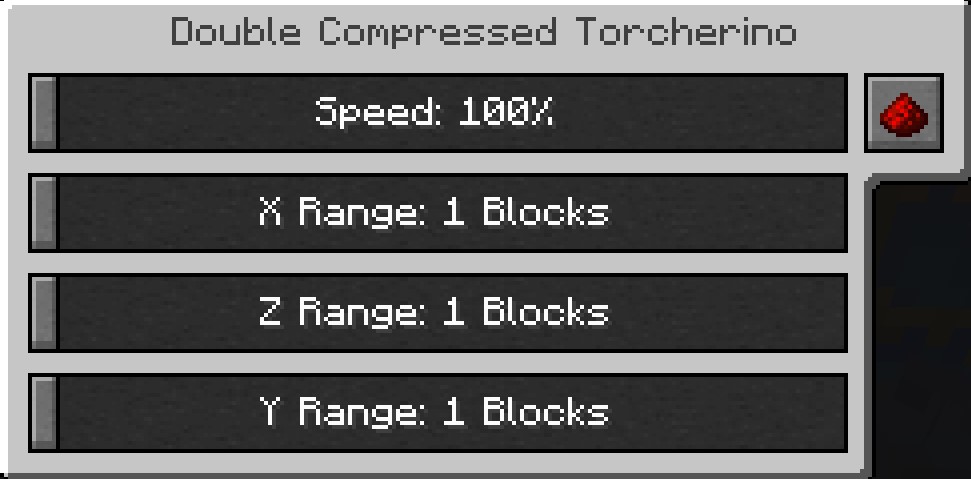
Right-clicking any Torcherino variant opens a Graphical User Interface (GUI) where you can adjust the following settings:
- Speed Multiplier: Adjusts how much faster the affected blocks will tick. Standard settings usually range from 100% (normal speed) to 400% (4x speed).
- Range (X/Y/Z): Defines the radius of the effect. You can set the horizontal and vertical reach independently, typically ranging from a 1x1x1 area to a 9x9x9 cube.
- Status Toggle: A button to activate or deactivate the torch without breaking it.
How Acceleration Works
The mod targets two specific types of Minecraft logic:
- Random Ticks: This affects natural growth processes such as crops (wheat, carrots, etc.), saplings, grass spreading, sugar cane, cactus, and leaf decay
- Tile Entities: This affects blocks that have internal logic or inventories, such as Furnaces, Blast Furnaces, Brewing Stands, Mob Spawners, and most modded machines (e.g., Mekanism Crushers or Thermal Expansion Redstone Furnaces)