

 DownloadGoobaa Client Mod
Get the files on 9Minecraft
Guides
Step-by-step, in-game.
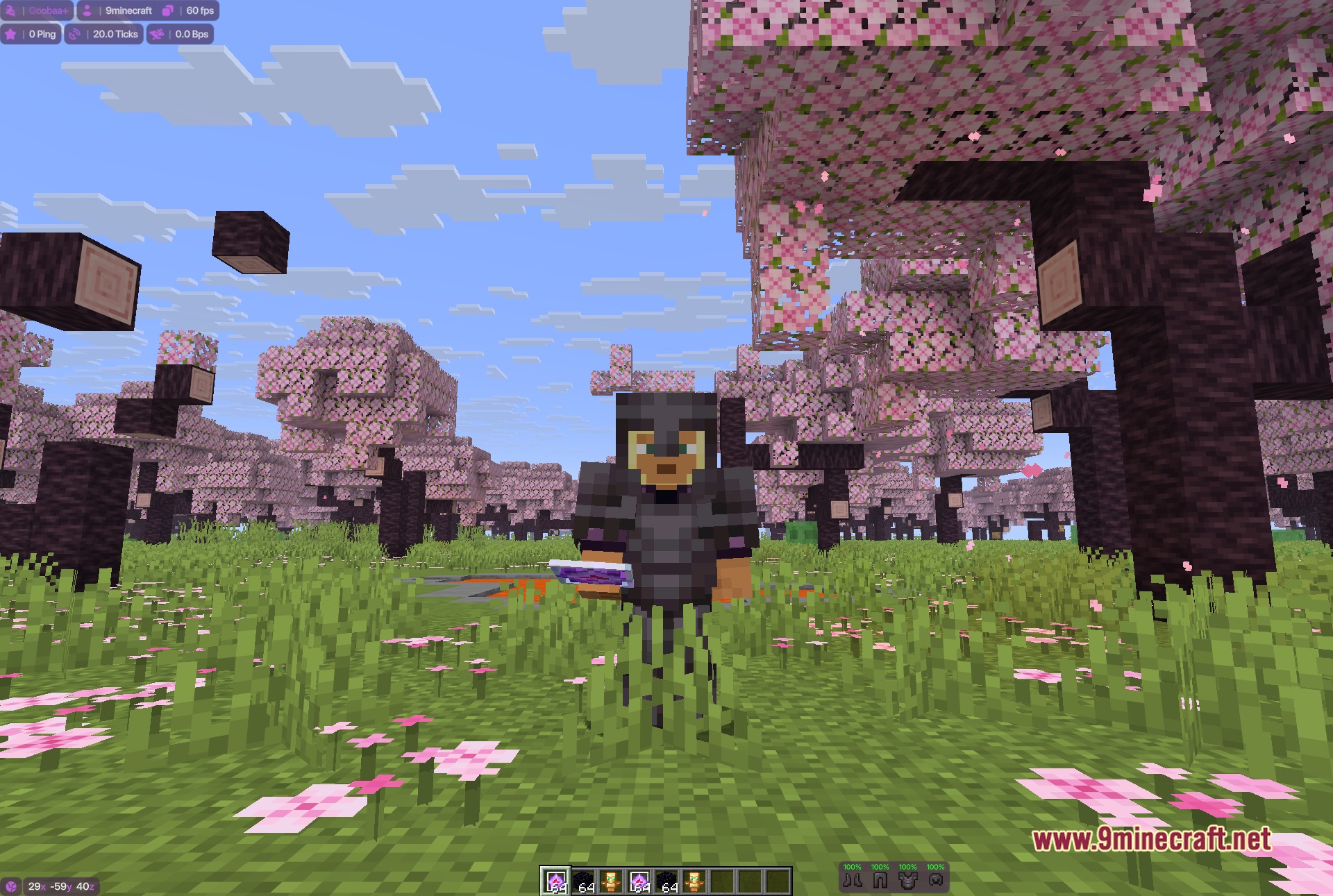
Monitor Server Performance with Status HUDLocate the Status Bar The Goobaa Client status bar appears in your top-left corner by default, displaying four key…Optimize Your HUD for Combat VisibilityAccess HUD Settings Open the Goobaa Client menu and navigate to Client Modules to customize your on-screen display.…Set Up Auto Totem Protection for SurvivalEnable Auto Totem Module Open the Goobaa Client menu and navigate to the Combat Modules category. Locate Auto Totem…Use Weapon Swap Macros for Combo AttacksUnderstand Available Swap Modules Goobaa Client includes specialized weapon swap modules for crystal PvP: MaceSwap ,…
Frequently asked questions
How do I open the Goobaa menu?
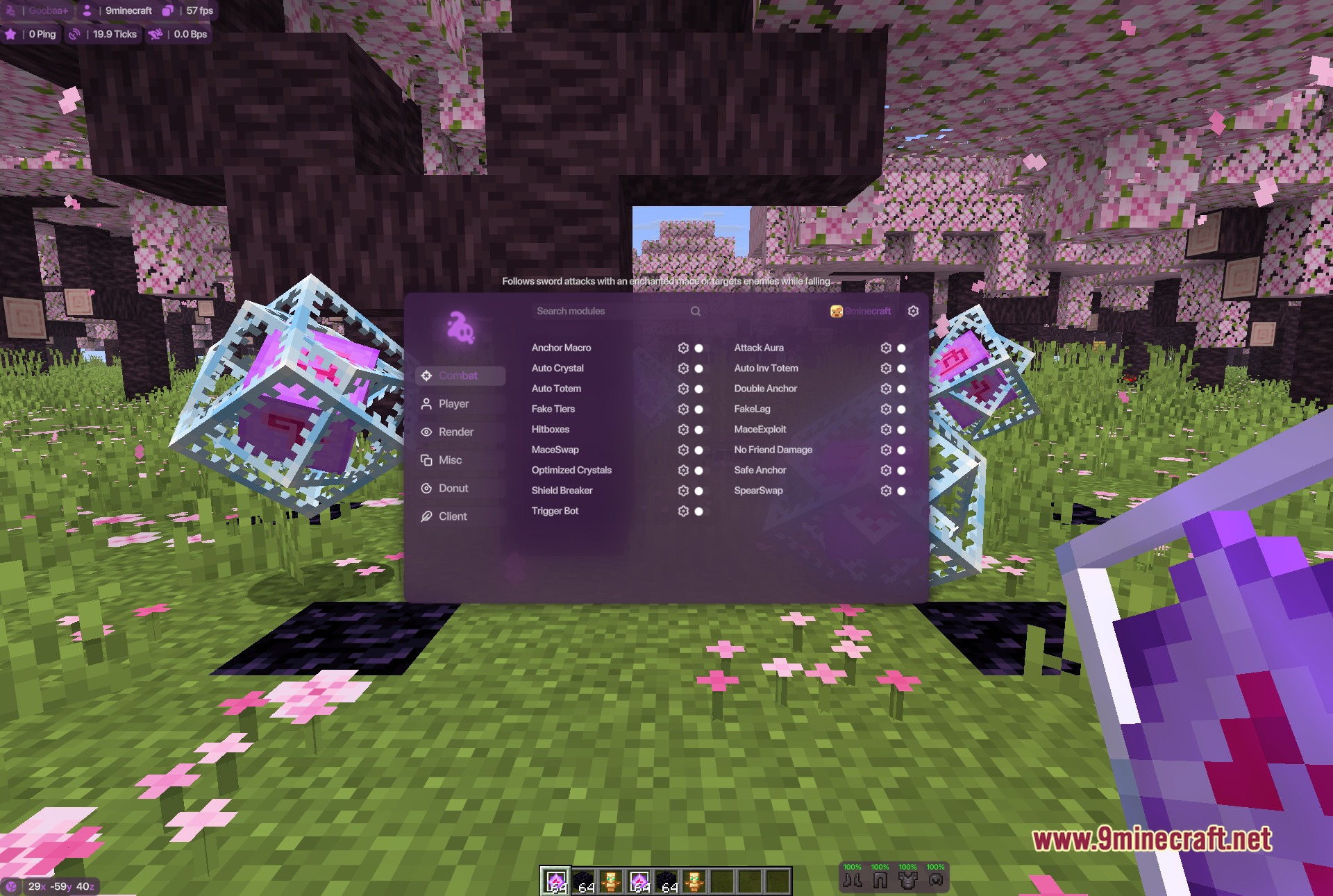
Press the default keybind (usually a configurable key like R or M) to open the main menu panel. You'll see a sidebar with module categories and a search bar at the top to quickly find any tool.
What's the difference between Auto Totem and Auto Inv Totem?
Auto Totem holds a totem in your offhand and triggers it when you take lethal damage, while Auto Inv Totem manages totems in your inventory and swaps them into your offhand automatically when needed. Use Auto Inv Totem if you want automatic inventory management during fights.
Why is my ping showing differently in Goobaa than in the pause menu?
Goobaa's Status HUD displays real-time network ping and server TPS separately, which may differ from Minecraft's built-in pause menu display due to different measurement methods. Both are accurate—Goobaa just gives you more granular network information for combat tuning.
Gallery
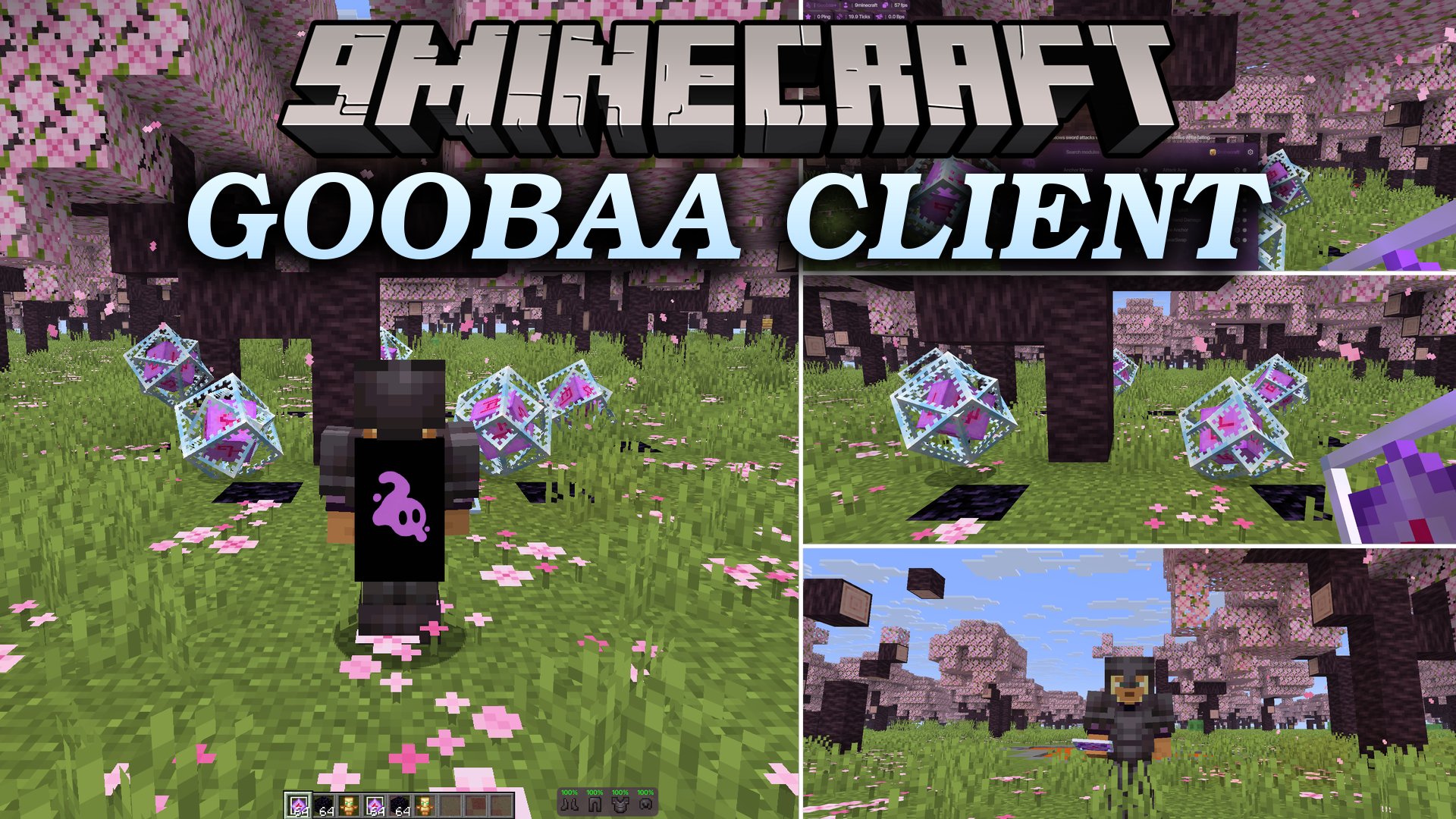
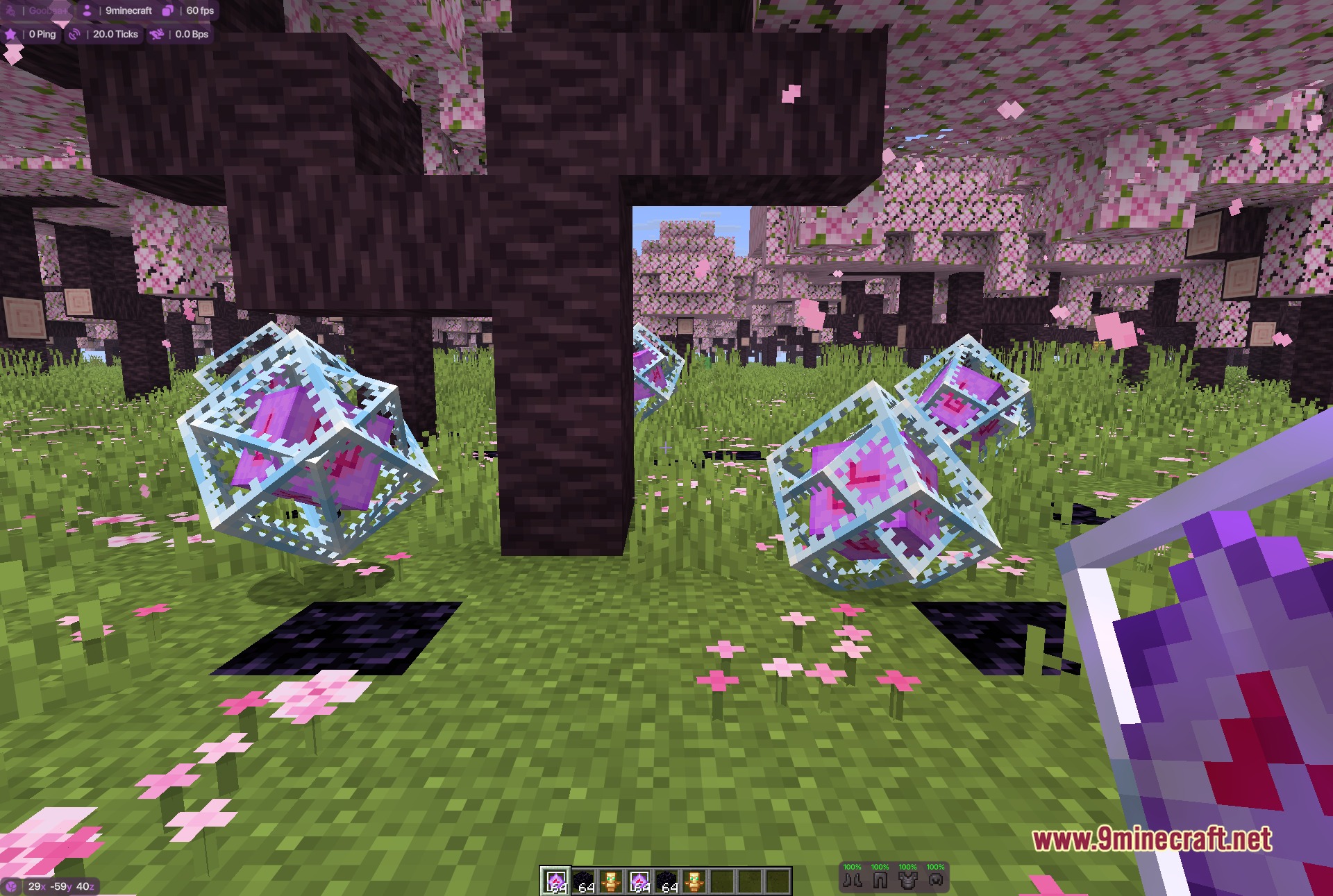
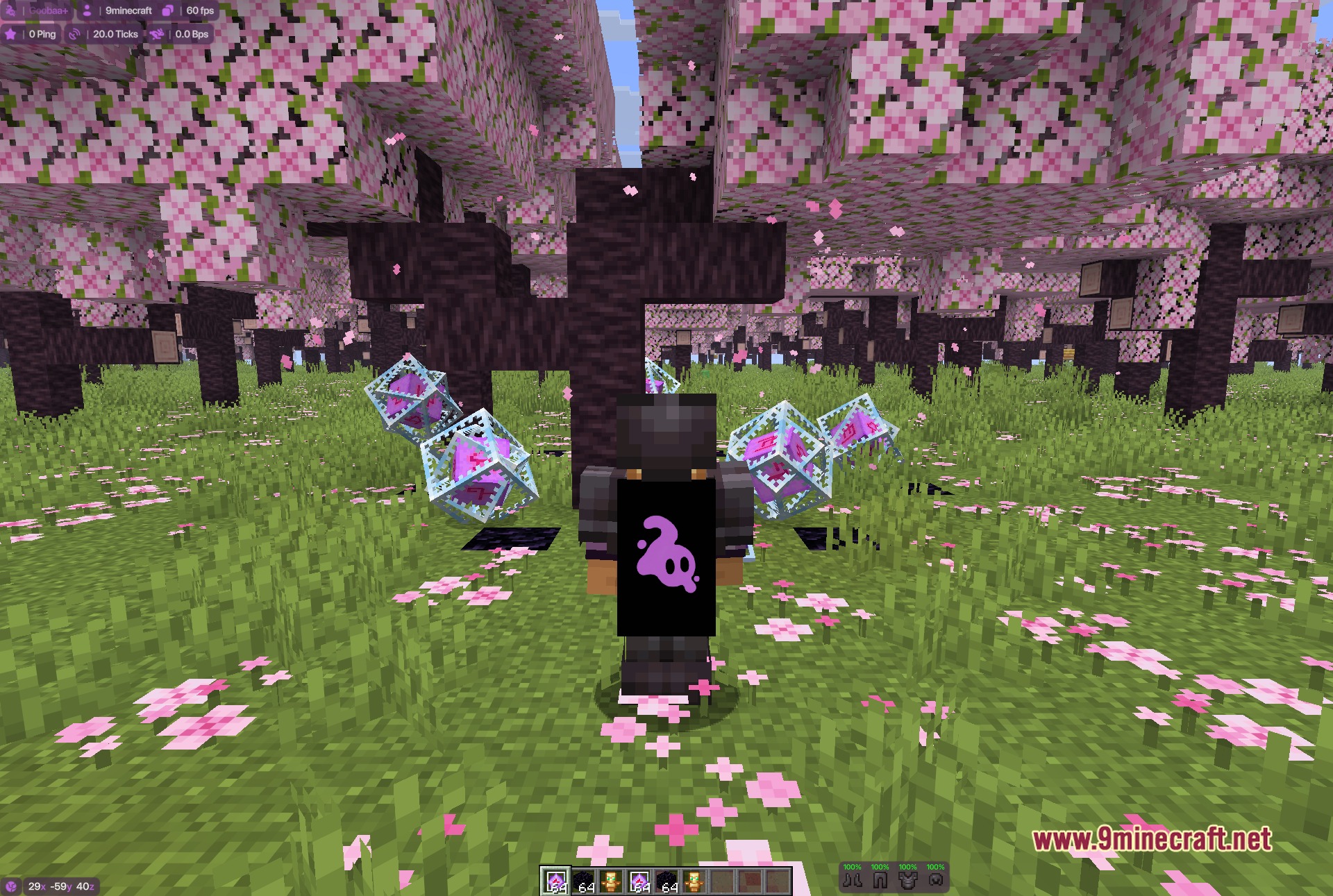
5 images from the Goobaa Client Mod page.
You May Also Like
Wikis that share the most with this one
More client wikis on the site
The most downloaded mods that have a wiki here
A few wikis from each of the other kinds