

 DownloadIncredible Graphics Shaders
Get the files on 9Minecraft
Guides
Step-by-step, in-game.
Customize Shadow and Lighting ColorsOpen the Shader Configuration Press the shader menu key (default: O ) to access settings. Navigate to the Lighting or…Enhance Water and Plant AnimationsAccess Animation Settings Open the shader menu with the default key ( O ) and navigate to the Animations or Effects…Reduce Lag from Shader EffectsIdentify Performance Bottlenecks Enable the FPS counter (usually toggled with Shift + F3 or through shader settings)…Switch Between Performance PresetsAccess the Shader Settings Press the shader configuration key (default: O ) while in-game to open the shader menu.…
Frequently asked questions
How do I turn on the shader after installing it?
Open your video settings in-game, find the Shaders option, and select Incredible Graphics Shaders from the list. The shader will activate immediately, though you may need to restart your world to see all effects fully applied.
Which performance preset should I use?
Start with the preset matching your hardware: Potato for older systems, Low for budget builds, Medium for mid-range PCs, and High for powerful rigs. You can switch presets anytime in the shader settings without restarting the game.
Why is my game lagging with this shader on?
Switch to a lower performance preset, or disable specific features like godrays or bloom in the shader options. If lag persists, reduce your render distance or lower other video settings like chunk updates.
Can I make shadows darker or change their color?
Yes—open the shader settings and look for shadow customization options where you can adjust shadow intensity and color tinting based on nearby light sources.
See all 10 Incredible Graphics Shaders questions ›
Gallery
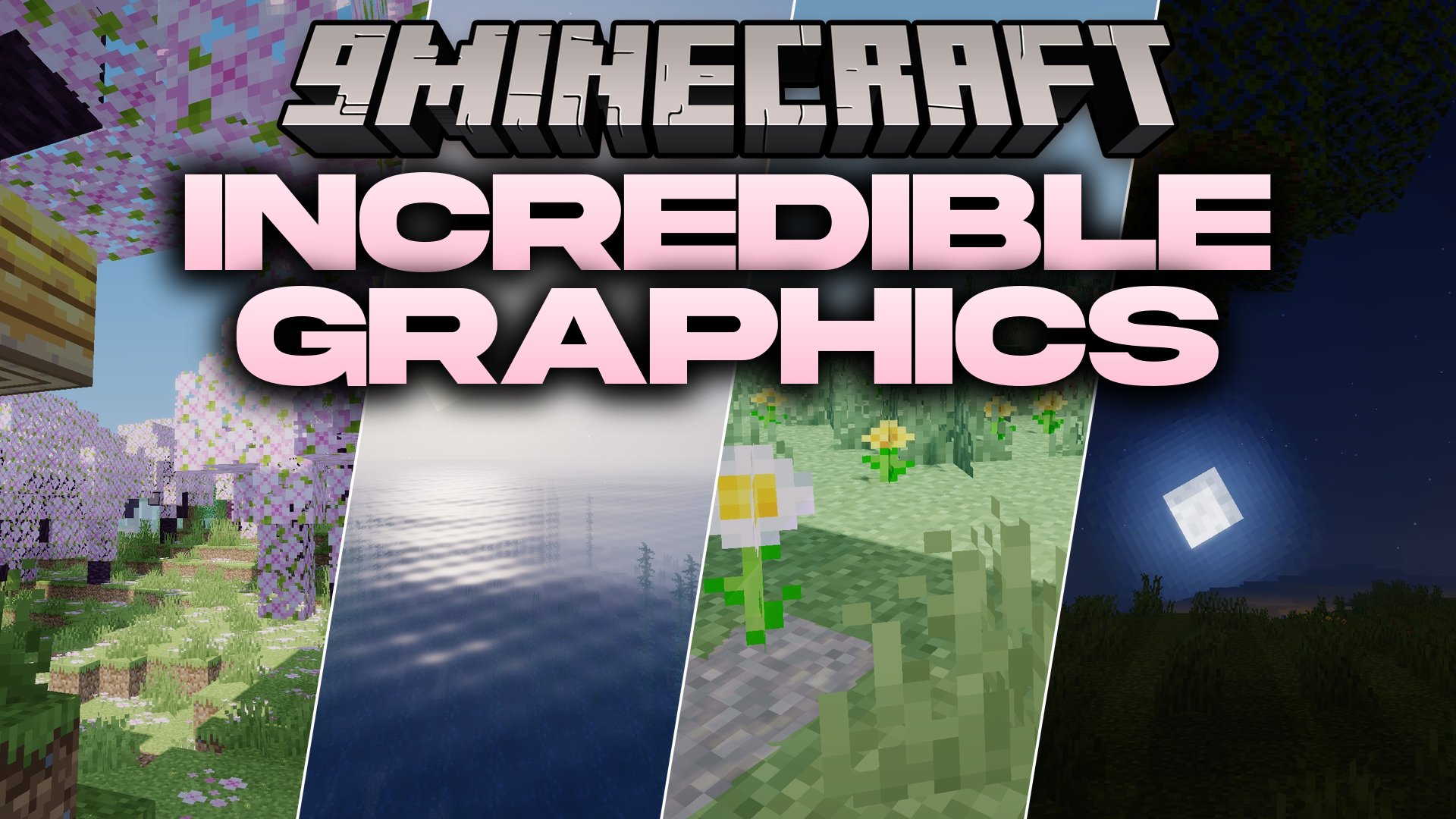
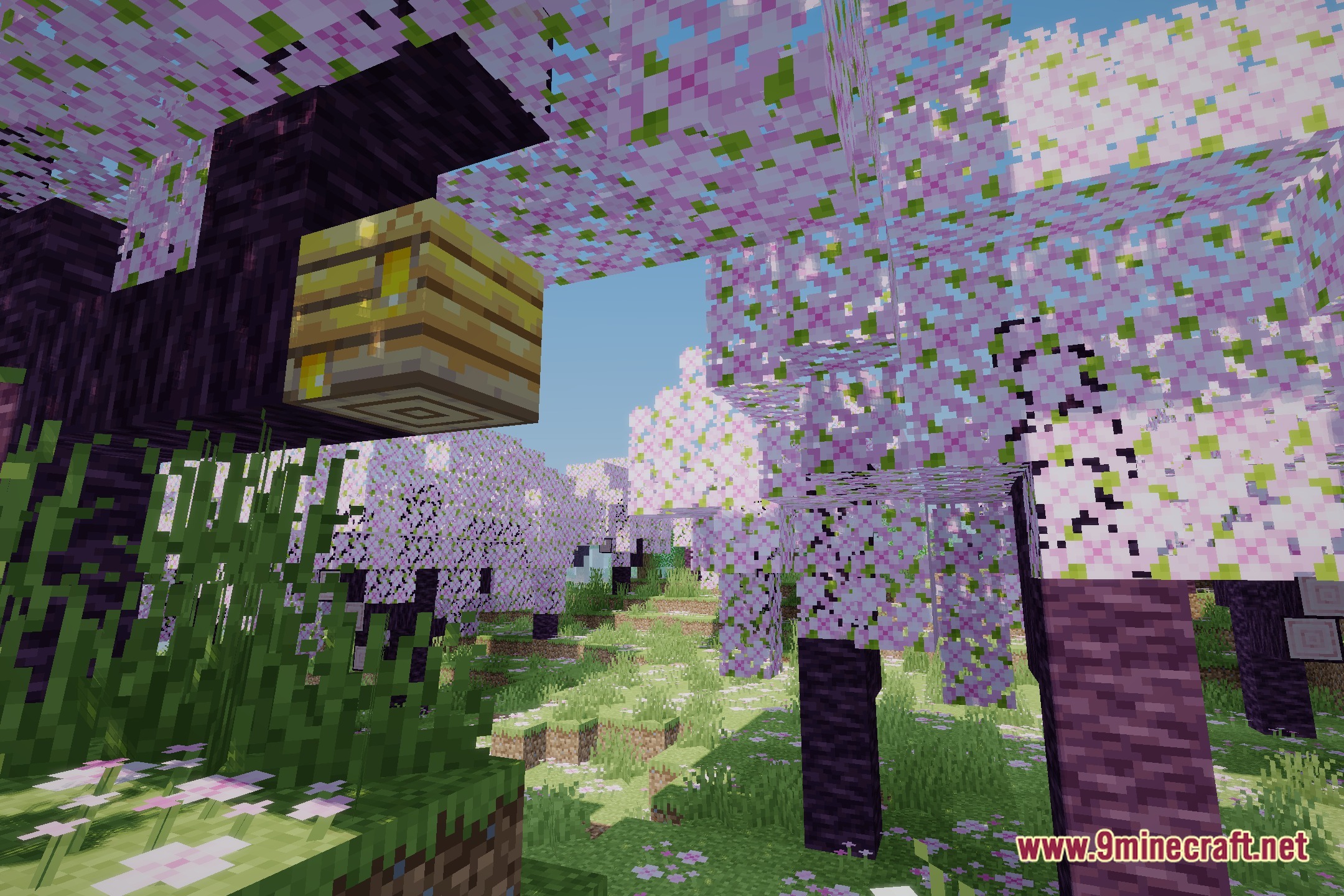
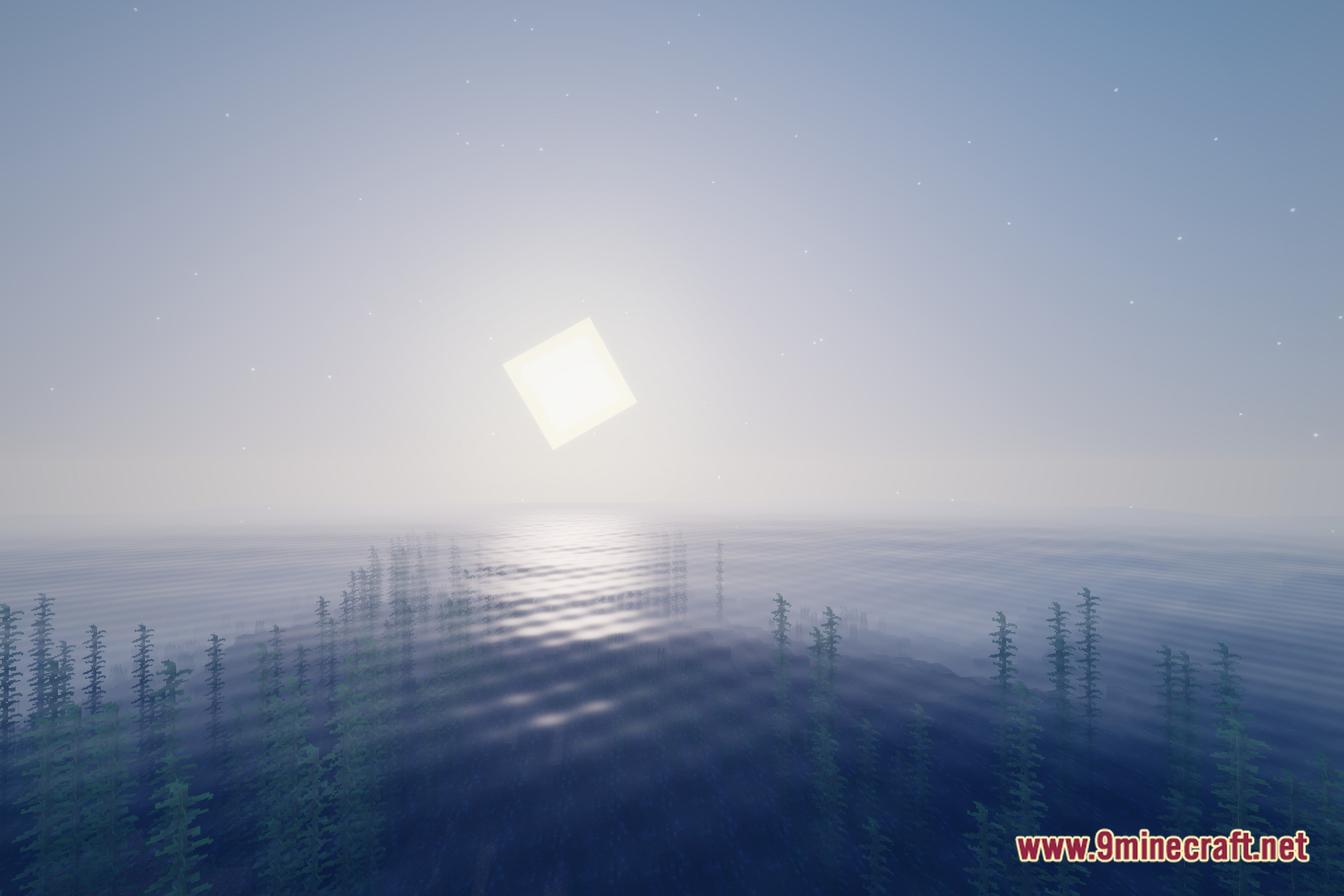
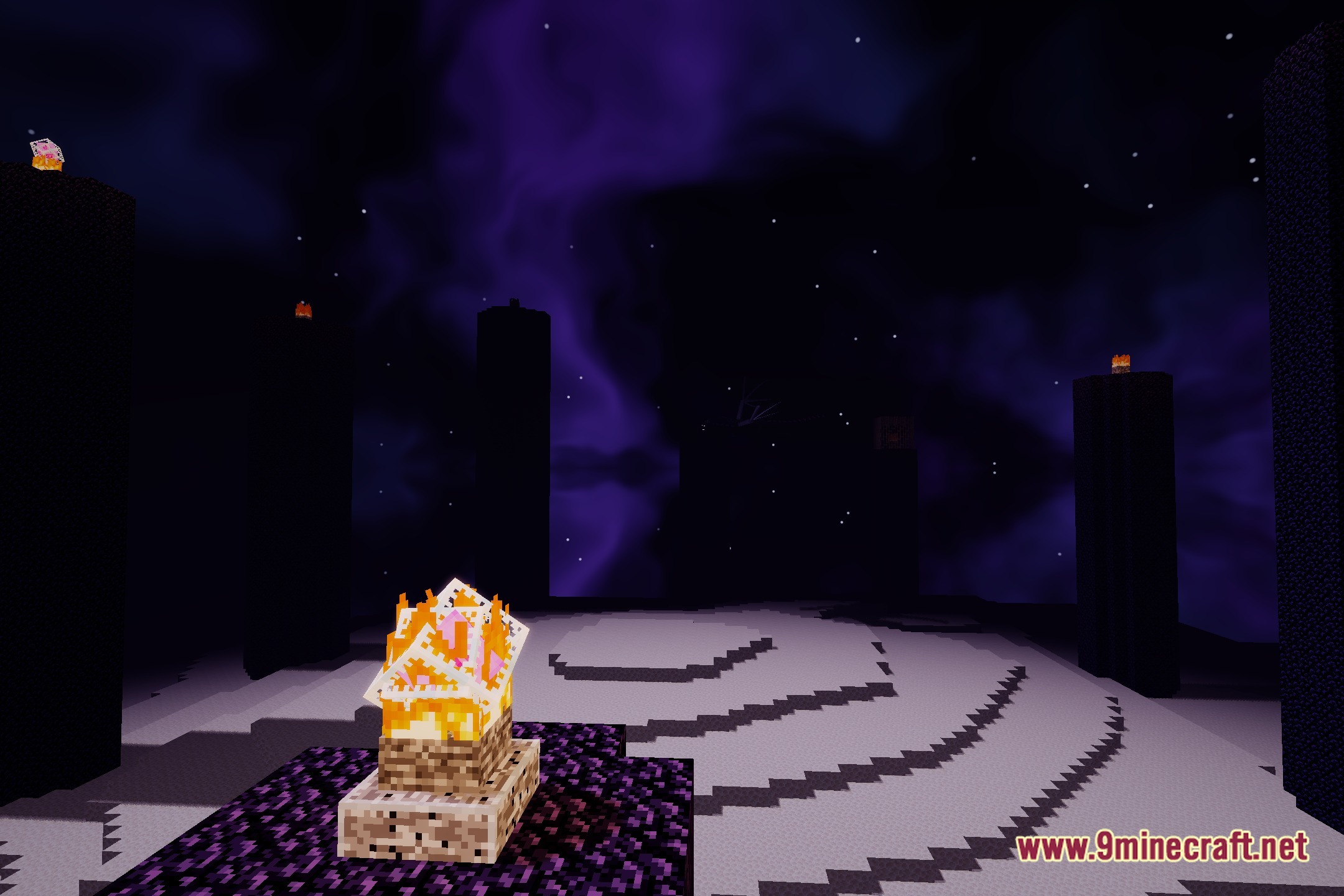
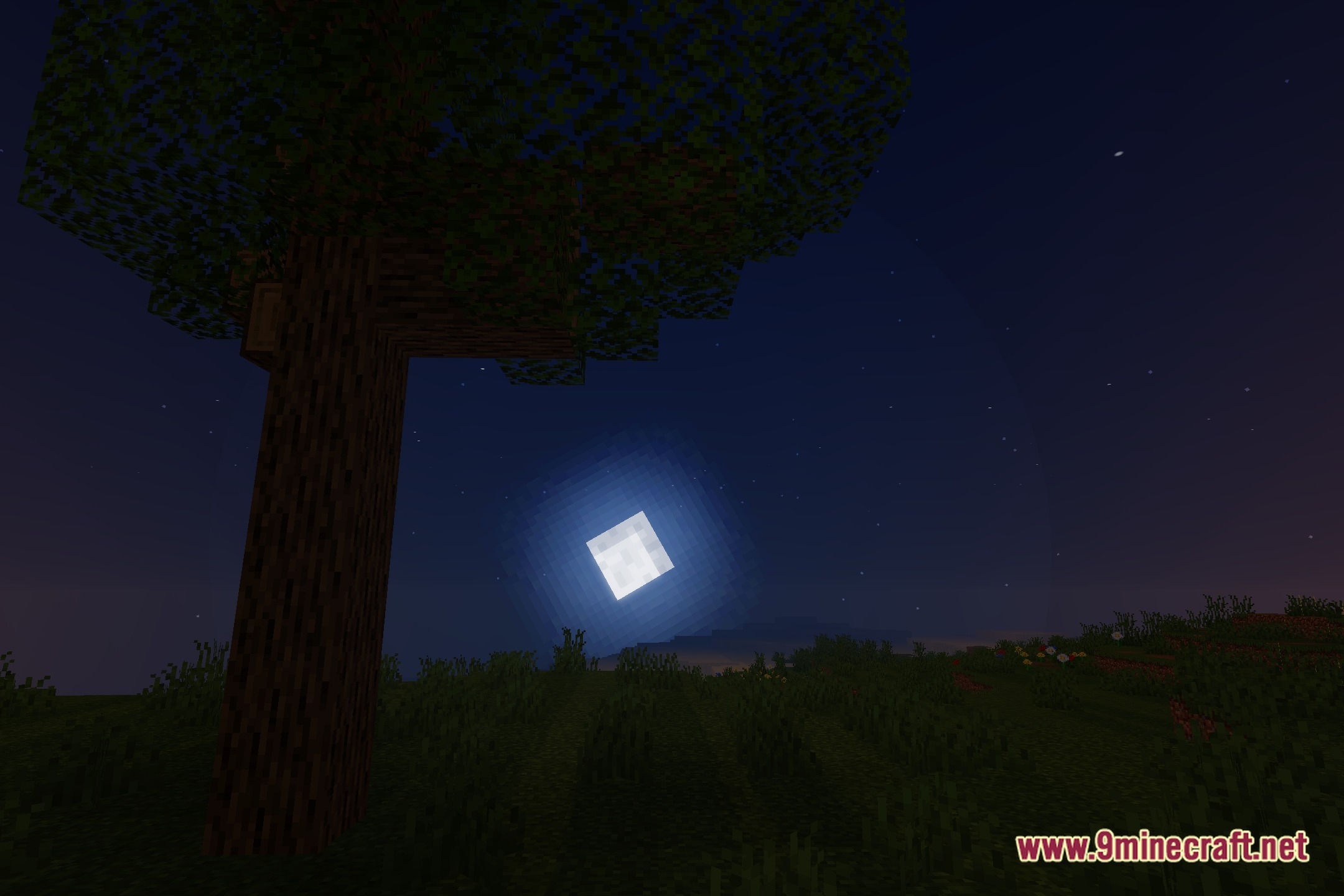
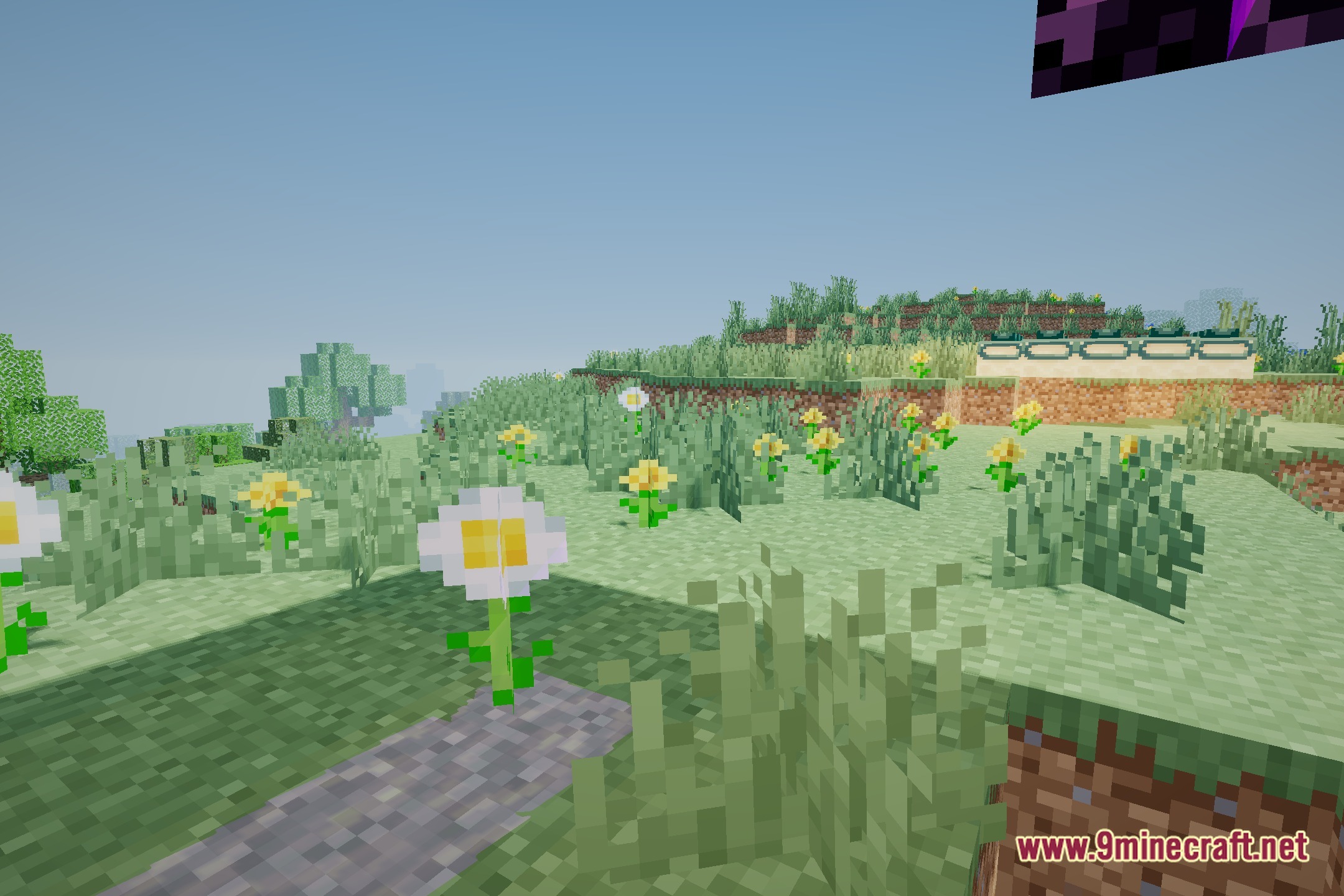
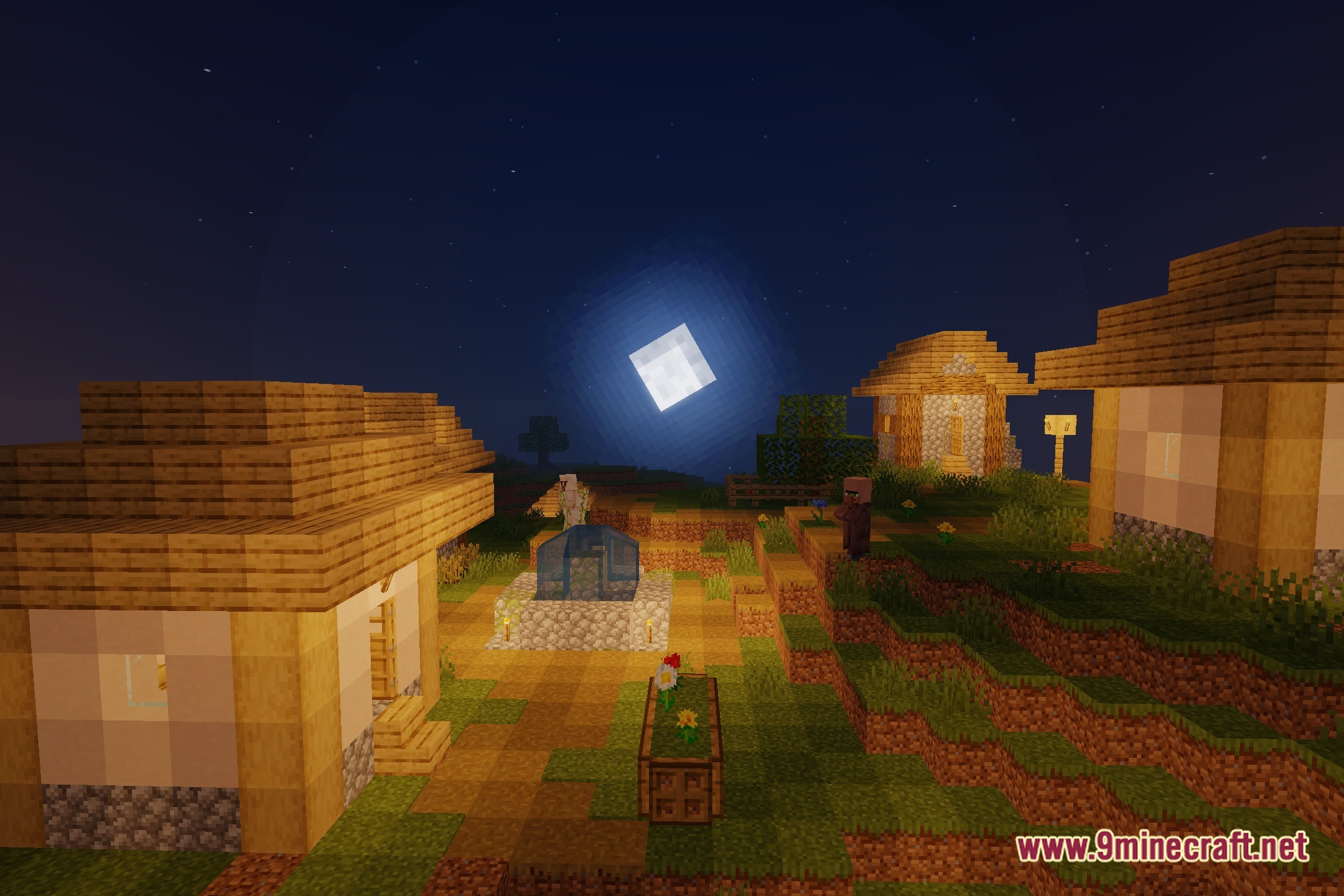
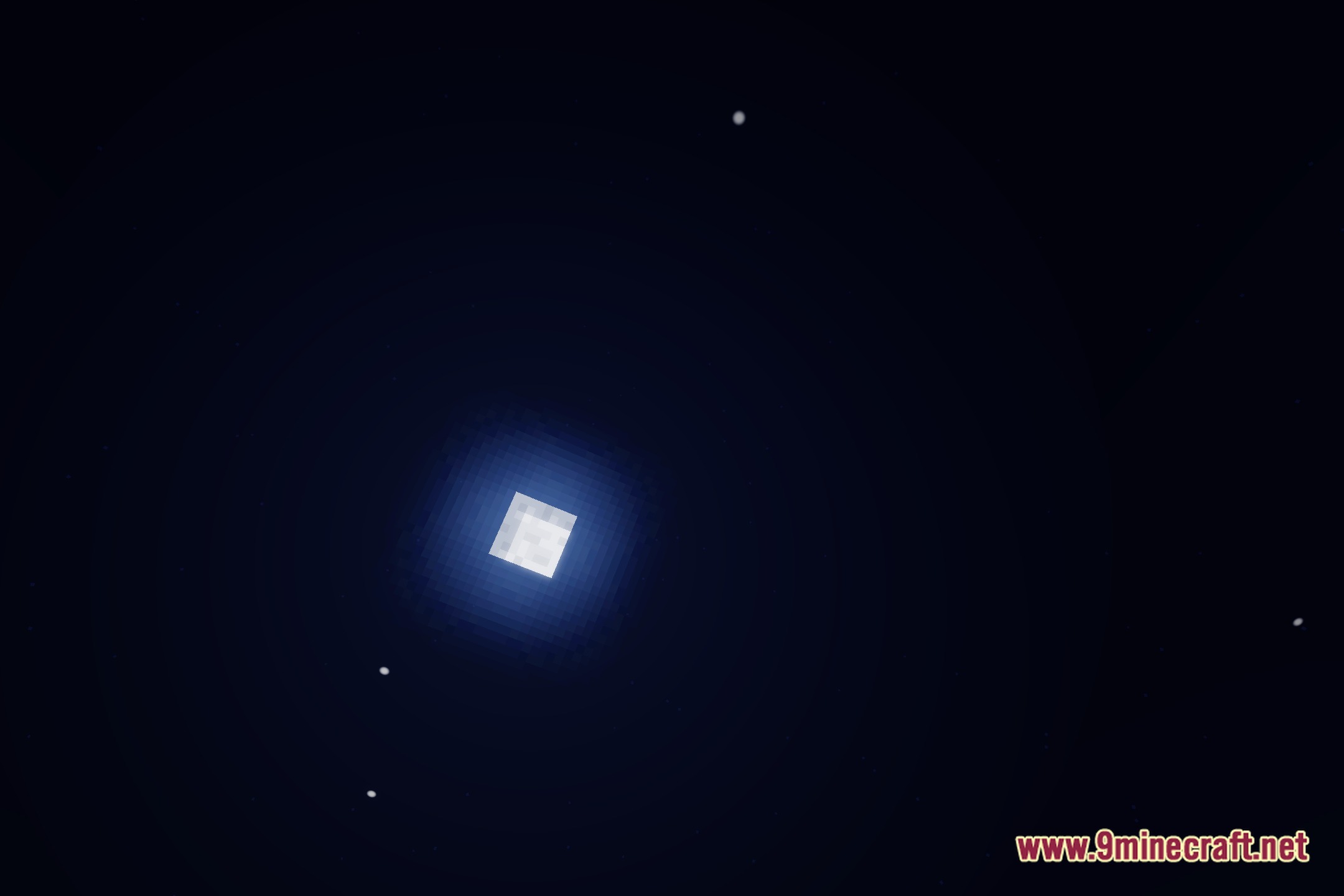
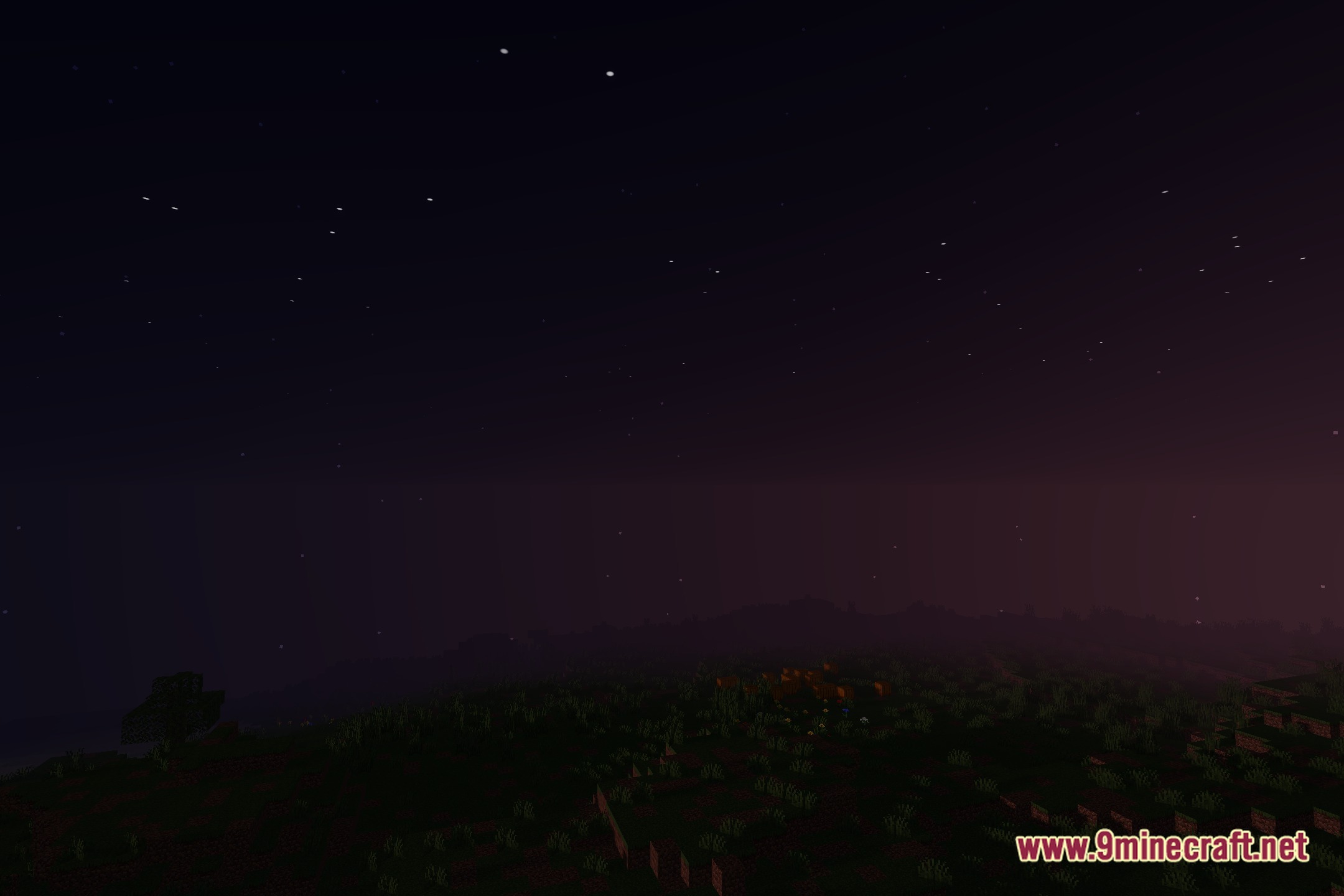
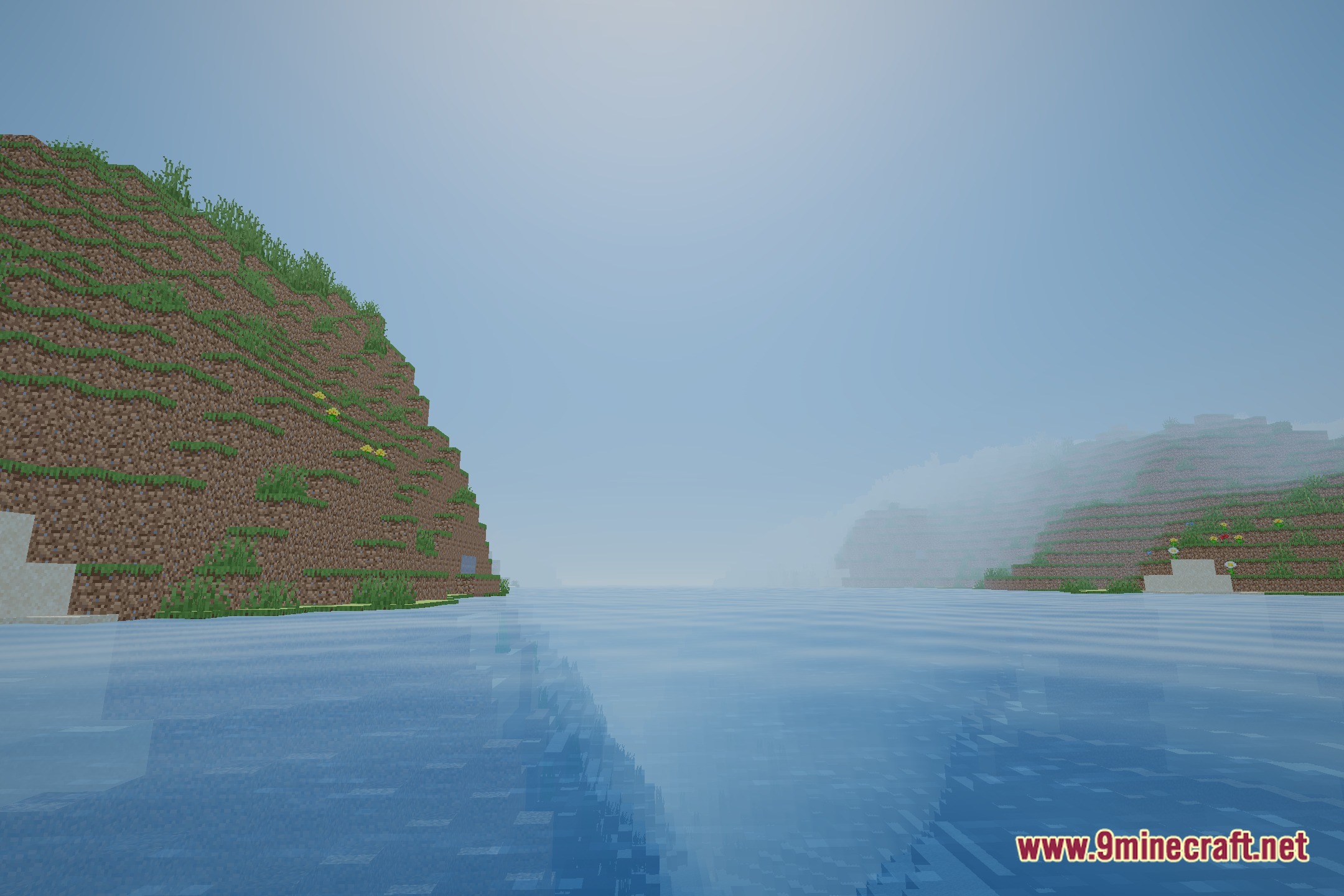
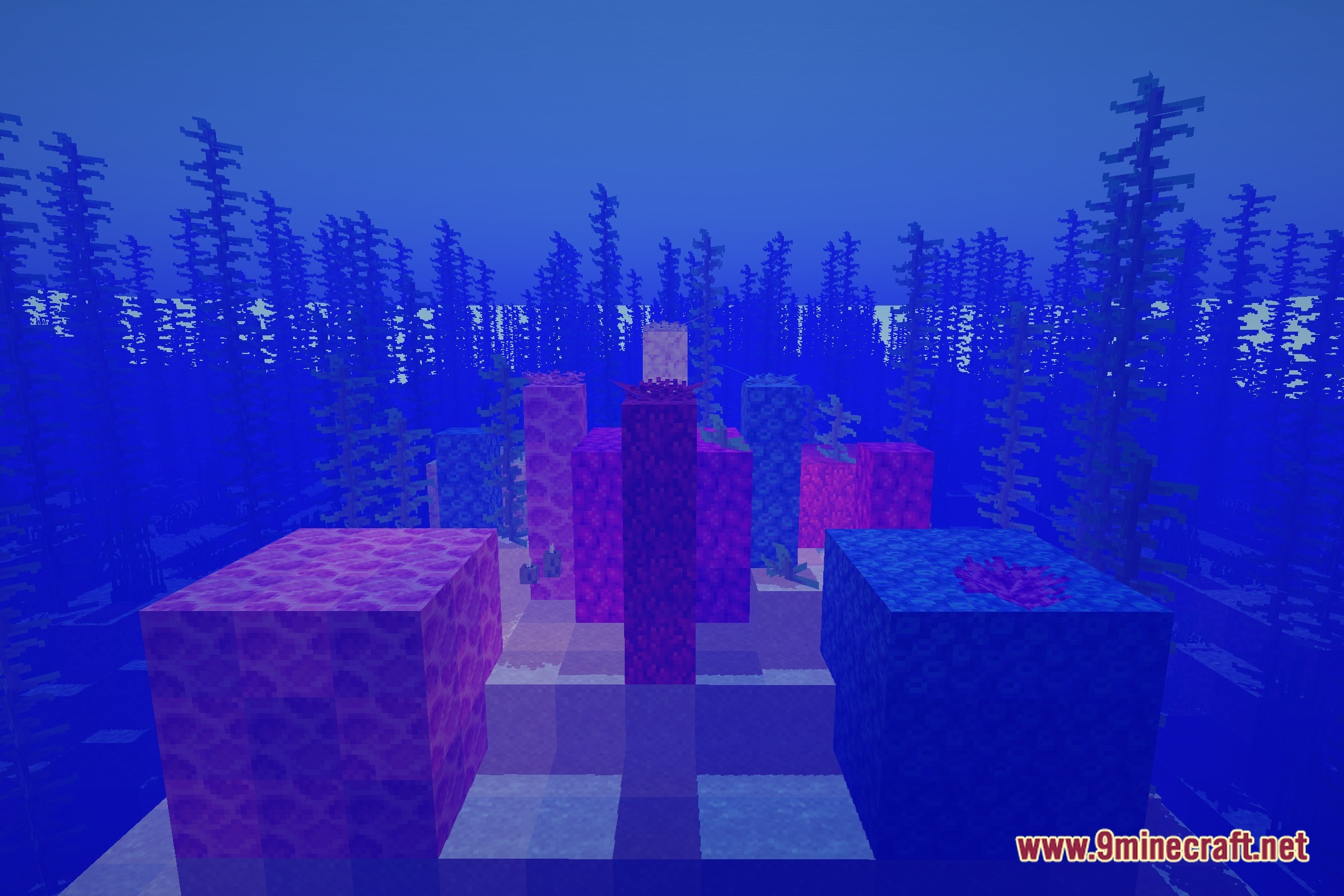
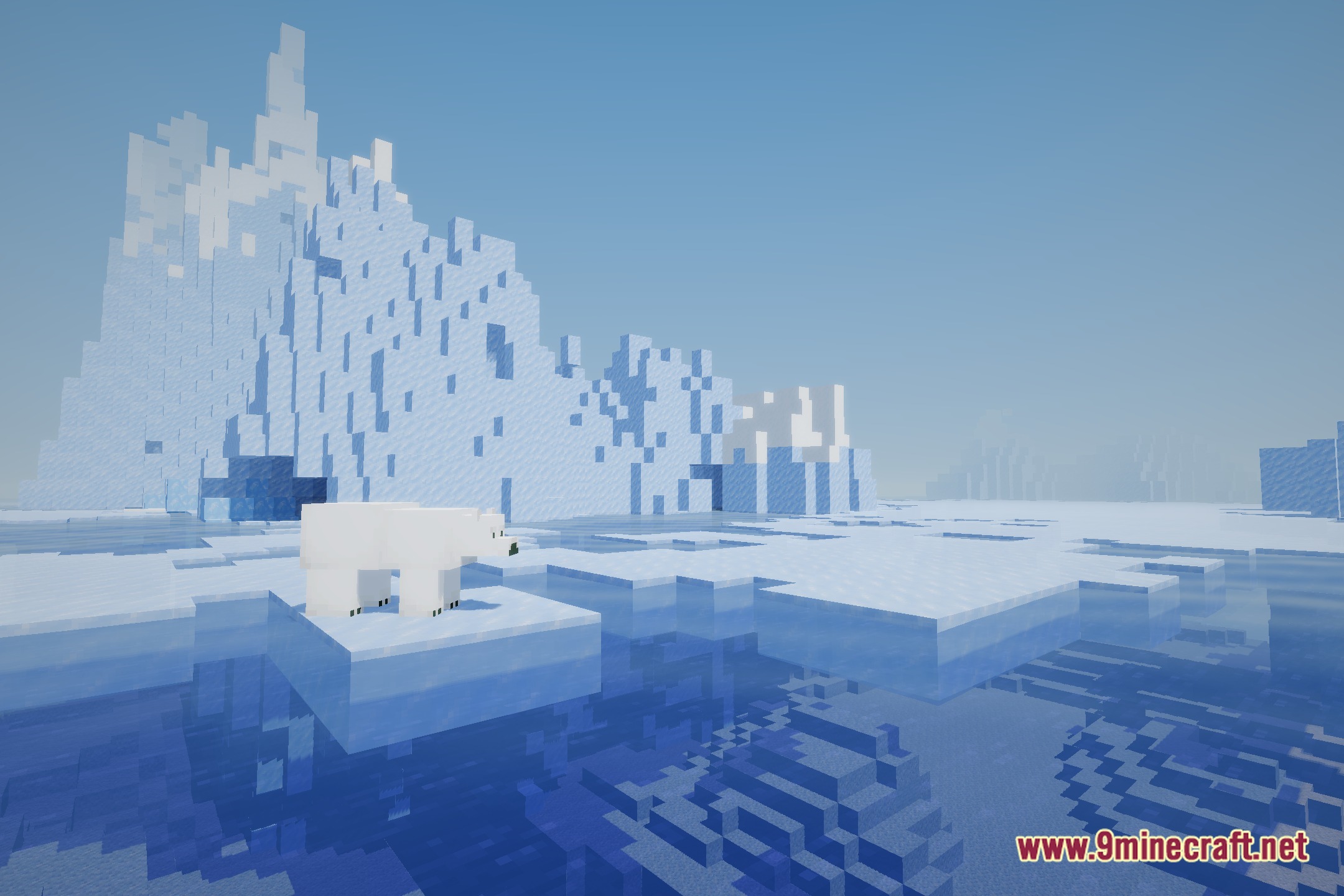
12 images from the Incredible Graphics Shaders page.
You May Also Like
Wikis that share the most with this one
Wikis on the same theme: light
More shader wikis on the site
The most downloaded mods that have a wiki here