

 DownloadBetterF3
Get the files on 9Minecraft
Contents (7)
Guides
Step-by-step, in-game.
How to Configure Which Modules Show on the BetterF3 OverlayReaching the Config Open the mod list from the main menu or pause screen, find BetterF3, and click its config button.…How to Open and Read the BetterF3 OverlayOpening the Overlay BetterF3 replaces the vanilla debug screen, so you open it the same way you always have: press…How to Set Up BetterF3 for the Best Readable OverlayStart From a Clean Slate A cluttered debug screen defeats the purpose of BetterF3. Begin by disabling every module,…How to Use BetterF3 to Diagnose Lag and Performance ProblemsWatch the Right Modules Enable the FPS and memory modules first. FPS tells you how smoothly the game is rendering;…
Configuration
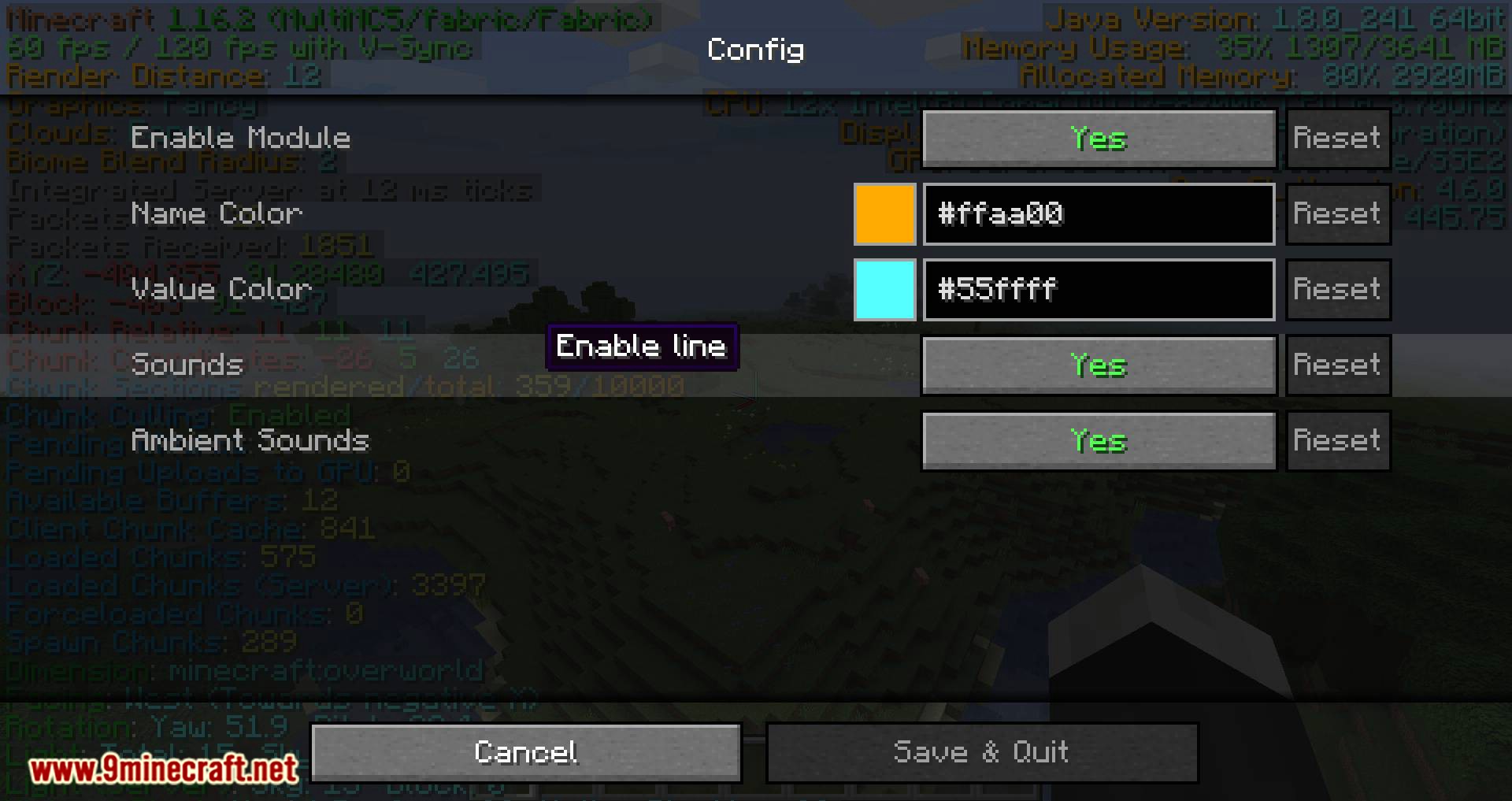
Every setting in the mod config file, with what it changes.
| Option | What it does |
|---|---|
always_enable_ping_graphAlways Enable the Ping Graph | Keeps the ping graph visible even when the F3 debug screen is closed |
always_enable_profilerAlways Enable the Profiler | Keeps the profiler graph visible even when the F3 debug screen is closed |
always_enable_tps_graphAlways Enable the TPS Graph | Keeps the TPS graph visible even when the F3 debug screen is closed |
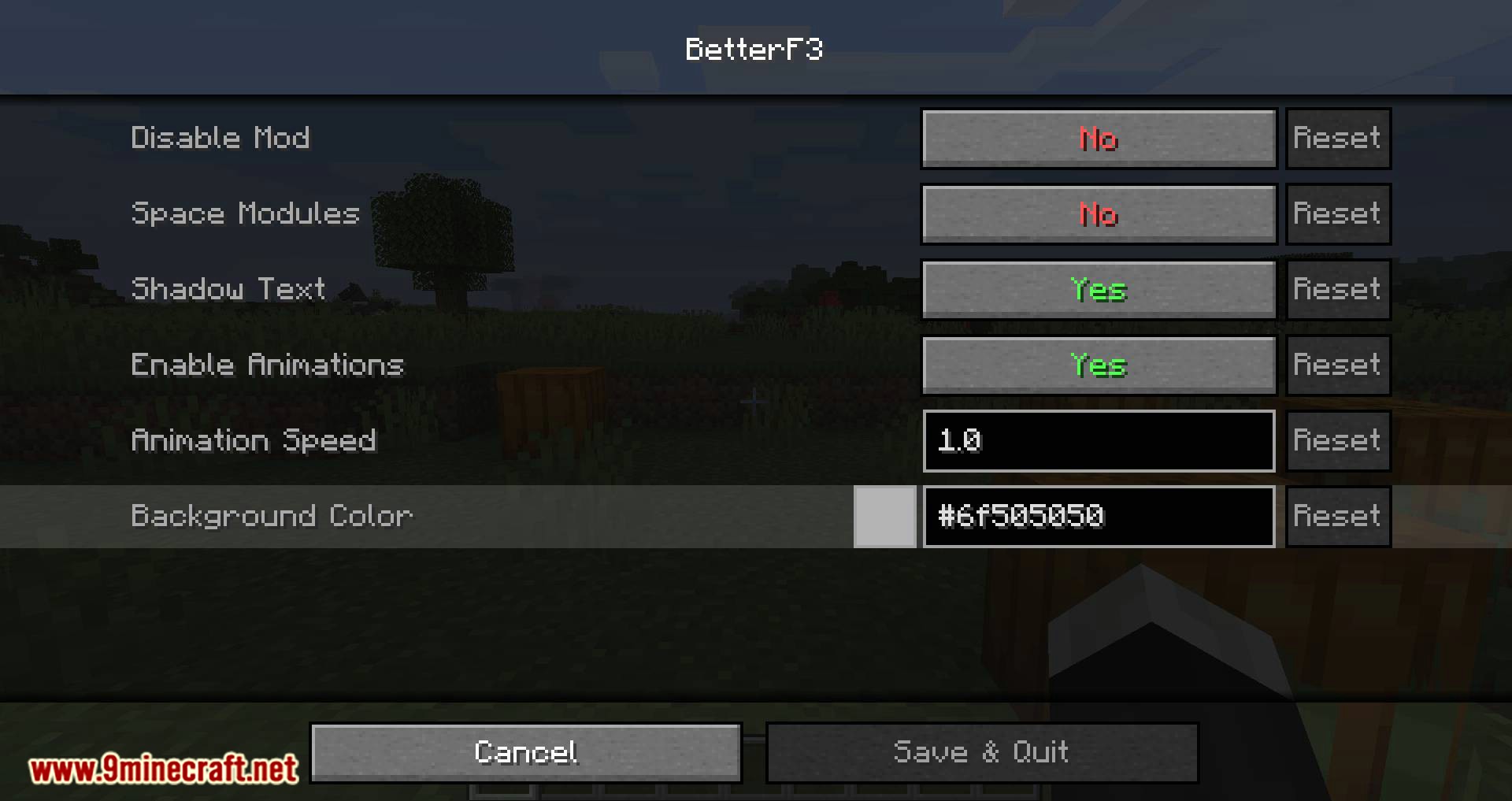
animationSpeed | Sets how fast the F3 menu animations play |
auto_start | Starts the profiler automatically when the game launches |
disableDisable Mod | Turns the entire BetterF3 mod off, restoring vanilla F3 |
empty_linesEmpty Lines Count | Sets how many blank lines separate F3 module groups |
animationsEnable Animations | Turns the F3 menu open/close animations on or off |
fontScale | Sets the size of the text drawn in the F3 menu |
bossbarHide Bossbar | Hides the boss bar while the F3 debug screen is open |
sidebarHide Sidebar | Hides the scoreboard sidebar while the F3 debug screen is open |
debug_crosshairHide the Debug Crosshair | Hides the debug crosshair shown while the F3 screen is open |
memory_color_toggle | Toggles colored highlighting of the memory usage readout |
performance_optimizations | Turns on optimizations that reduce F3 rendering overhead |
order_right_buttonRight Modules | Moves the right-side module list button to the right side of the screen |
shadow_text | Toggles drop shadows behind the F3 debug text |
space_modules | Adds spacing between individual F3 debug modules |
time_format | Sets the format used to display the in-game time |
Other settings in this file
5 more options the mod ships without its own description. Names are taken straight from the config file.
- general_settings
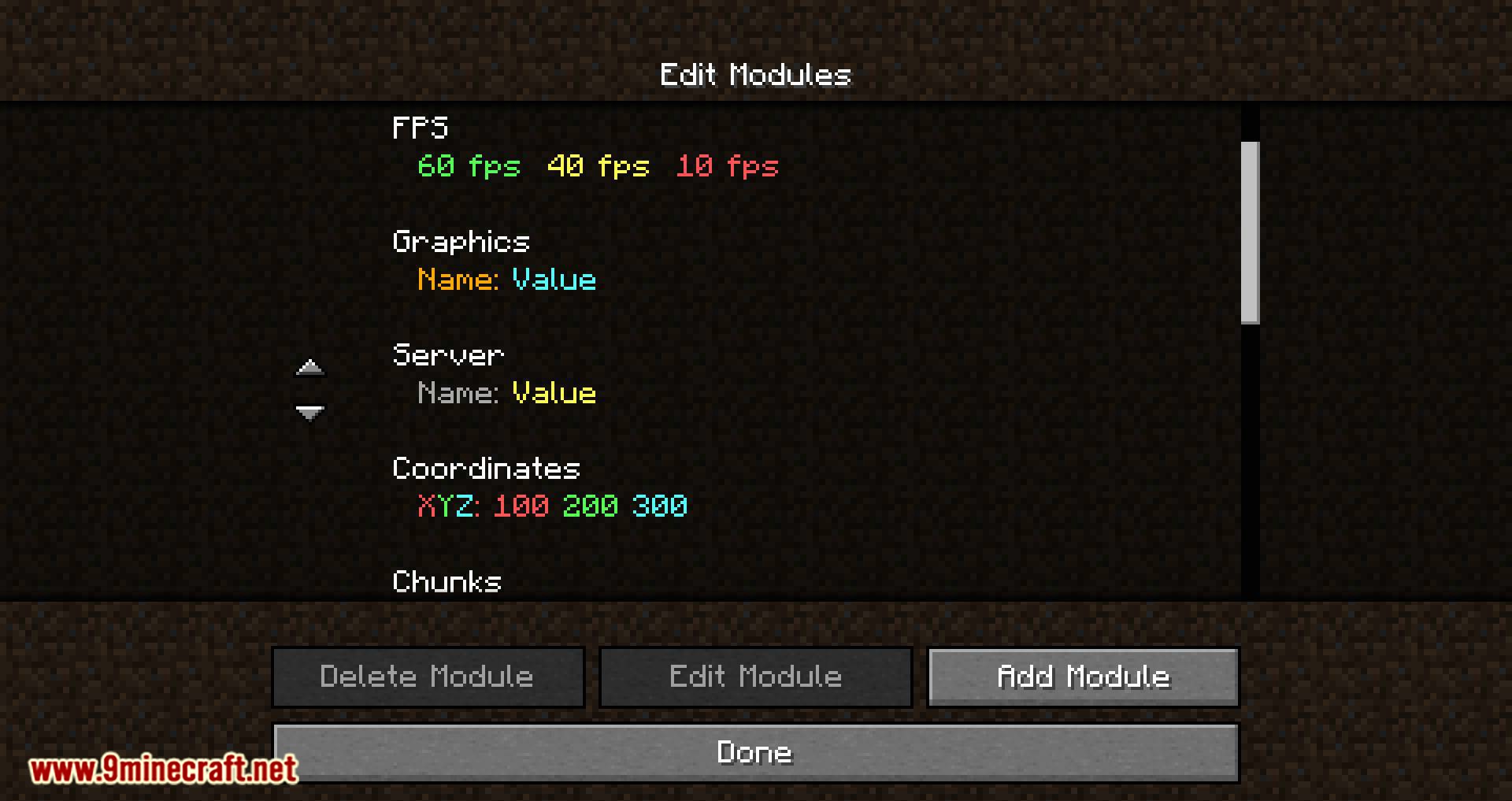
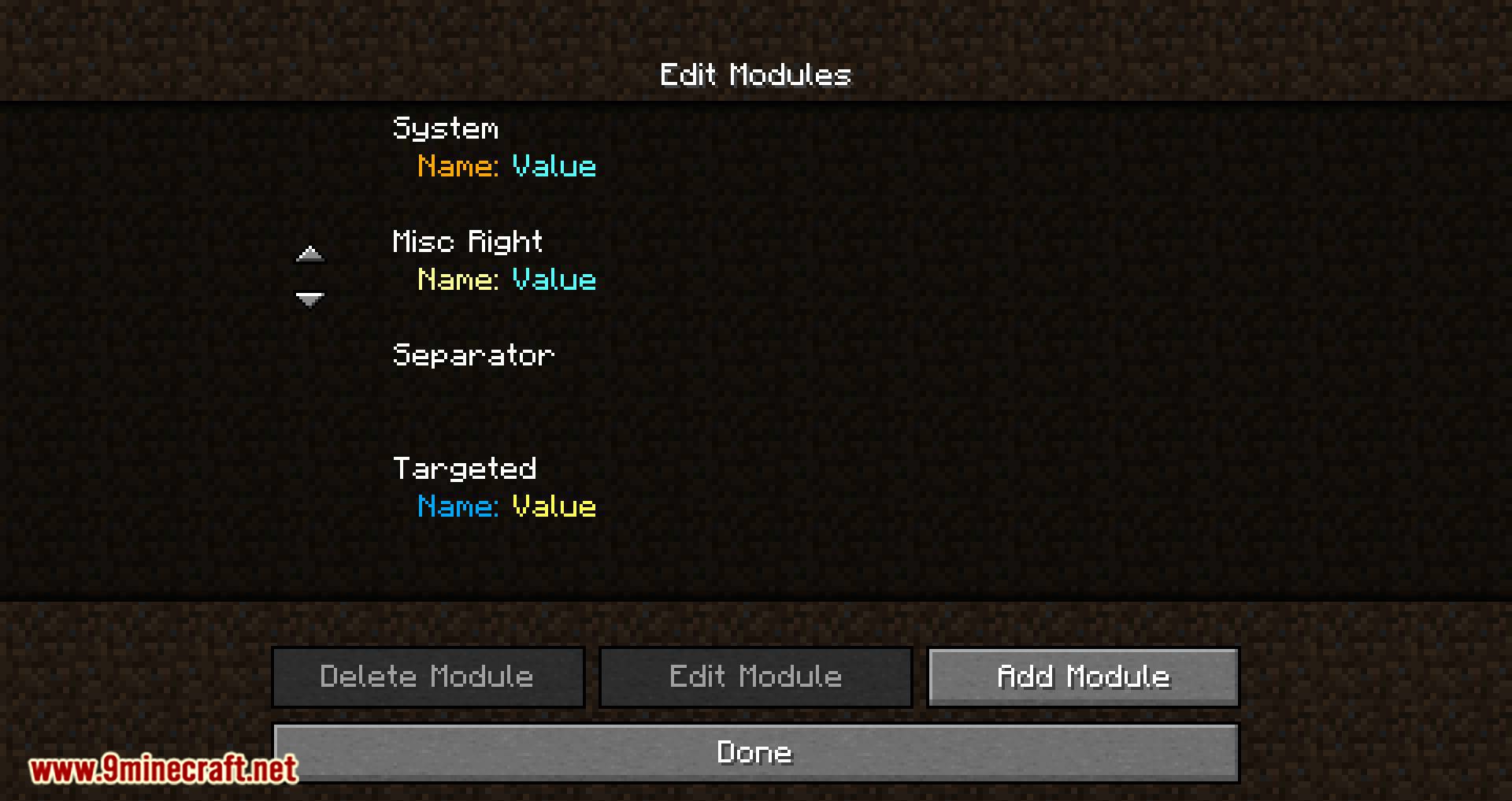
- left_modules
- order_left_buttonLeft Modules
- right_modules
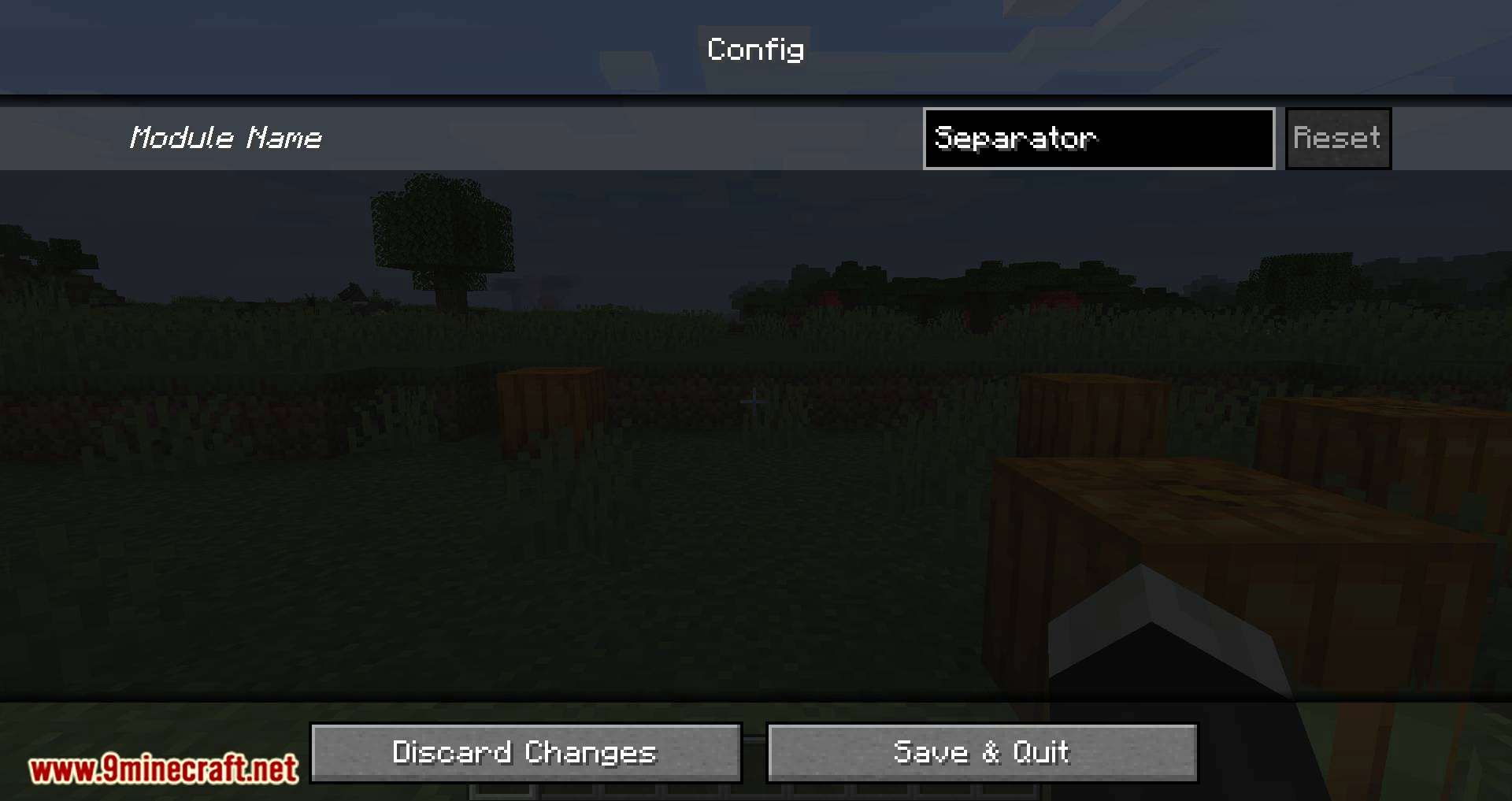
- module_name
Frequently asked questions
How to use BetterF3 Mod?
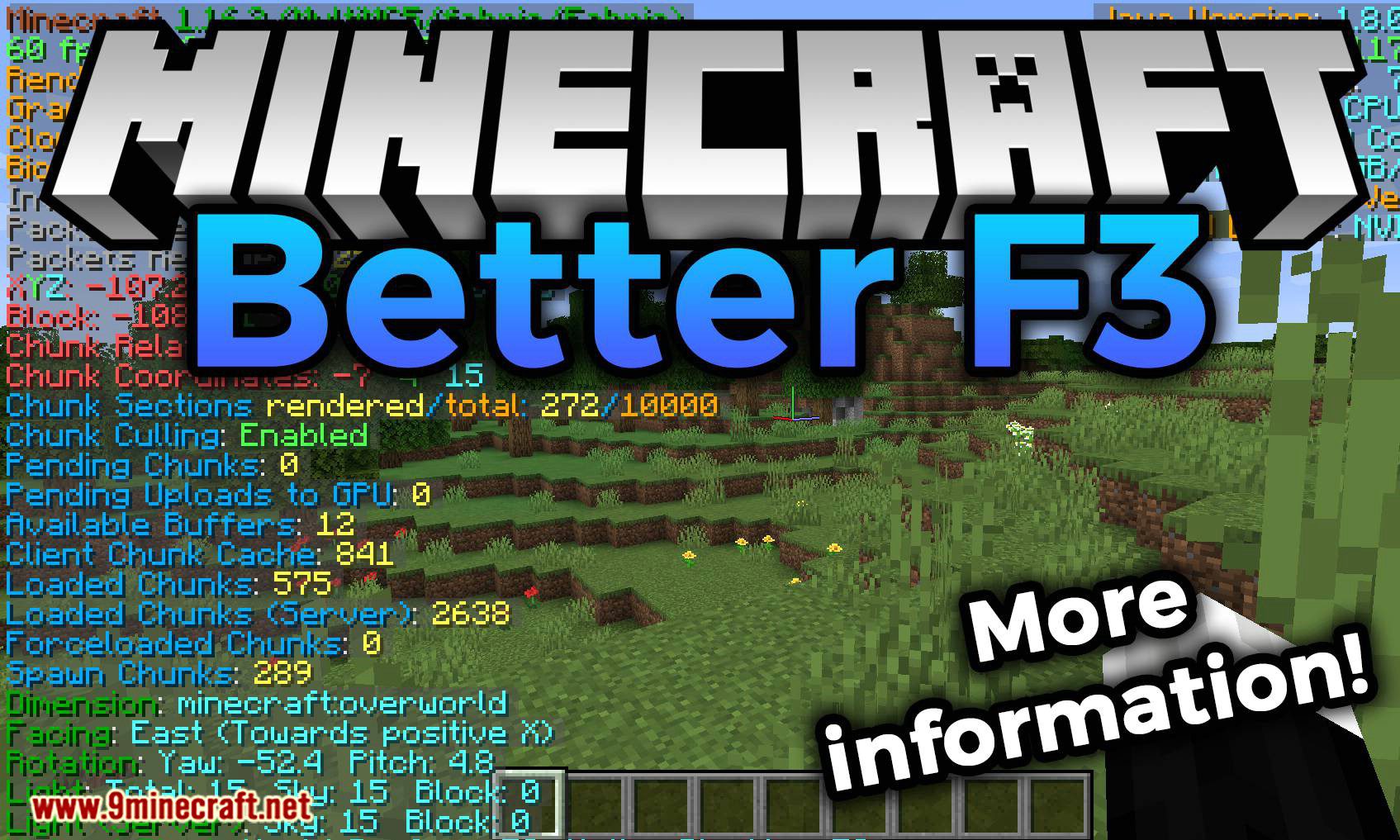
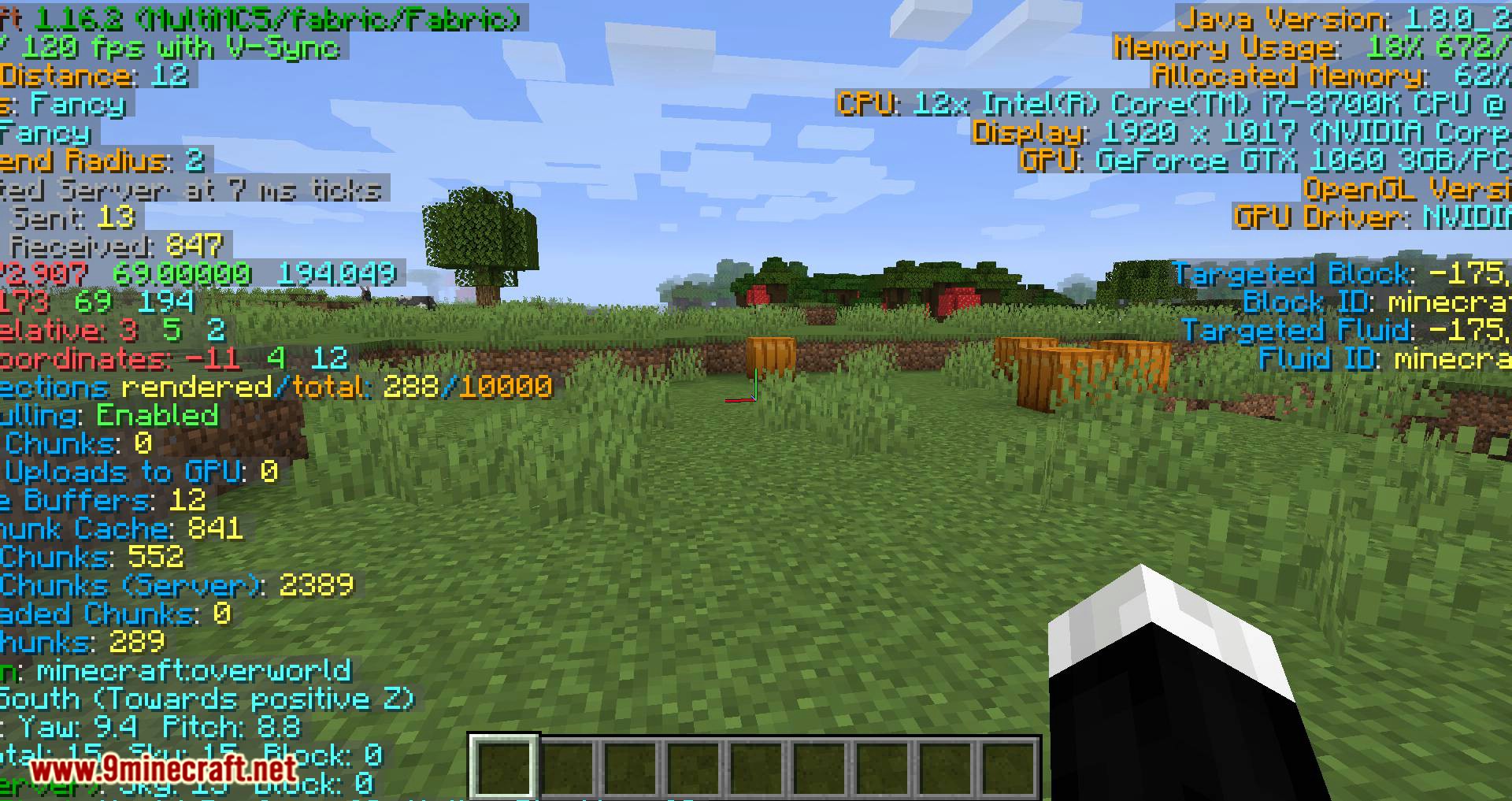
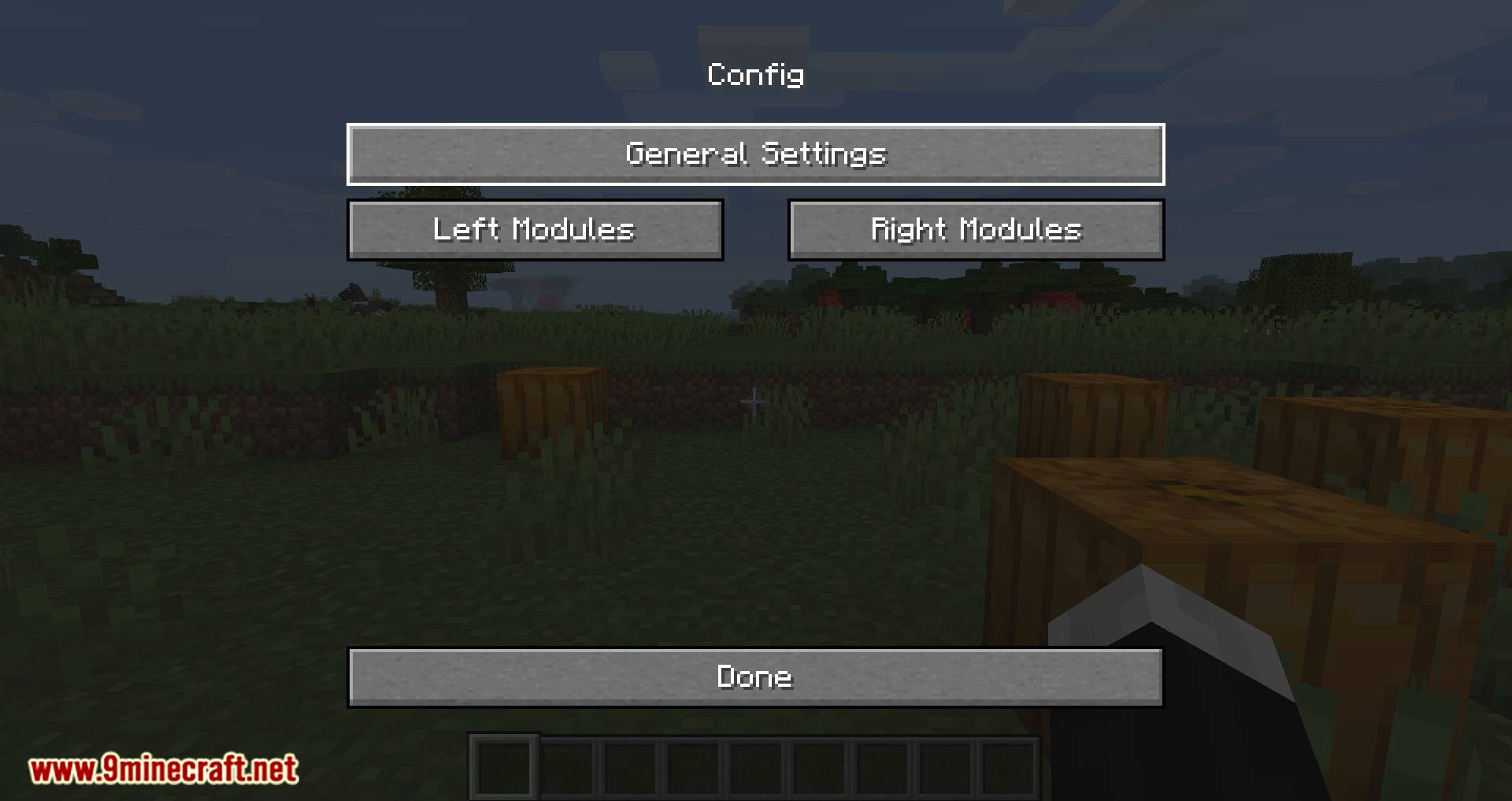
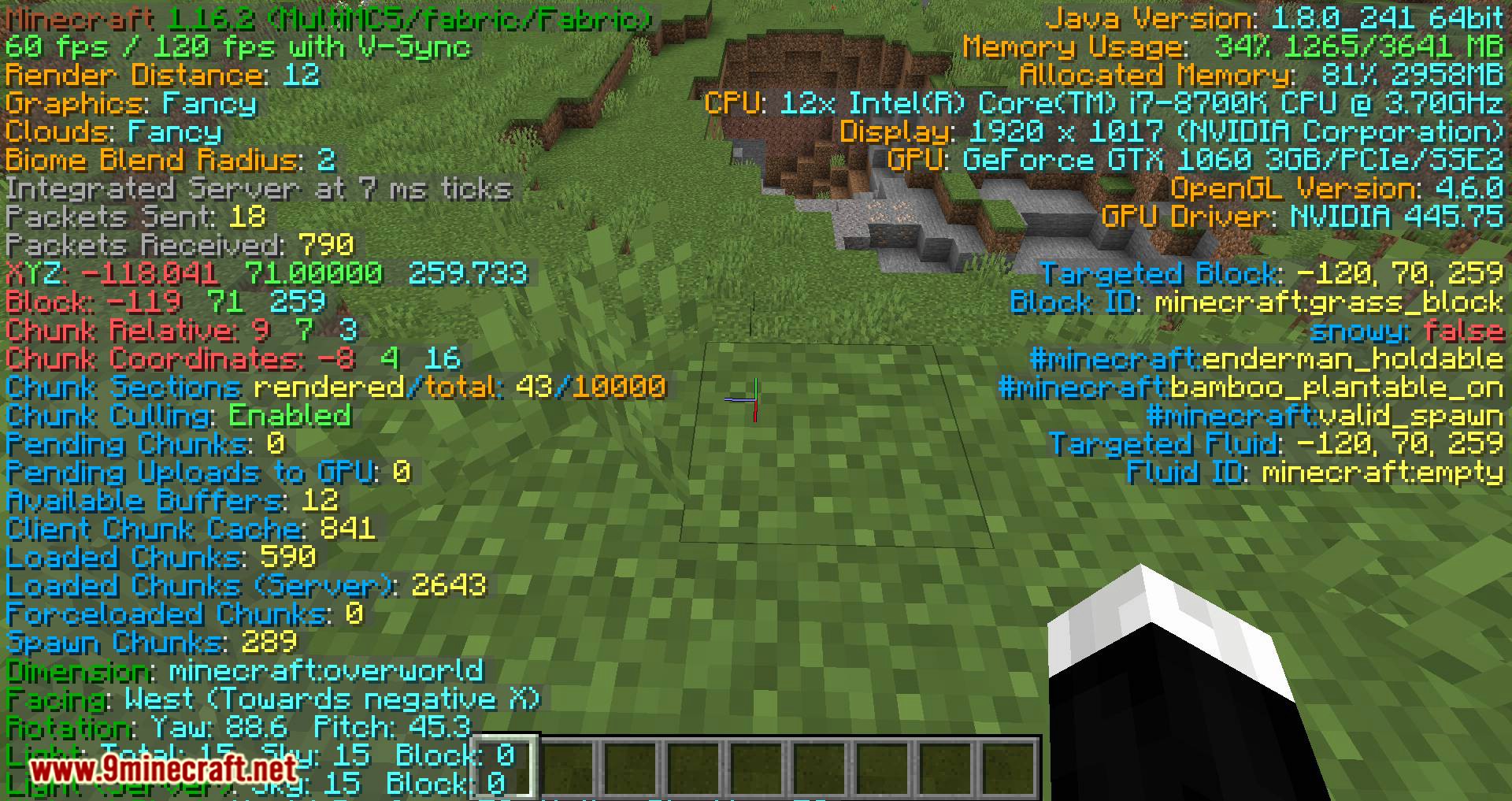
Press the debug key (F3 by default) to toggle the BetterF3 overlay on and off, just like the vanilla debug screen. From there, open the mod's config screen to choose which modules appear and how they're laid out.
How do I open the BetterF3 config screen?
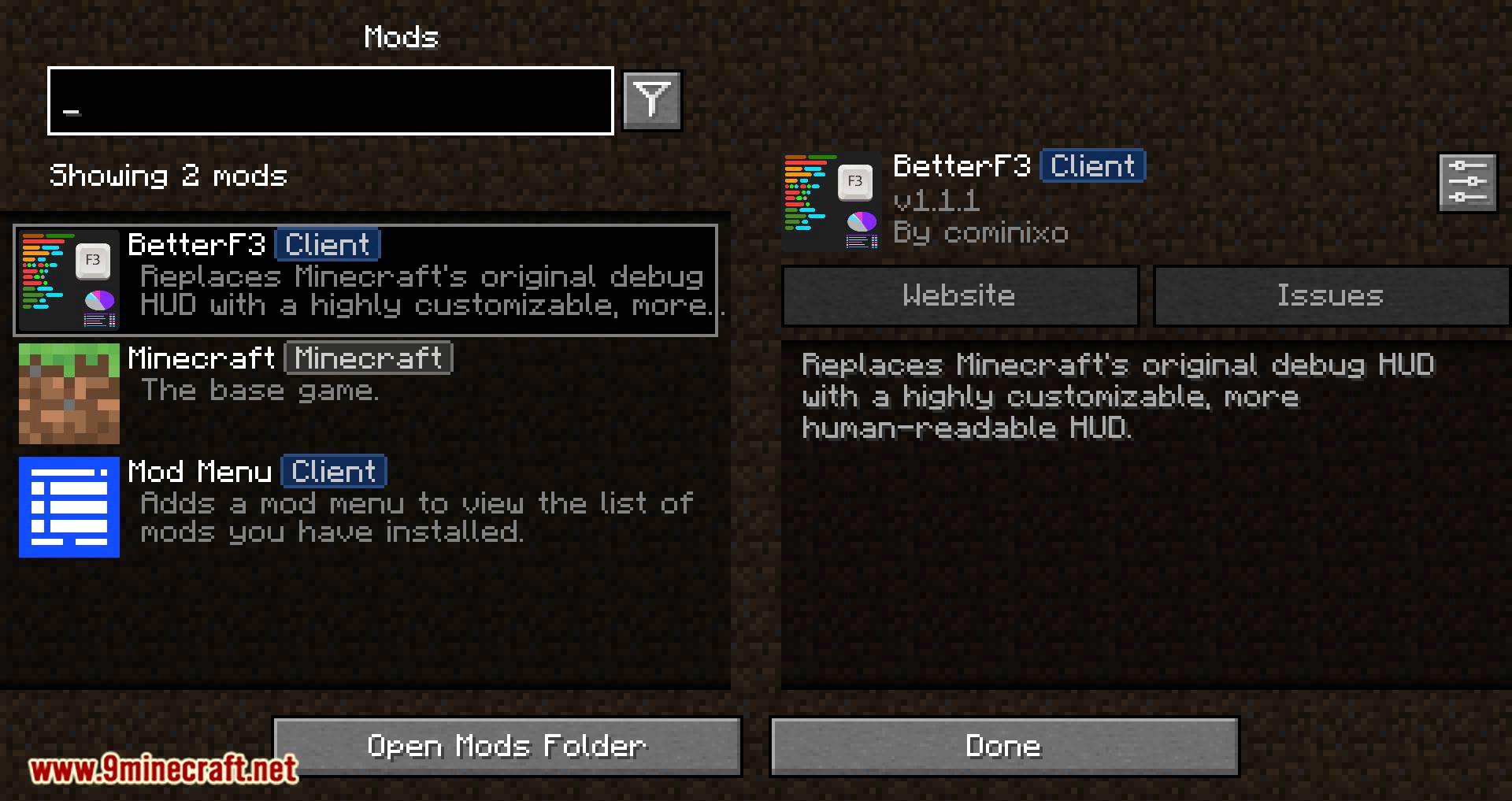
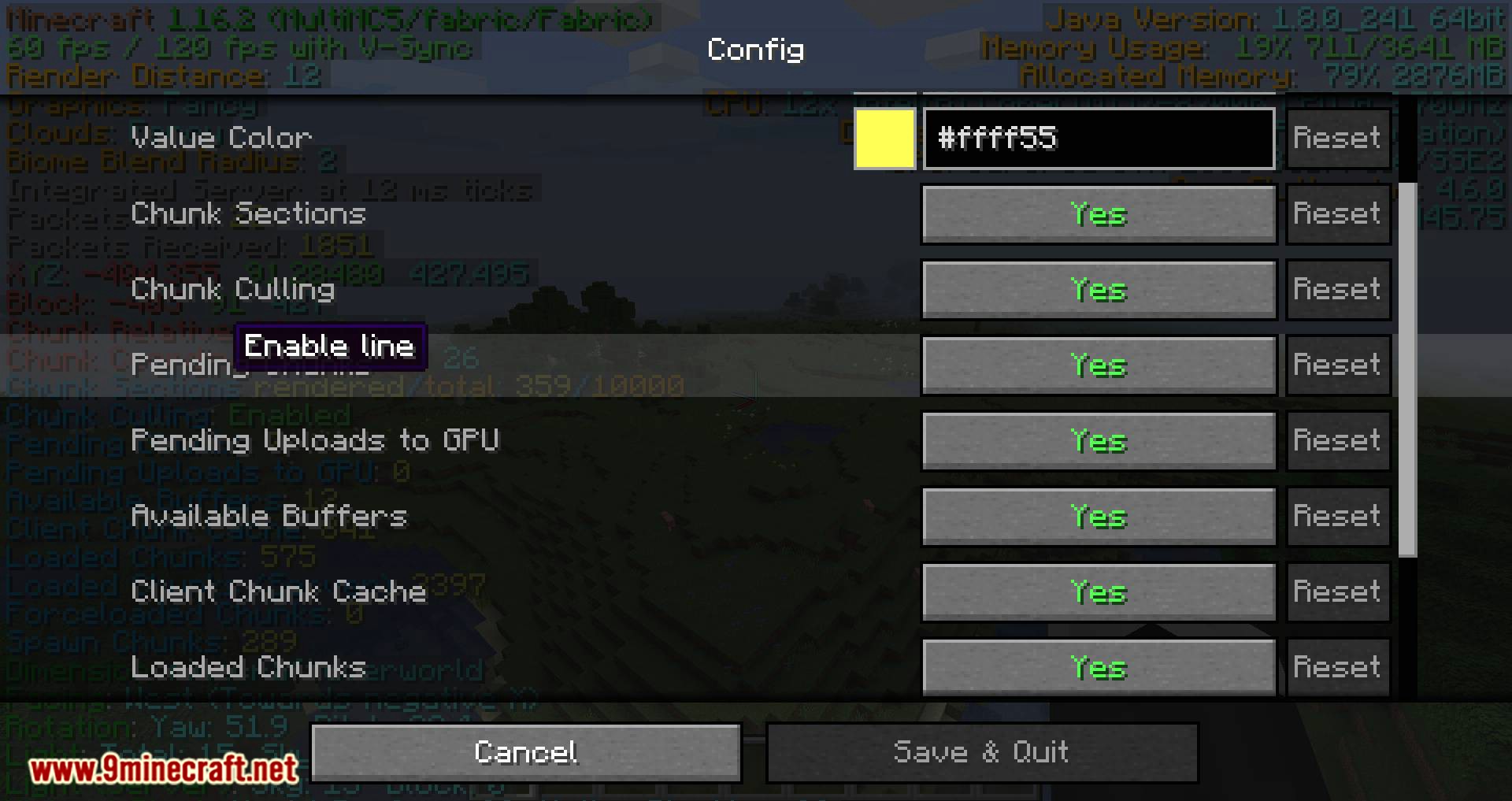
Open the mod list from the main menu or pause menu, find BetterF3, and click its config button. You can also bind a key in the controls menu to open the BetterF3 settings directly in-game.
How to use BetterF3 to see fps and coordinates?
Enable the FPS and position modules in the BetterF3 config, then press F3 to show the overlay. Each module can be toggled individually, so you only see the info you actually want.
BetterF3 modules not showing up
Check that the module is enabled in the config and that its position isn't pushed off-screen by your layout settings. Some modules only display data when relevant, like the chunk or entity info, so they may be hidden until that data exists.
See all 10 BetterF3 questions ›
Dependencies
Other mods needed to run this one.
Gallery
11 images from the Betterf3 Mod page.
You May Also Like
Wikis that share the most with this one
More mod wikis on the site
The most downloaded mods that have a wiki here
A few wikis from each of the other kinds