

 DownloadBetter Title Screen Mod
Get the files on 9Minecraft
Guides
Step-by-step, in-game.
How to Add Color Codes to Your Title Screen TextUsing Section Sign Codes Minecraft formatting codes start with the section sign § followed by a single character. In…How to Change the Custom Text on the Minecraft Title ScreenFinding and Editing the Config Open your .minecraft/config folder and locate bettertitlescreen.cfg . Open it with a…How to Hide the Forge Version, Game Version, and Mod CountWhy Hide This Information The lower-left corner of the vanilla title screen normally shows the Minecraft version, and…How to Reset the Title Screen Text to DefaultWhen You Need a Reset If your custom text stops rendering, shows garbled characters, or you simply want the original…
Frequently asked questions
How do I change the text on the Minecraft title screen?
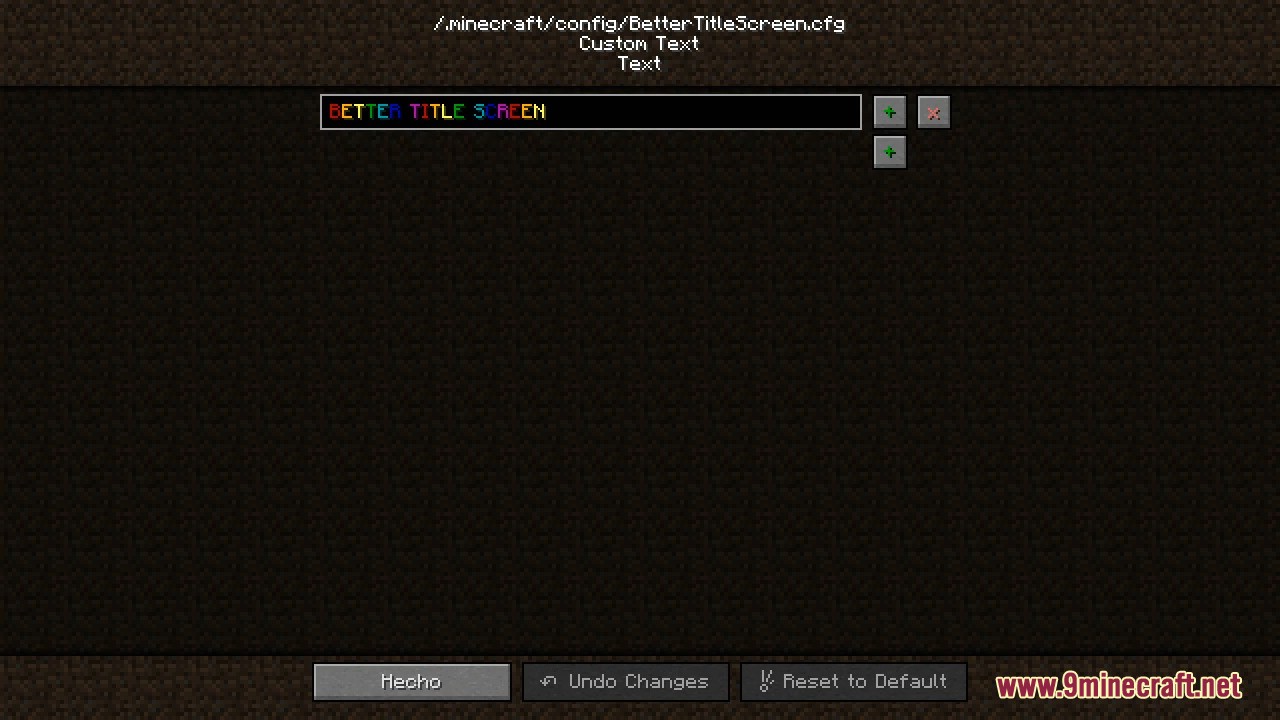
Open the .minecraft/config folder, find bettertitlescreen.cfg, and open it with a text editor like Notepad. Edit the value after S:Text and save the file, then restart the game to see your new text.
Where is the bettertitlescreen.cfg file located?
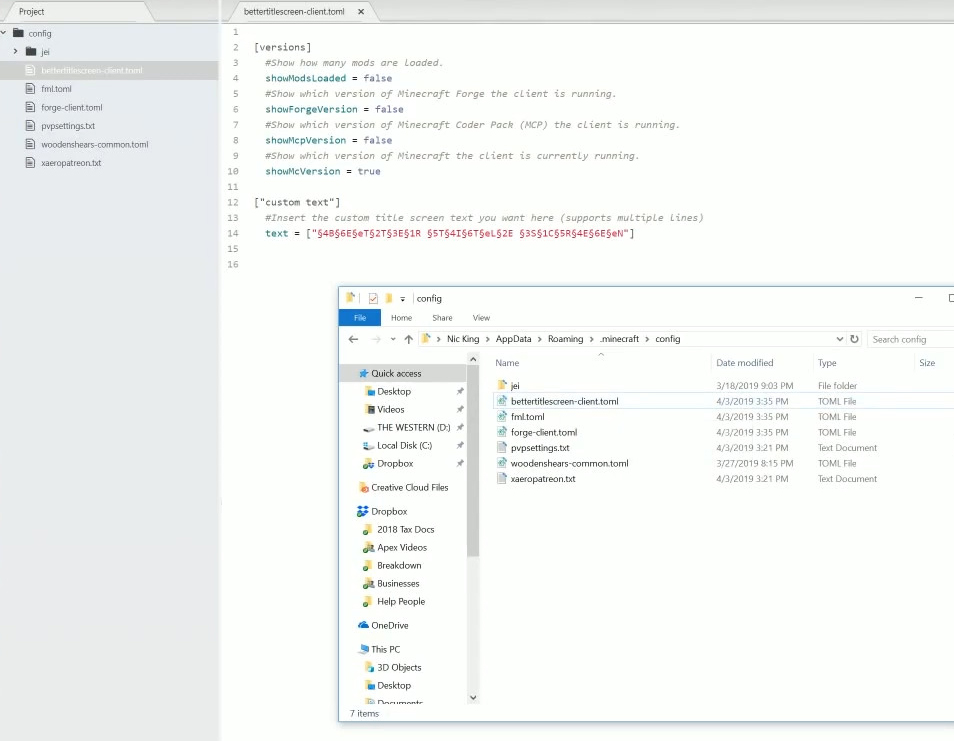
It sits inside the config folder in your .minecraft directory, alongside other mod config files. If you use a launcher with a custom game directory, look in that instance's config folder instead.
How do I add colors to my title screen text?
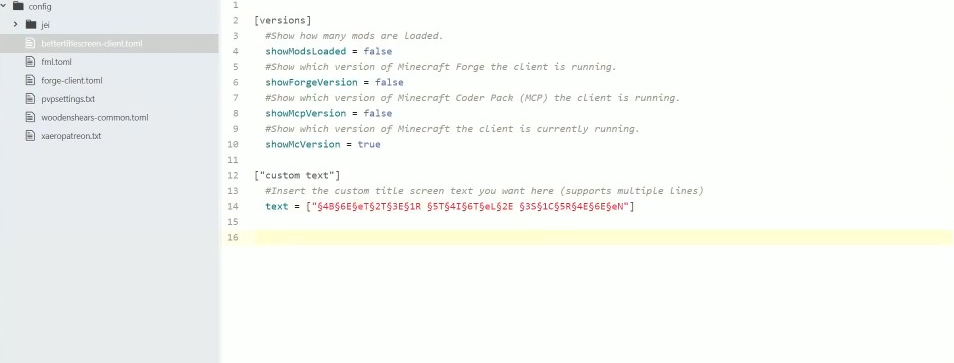
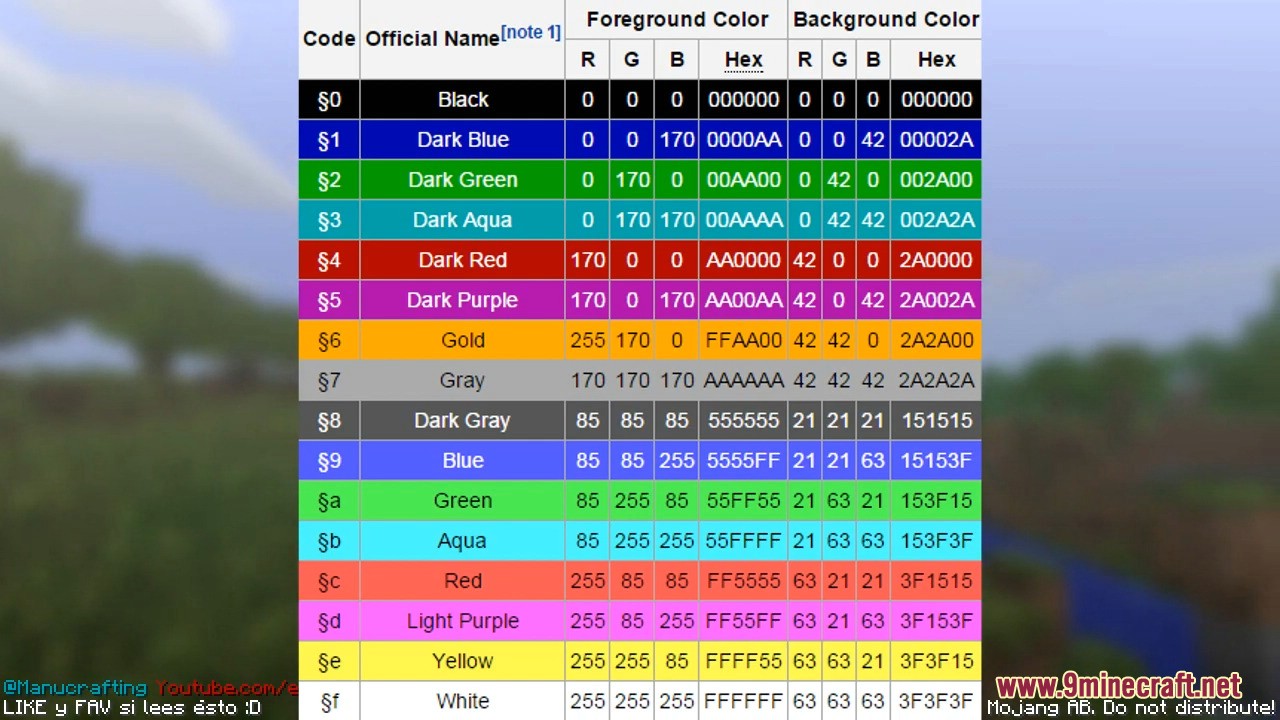
Put a section symbol (§) followed by a color code before each letter or word you want colored, like §4 for dark red or §6 for gold. The default text shows this pattern with each letter using a different code.
What are the color codes I can use in the config?
The mod uses the standard Minecraft formatting codes, where § is followed by a letter or number for each color. You can also use formatting codes for bold, italic, and other styles alongside colors.
See all 10 Better Title Screen questions ›
Gallery
9 images from the Better Title Screen page.




You May Also Like
Wikis that share the most with this one
More mod wikis on the site
The most downloaded mods that have a wiki here
A few wikis from each of the other kinds