

 DownloadSimply Solid Shaders
Get the files on 9Minecraft
Guides
Step-by-step, in-game.
Adjust Lighting Brightness and SaturationAccess Shader Settings Open the shader options menu while in-game by pressing the designated shader settings key…Maintain Vanilla Atmosphere While Using ShadersUnderstand the Vanilla-Focused Design Simply Solid Shaders applies a stylized cartoon filter rather than overhauling…Make Nighttime Exploration Clearer with Colored LightingUnderstand Colored Lighting Mechanics Simply Solid Shaders casts colored glows from torches, lanterns, and luminous…Optimize Performance on Low-End HardwareSelect the Appropriate Preset Simply Solid Shaders includes performance tiers designed for different hardware…
Frequently asked questions
How do I enable Simply Solid Shaders after installing it?
Open your Video Settings, navigate to Shaders, and select Simply Solid Shaders from the list. The shader activates immediately—no restart needed.
Will this shader work on my potato PC?
Yes, Simply Solid Shaders is designed specifically for low-end hardware and runs smoothly without heavy performance hits. If you experience lag, try lowering your render distance or disabling other resource packs.
How do I adjust how bright the lighting is?
Open the shader options menu (usually by clicking the Settings button next to the shader name in Video Settings) and look for brightness or exposure sliders to tune the overall light level.
Can I make the colors more vibrant or more muted?
Yes, the shader options include saturation controls that let you increase color intensity for a more vivid look or decrease it for a more subdued palette.
See all 10 Simply Solid Shaders questions ›
Gallery
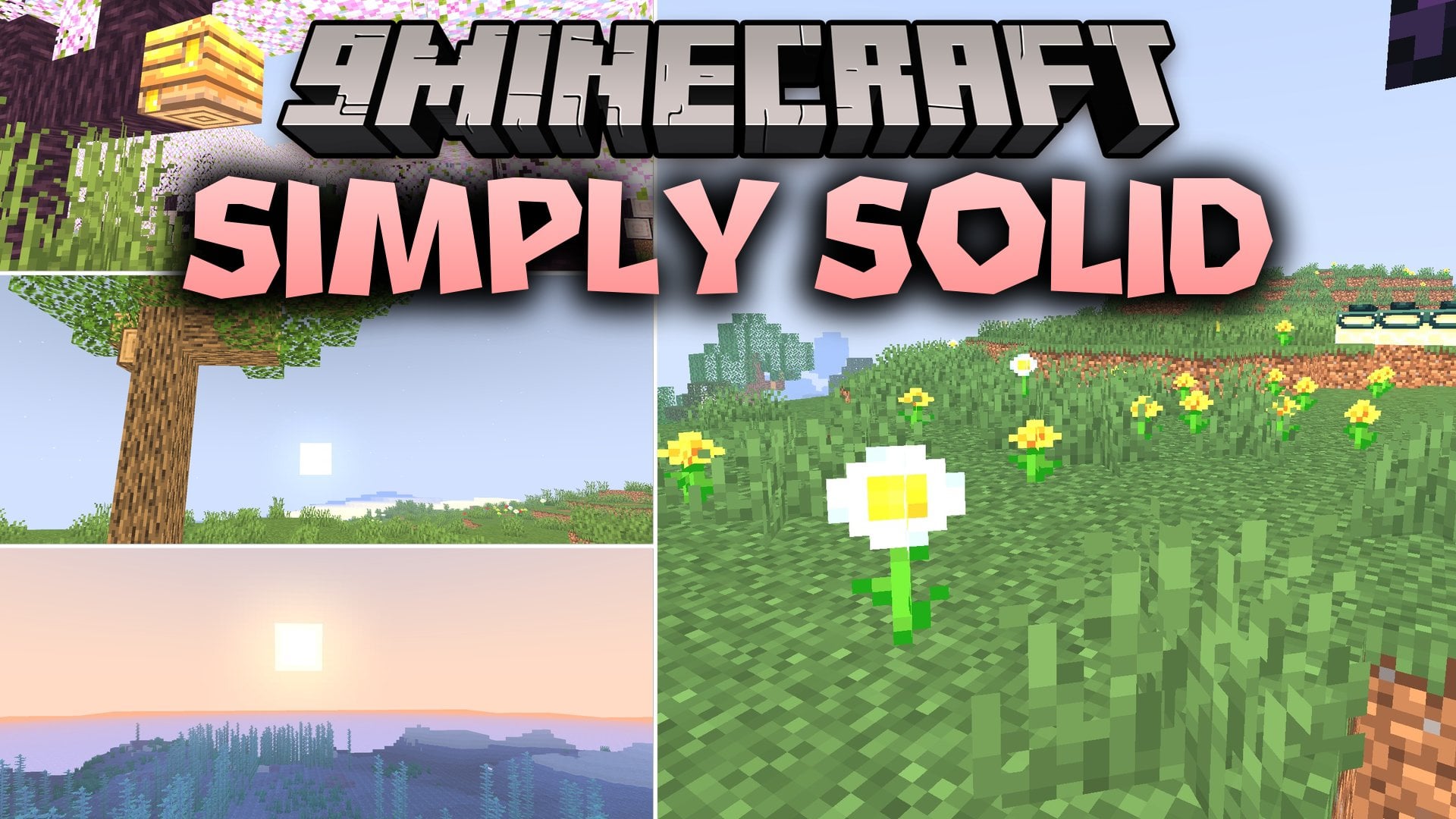
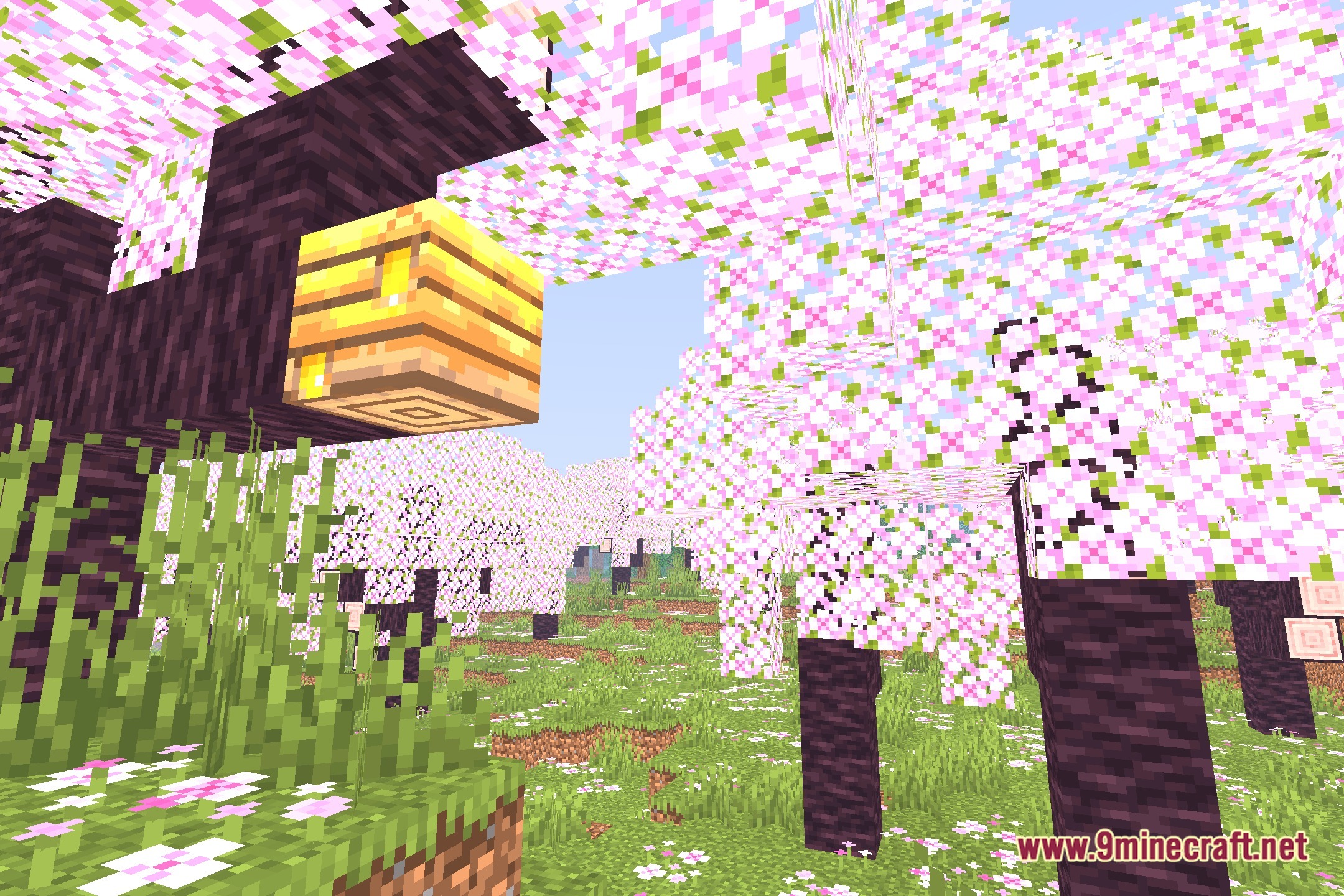
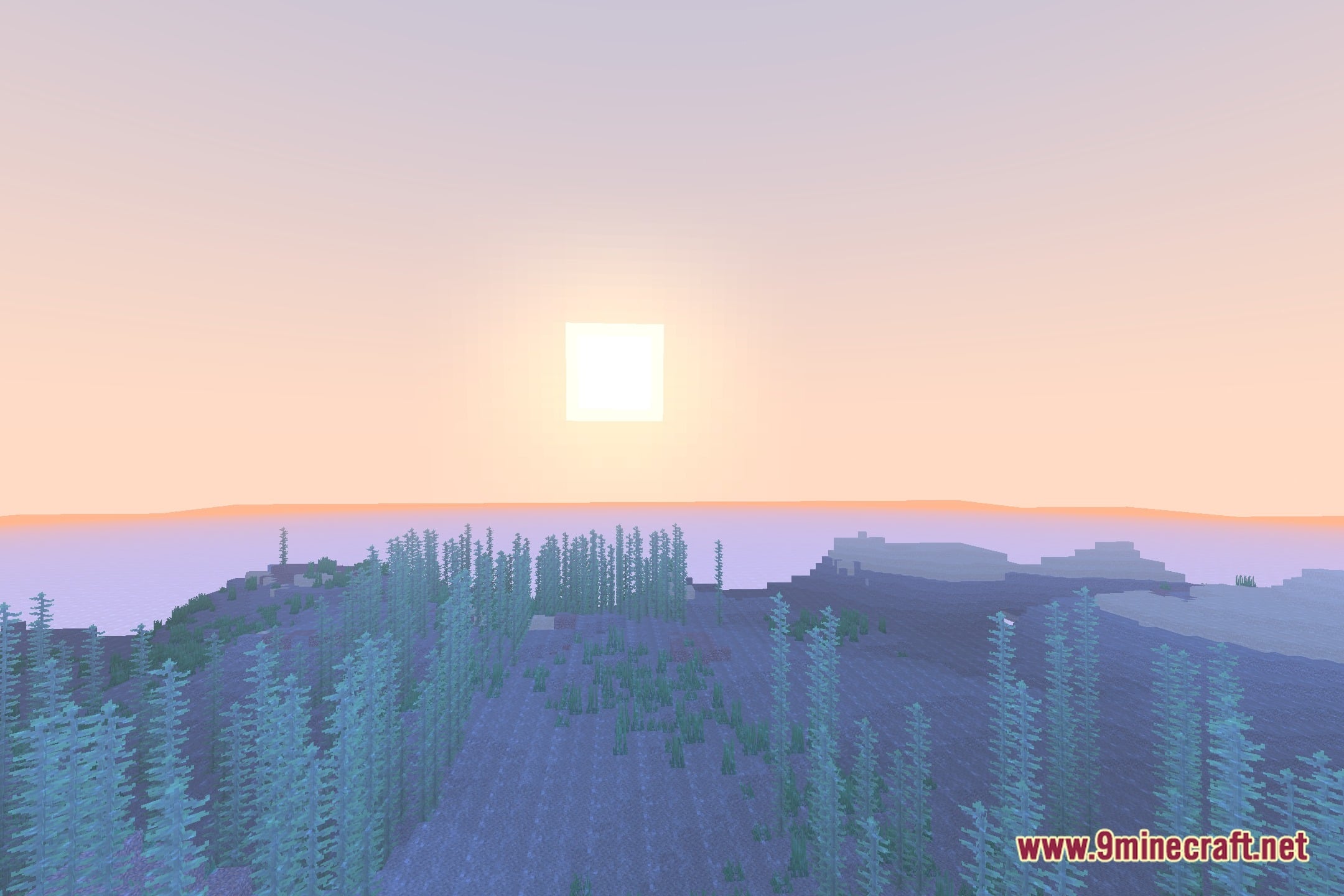
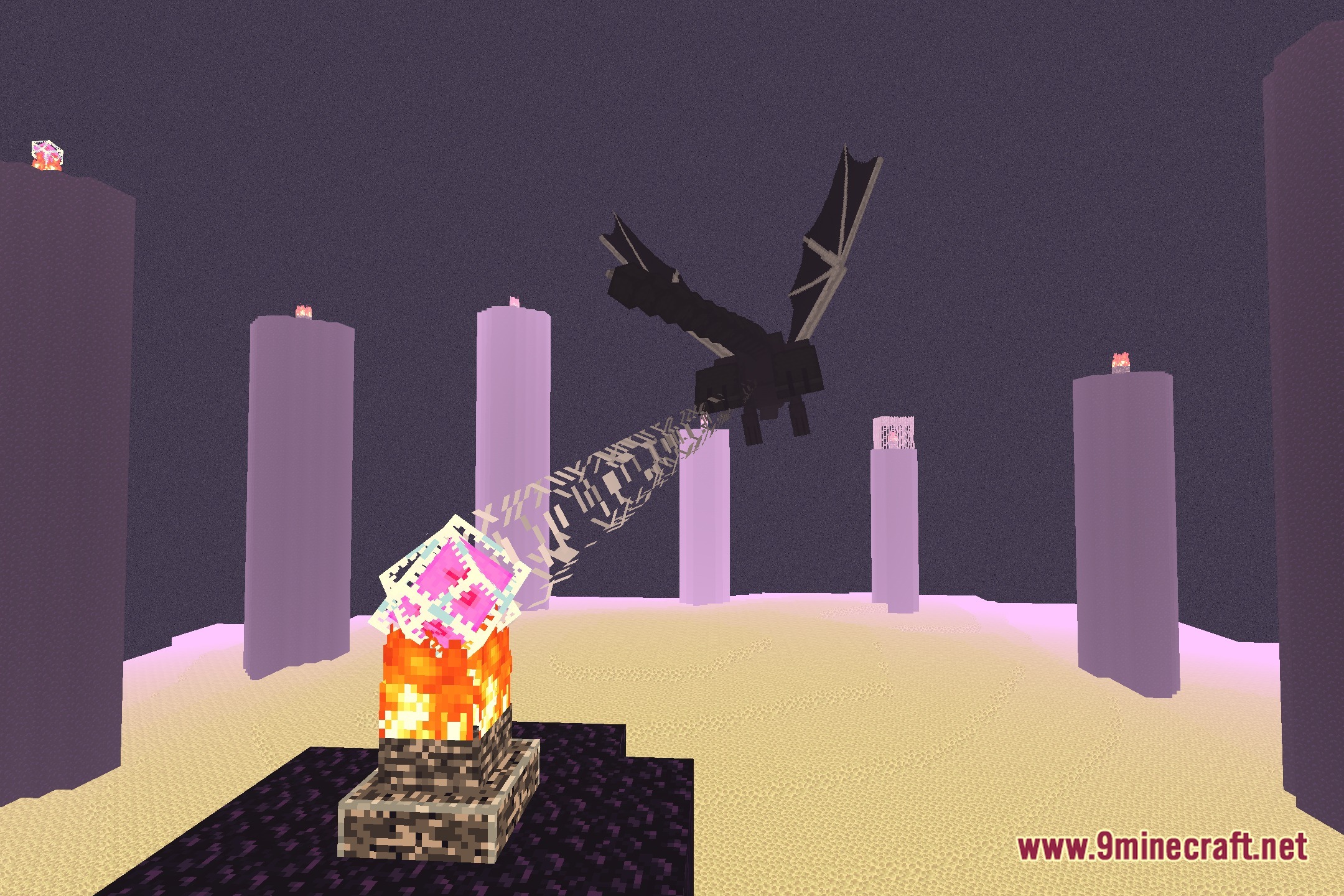
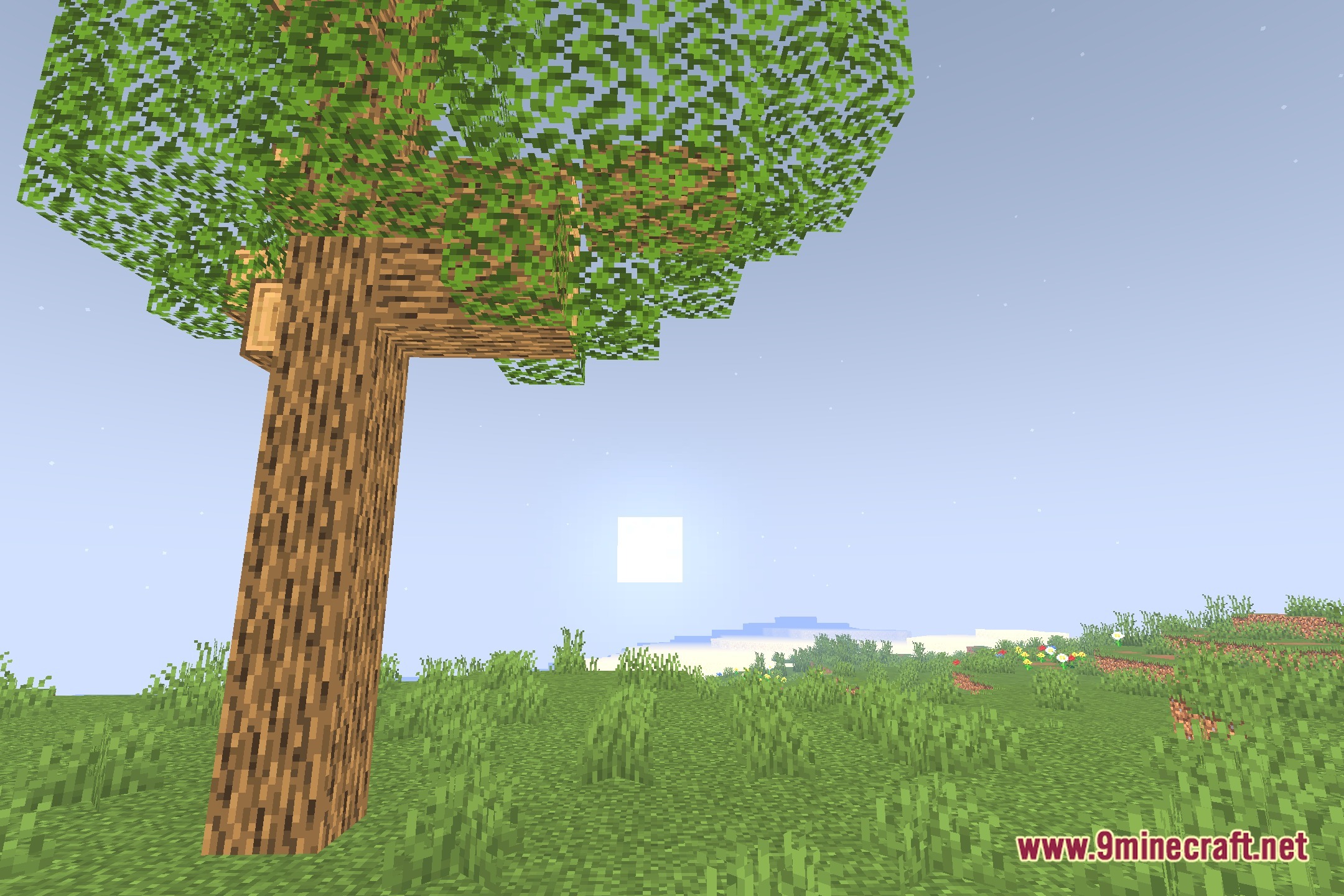
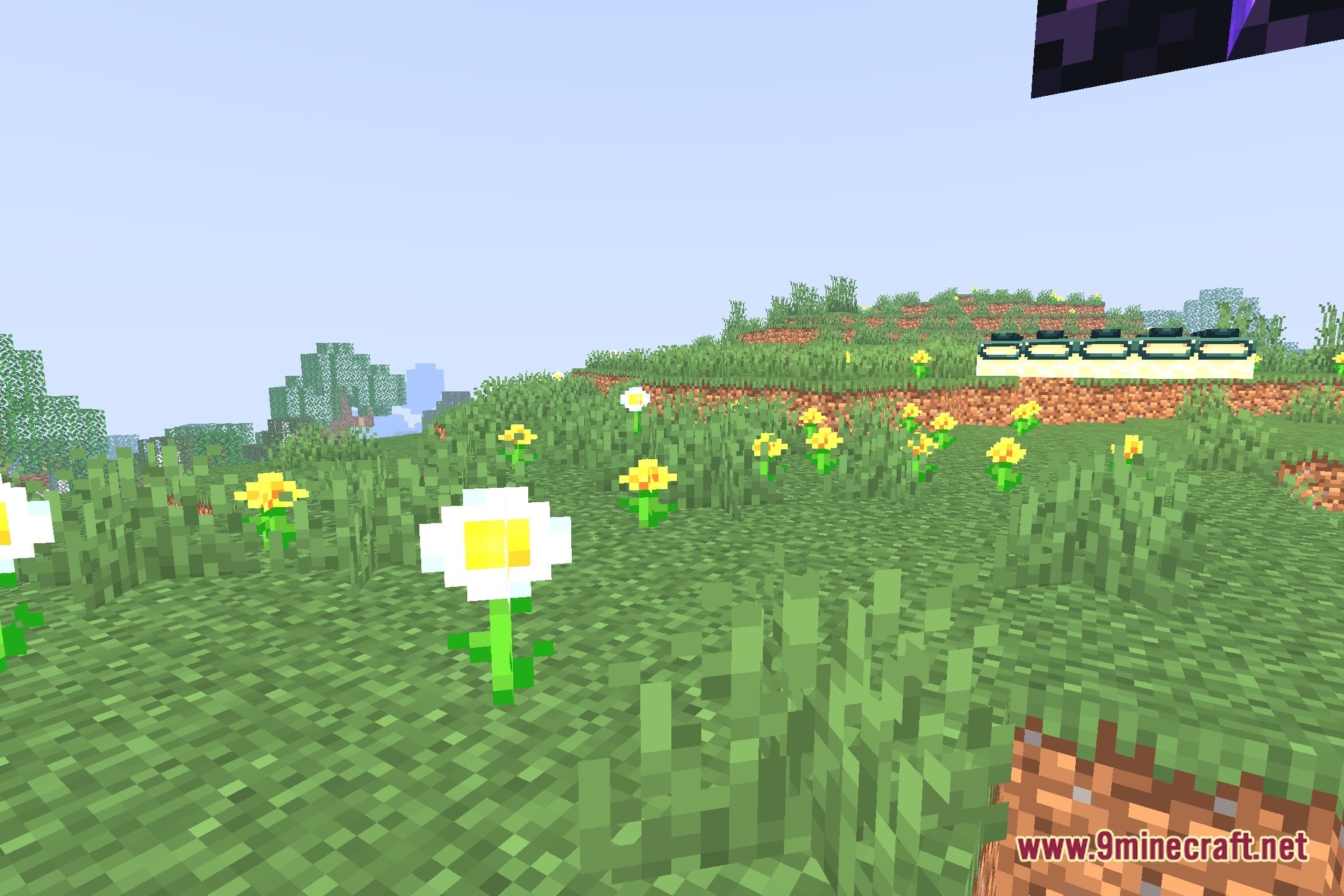
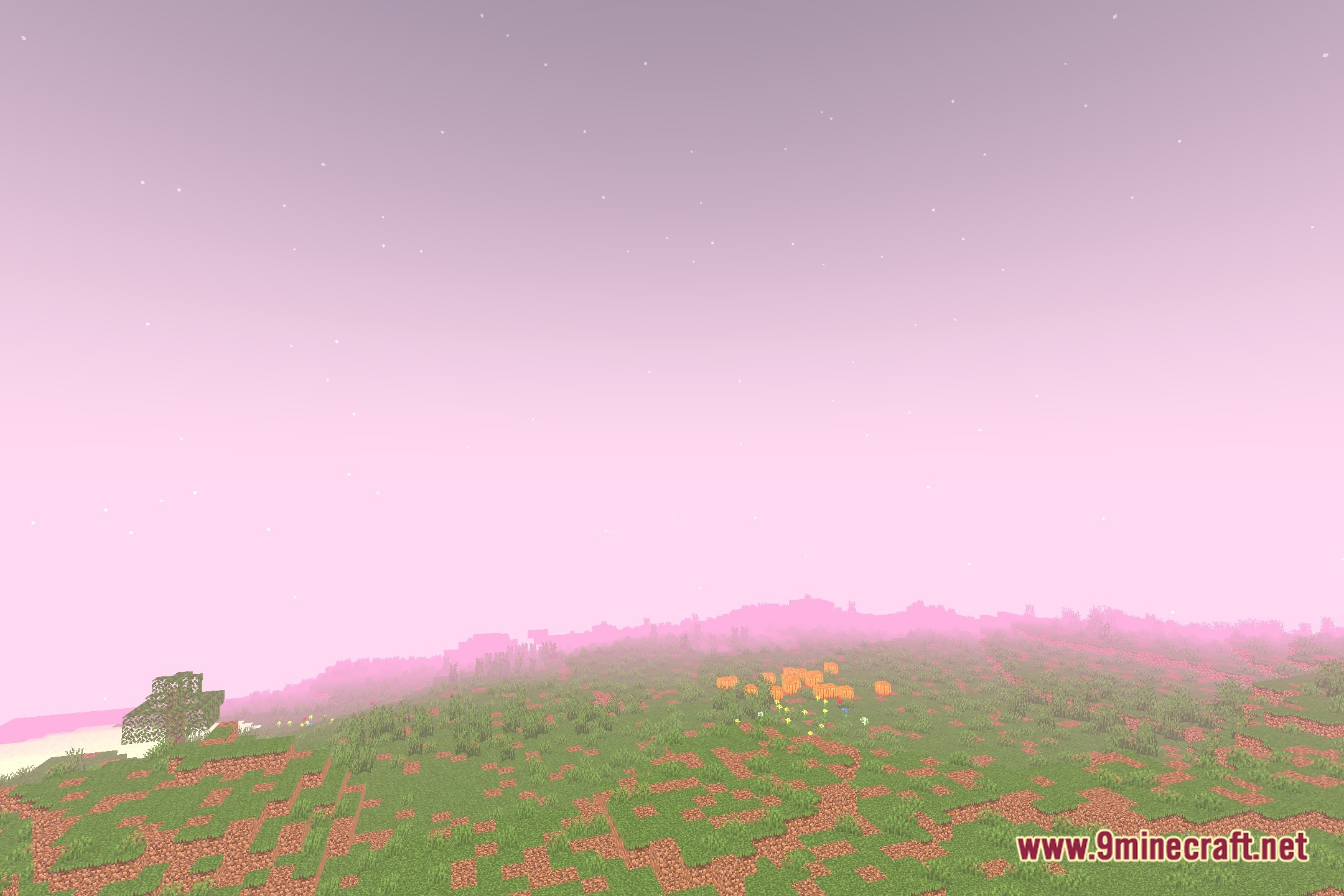
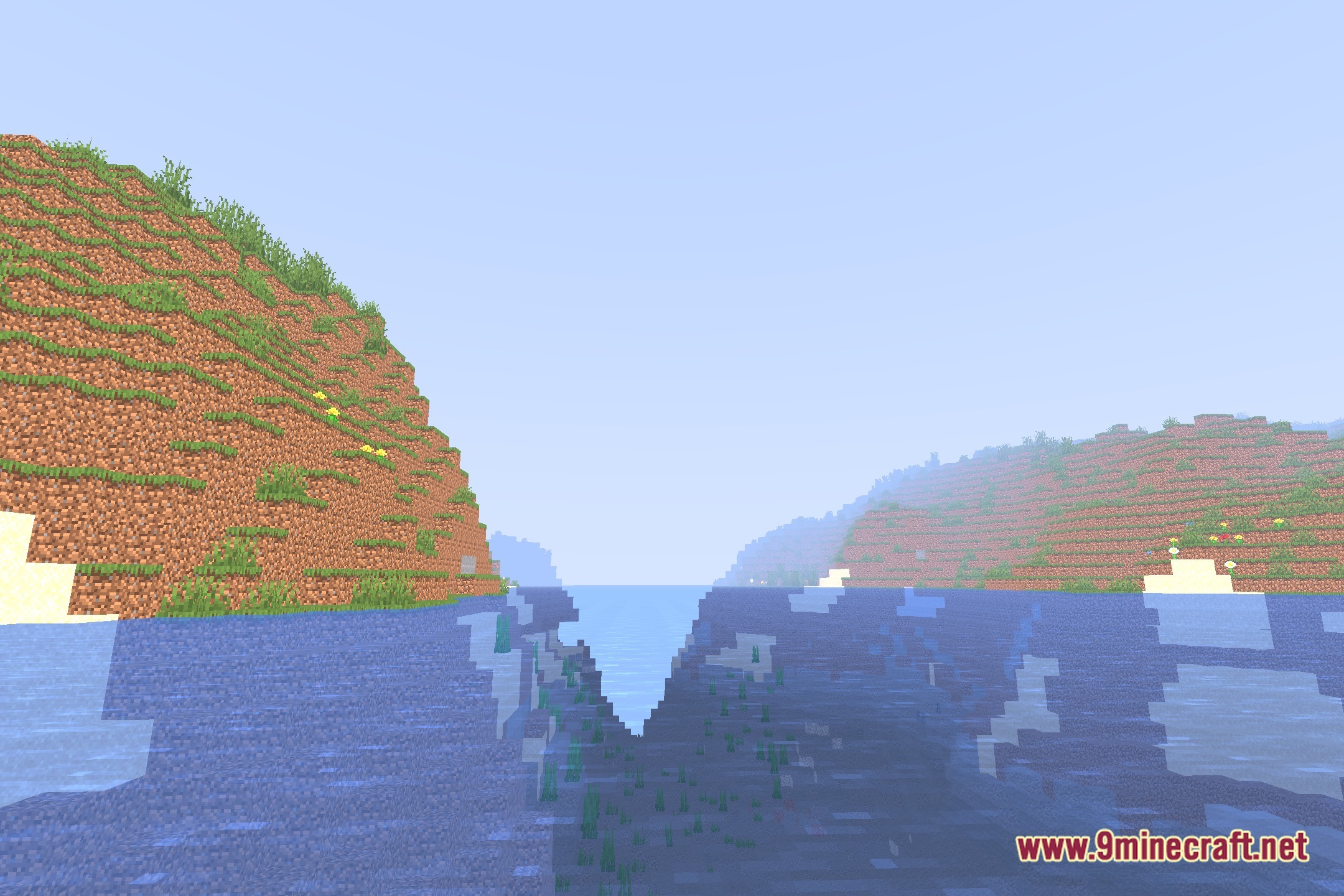
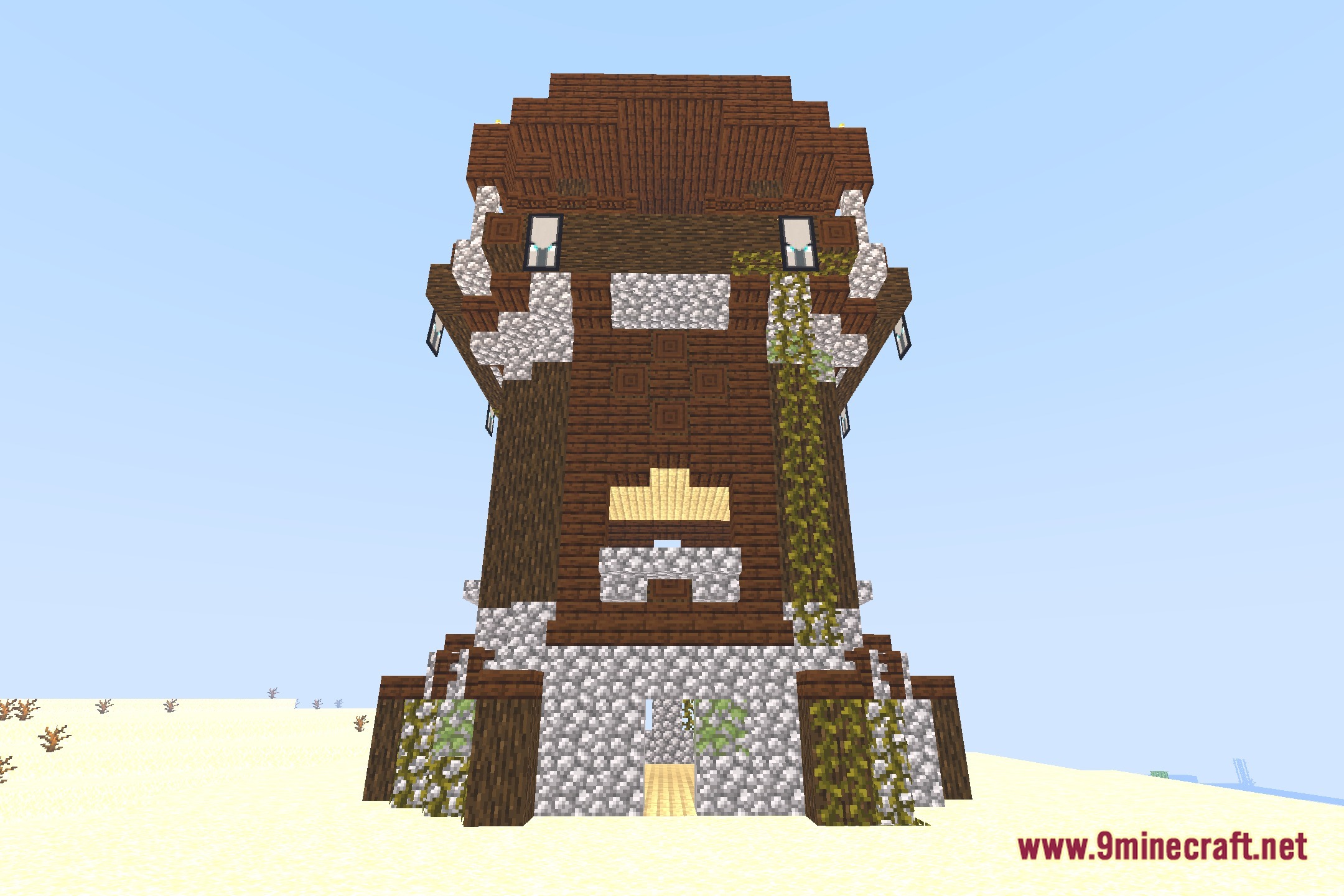
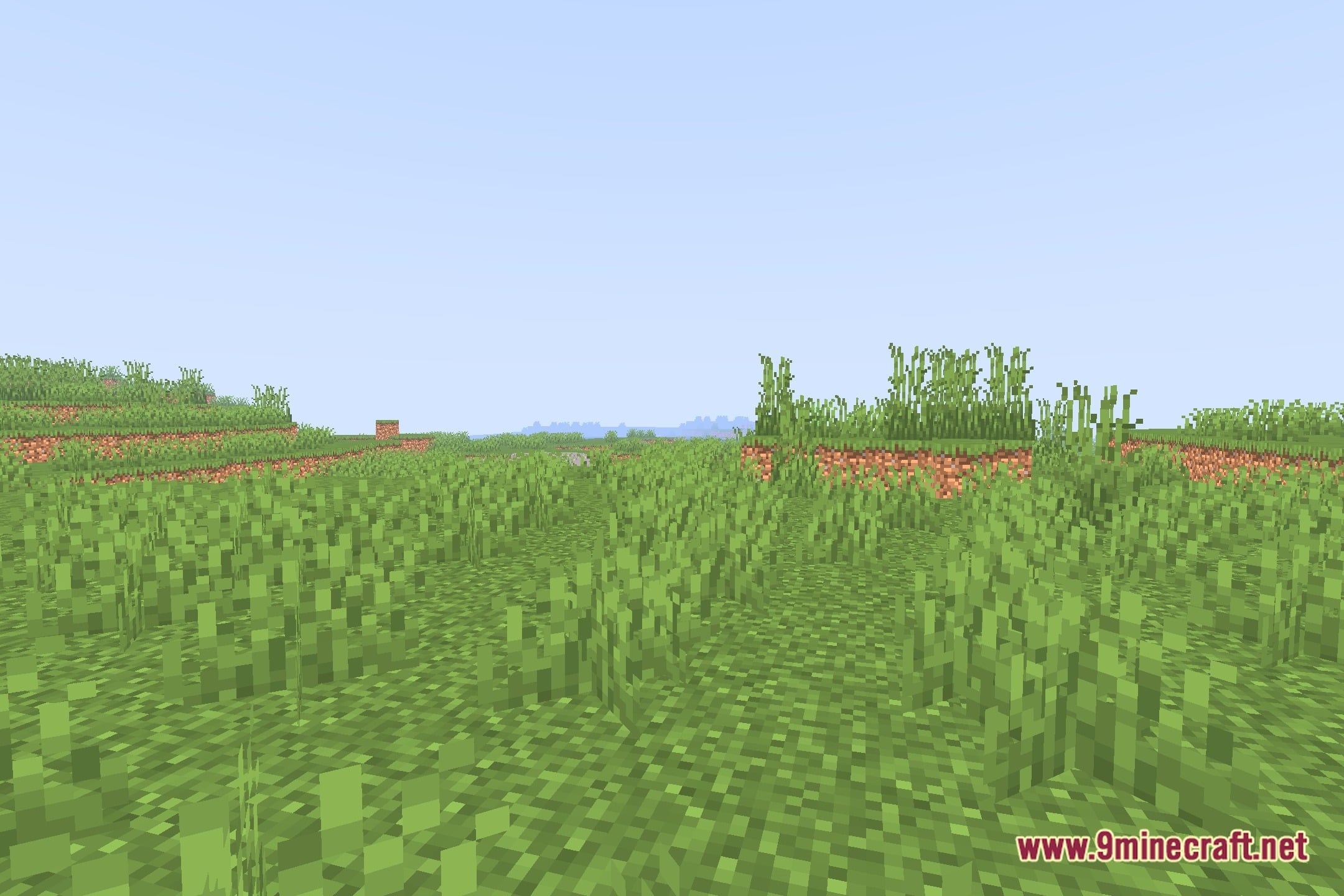
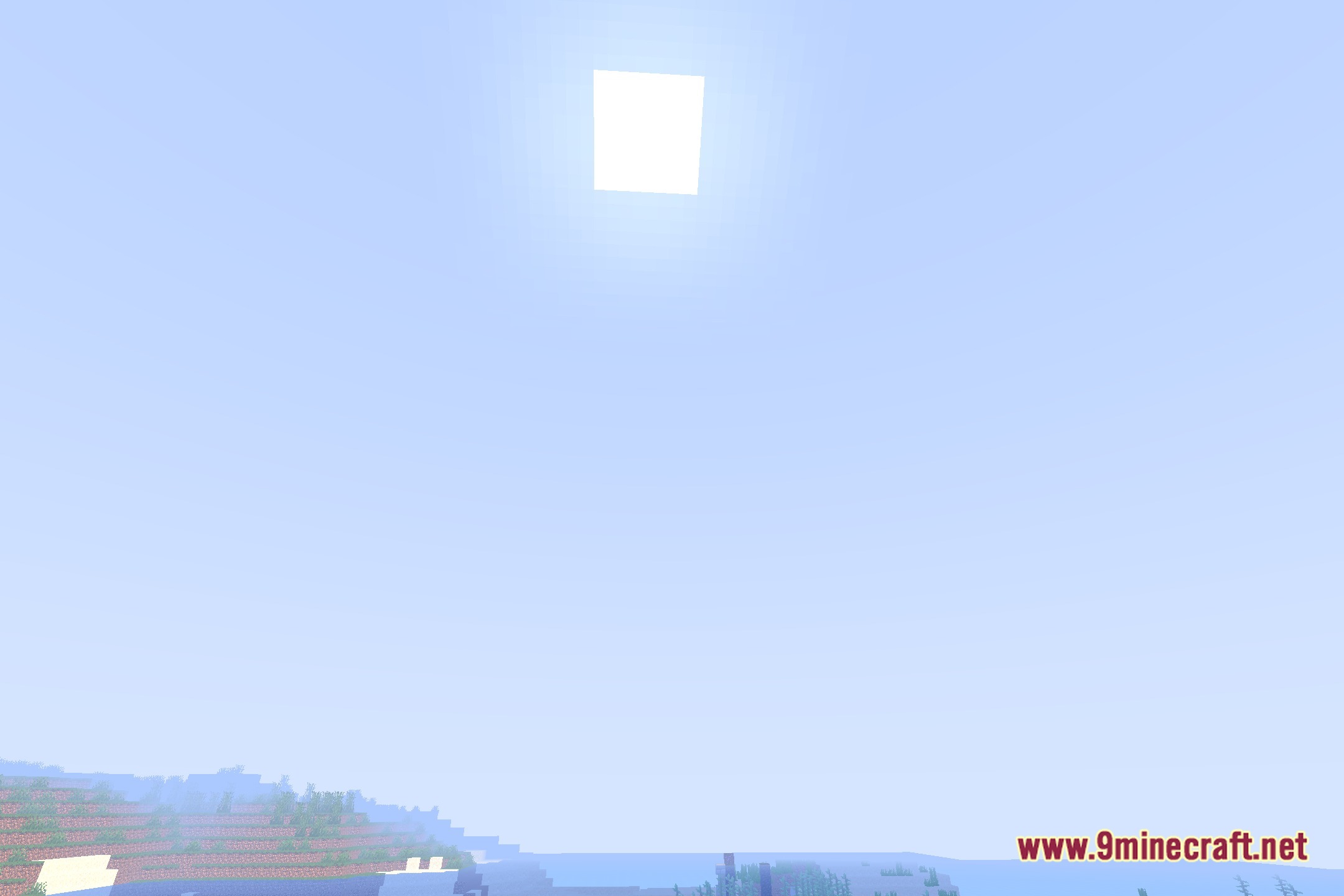
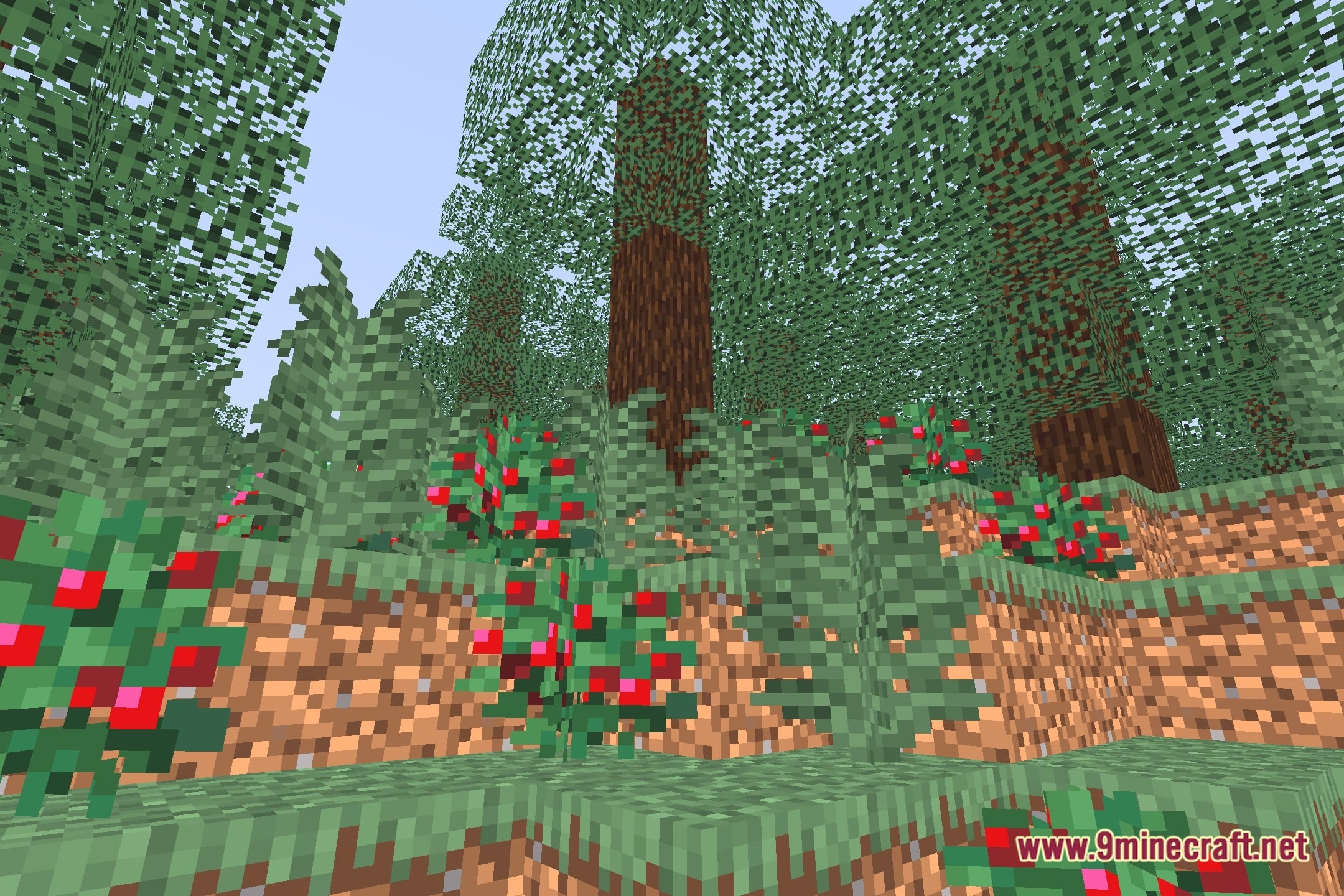
12 images from the Simply Solid Shaders page.
You May Also Like
Wikis that share the most with this one
Wikis on the same theme: end
More shader wikis on the site
 Simple Brightness Shaders
The most downloaded mods that have a wiki here