

 DownloadVivid Movement HUD Mod
Get the files on 9Minecraft
Guides
Step-by-step, in-game.
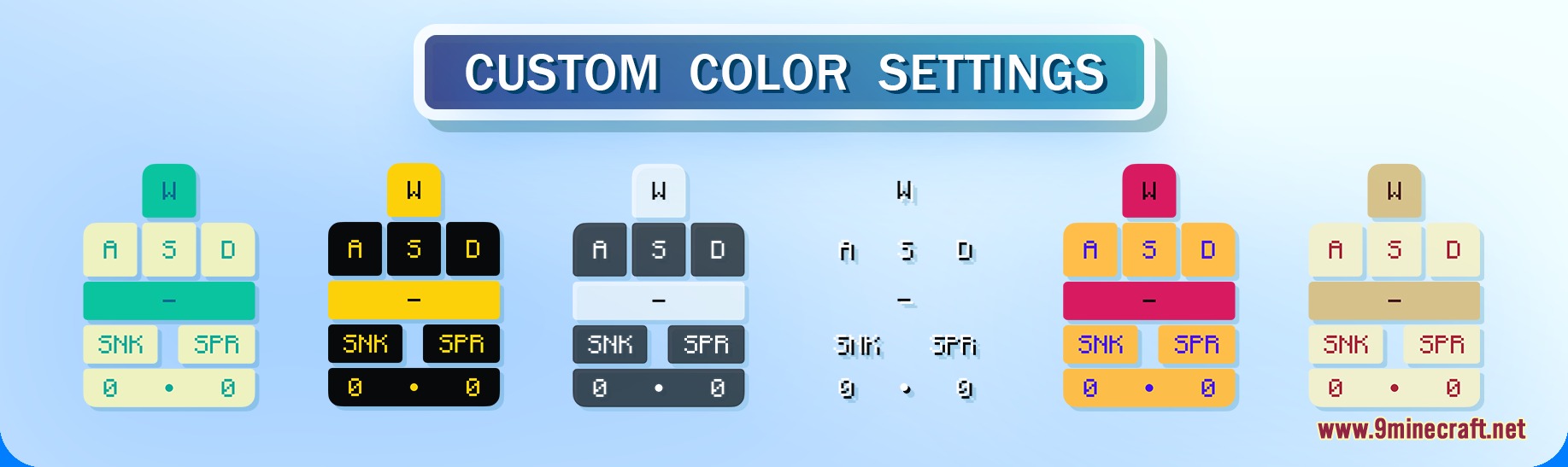
Enable and Configure the Mouse TrackerTurn On the Mouse Tracker Open Mod Menu from your game menu and select the Vivid Movement HUD Mod settings. Locate…Enable Smooth Button Press AnimationsFind Animation Settings Open Mod Menu and access the Vivid Movement HUD Mod configuration screen. Look for animation…Reduce HUD Clutter by Hiding Sneak and Sprint IndicatorsAccess Layout Options Open Mod Menu and select the Vivid Movement HUD Mod configuration. Navigate to the display…Set Up a Custom Color Scheme for Your Keystroke DisplayAccess the Color Settings Open your game menu and navigate to Mod Menu . Find the Vivid Movement HUD Mod entry and…
Frequently asked questions
How do I open the mod settings?
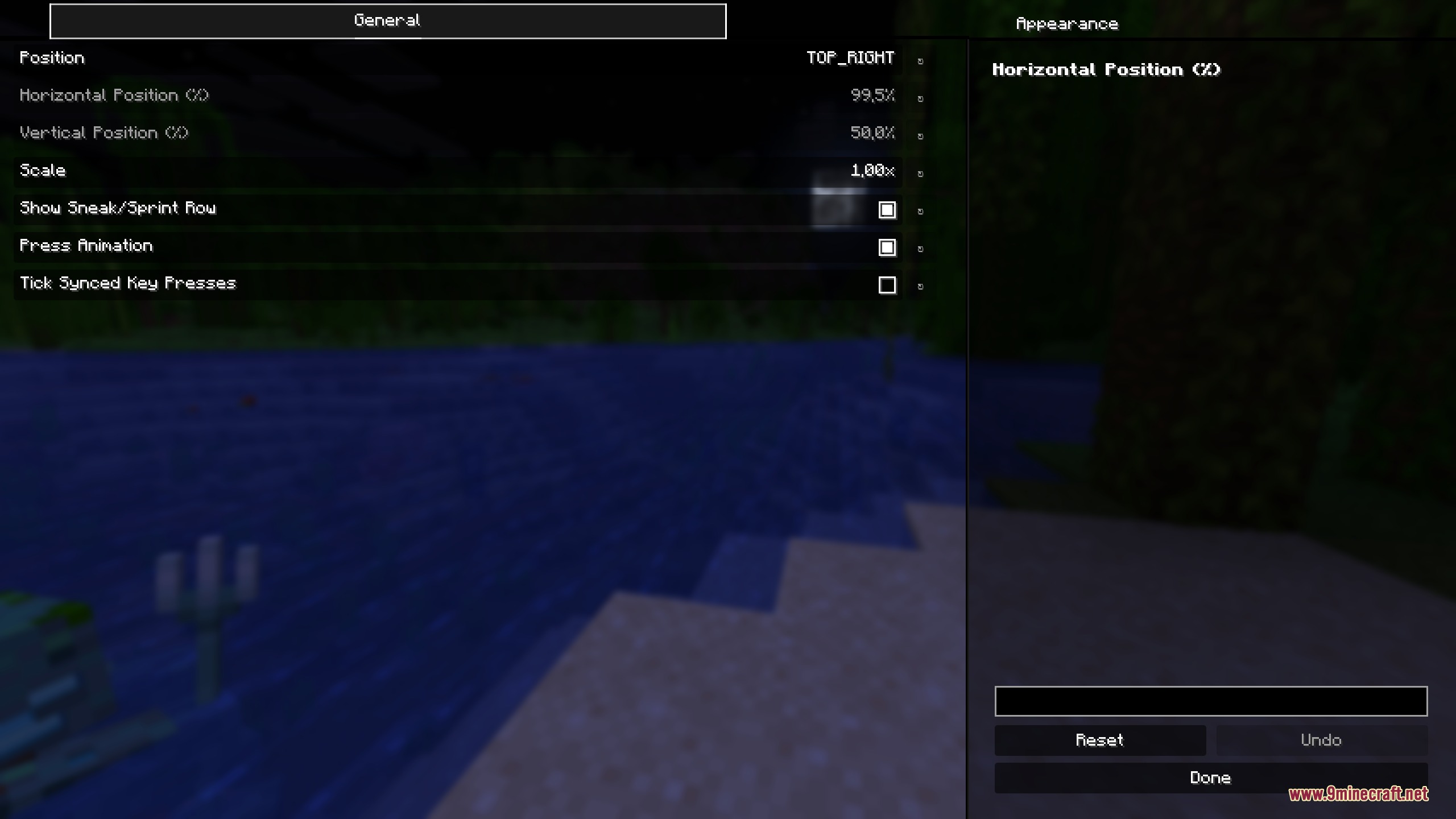
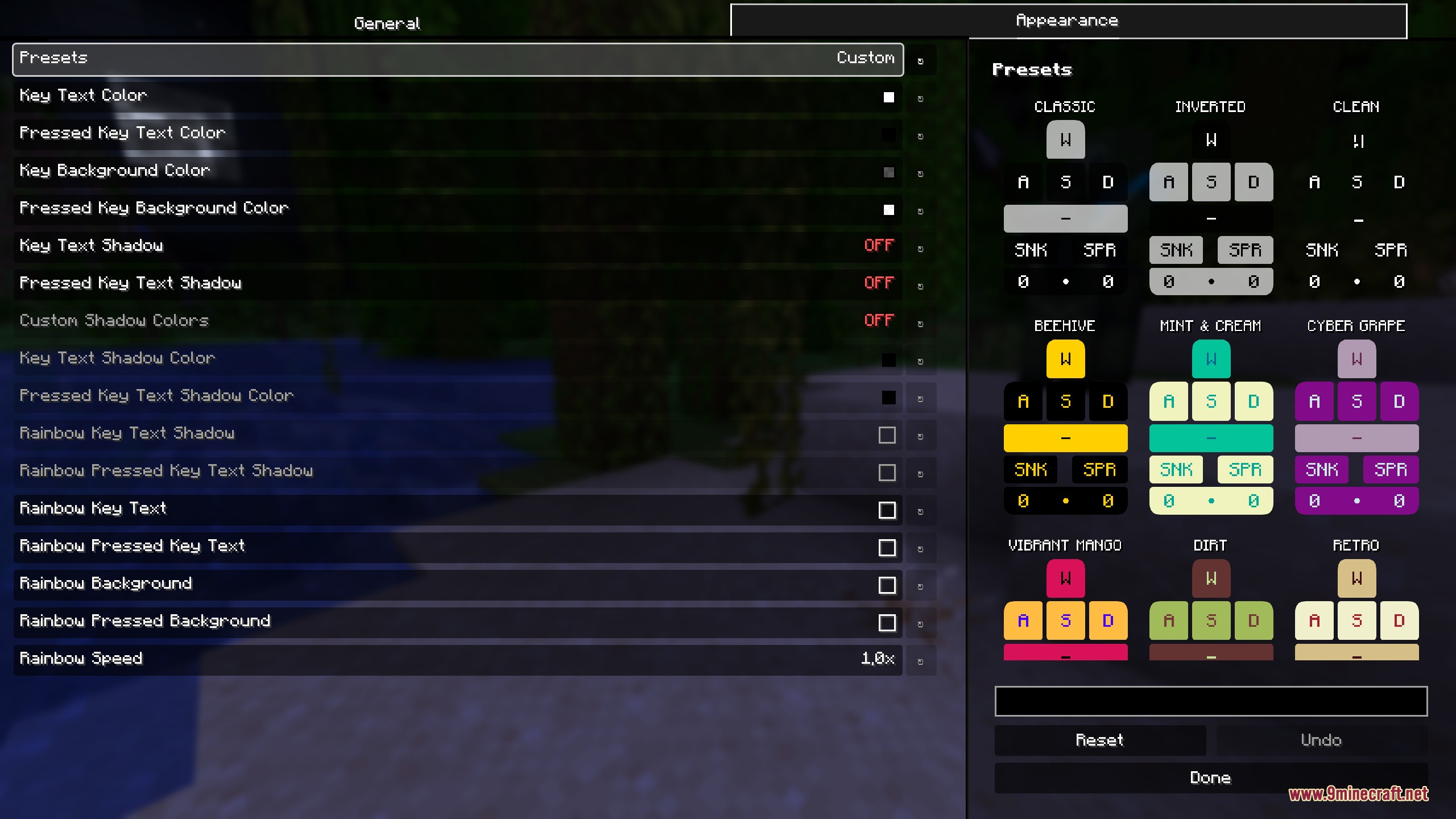
Press Escape to open the game menu, then click on Mod Menu. Find Vivid Movement HUD in the list and click its settings button to adjust colors, layout, and features.
Can I change the position of the keystroke display?
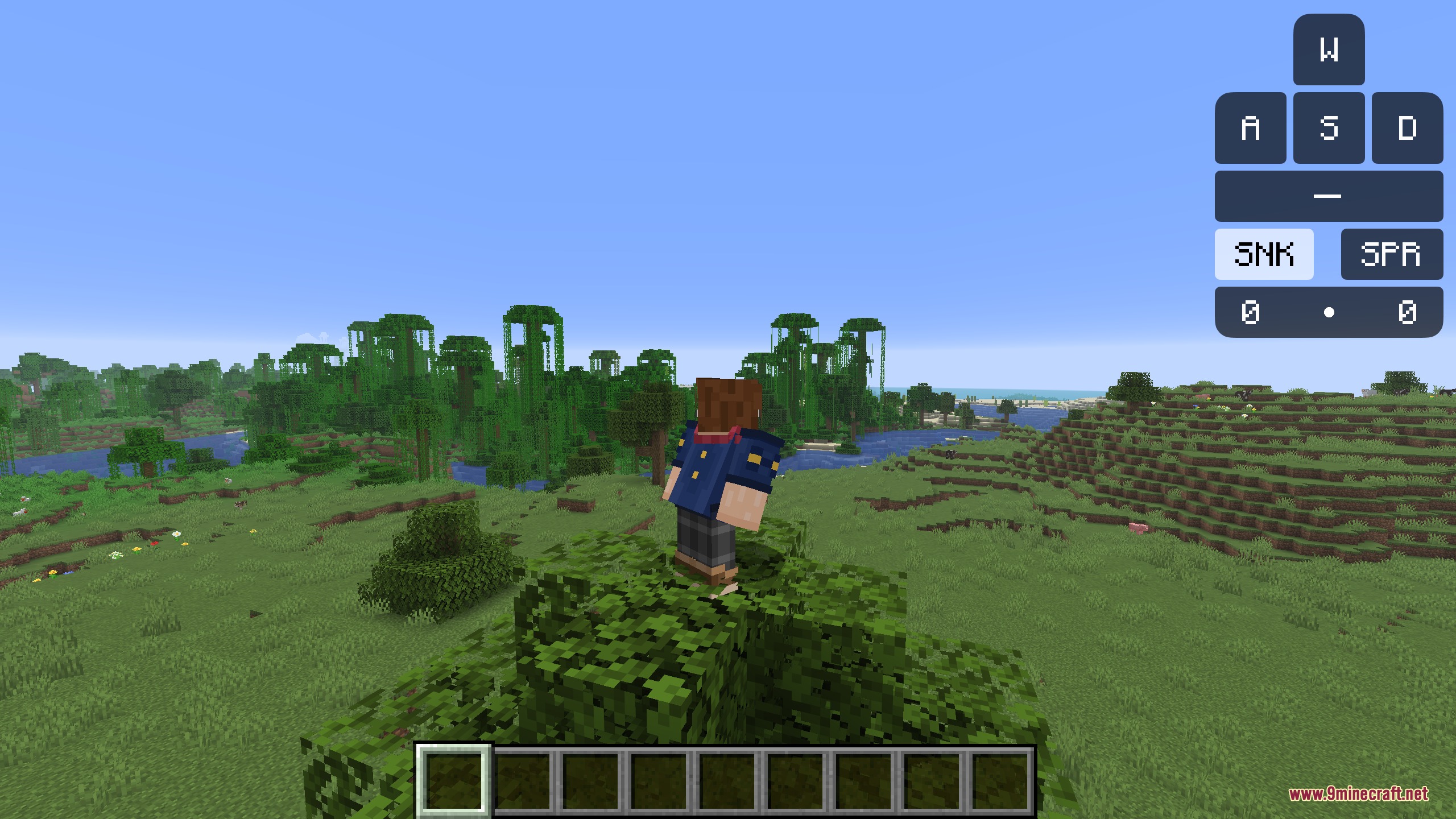
Yes, the mod includes layout options in the settings screen where you can reposition the HUD to different corners or areas of your screen to avoid blocking important information.
Why aren't my key presses showing up?
Make sure the keystroke display is enabled in the mod settings and that it's not positioned off-screen. Check that you're pressing keys that the mod tracks—W, A, S, D, Space, Sneak, Sprint, and mouse clicks.
How do I enable the mouse tracker?
Open Mod Menu, go to Vivid Movement HUD settings, and toggle the mouse tracker option on. You can customize its size and opacity in the same settings menu.
See all 10 Vivid Movement HUD questions ›
Gallery
5 images from the Vivid Movement Hud Mod page.
You May Also Like
Wikis that share the most with this one
More mod wikis on the site
The most downloaded mods that have a wiki here
A few wikis from each of the other kinds