

 DownloadVivid Adventure Frames Mod
Get the files on 9Minecraft
Guides
Step-by-step, in-game.
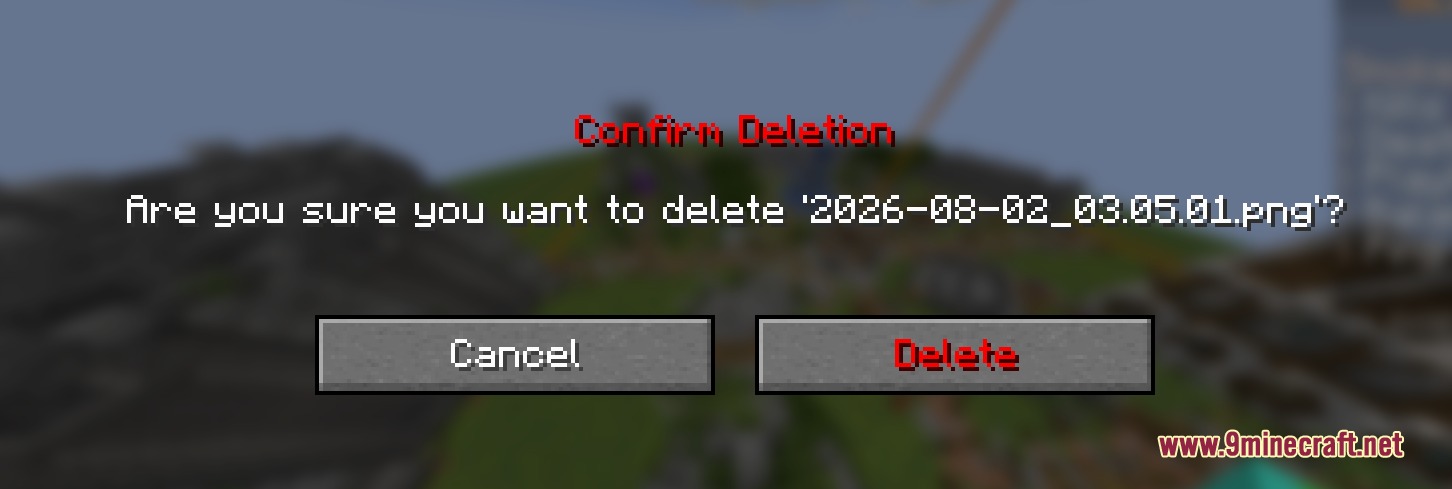
Copy Screenshots to Clipboard and Share ThemTake a Screenshot Press your screenshot keybind during gameplay. A chat notification will appear immediately after…Organize and Delete Photos from Your In-Game GalleryOpen Your Photo Gallery Press your assigned gallery keybind to open the photo collection menu. All your captured…Remove Unwanted Visual Elements from Your ScreenshotsOpen the Photo Gallery Press your assigned gallery keybind while in-game to open the photo collection menu. Select a…Set Up Custom Keybinds for Screenshots and GalleryAccess Keybind Settings Open your mod configuration menu (usually accessible from the main menu or pause screen).…
Frequently asked questions
How do I take my first screenshot with this mod?
Press your default screenshot key (usually F2) to capture your view. You'll see a chat message appear with a clickable copy button that lets you instantly paste the image to your clipboard.
Where do my screenshots get saved?
Screenshots are saved to your standard Minecraft screenshots folder, but you can also view and manage them directly in the in-game photo gallery without ever leaving your world.
Can I turn off the chat message that appears after I take a screenshot?
Yes, the mod mutes the default screenshot saved message by default to keep your chat window clean, though you'll still see the clickable copy notification from the mod itself.
How do I open the photo gallery?
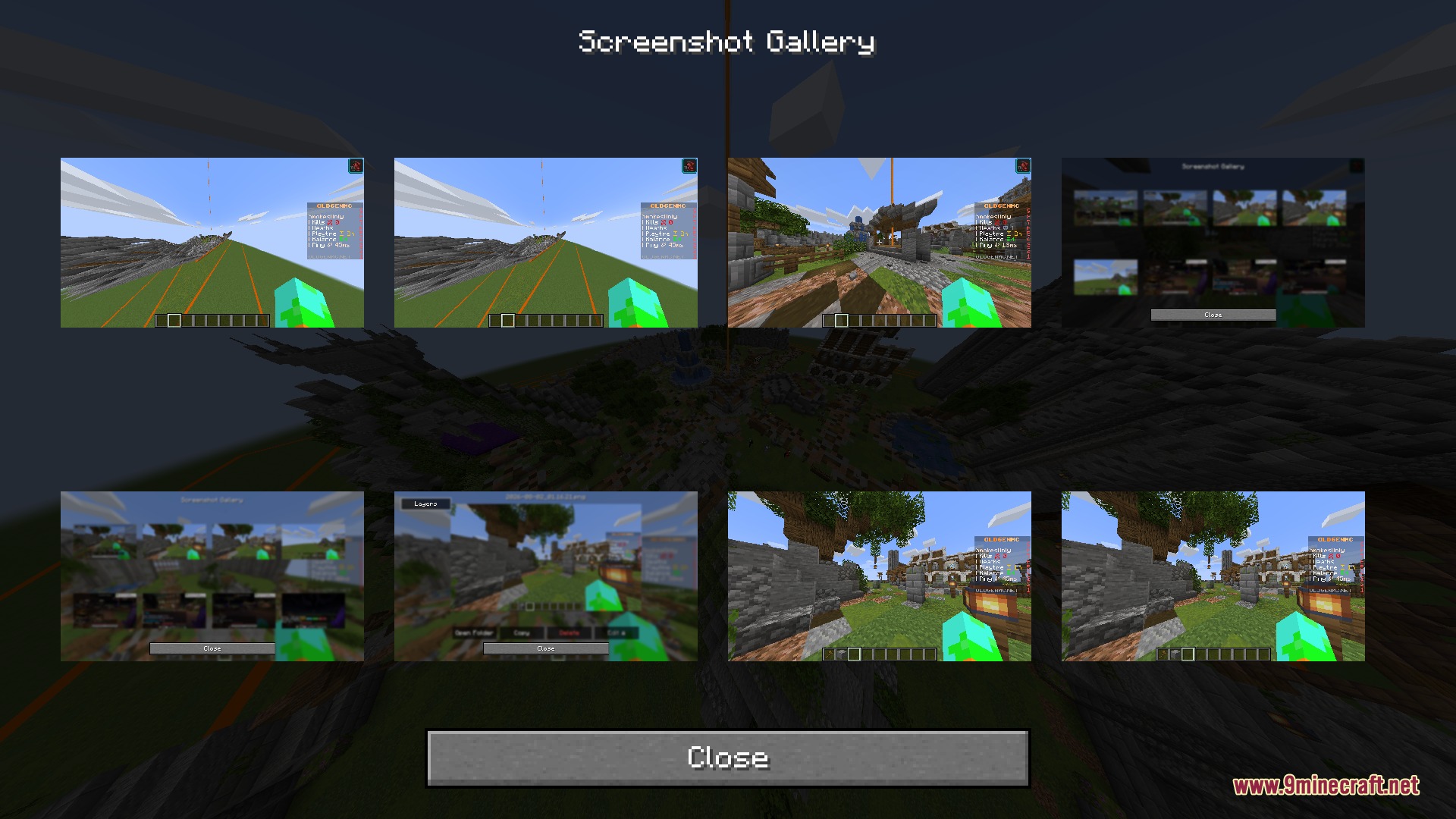
Press the keybind you've assigned for the gallery menu (customizable in your keybind settings). This opens the in-game gallery where you can view all your captured photos in a grid layout.
See all 10 Vivid Adventure Frames questions ›
Gallery
5 images from the Vivid Adventure Frames Mod page.
You May Also Like
Wikis that share the most with this one
More mod wikis on the site
The most downloaded mods that have a wiki here
A few wikis from each of the other kinds