

 DownloadJvitor’s Chat Bubbles Mod
Get the files on 9Minecraft
Guides
Step-by-step, in-game.
Adjust Chat Bubble Position Above Your HeadLocate Height Settings Open the mod's configuration menu and find the adjustable height option. This setting controls…Control Multiple Message Bubbles StackingUnderstand Bubble Spacing When you send several messages quickly, they stack vertically above your head. The bubble…Customize Your Chat Bubble ColorsAccess Color Settings Open your mod configuration menu (usually accessible from the main menu or in-game settings).…Hide Your Nametag While Displaying Chat BubblesEnable Nametag Hiding Open your mod configuration and locate the nametag visibility option. Enable the setting that…
Frequently asked questions
How do I turn on chat bubbles after installing the mod?
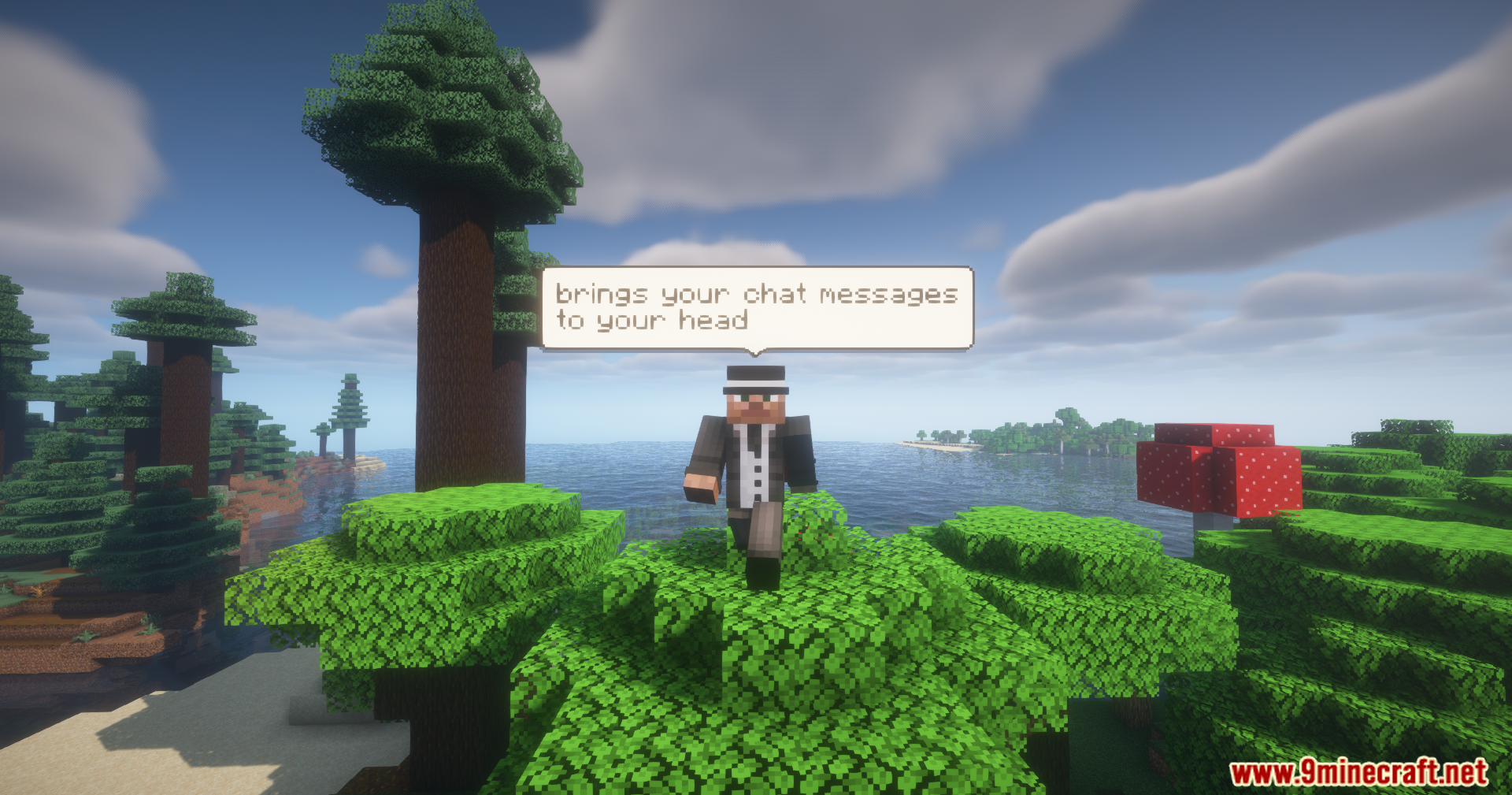
Chat bubbles are enabled by default once the mod is installed on both your client and server. If you don't see them appearing when you type, check that the mod is loaded in both places and that you're not in a server that has disabled the feature.
Do other players need the mod installed to see my chat bubbles?
Yes, all players on the server need to have the mod installed to see chat bubbles. If someone doesn't have it, they'll only see messages in the regular chat box.
Can I customize the color of my chat bubble?
Yes, you can change the background color, border color, and text color of your chat bubbles through the mod's color customization settings. Check your mod configuration menu or settings file to adjust these values.
How do I move the chat bubble higher or lower above my head?
Use the adjustable height setting in the mod's configuration to move the text box closer to or further away from your character's head. This setting affects only your own bubbles.
See all 10 Jvitor’s Chat Bubbles questions ›
Gallery
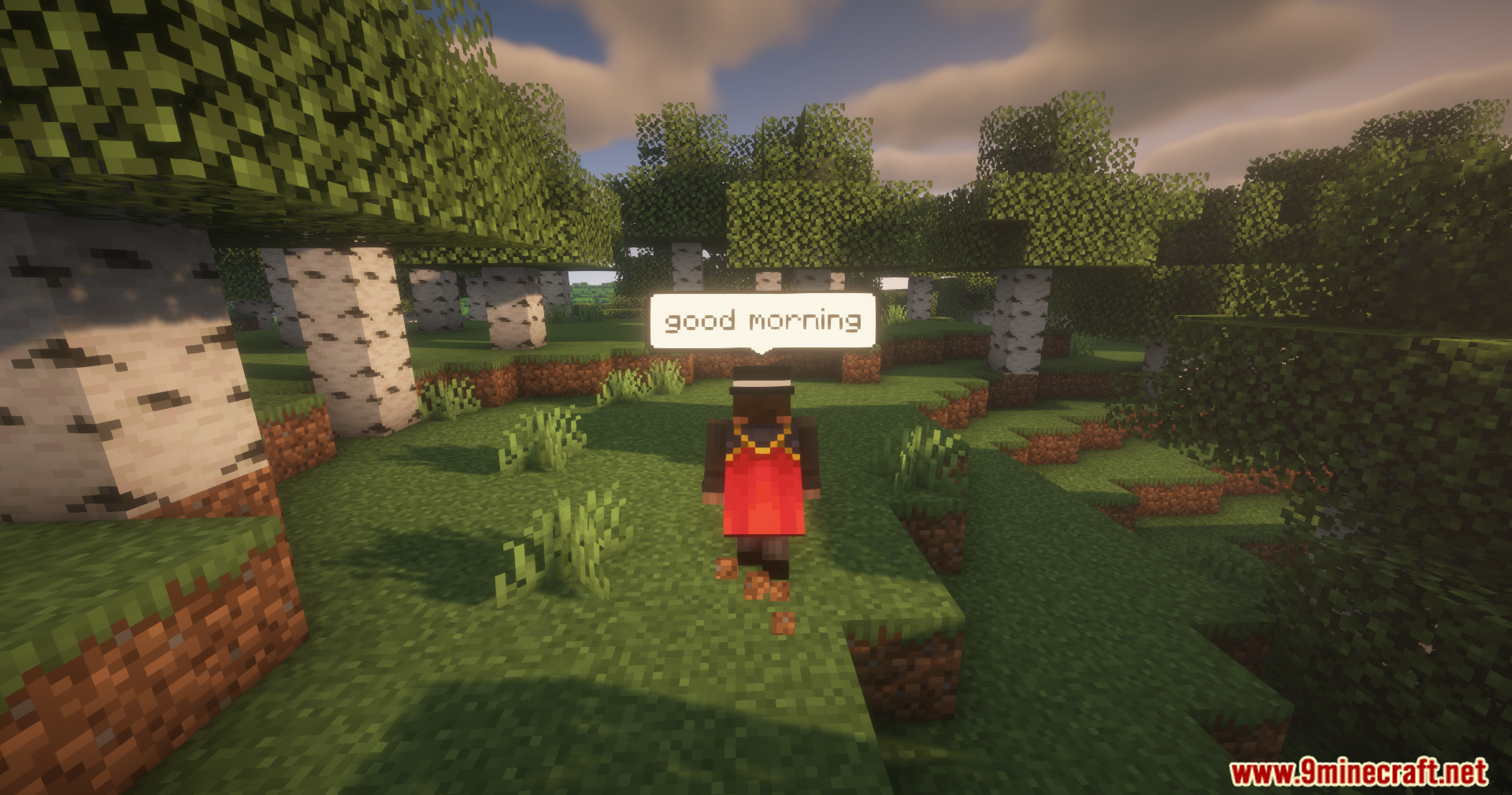
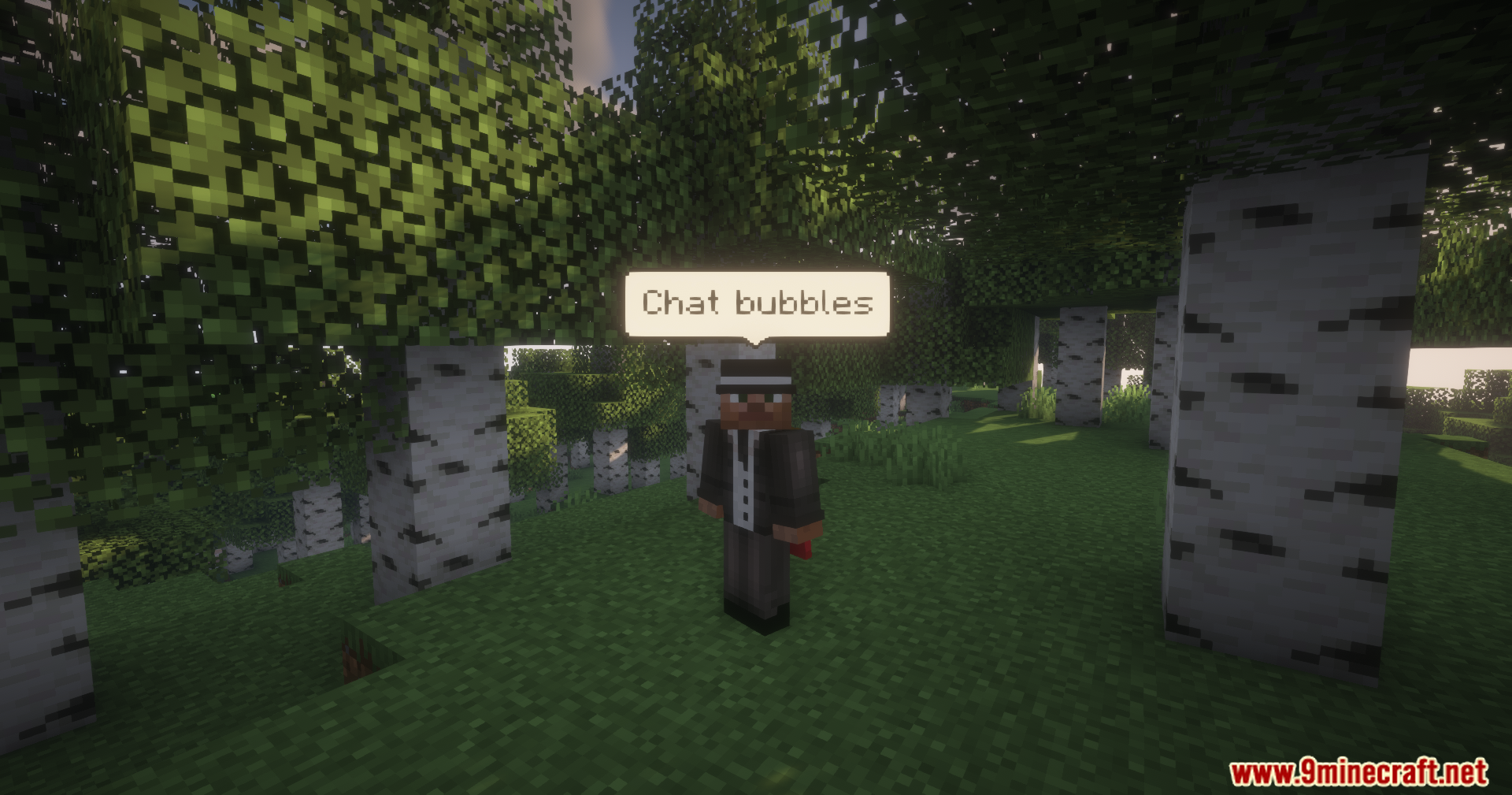
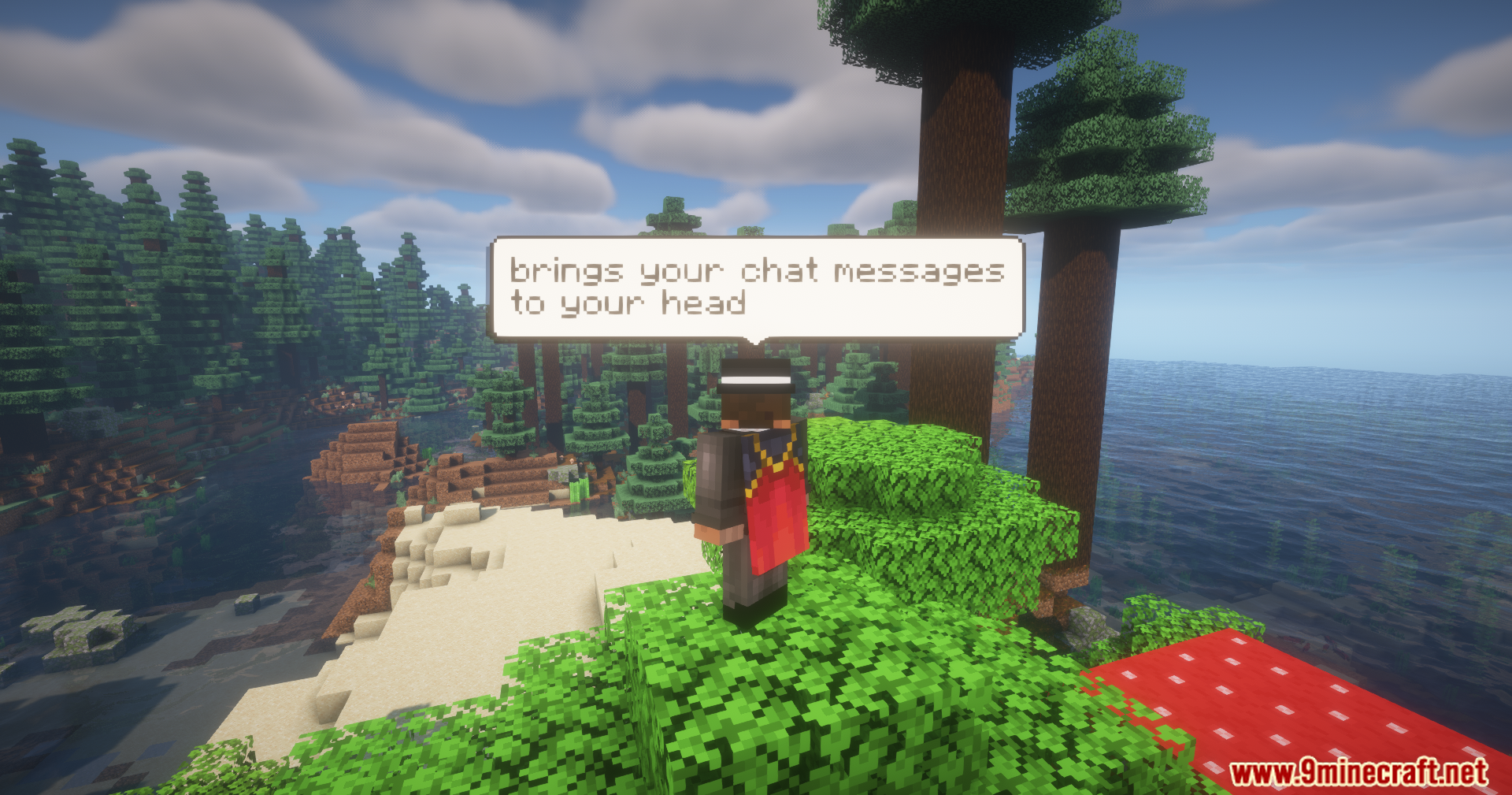
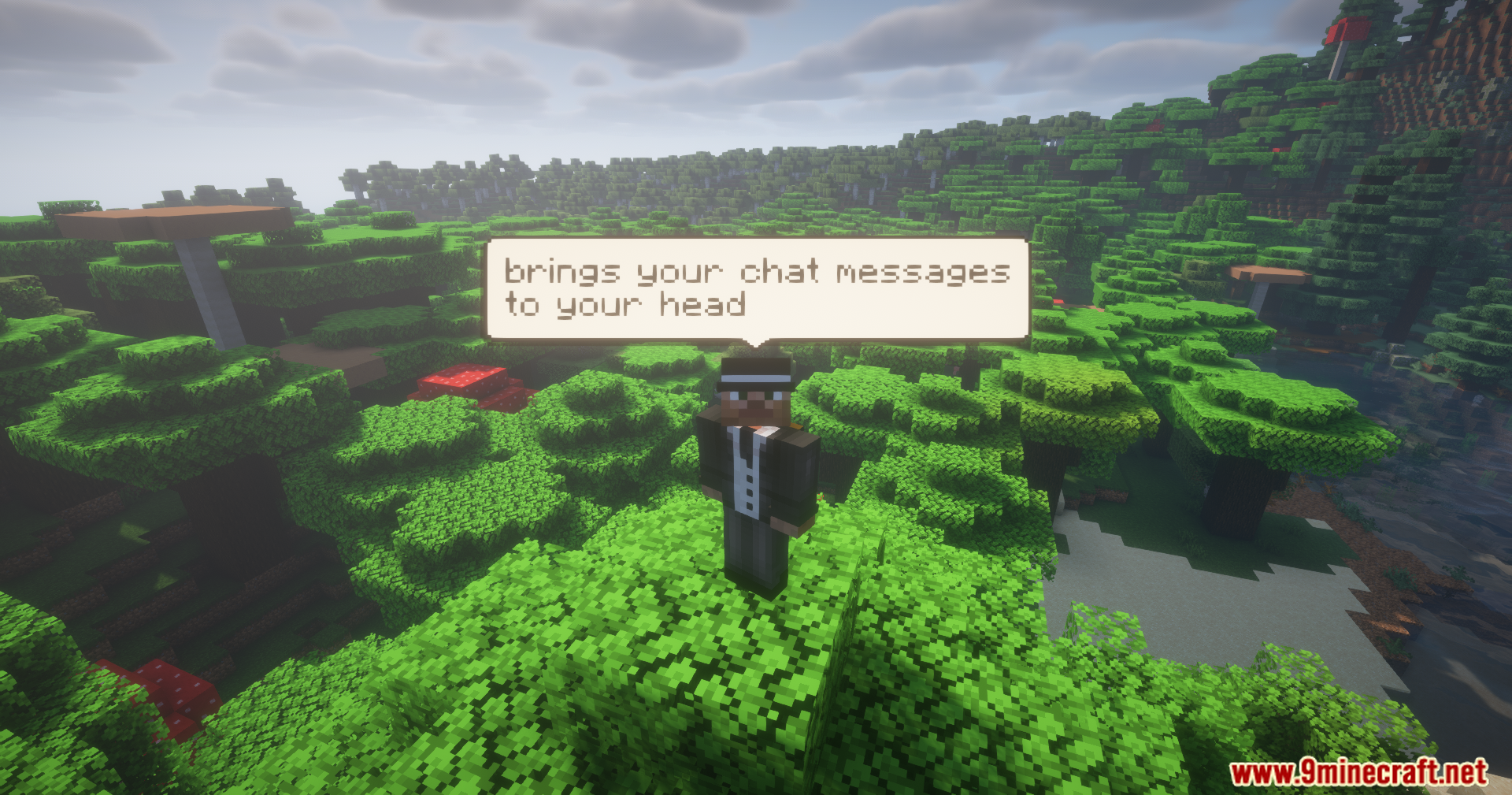
11 images from the Jvitors Chat Bubbles Mod page.

You May Also Like
Wikis that share the most with this one
More mod wikis on the site
The most downloaded mods that have a wiki here
A few wikis from each of the other kinds