

 DownloadJuxt UI Mod
Get the files on 9Minecraft
Guides
Step-by-step, in-game.
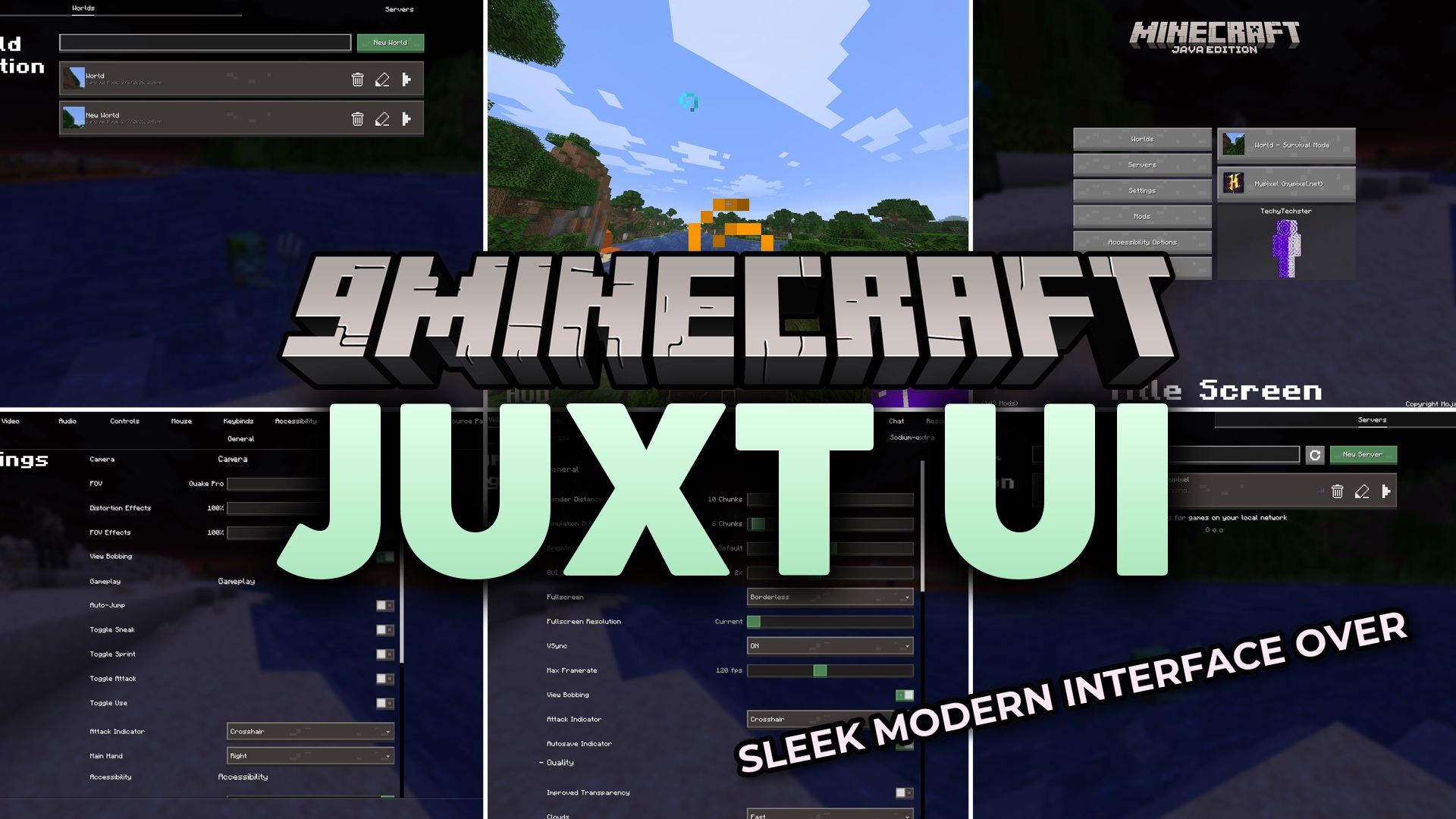
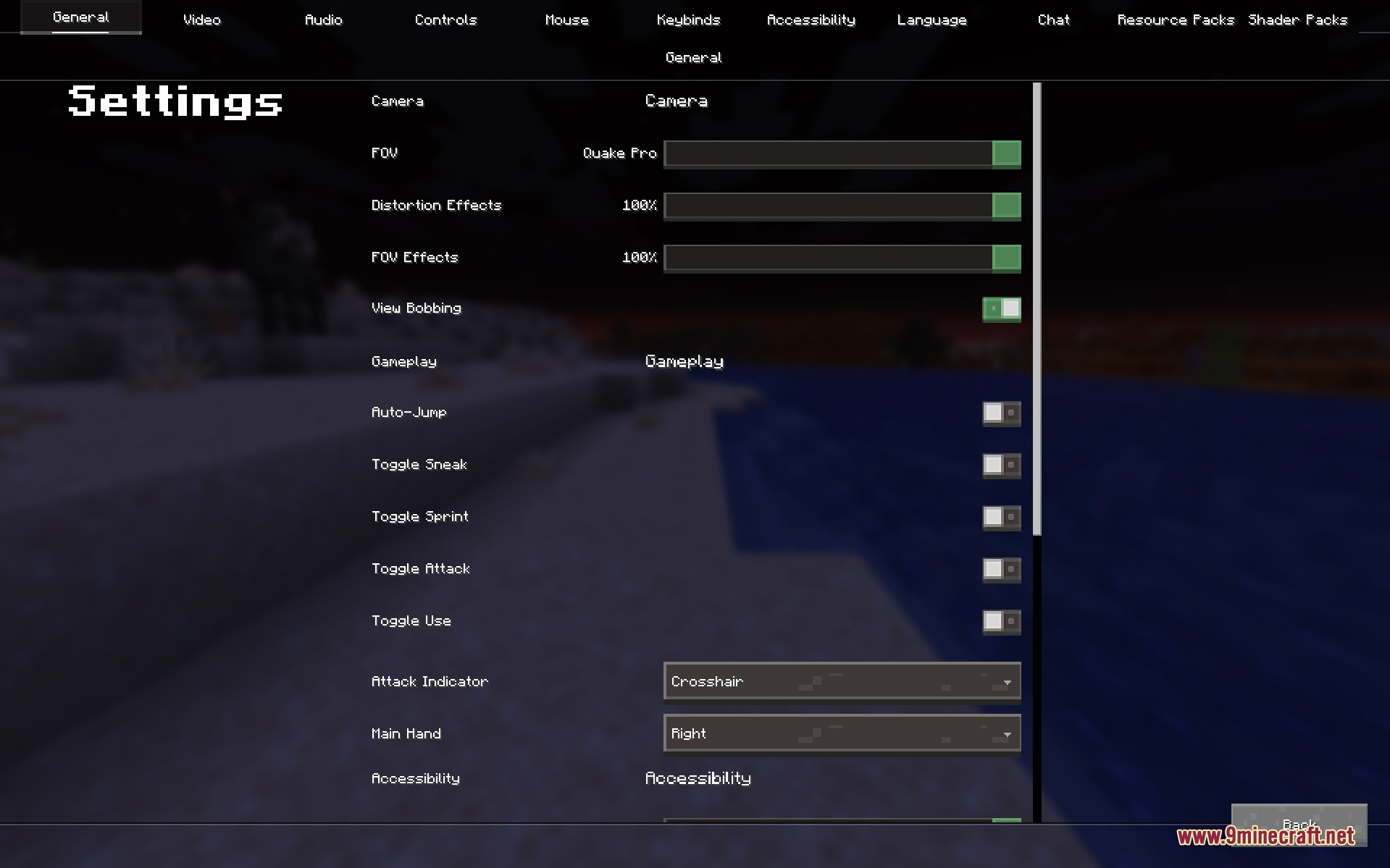
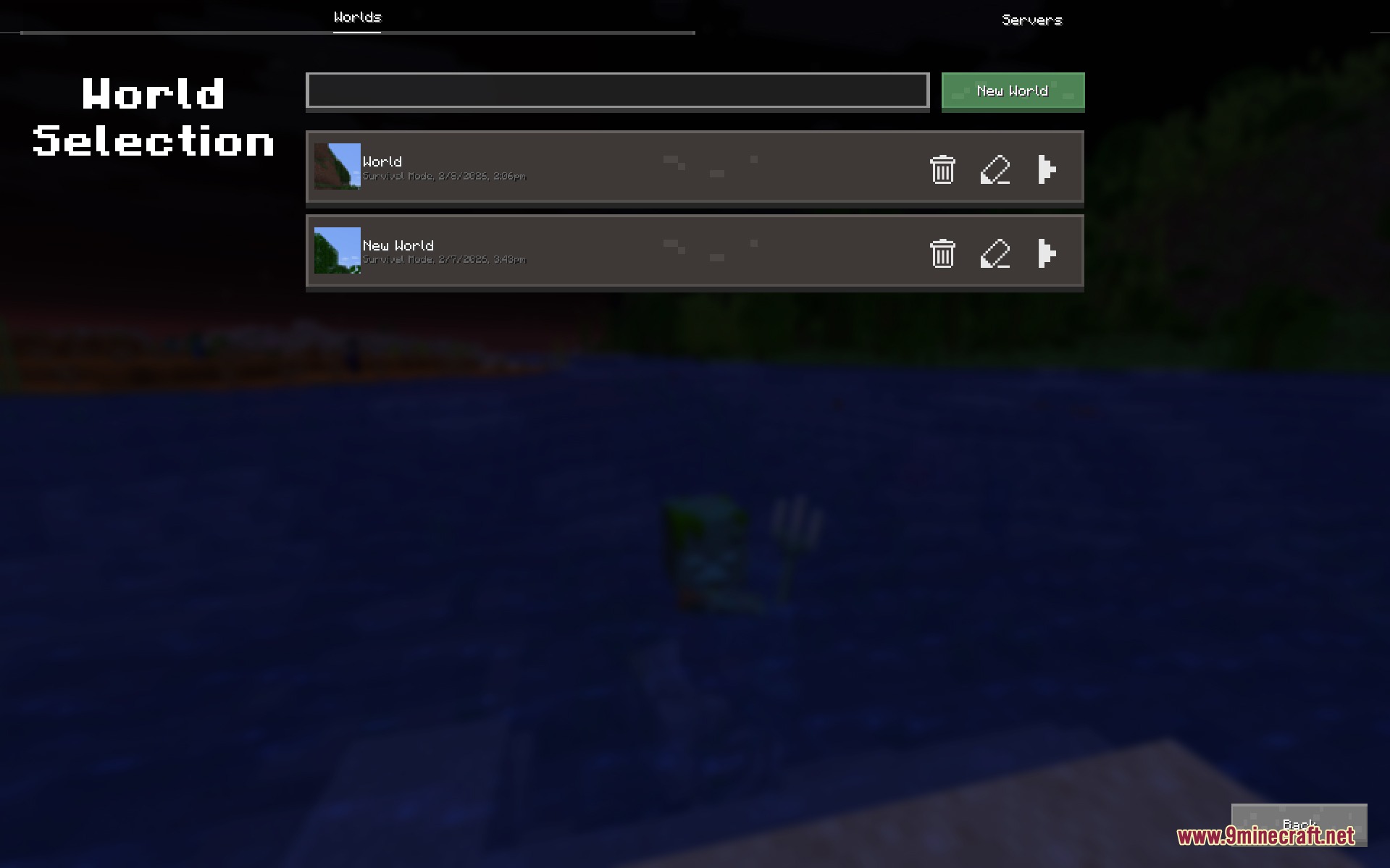
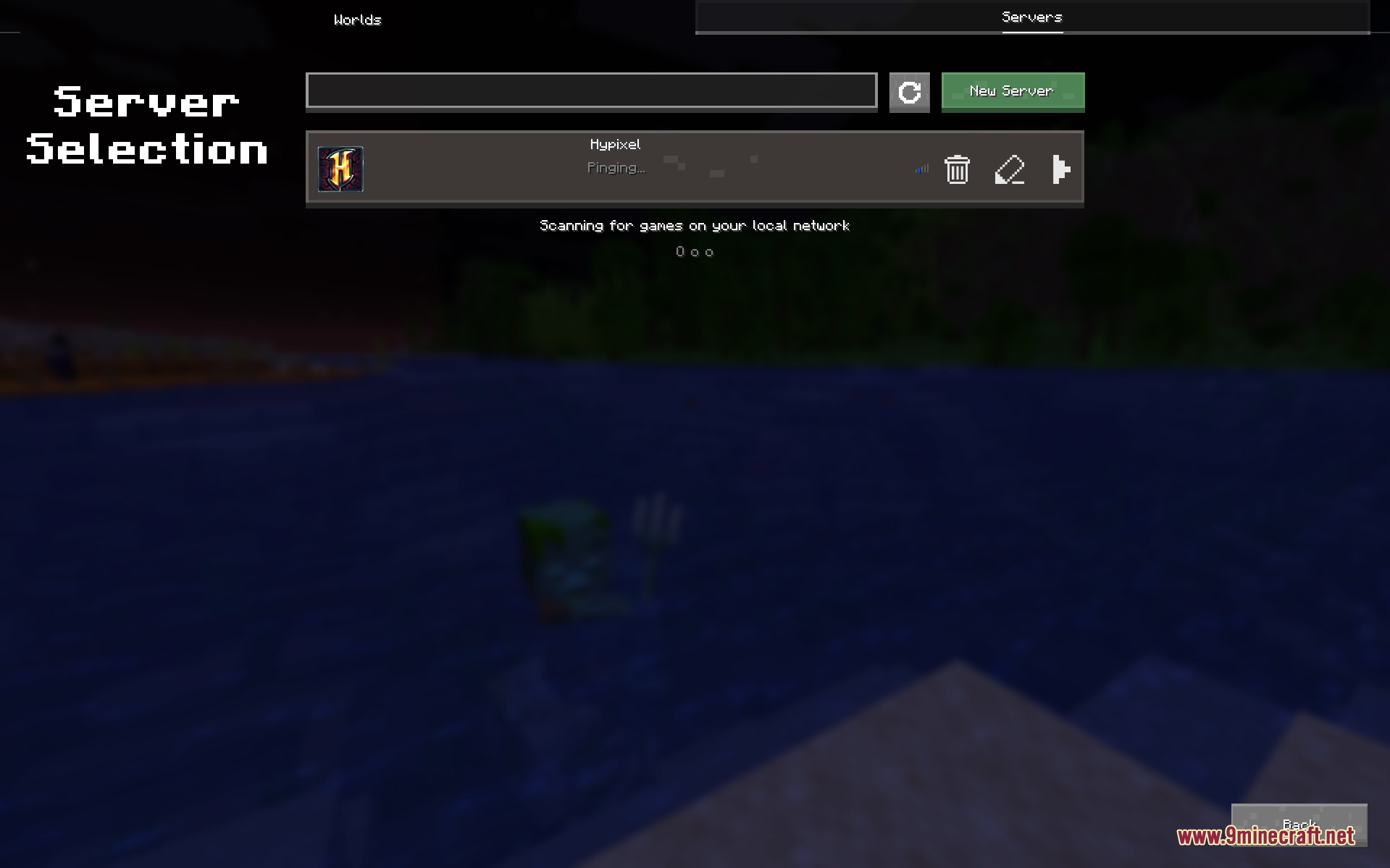
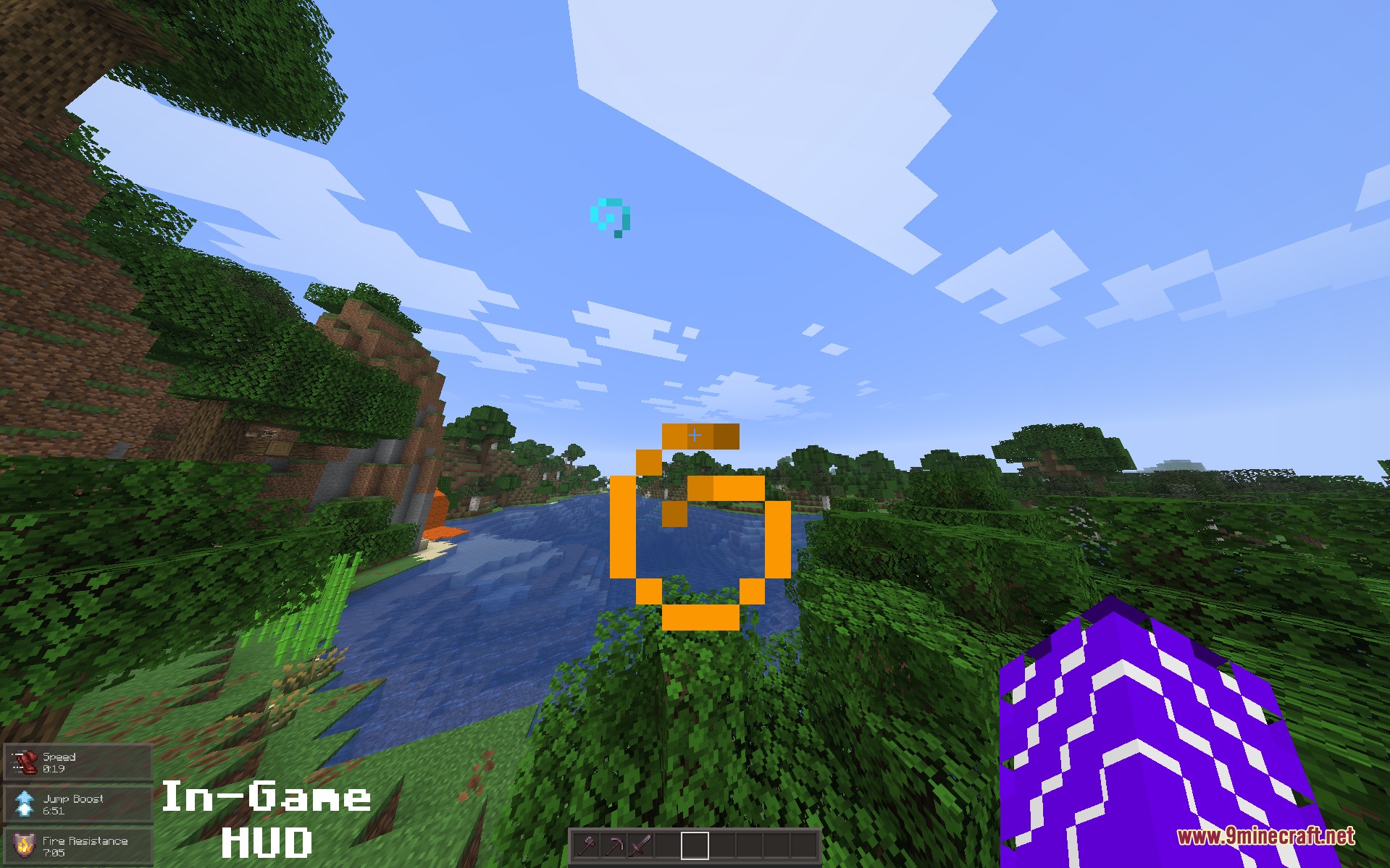
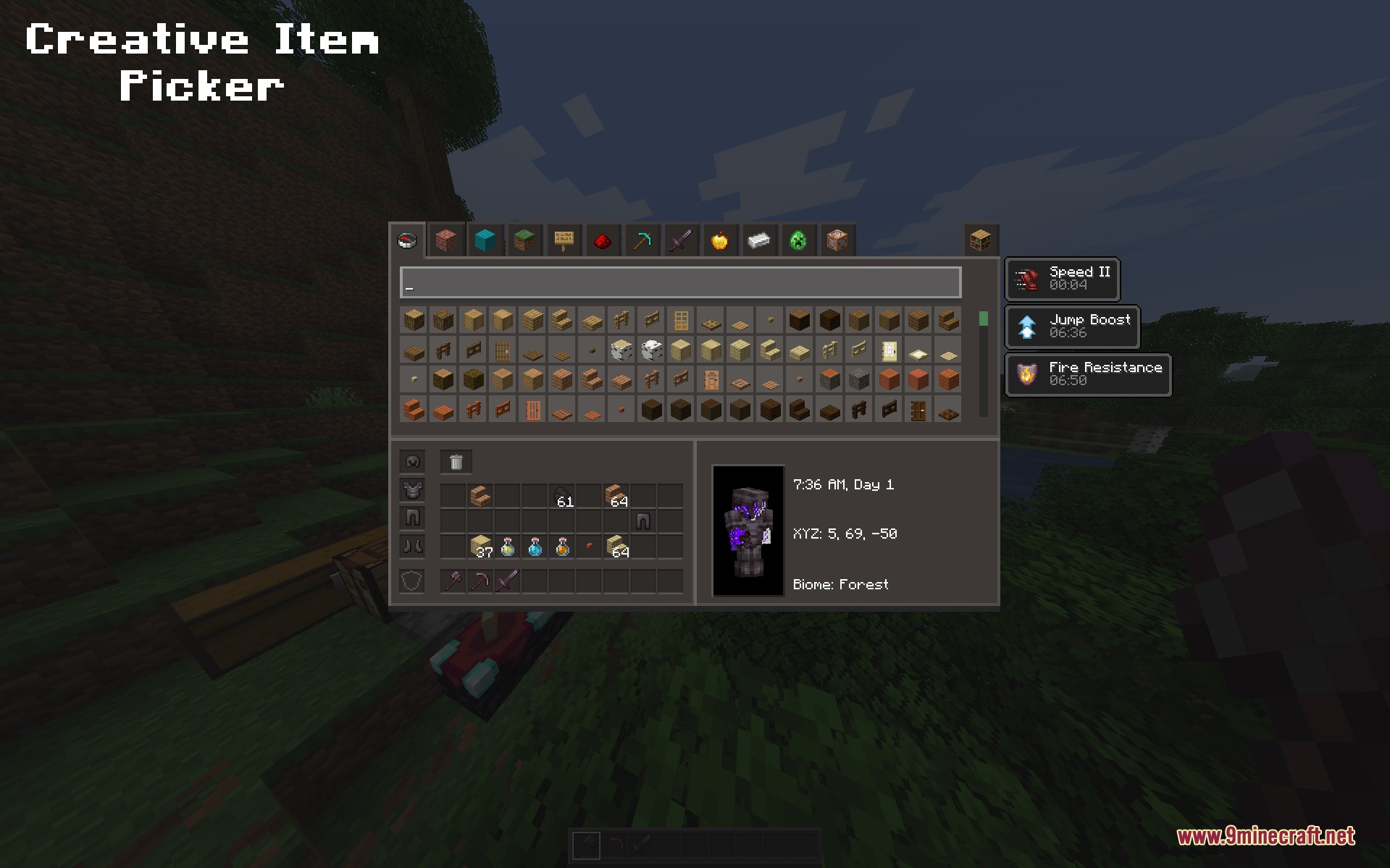
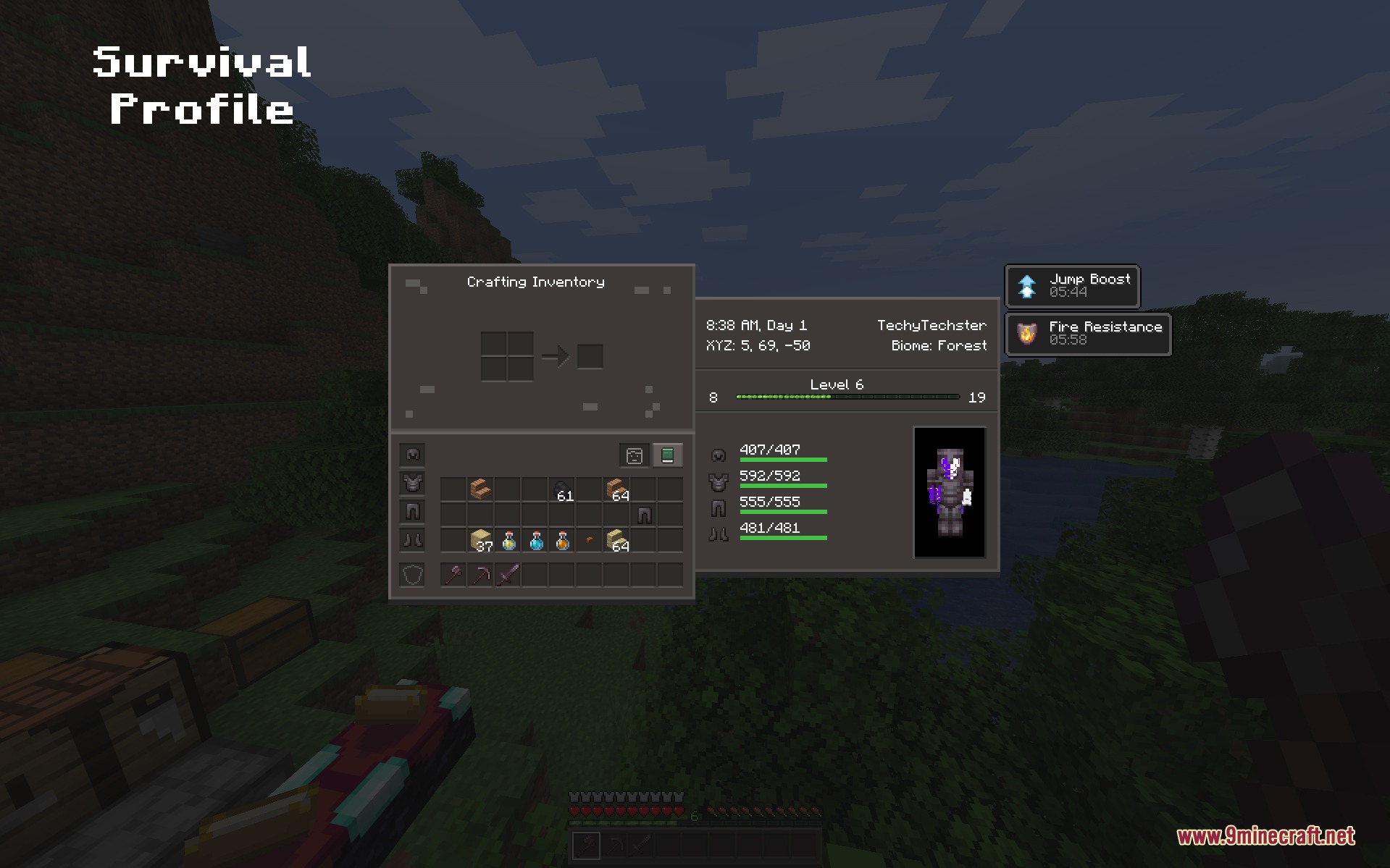
Adjust Settings and Video OptionsAccess the Settings Menu From the title screen, click Settings or Options. The Juxt UI mod redesigns this entire menu…Customize Your HUD DisplayAccess HUD Settings Open your Settings menu from the main screen or pause menu. Look for the Juxt UI section or HUD…Navigate World and Server SelectionOpen World Selection From the main menu, click "Singleplayer" to view your saved worlds. The Juxt UI mod redesigns…Organize Your Inventory ScreenOpen Your Inventory Press your inventory key (default: E) to open your survival inventory. You'll immediately notice…
Frequently asked questions
How do I enable the Juxt UI Mod after installing it?
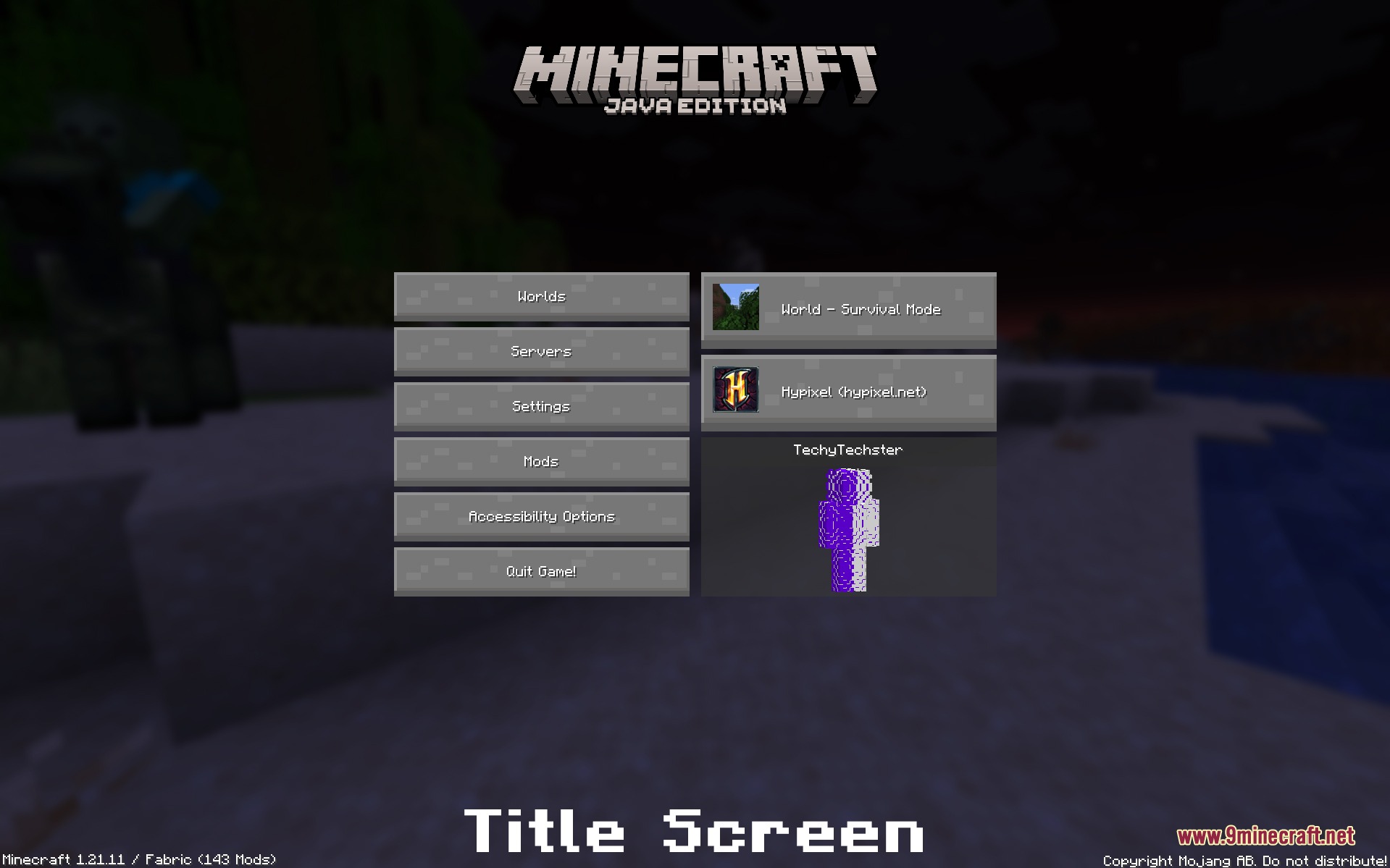
Once installed, the mod activates automatically on your next game launch—you'll see the redesigned title screen right away. No additional setup or configuration files need to be edited to start using it.
Can I turn off specific UI changes I don't like?
Yes, you can customize which elements are restyled through the mod's settings menu. Access the options from your main settings screen to toggle individual features like HUD changes, menu redesigns, or container screens on and off.
Does this mod change my actual gameplay or just how things look?
This mod is purely visual—it only changes the appearance of menus, HUD elements, and screens. All game mechanics, crafting recipes, health values, and survival rules remain exactly the same.
Will Juxt UI work with Sodium or other optimization mods?
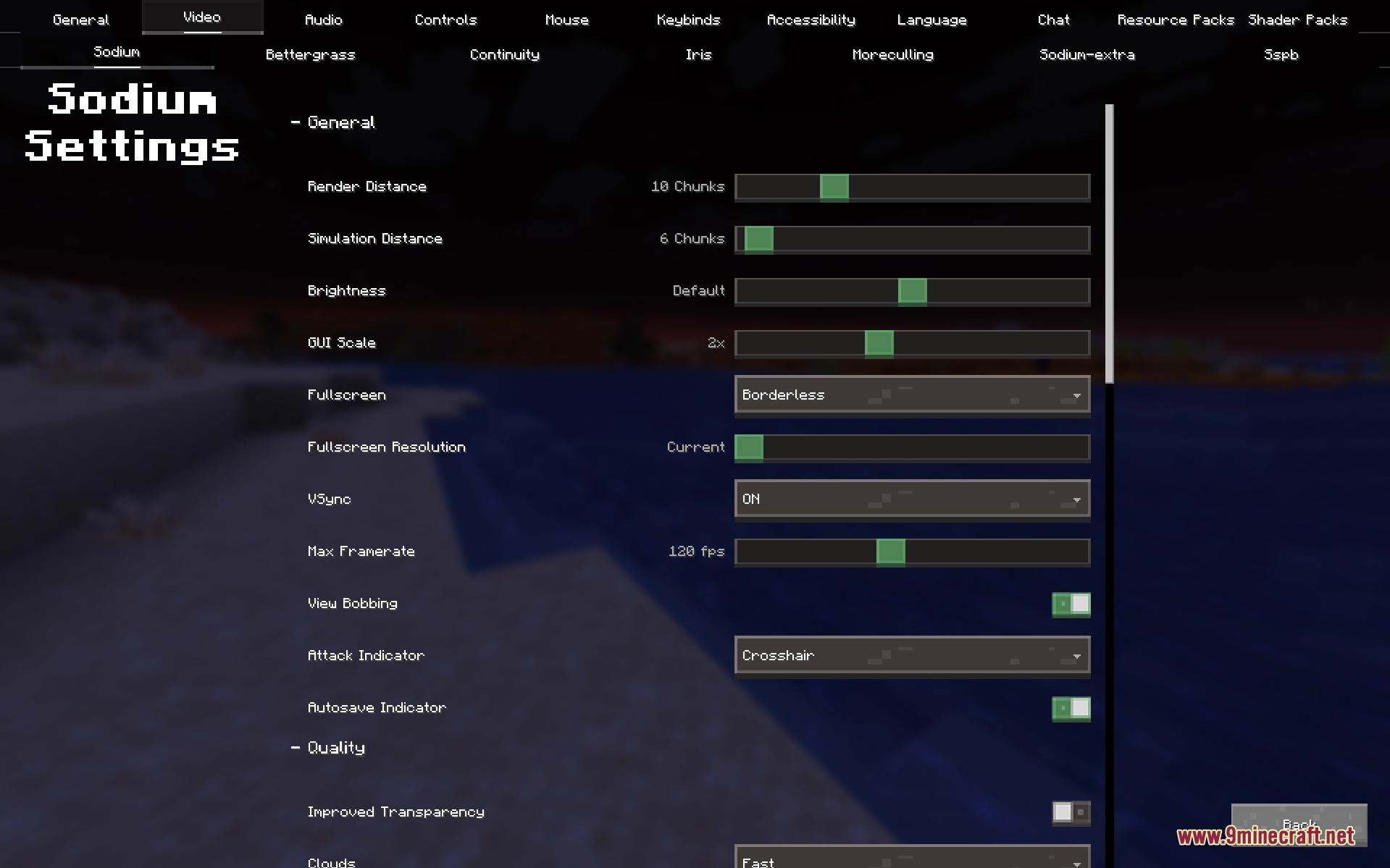
Yes, Juxt UI is designed to work alongside Sodium and other common mods. The mod even includes special support for Sodium's settings screen to maintain the clean aesthetic.
See all 10 Juxt UI questions ›
Gallery
9 images from the Juxt Ui Mod page.
You May Also Like
Wikis that share the most with this one
More mod wikis on the site
The most downloaded mods that have a wiki here
A few wikis from each of the other kinds