

 DownloadLit Vanilla Plus Shaders
Get the files on 9Minecraft
Guides
Step-by-step, in-game.
Adjust Lighting Intensity for Your Build StyleAccess Shader Settings Press the shader settings key (default: Right Shift + R, or check your keybinds) while in-game…Get Better Lighting in Dark Caves and UndergroundUnderstand Ambient Light Behavior Lit Vanilla Plus improves how light spreads underground, but caves remain…Maximize Visual Quality Without Performance LossCheck Quality Tiers Open the shader settings menu and locate quality or performance options. Most shader packs offer…Troubleshoot Uneven or Flickering LightingVerify Shader is Active Check that Lit Vanilla Plus is selected in your shader options menu. Confirm the shader loads…
Frequently asked questions
How do I enable the shader after installing it?
Open your Video Settings in-game, select Shaders, and choose Lit Vanilla Plus Shaders from the list. Apply the settings and the shader will activate immediately.
Why do my caves look too dark even with this shader?
Check the Lighting Intensity setting in the shader options—increase it to brighten underground areas. You can also place torches strategically, as the shader enhances their glow effect.
Does this shader work with other mods?
Lit Vanilla Plus Shaders is compatible with most mods, but custom blocks from other mods may not receive enhanced lighting until the shader is updated to support them. Mods that heavily alter lighting or block rendering may conflict.
How much will this shader hurt my FPS?
Performance impact depends on your hardware, but this shader is designed to be lightweight—most players see a 10-20% FPS decrease on mid-range systems. Use the Quality settings to find a balance between visuals and performance.
See all 10 Lit Vanilla Plus Shaders questions ›
Gallery
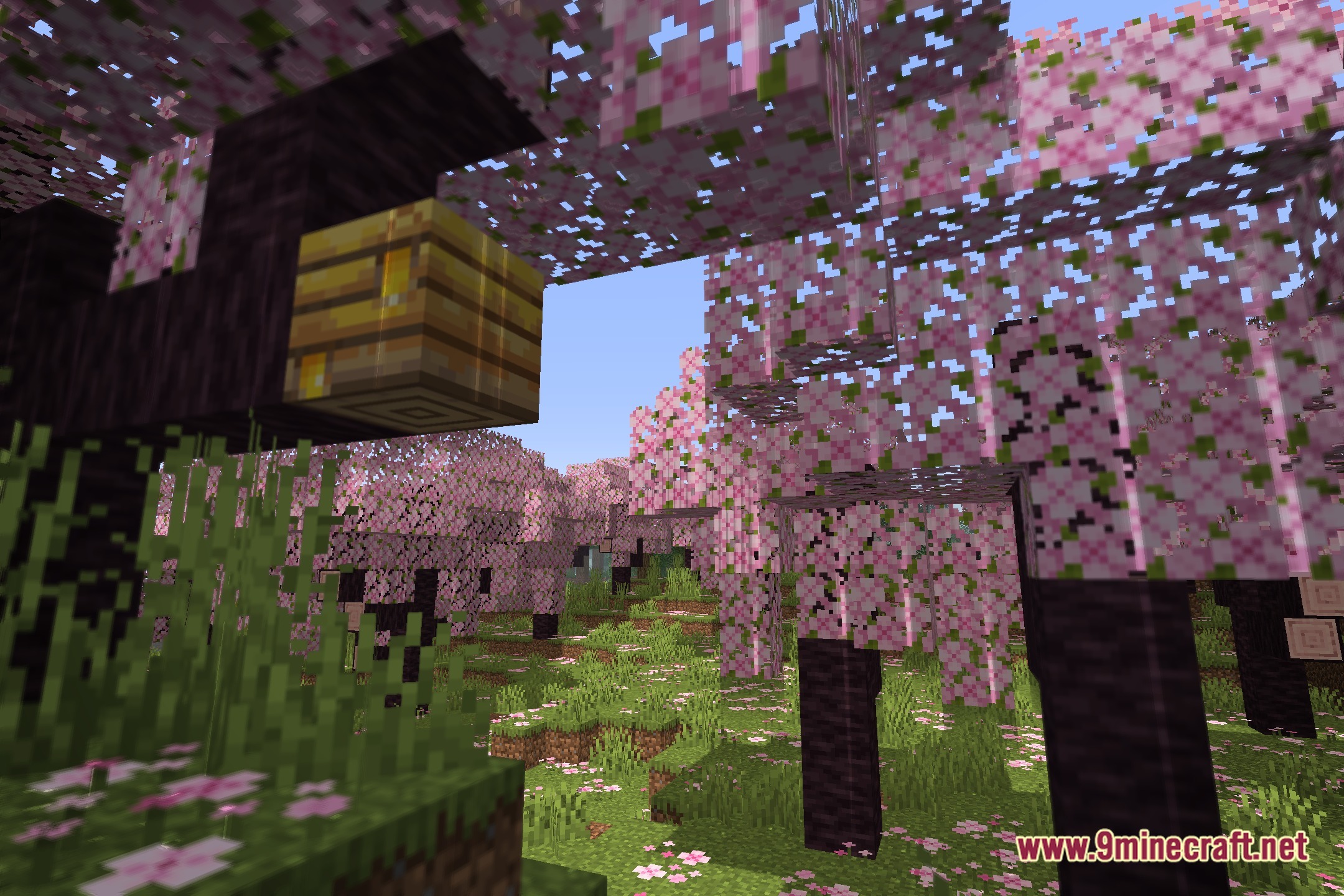
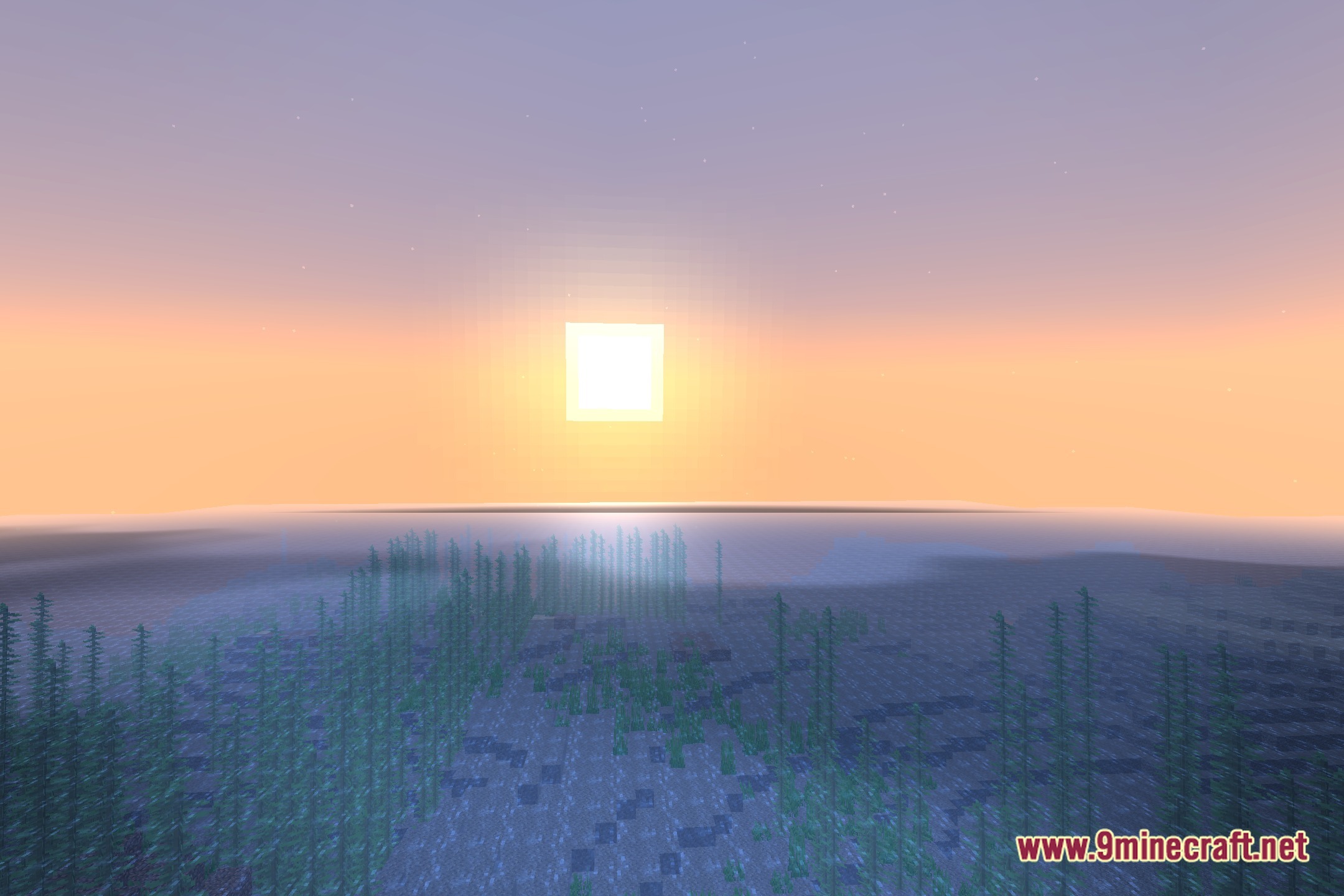
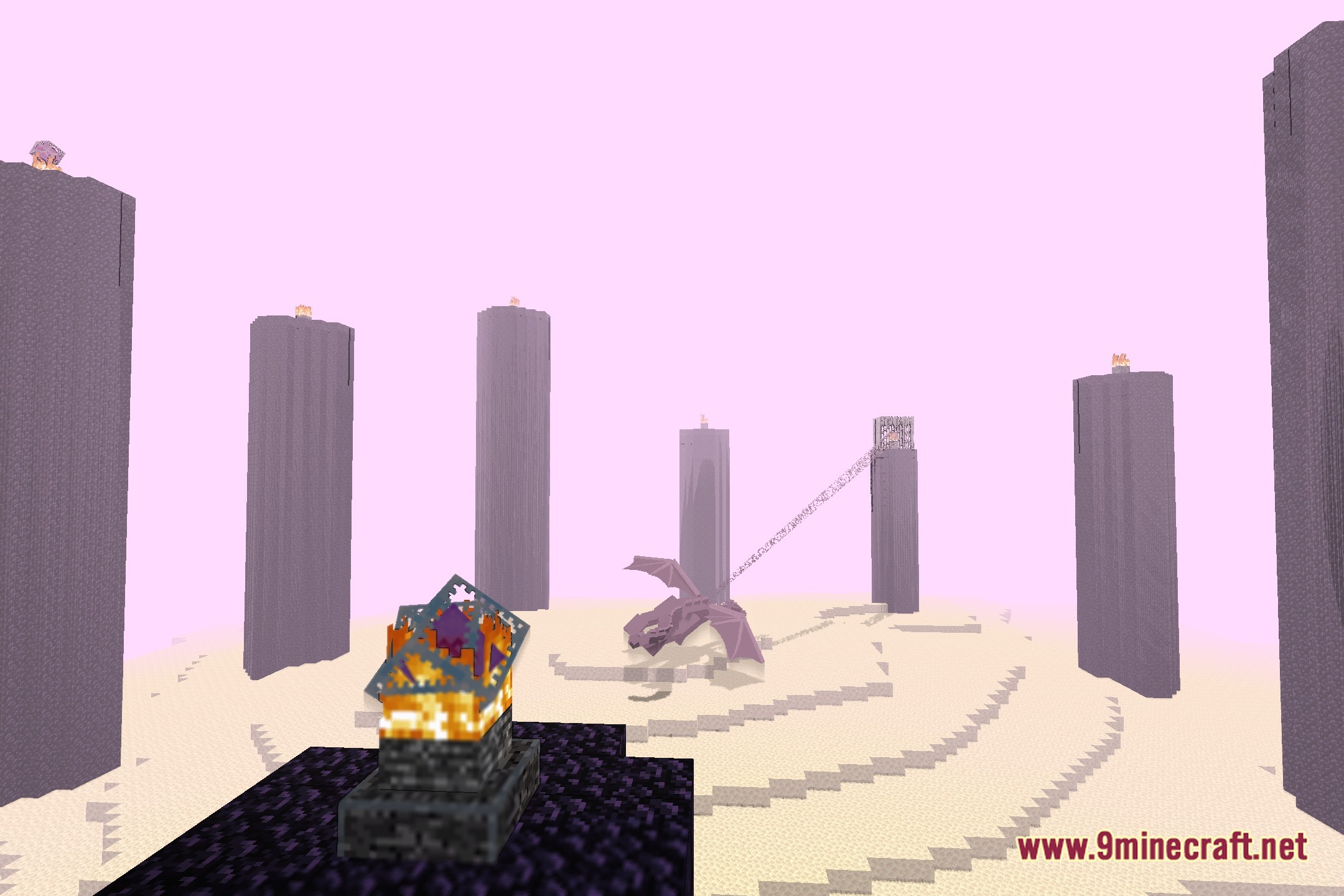
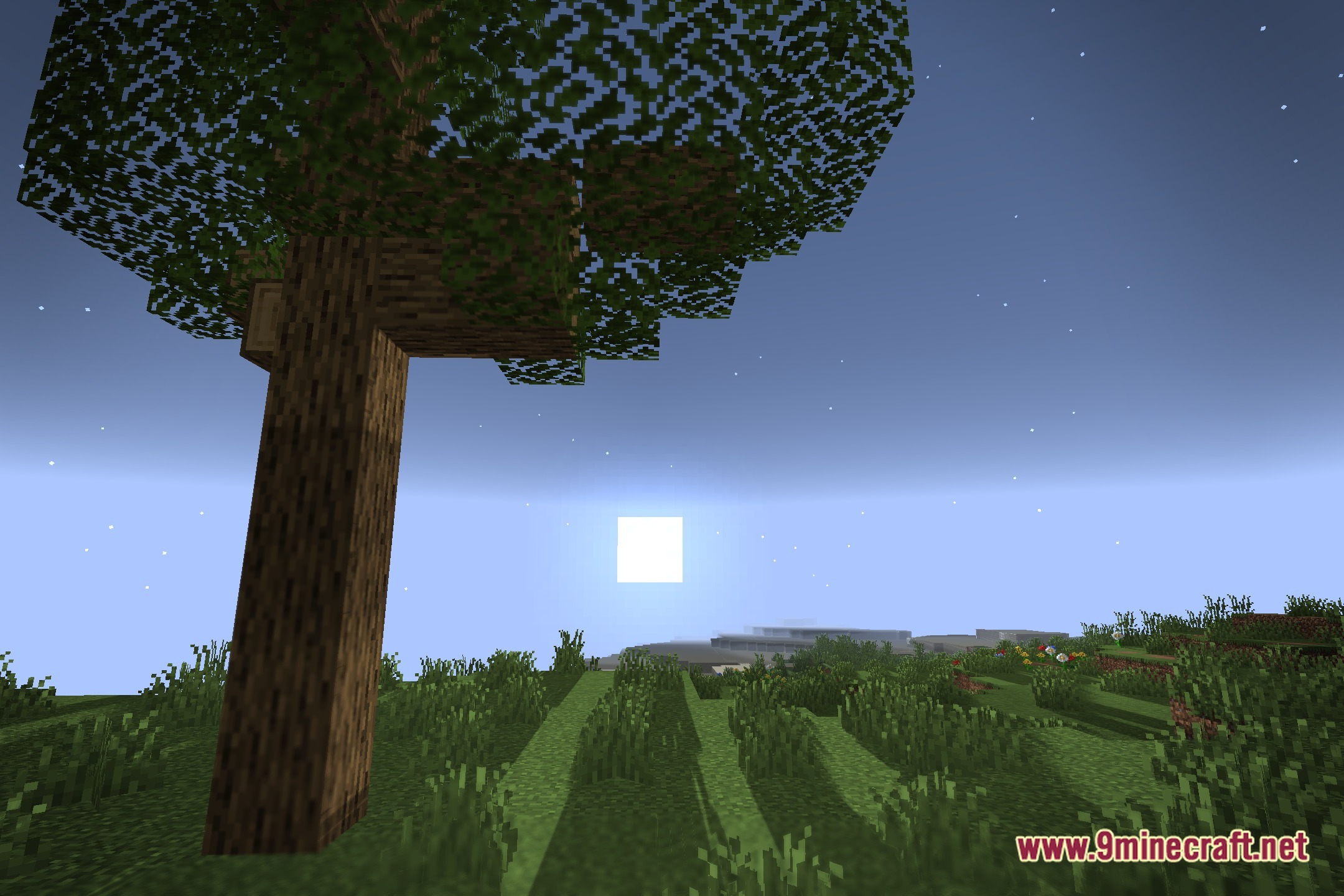
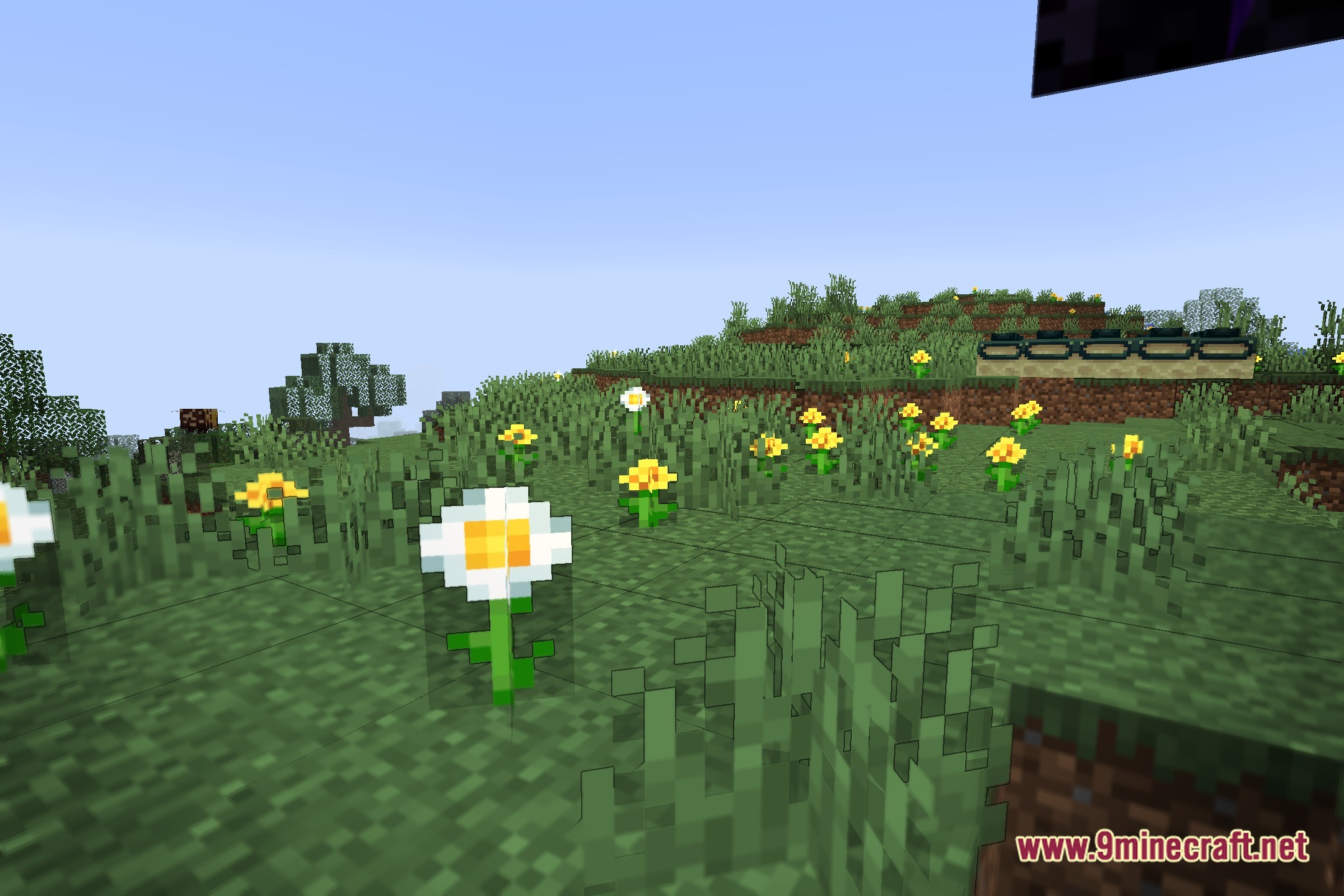
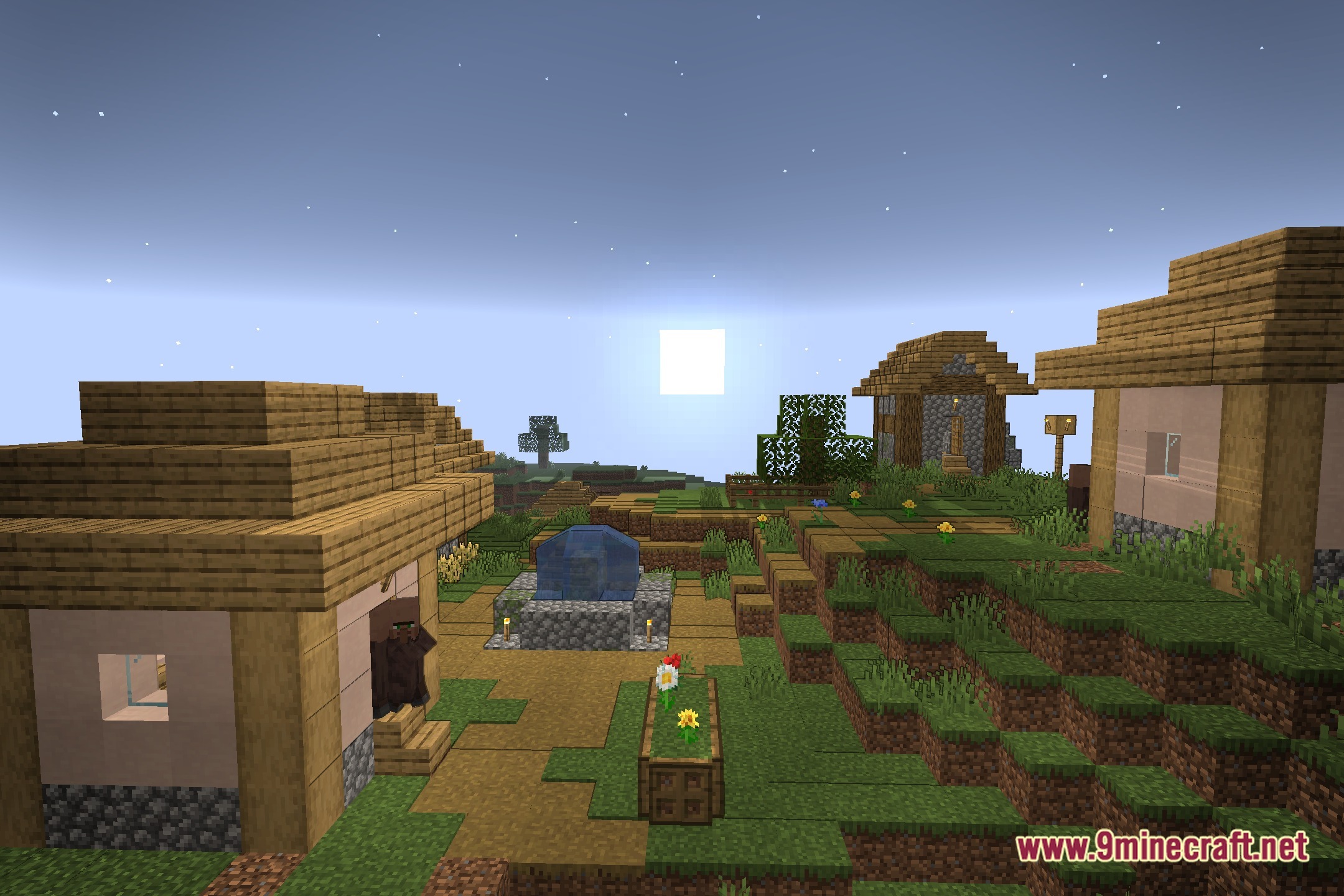
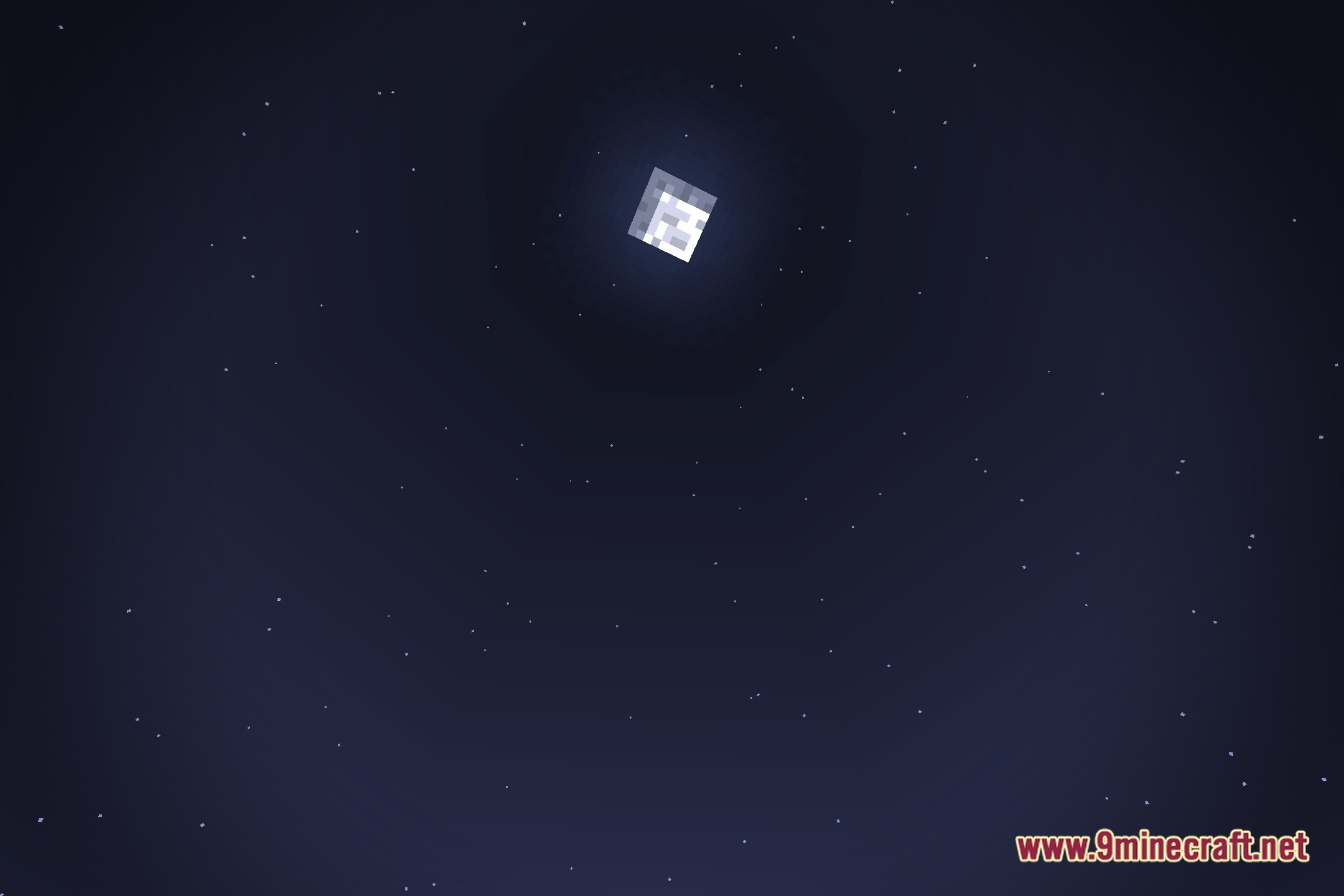
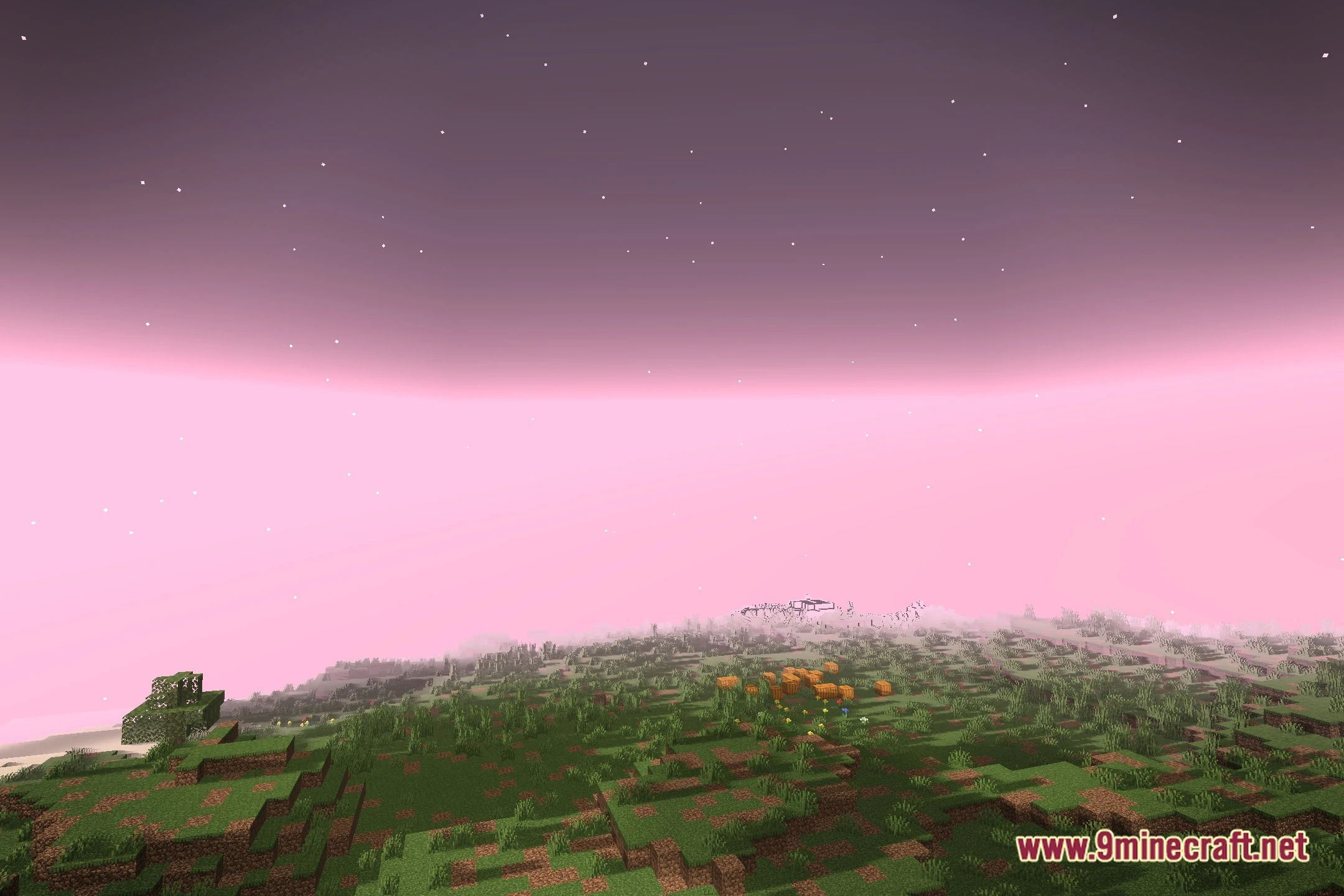
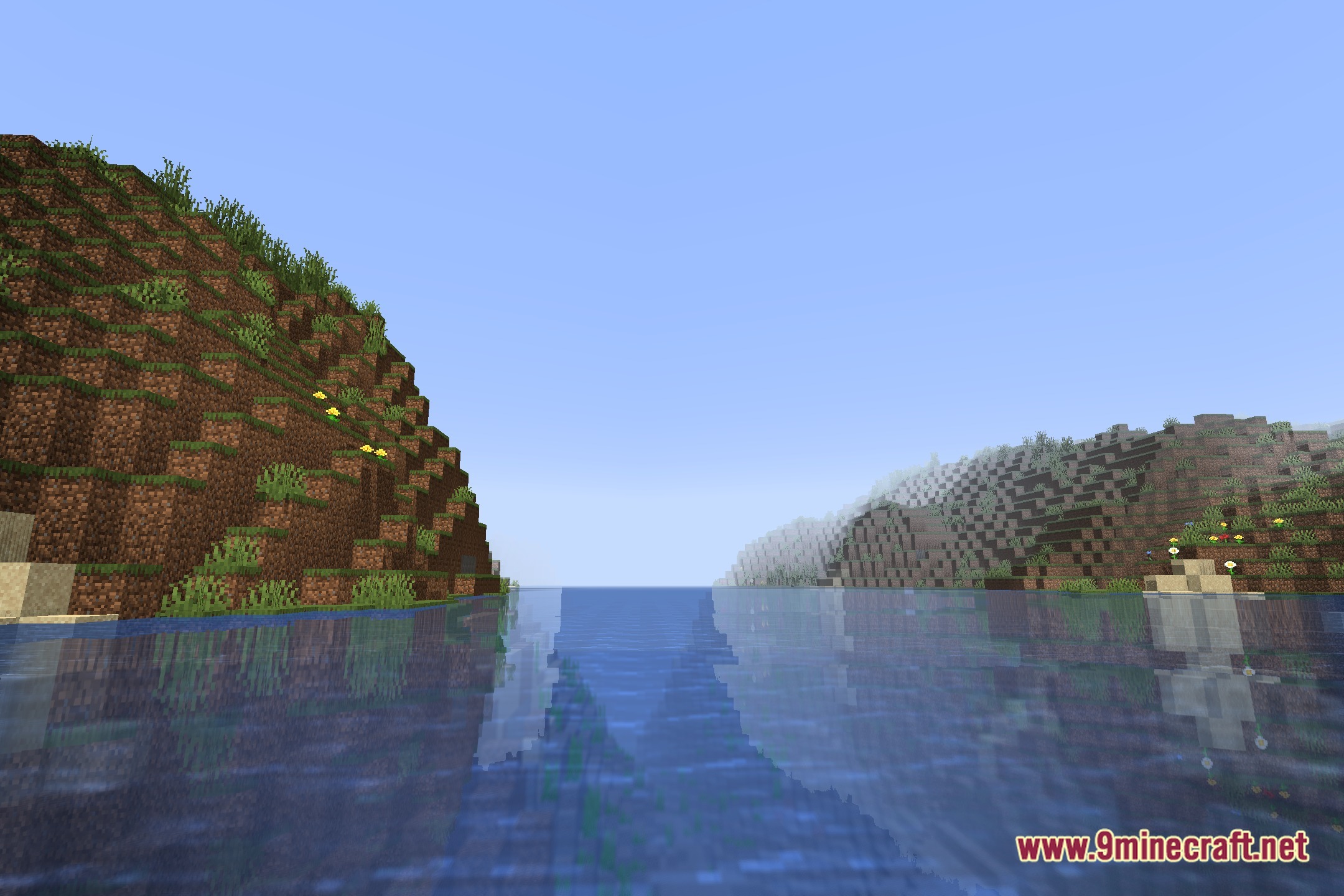
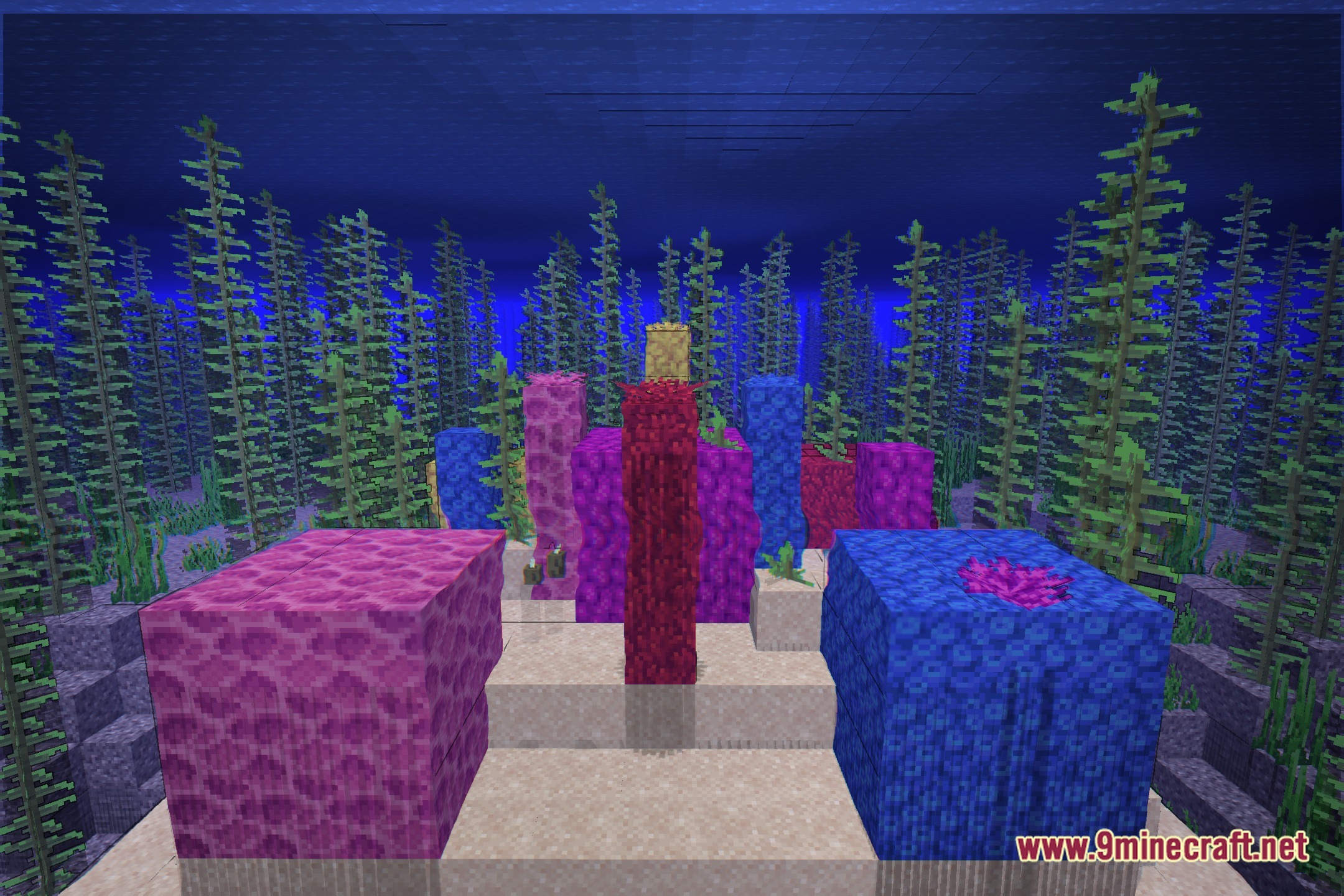
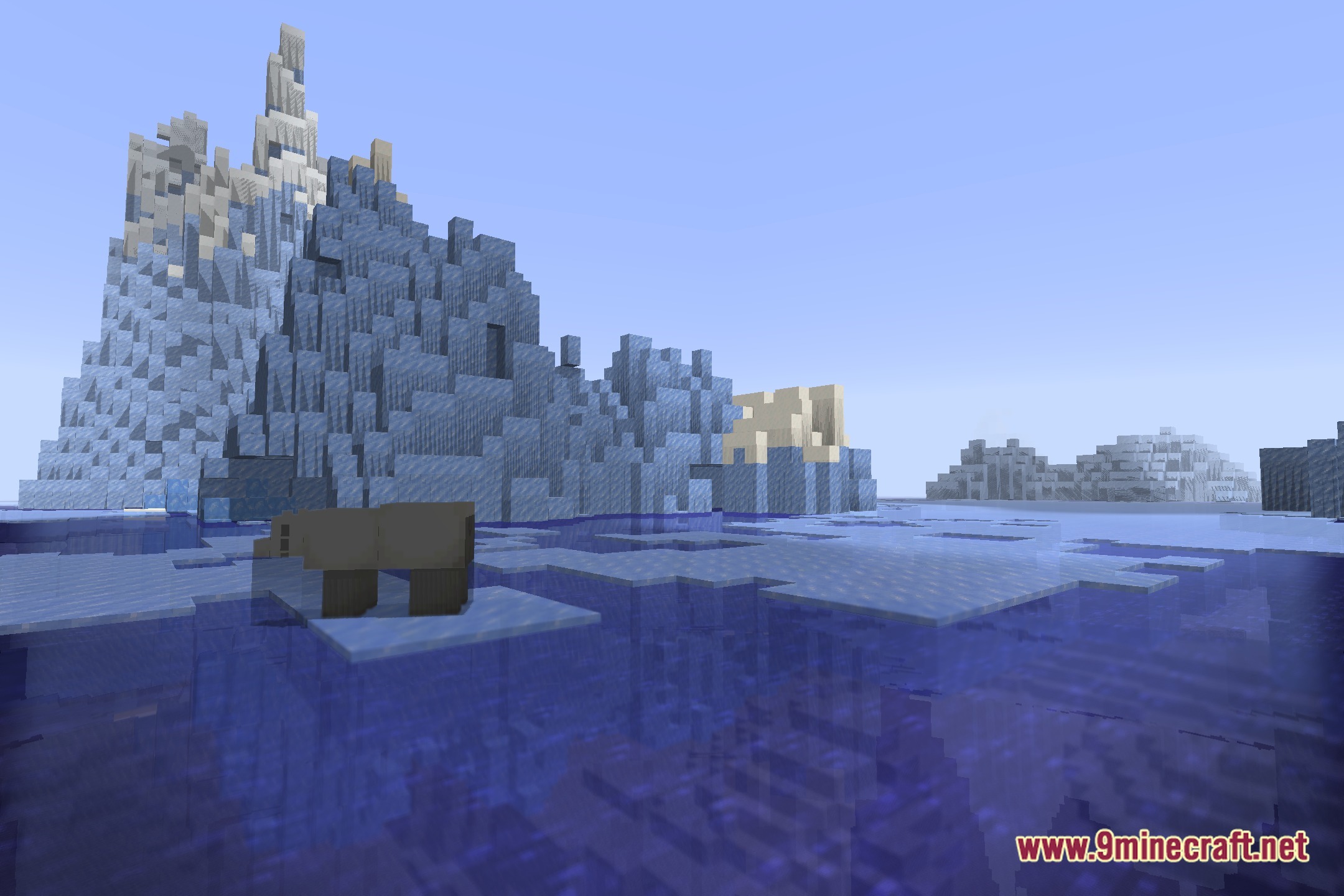
12 images from the Lit Vanilla Plus Shaders page.

You May Also Like
Wikis that share the most with this one
Wikis on the same theme: light
More shader wikis on the site
 Lighter Game Shaders
 Lenscraft Shaders
The most downloaded mods that have a wiki here