

 DownloadPost’n’Stuff! Shaders
Get the files on 9Minecraft
Guides
Step-by-step, in-game.
Adjusting Bloom Intensity Around Light SourcesAccess the Shader Settings Open your shader options menu while in-game. This is typically found in Video Settings >…Enabling Ambient Occlusion for Softer ShadowsOpen Shader Configuration Access your shader options through Video Settings > Shaders > Shader Options in-game. Find…Getting the Best Look in Different Lighting ConditionsUnderstand How Post'n'Stuff! Renders Light The shader blends vanilla Minecraft lighting with enhanced bloom and…Optimizing Performance on Lower-End HardwareCheck Current Frame Rate Enable the FPS counter (usually F3 key) to see your current performance. Post'n'Stuff! is…
Frequently asked questions
How do I turn on Post'n'Stuff Shaders after installing it?
Open your shader settings menu (usually accessed through video settings or a mod menu), find Post'n'Stuff! in the shader list, and select it. The effects will apply immediately to your world.
Why do my torches and lava look so bright now?
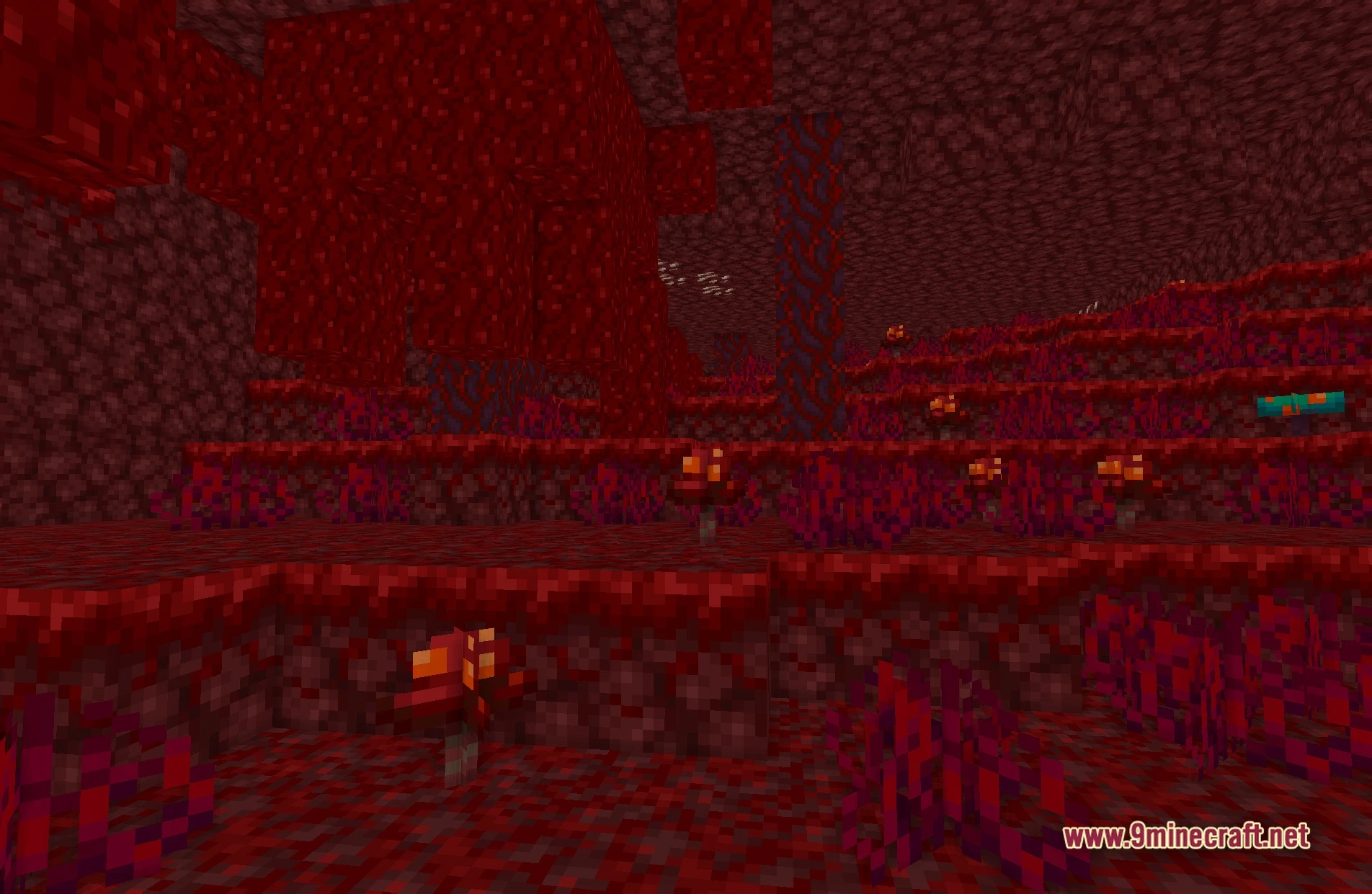
Post'n'Stuff! adds a soft bloom effect around bright light sources, which makes them glow more noticeably. You can reduce this glow by adjusting the bloom intensity setting in the shader options.
Can I use Post'n'Stuff Shaders on a potato PC?
Yes—Post'n'Stuff! is designed to run smoothly on older hardware while still adding visual depth. If you're still experiencing lag, try lowering ambient occlusion quality or disabling bloom in the settings.
What's the difference between Post'n'Stuff and other shader packs?
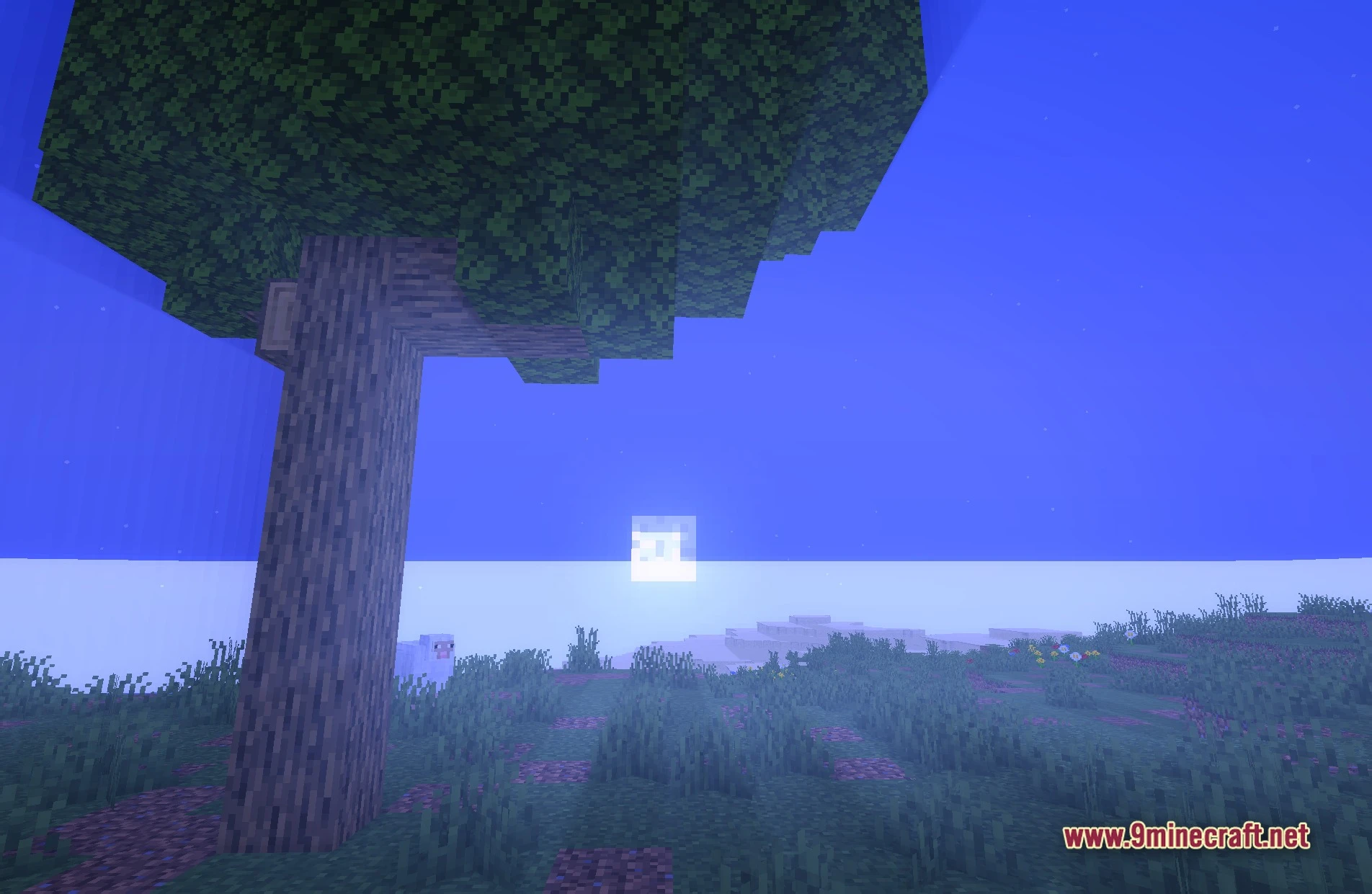
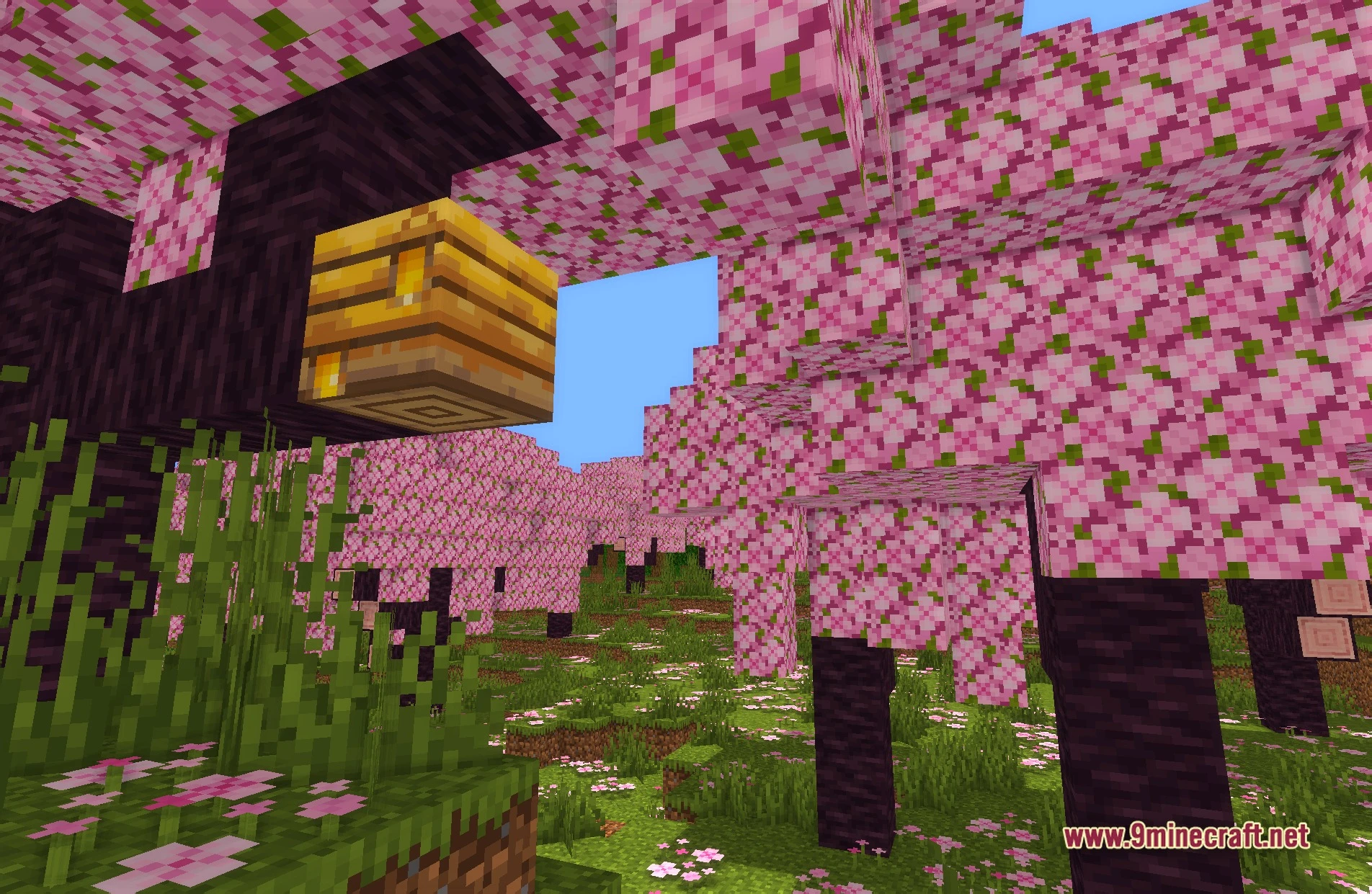
Post'n'Stuff! focuses on subtle, performance-friendly enhancements like soft shadows and bloom rather than dramatic water reflections or complex lighting. It keeps the vanilla feel while making the world look more polished.
See all 10 Post’n’Stuff! Shaders questions ›
Gallery
11 images from the Postnstuff Shaders page.


You May Also Like
Wikis that share the most with this one
More shader wikis on the site
The most downloaded mods that have a wiki here