

 DownloadNot Enough Vulkan Mod
Get the files on 9Minecraft
Guides
Step-by-step, in-game.
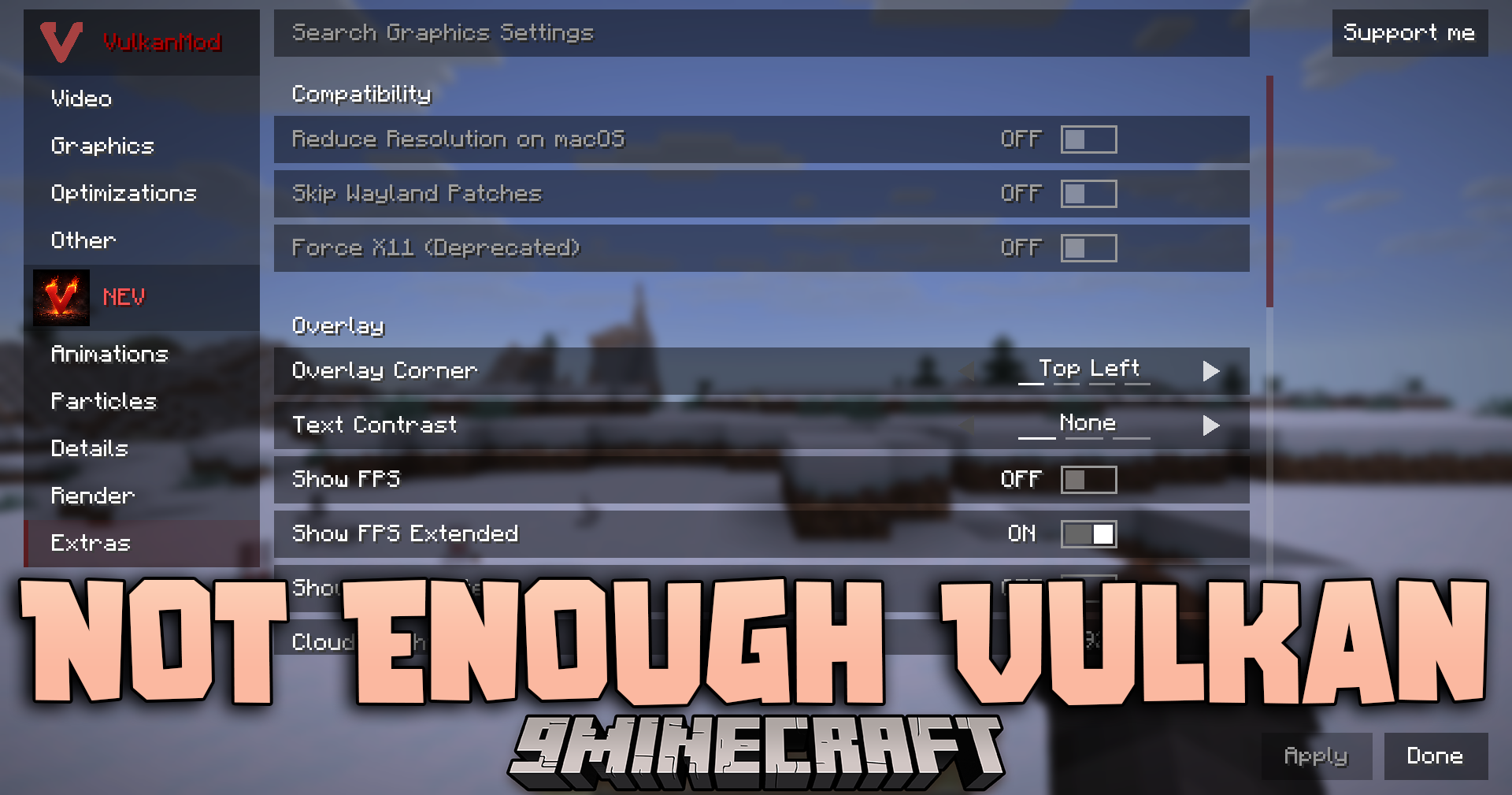
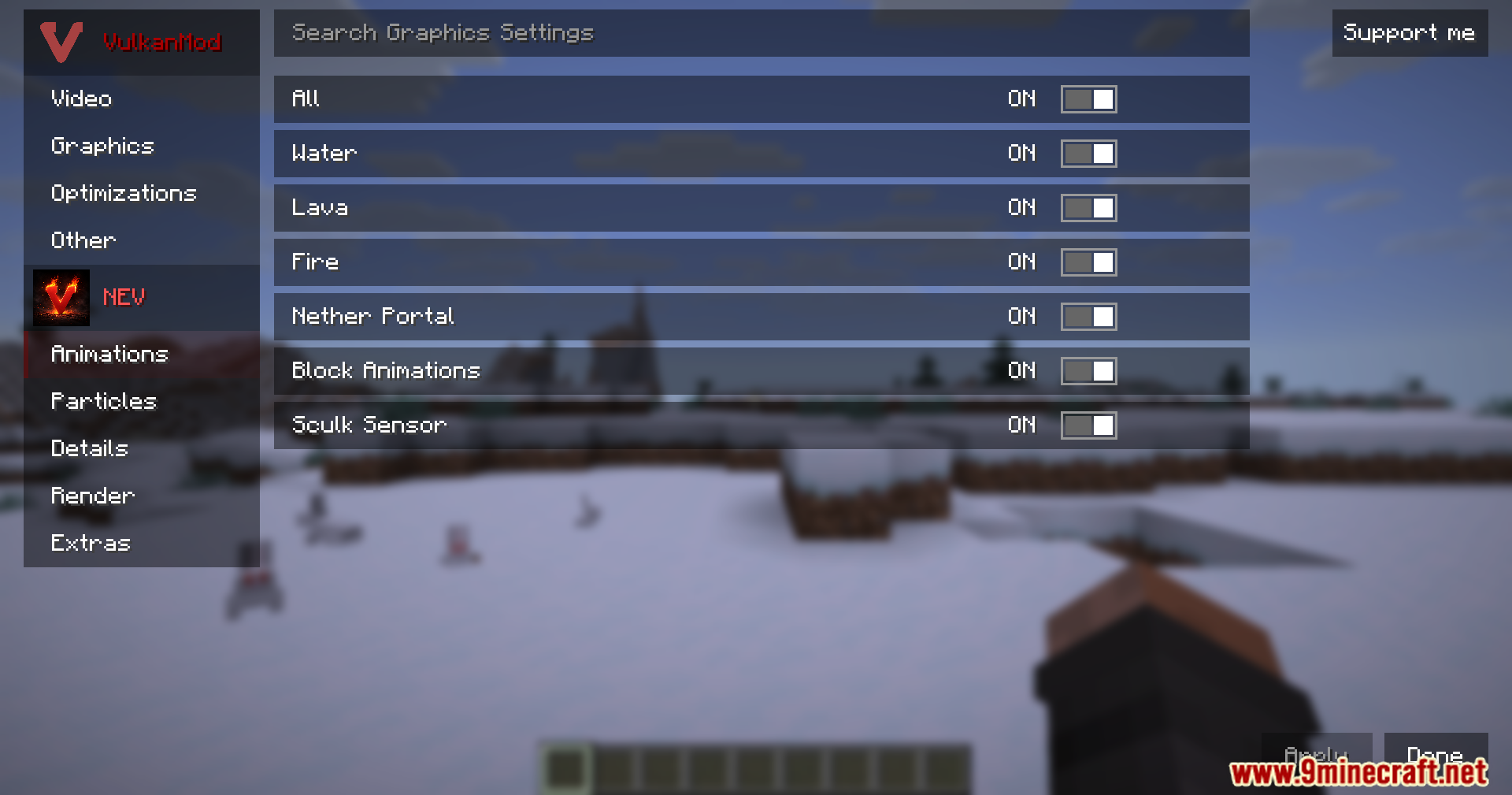
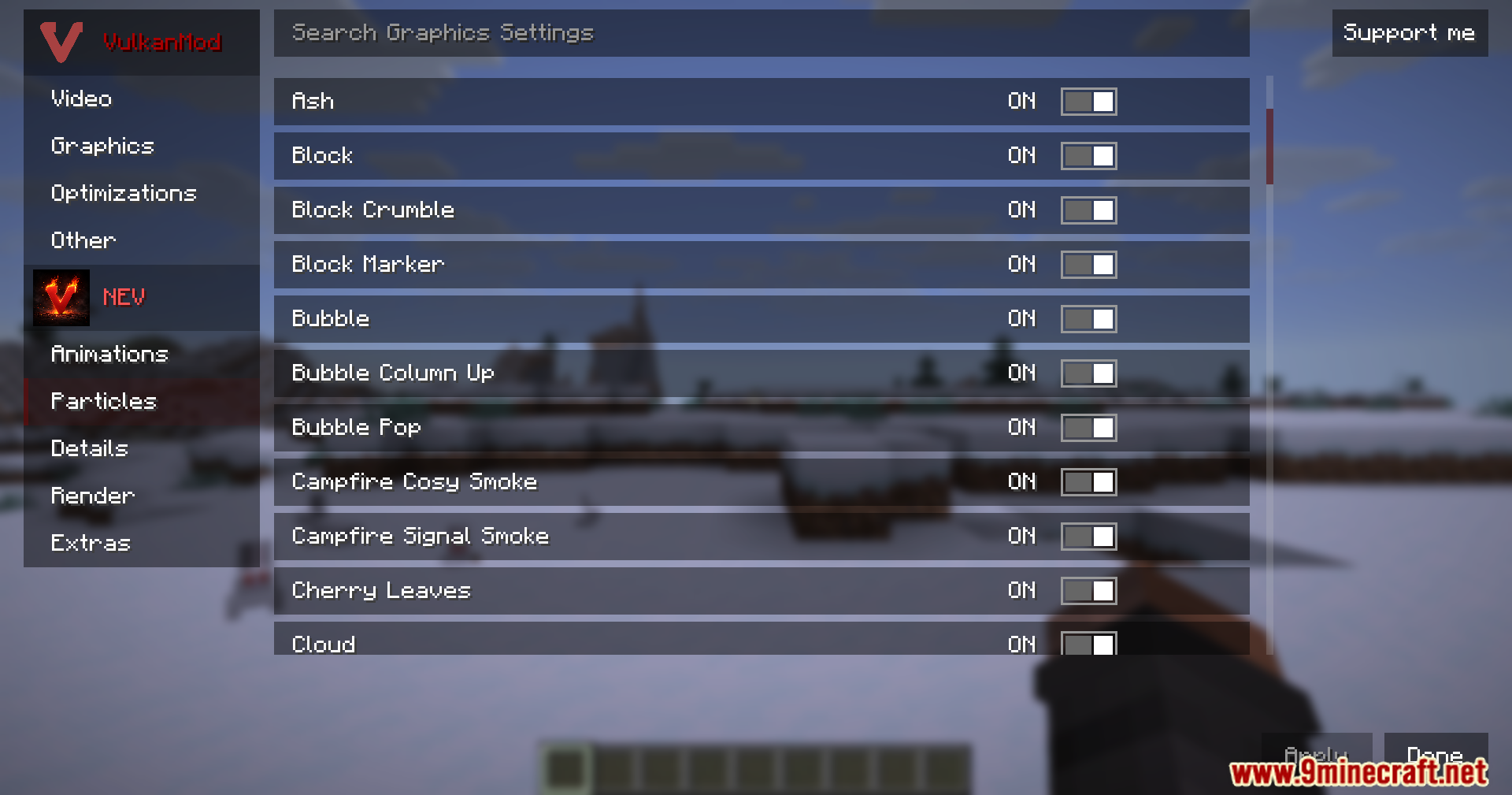
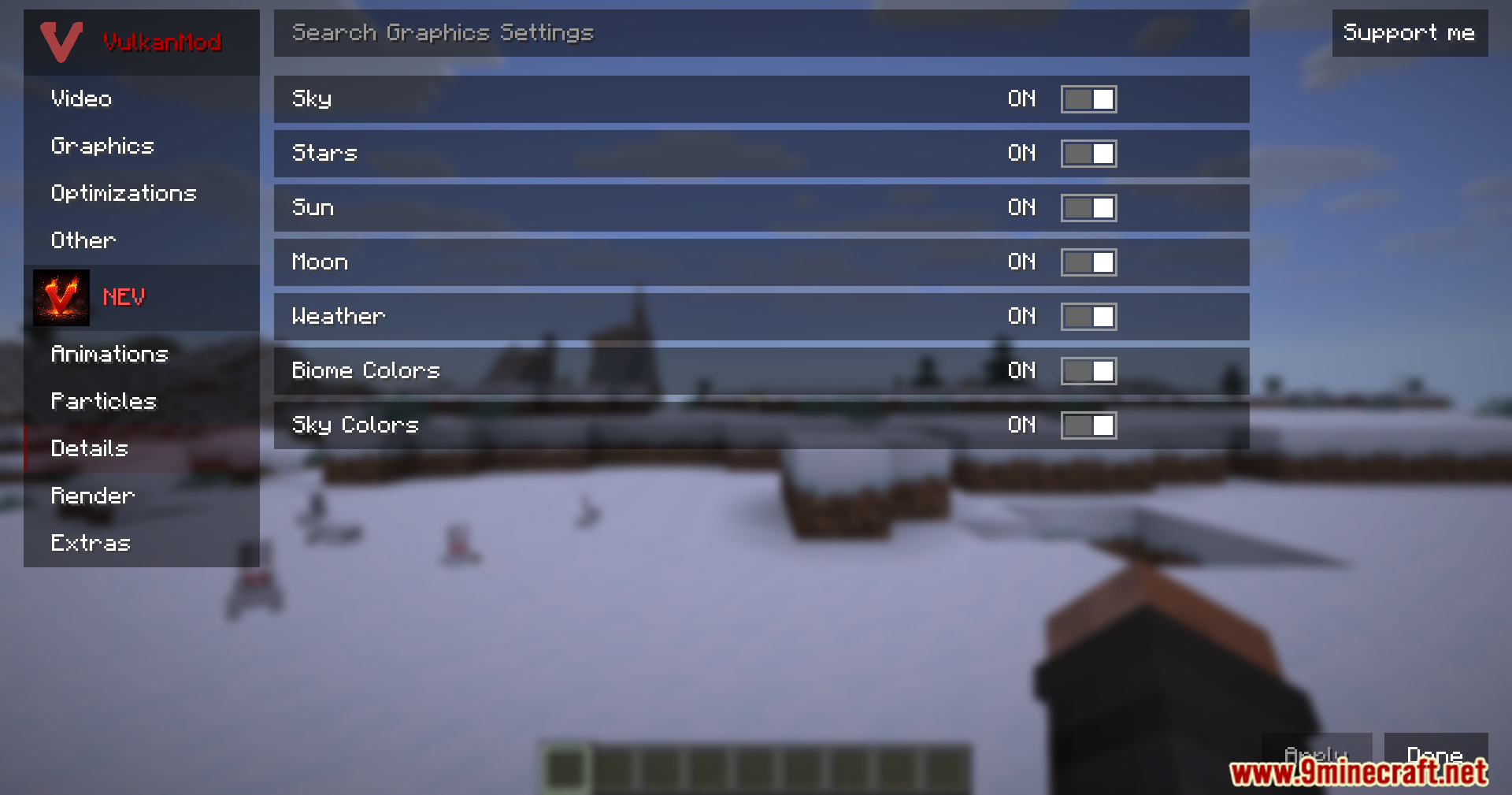
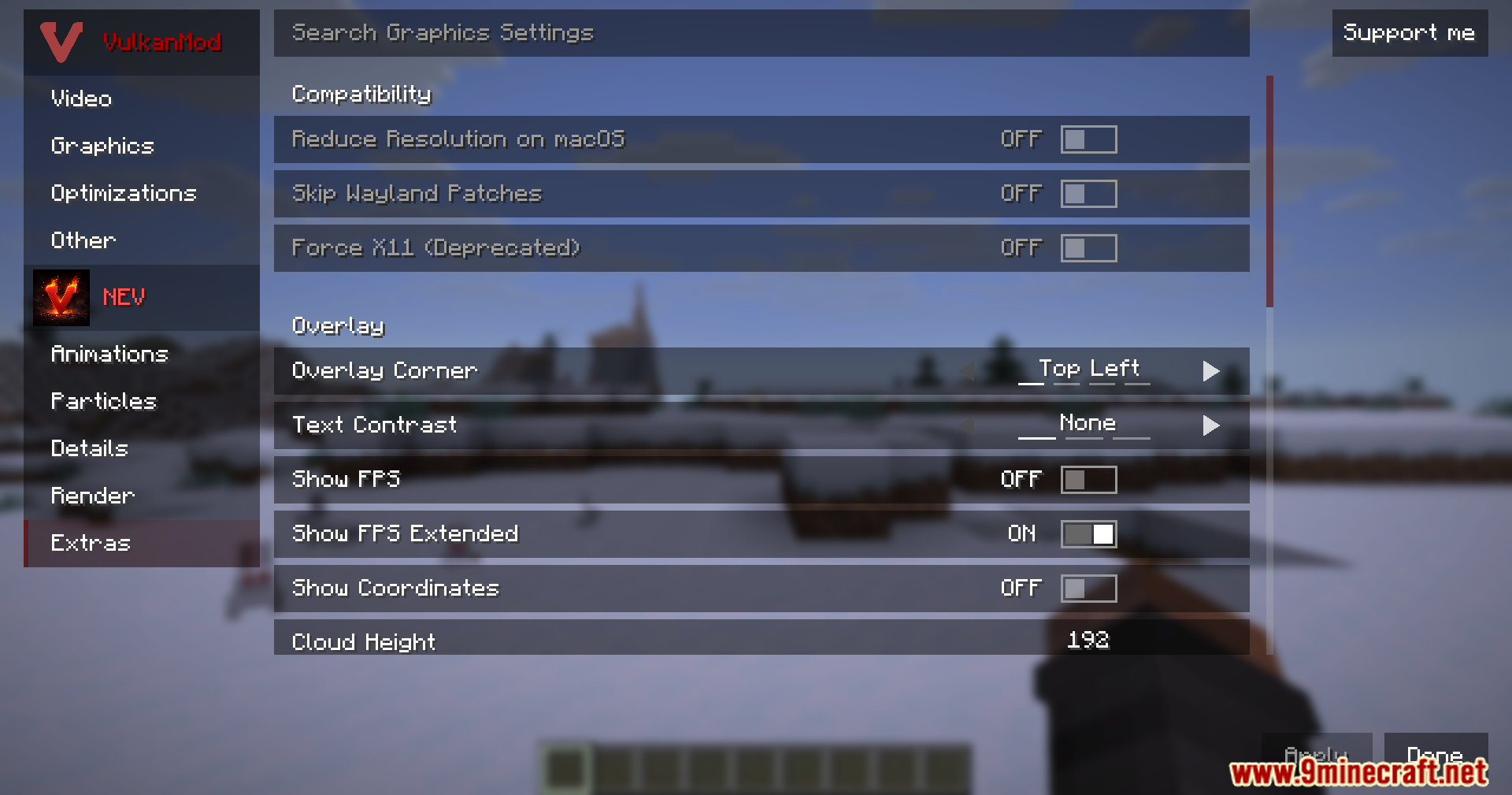
Control Particle Visibility and TypesOpen Particle Settings Access your graphics settings menu and locate the particle control panel within Not Enough…Customize Sky, Weather, and Atmospheric EffectsAccess Environmental Settings Open your graphics settings and find the sky and weather section within Not Enough…Disable Fire and Fluid AnimationsAccess Animation Settings Open your graphics settings menu and navigate to the Not Enough Vulkan animation controls…Set Up Display Overlays and Monitor ConfigurationEnable On-Screen Overlays Navigate to the Extras settings menu in Not Enough Vulkan. Here you'll find toggles for…
Frequently asked questions
Where do I find the not enough vulkan settings menu?
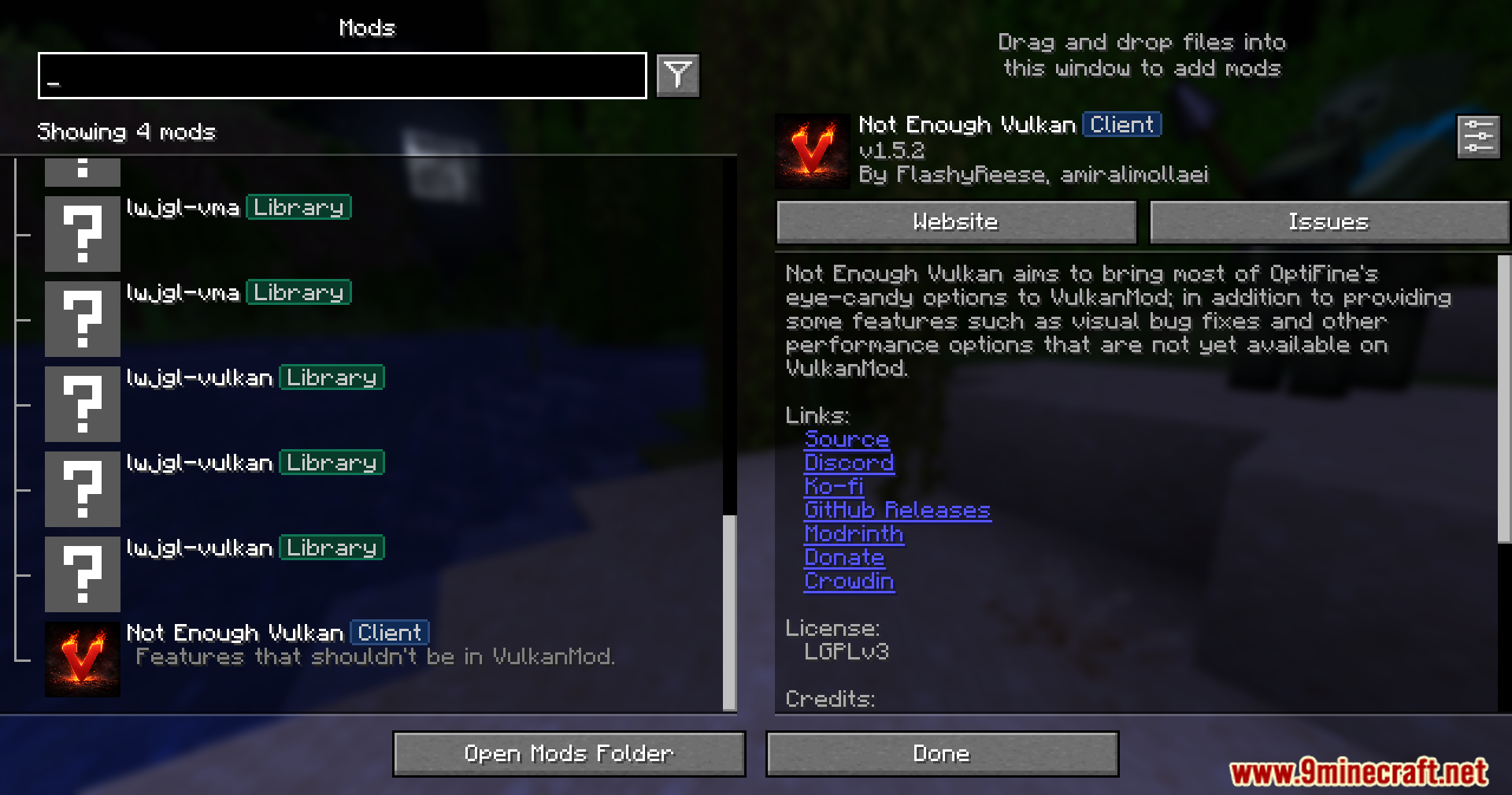
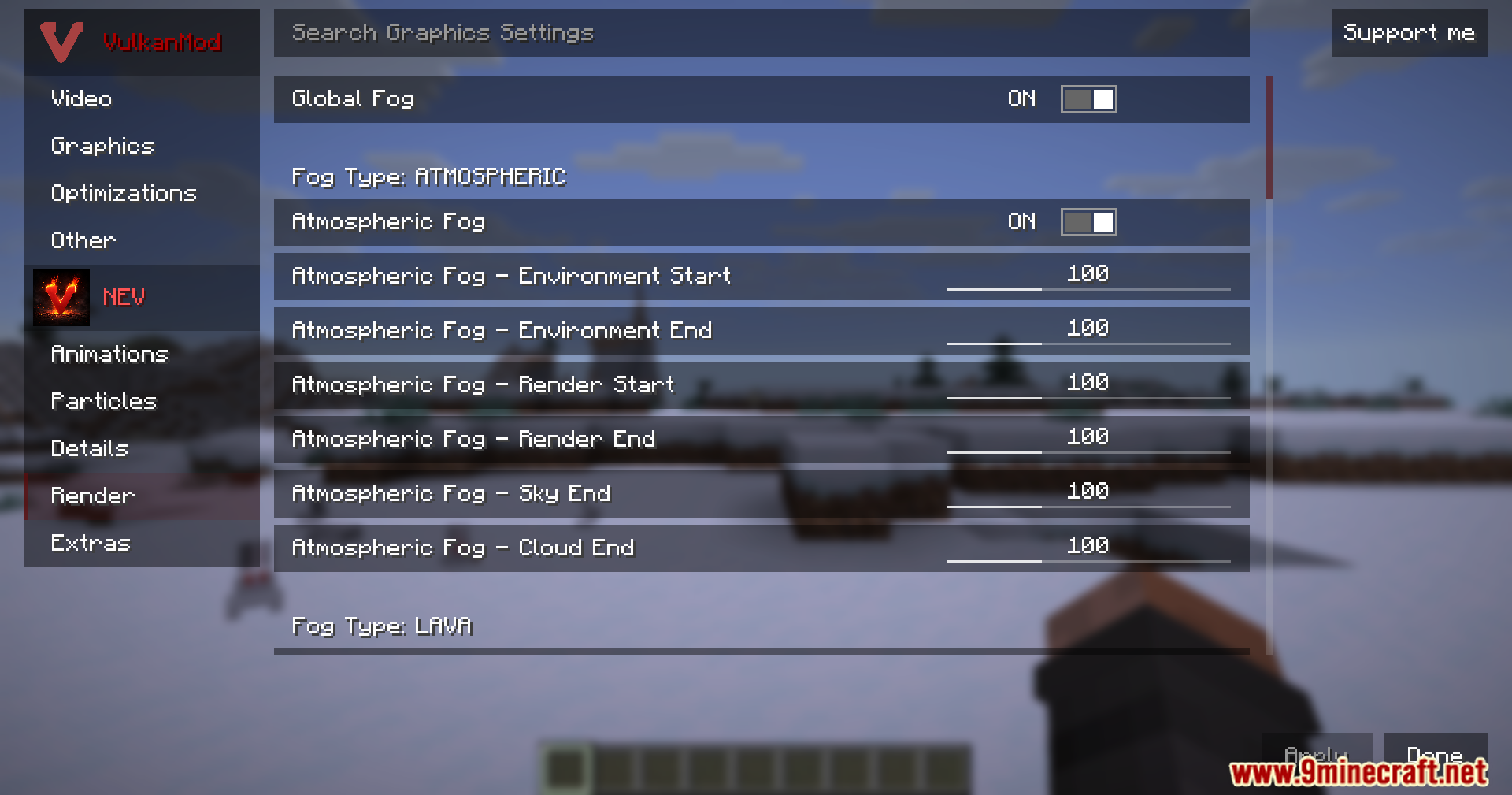
Open your graphics settings menu in-game and look for the Not Enough Vulkan tabs alongside your standard video options. The settings are organized into separate menus for animations, particles, sky/weather, render distance, and extras.
How do I turn off fire animations?
Go to the animations menu in your graphics settings and toggle off the fire animation option. This will remove the flickering effect from fire blocks while keeping the blocks themselves visible.
Can I disable particles from other mods?
Yes, the particle control menu lets you toggle different particle types individually, including particles from other installed mods. You can hide specific particle effects without affecting gameplay mechanics.
Does this mod work with bobby mod?
Not Enough Vulkan includes special patches designed to make Bobby mod work better alongside it. Both mods can be used together without requiring additional configuration.
See all 10 Not Enough Vulkan questions ›
Gallery
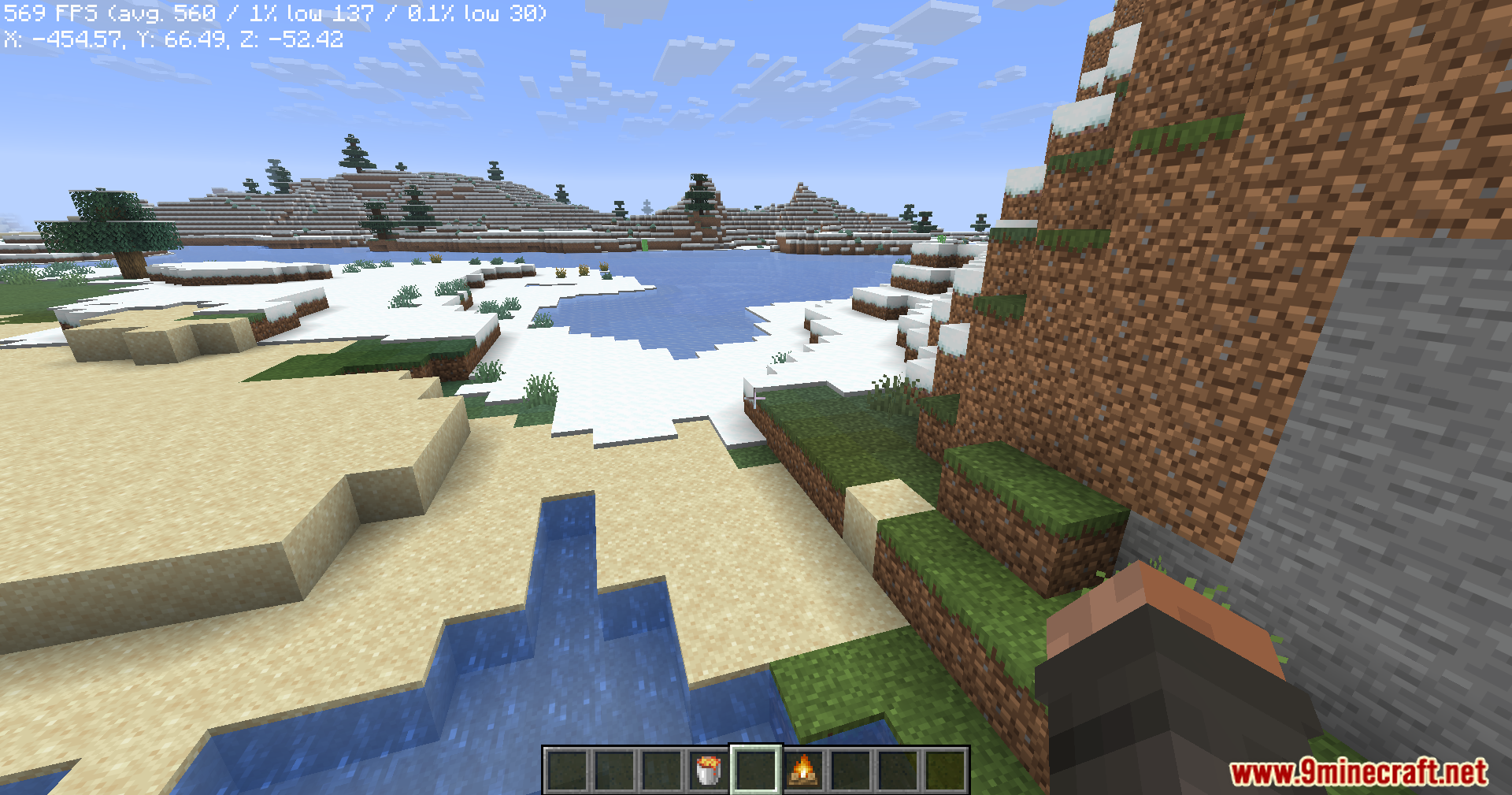
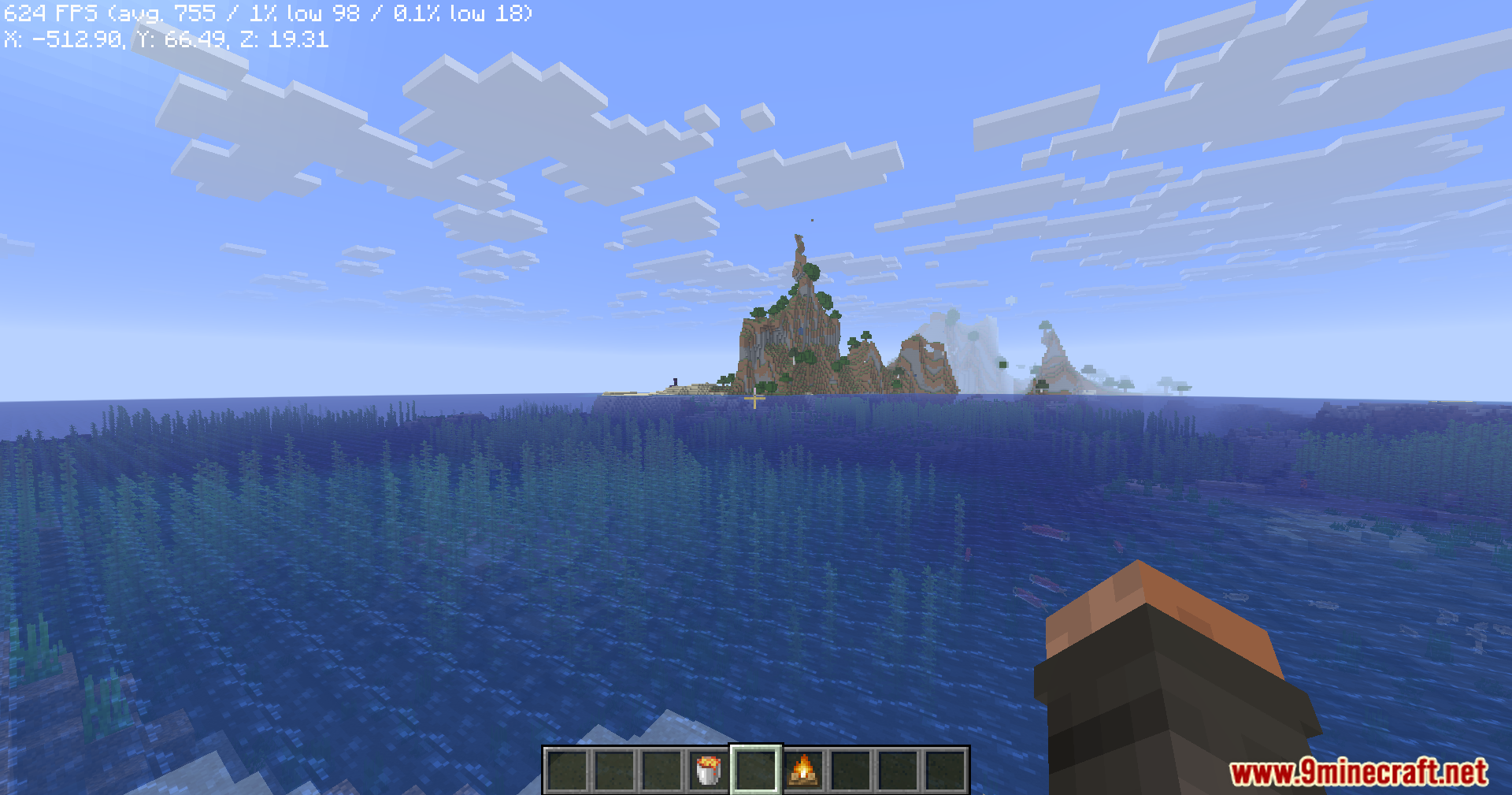
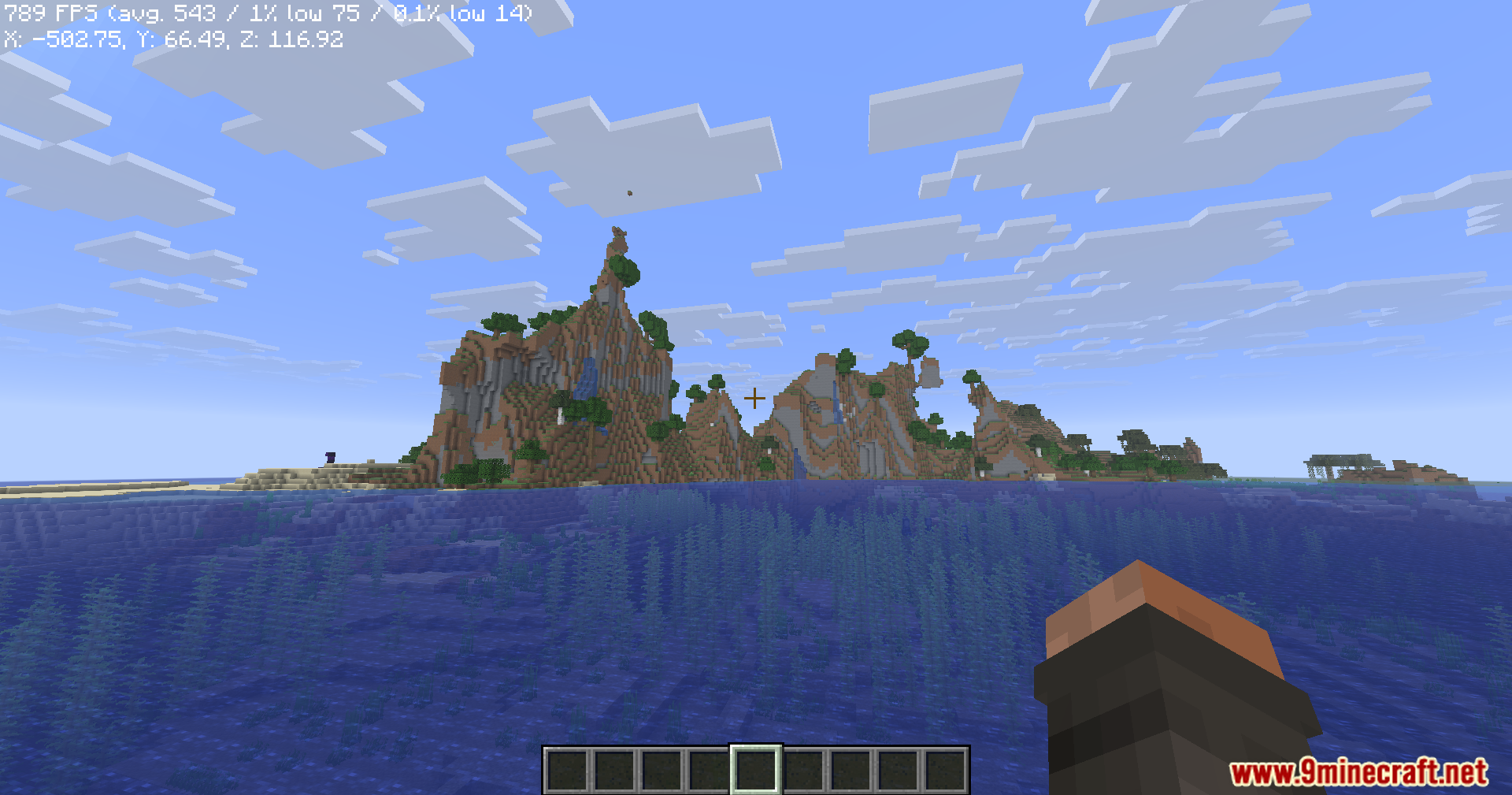
11 images from the Not Enough Vulkan Mod page.
You May Also Like
Wikis that share the most with this one
Wikis on the same theme: end
More mod wikis on the site
The most downloaded mods that have a wiki here
A few wikis from each of the other kinds