

 DownloadRadiant Cinematic Glow Shaders
Get the files on 9Minecraft
Guides
Step-by-step, in-game.
Adjust Glow Intensity for Your Preferred BrightnessAccess Shader Settings Open the shader options menu while in-game by pressing the designated shader settings key…Enhance Specific Biomes with Custom Glow ColorsLocate Color Customization Options Open the shader configuration menu and search for color grading or tone mapping…Optimize Performance While Keeping Visual QualityIdentify Performance Bottlenecks Enable the FPS counter to monitor frame rate. If you experience stuttering or low…Troubleshoot Uneven Lighting or Harsh ShadowsDiagnose the Problem If you notice sharp shadow lines, overly dark areas despite glow effects, or inconsistent…
Frequently asked questions
How do I turn on the shader after installing it?
Open Options > Video Settings > Shaders, then locate Radiant Cinematic Glow in your shader list and click it to activate. You'll see the cinematic glow take effect immediately in your world.
Why do my shadows look too harsh or uneven?
Check the Glow Intensity setting in the shader options—lowering it reduces harsh contrast between lit and shadowed areas. You can also adjust Shadow Softness if available to blend transitions more smoothly.
Can I make torches and lava glow brighter?
Yes, use the Glow Intensity slider in shader settings to increase how much light sources emit. For more control over specific light types, look for Block Light or Emissive Light options in the shader menu.
Does this shader work with other mods?
Radiant Cinematic Glow works with most mods, but mods that add custom blocks with unusual lighting properties may look inconsistent. Test in your world to see if custom mod blocks glow as expected.
See all 10 Radiant Cinematic Glow Shaders questions ›
Gallery
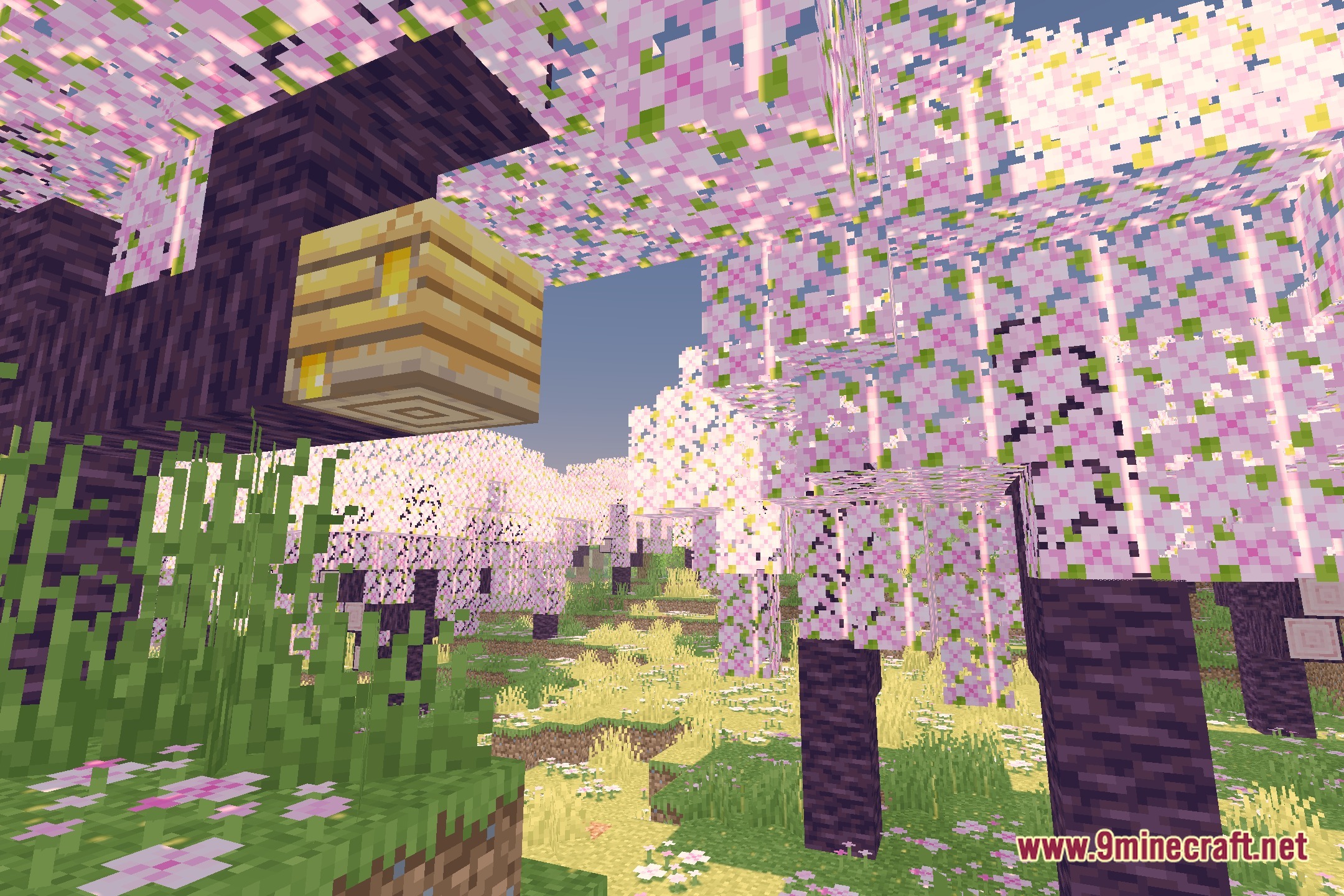
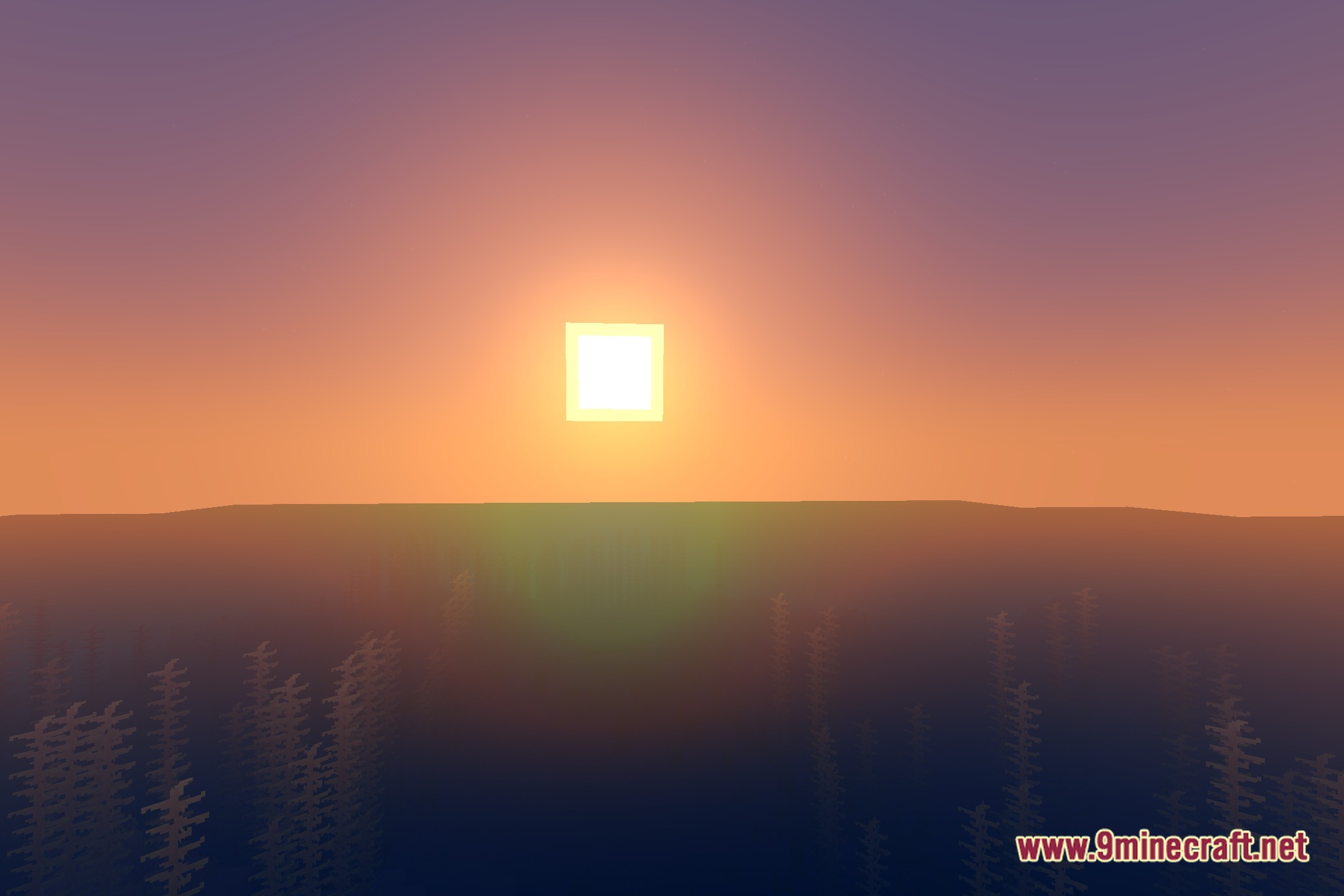
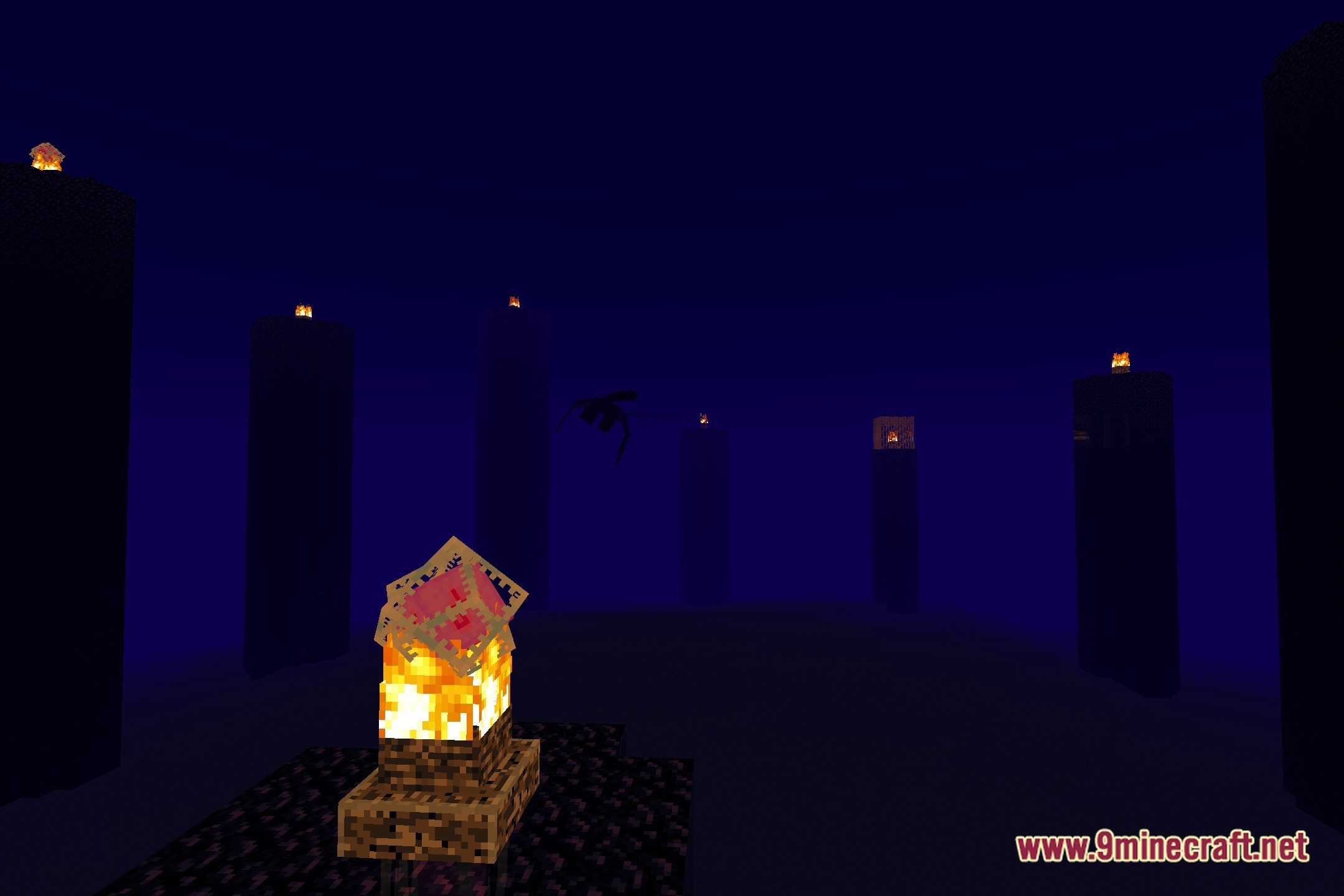
12 images from the Radiant Cinematic Glow Shaders page.
You May Also Like
Wikis that share the most with this one
Wikis on the same theme: light
More shader wikis on the site
 PS Vibe Shaders
The most downloaded mods that have a wiki here