

 DownloadQuick Backup Multi Mod
Get the files on 9Minecraft
Guides
Step-by-step, in-game.
Create Your First BackupAccess the Backup Menu Open your inventory and look for the Quick Backup Multi Mod interface. This is typically…Manage Multiple Backup SlotsUnderstanding Backup Slots Quick Backup Multi Mod provides multiple slots so you can maintain several different saves…Recover from World Corruption or CrashesIdentify the Problem If your world crashes, fails to load, or becomes corrupted, don't panic. Quick Backup Multi Mod…Restore a World from a BackupOpen the Restore Menu Access the Quick Backup Multi Mod interface from your inventory or HUD. Navigate to the restore…
Frequently asked questions
How do I create my first backup?
Open the mod's backup menu (usually accessible from the pause screen or via a keybind), select an empty backup slot, and confirm to save your current world state. The backup will be stored locally and can be restored later without affecting your active world.
Can I backup a world that's currently being played?
Yes, you can create backups while playing, but it's safest to pause or exit to the menu first to ensure all data is written correctly and avoid potential corruption during the backup process.
What happens to my current world when I restore a backup?
Restoring a backup replaces your current world with the backed-up version from that slot, so any progress made after the backup was created will be lost. Always confirm the restore action, as this operation cannot be undone.
How many backup slots do I get and can I have more?
The mod provides multiple backup slots by default; check your mod configuration file to see the exact number and adjust the slot limit if your storage allows.
See all 10 Quick Backup Multi questions ›
Gallery
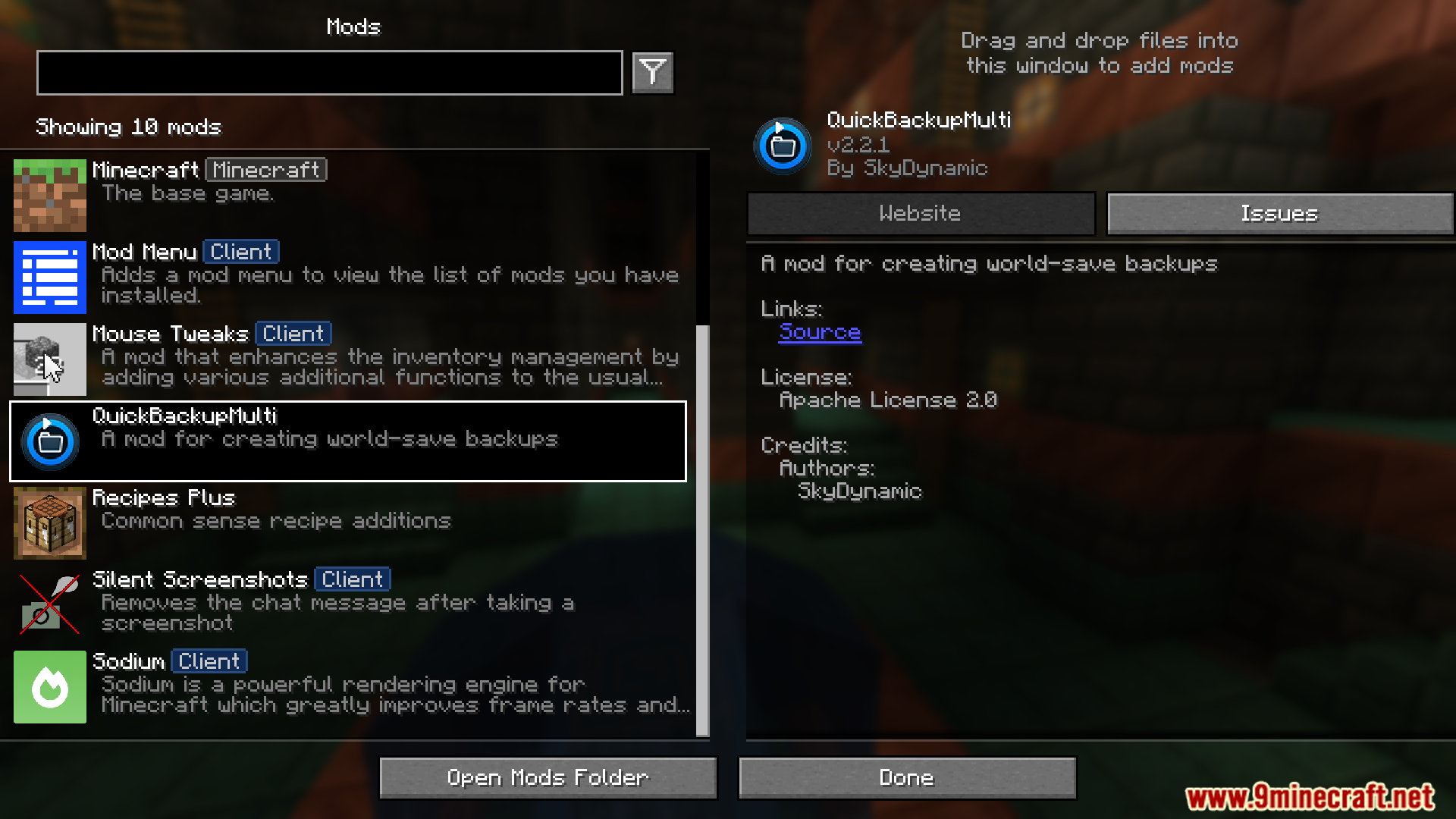
2 images from the Quick Backup Multi Mod page.
You May Also Like
Wikis that share the most with this one
Wikis on the same theme: world
More mod wikis on the site
The most downloaded mods that have a wiki here
A few wikis from each of the other kinds