

 DownloadLive Texture Editor Mod
Get the files on 9Minecraft
Guides
Step-by-step, in-game.
Customize Your HUD and Menu ScreensAccessing Menu Customization The Live Texture Editor lets you redesign interface elements without editing blocks or…Edit Mob and Item TexturesSelecting Mobs and Items With editor mode enabled (press J ), you can customize any mob or item texture. Look at a…Export Your Custom Resource PackPreparing for Export Once you've finished painting blocks, mobs, items, and HUD elements, you'll want to save your…Paint Custom Textures on Blocks in Your WorldOpening the Block Editor Press J to enable editor mode while in your world. Look directly at any standard cube block…
Frequently asked questions
How do I start using the mod?
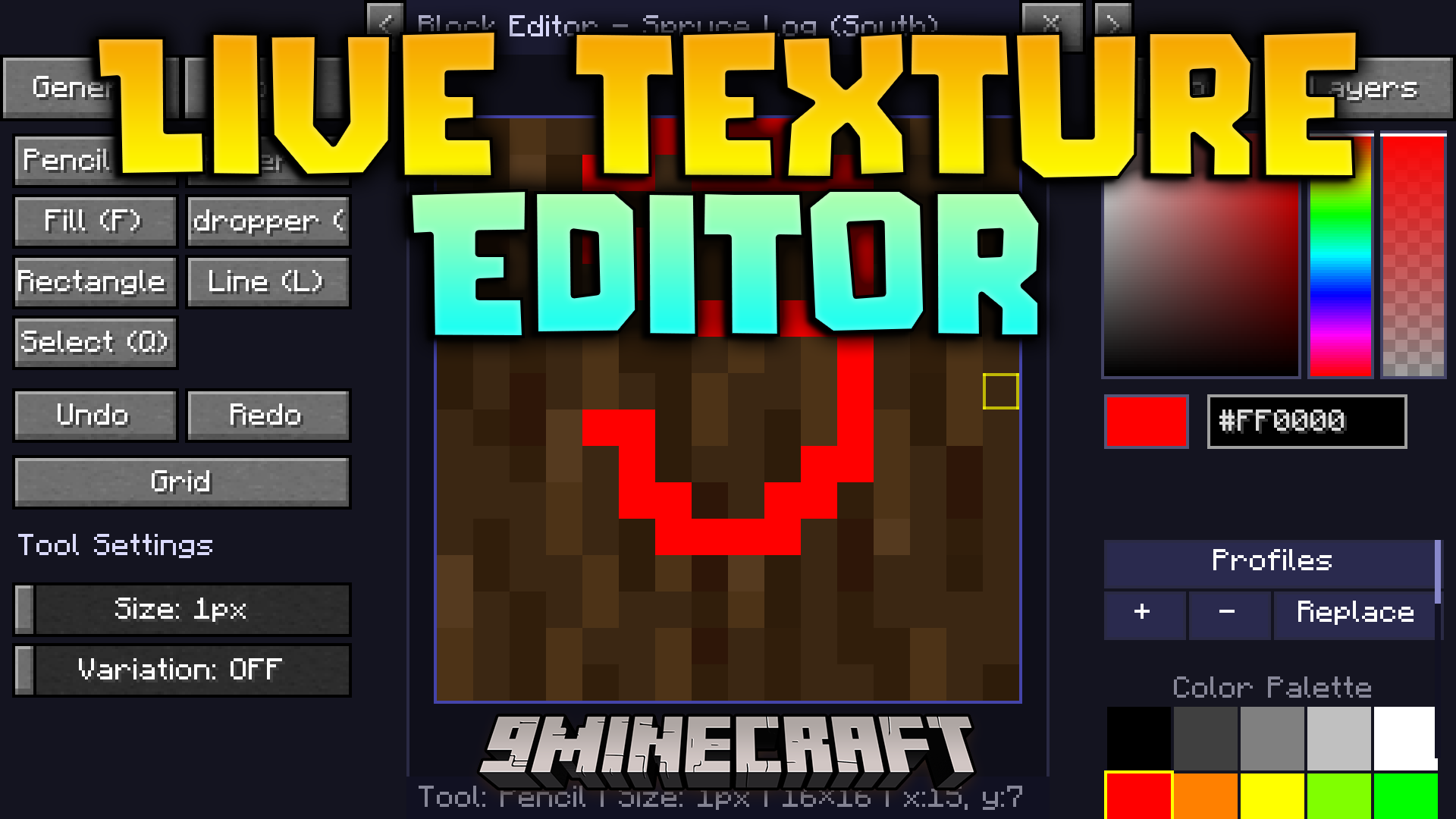
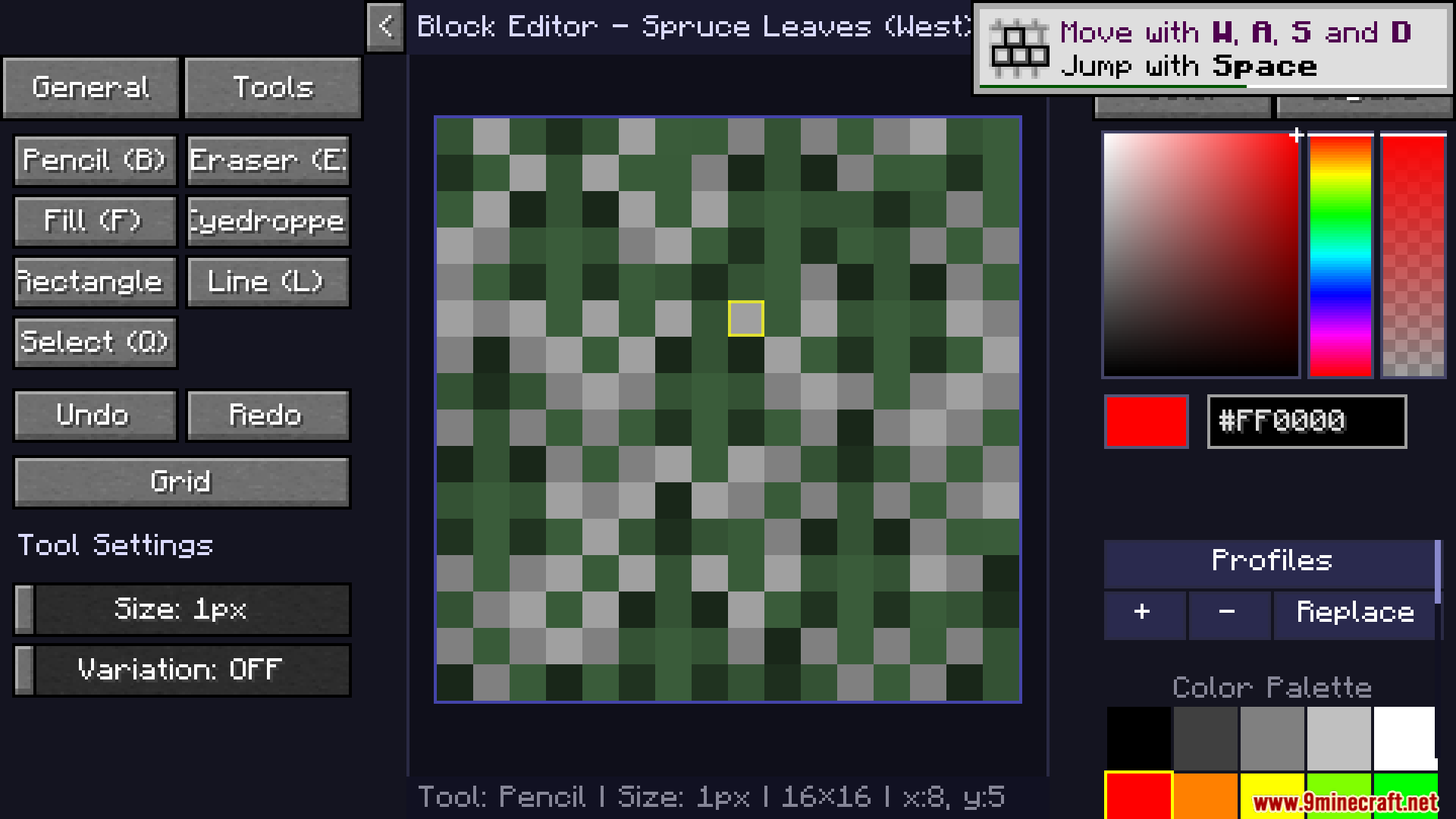
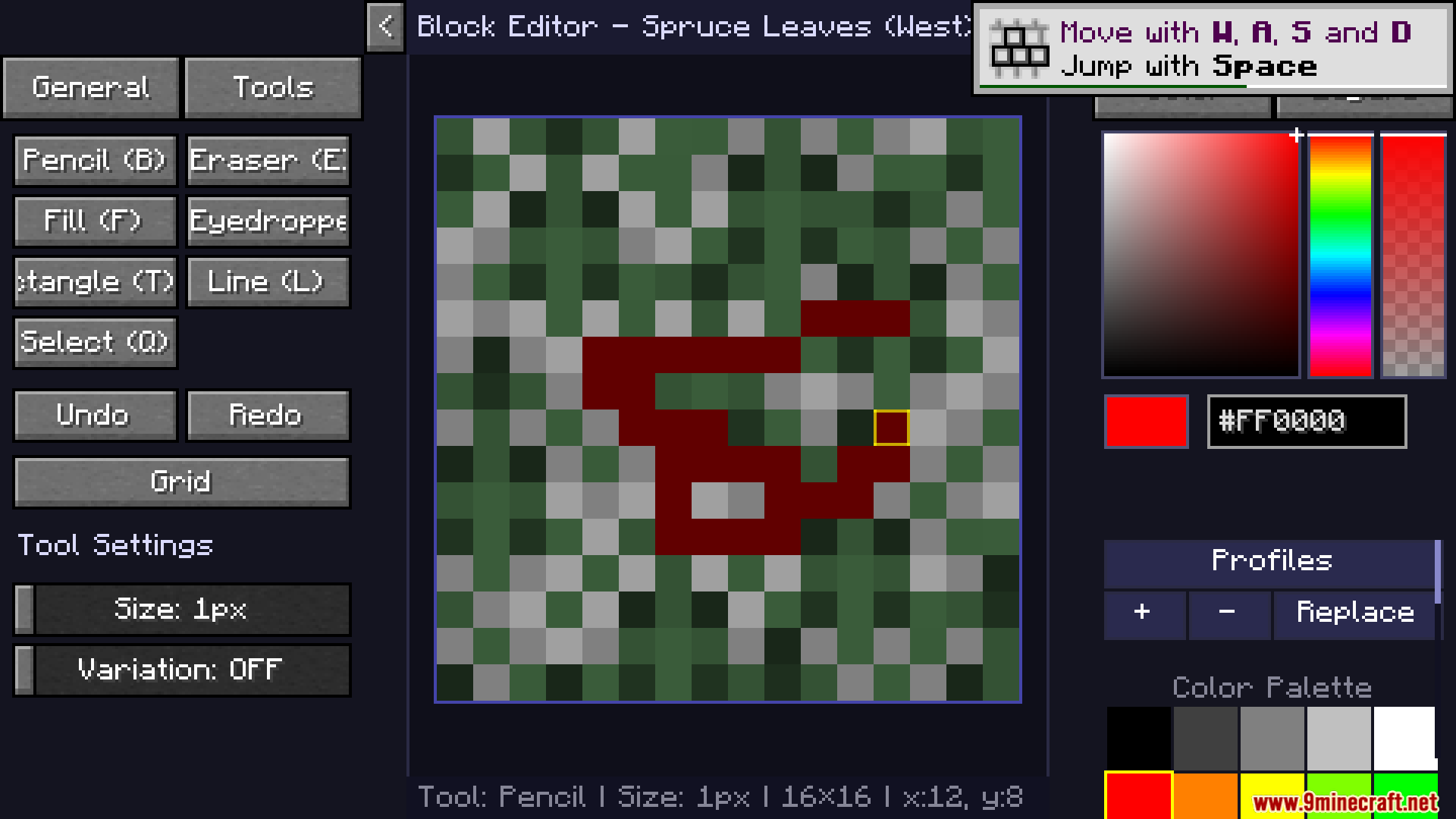
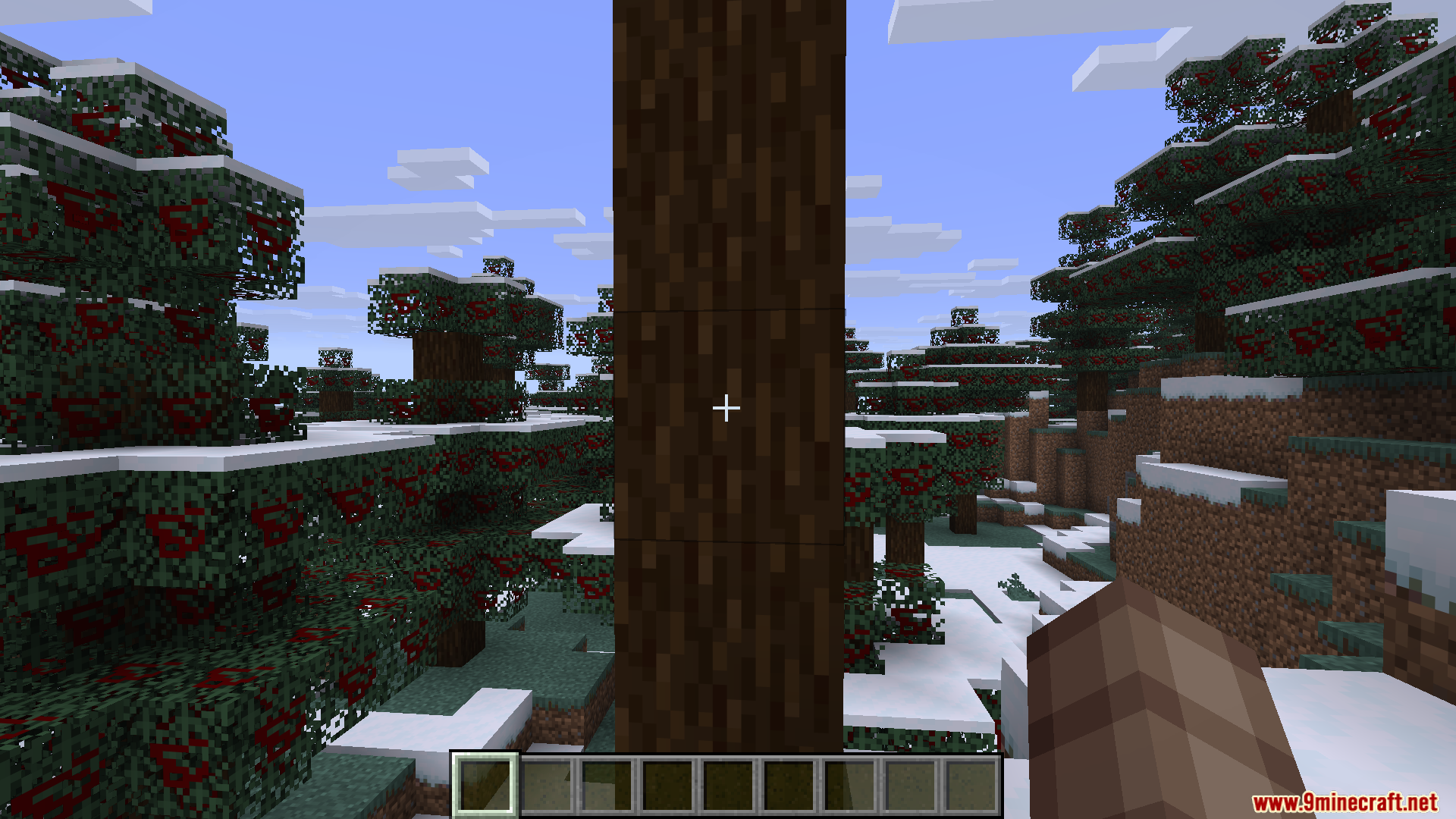
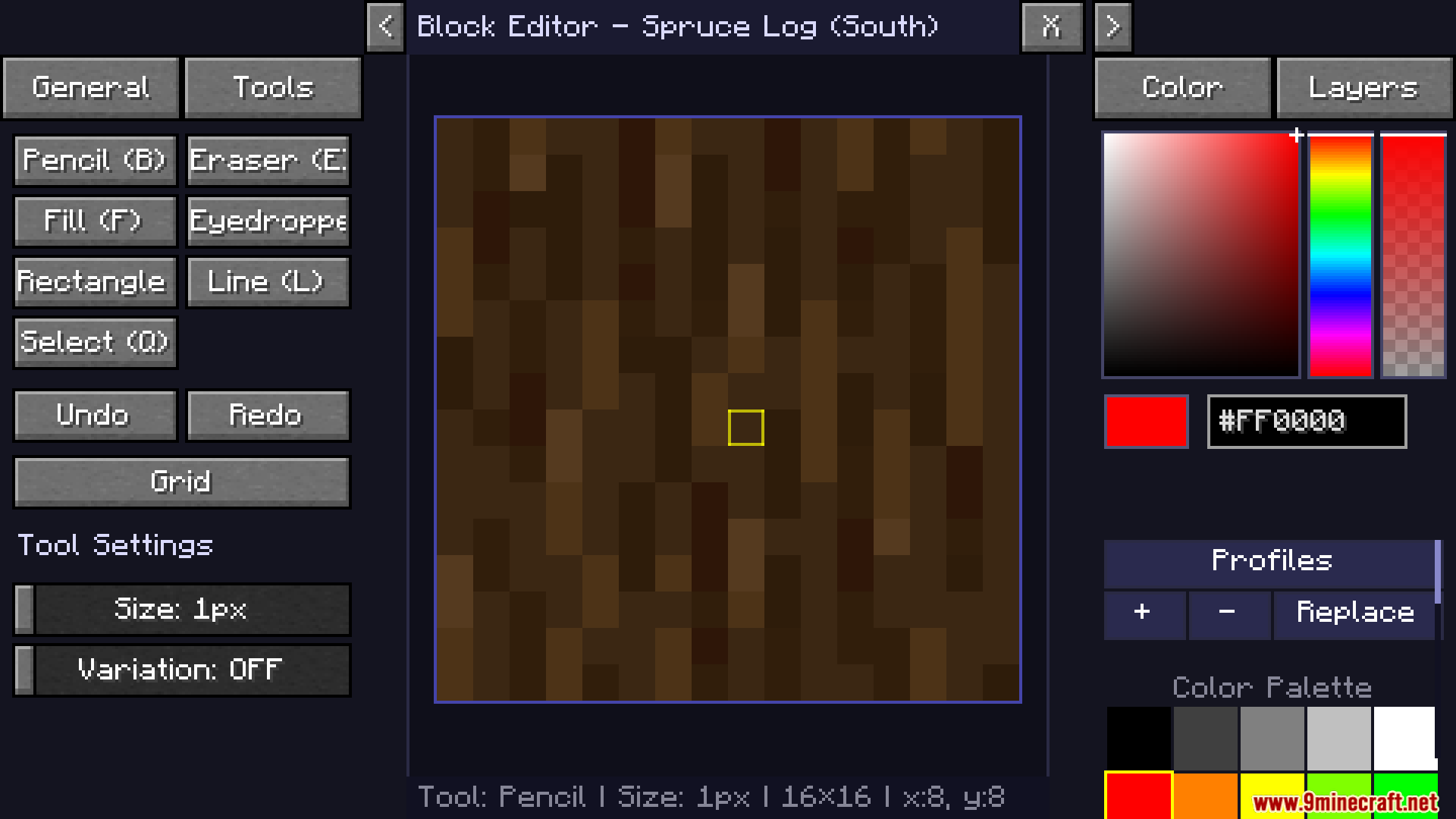
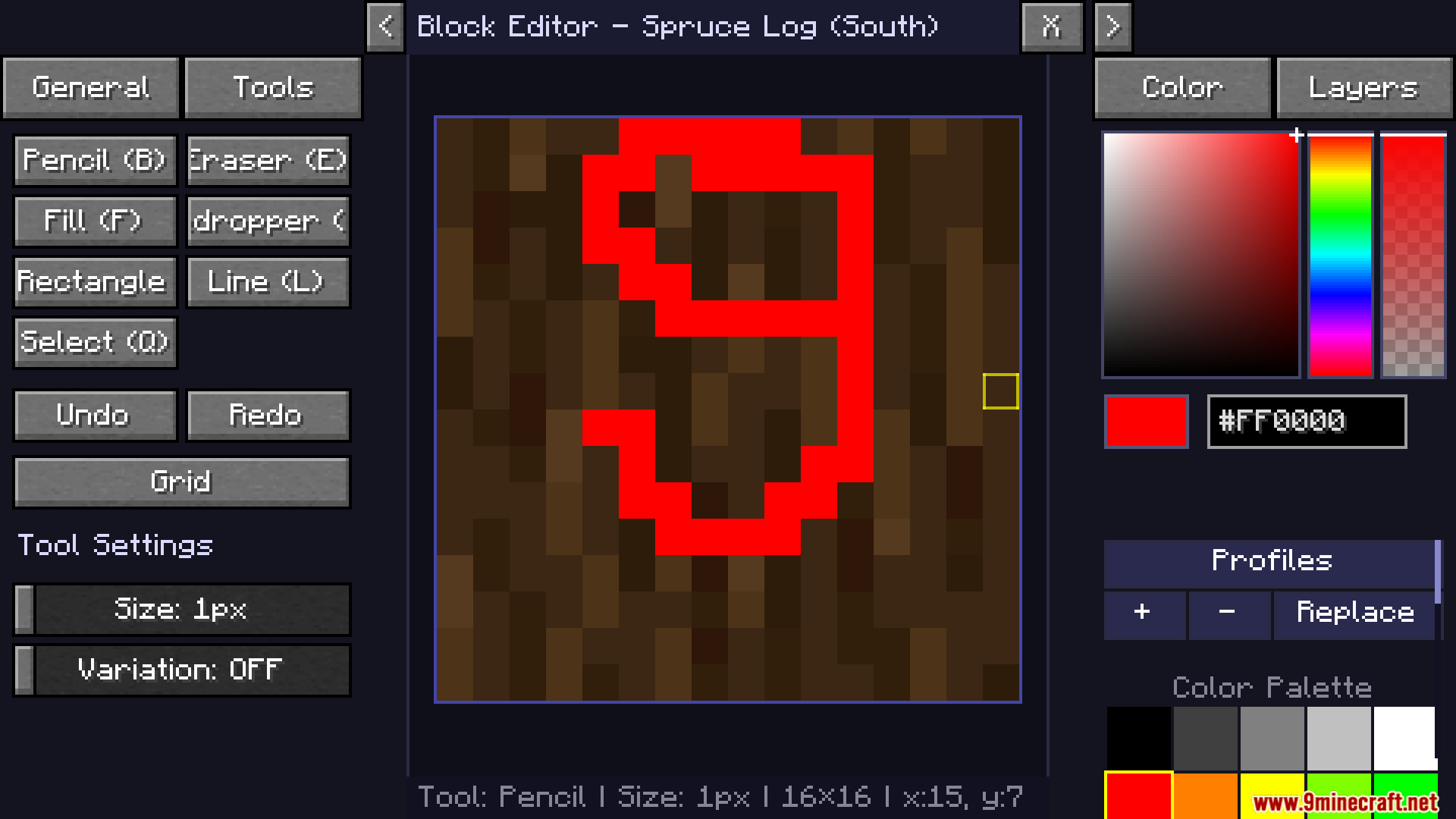
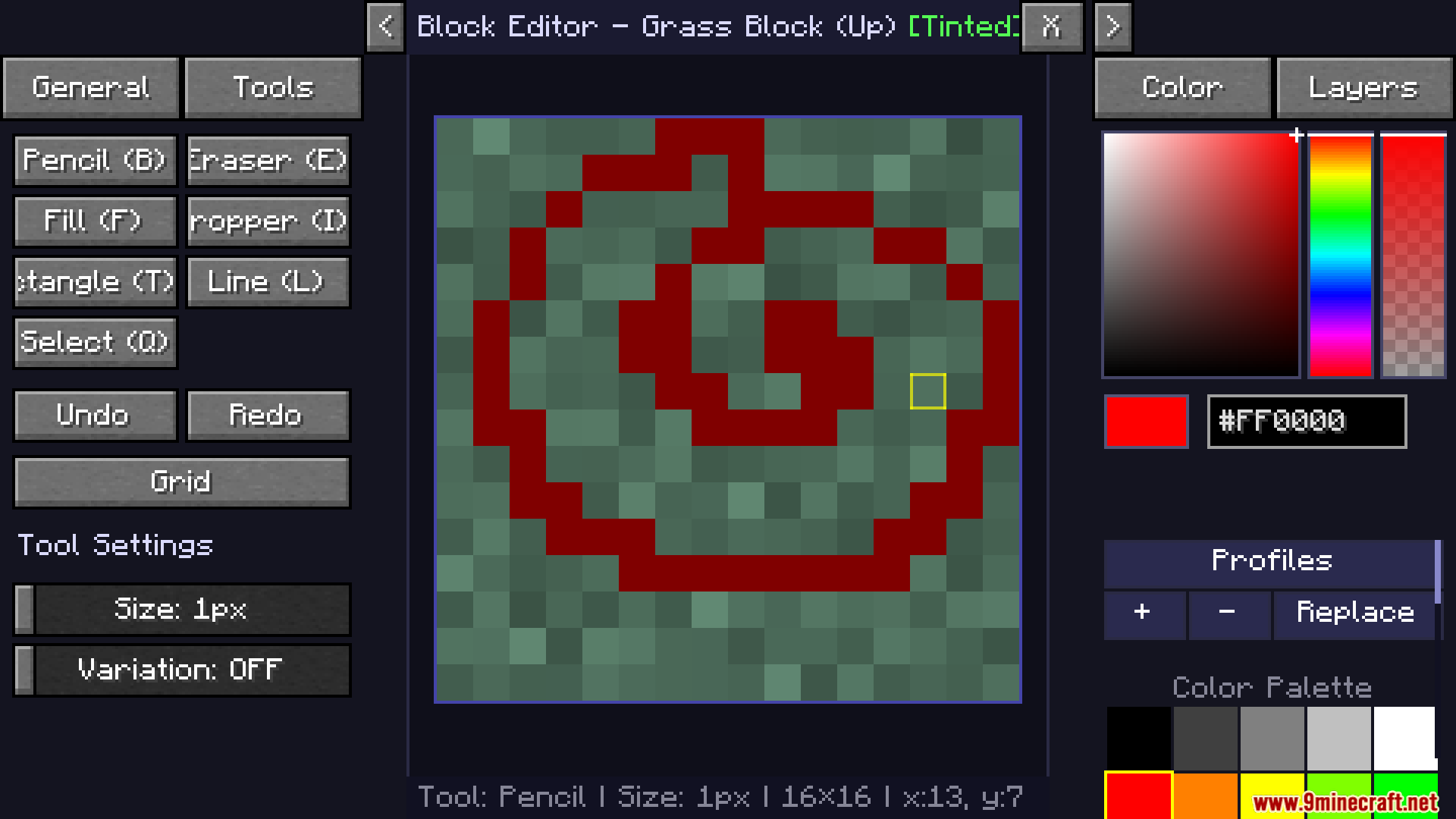
Press J to enable editor mode, then look directly at any block, mob, or item and press R to open the painting screen. You can also press J again to toggle editor mode off when you're done.
Can I edit textures on blocks that are far away?
No, you need to look directly at the block you want to edit and be close enough to see it clearly. The mod only lets you edit what you're currently looking at when you press R.
What happens if I make a mistake while painting?
Use the eraser tool to remove pixels, or hold X while playing to temporarily hide all your changes and see the original textures. Your changes aren't saved until you export them, so you can always start over on a texture.
Can I paint over custom textures from my current resource pack?
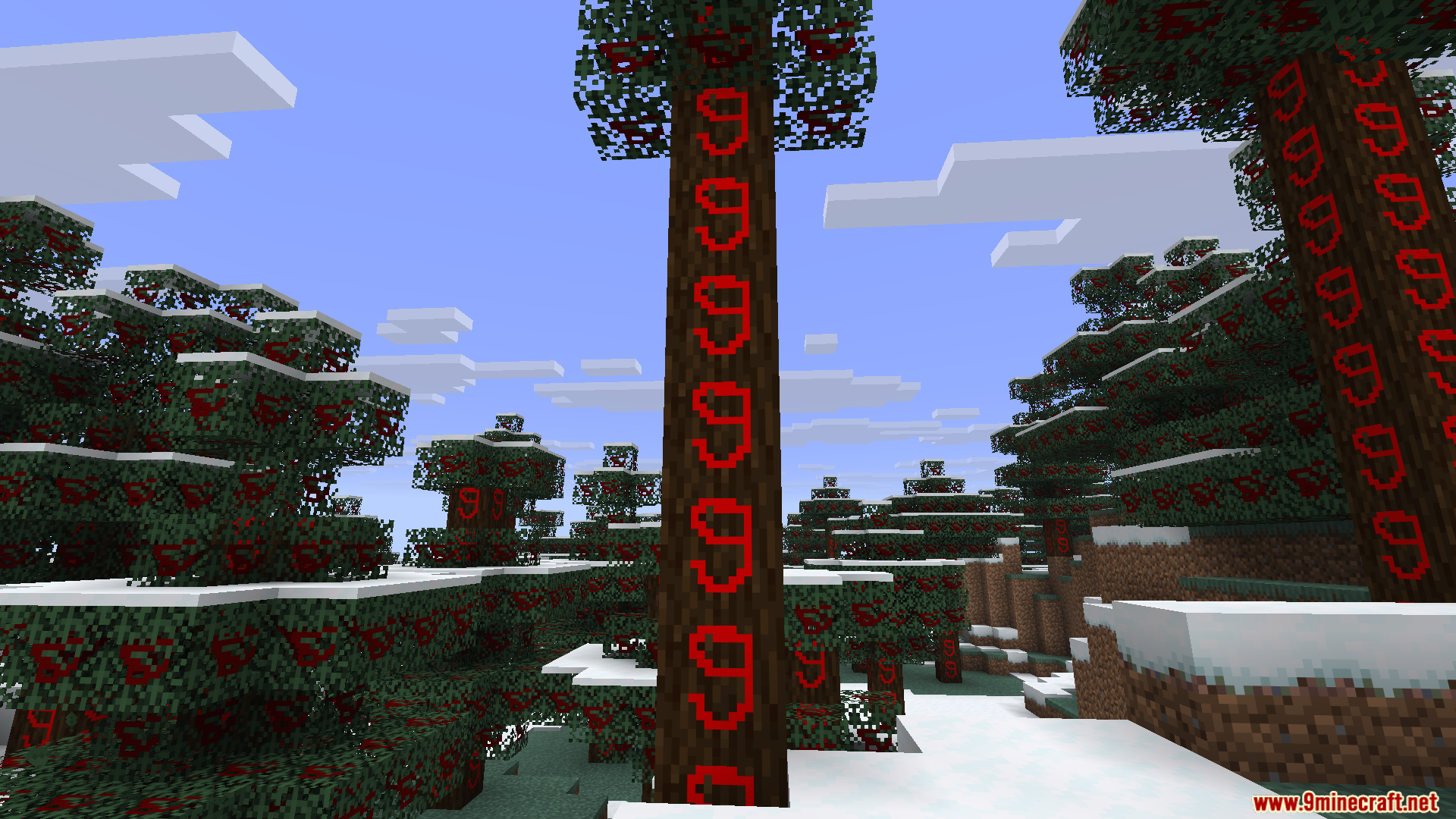
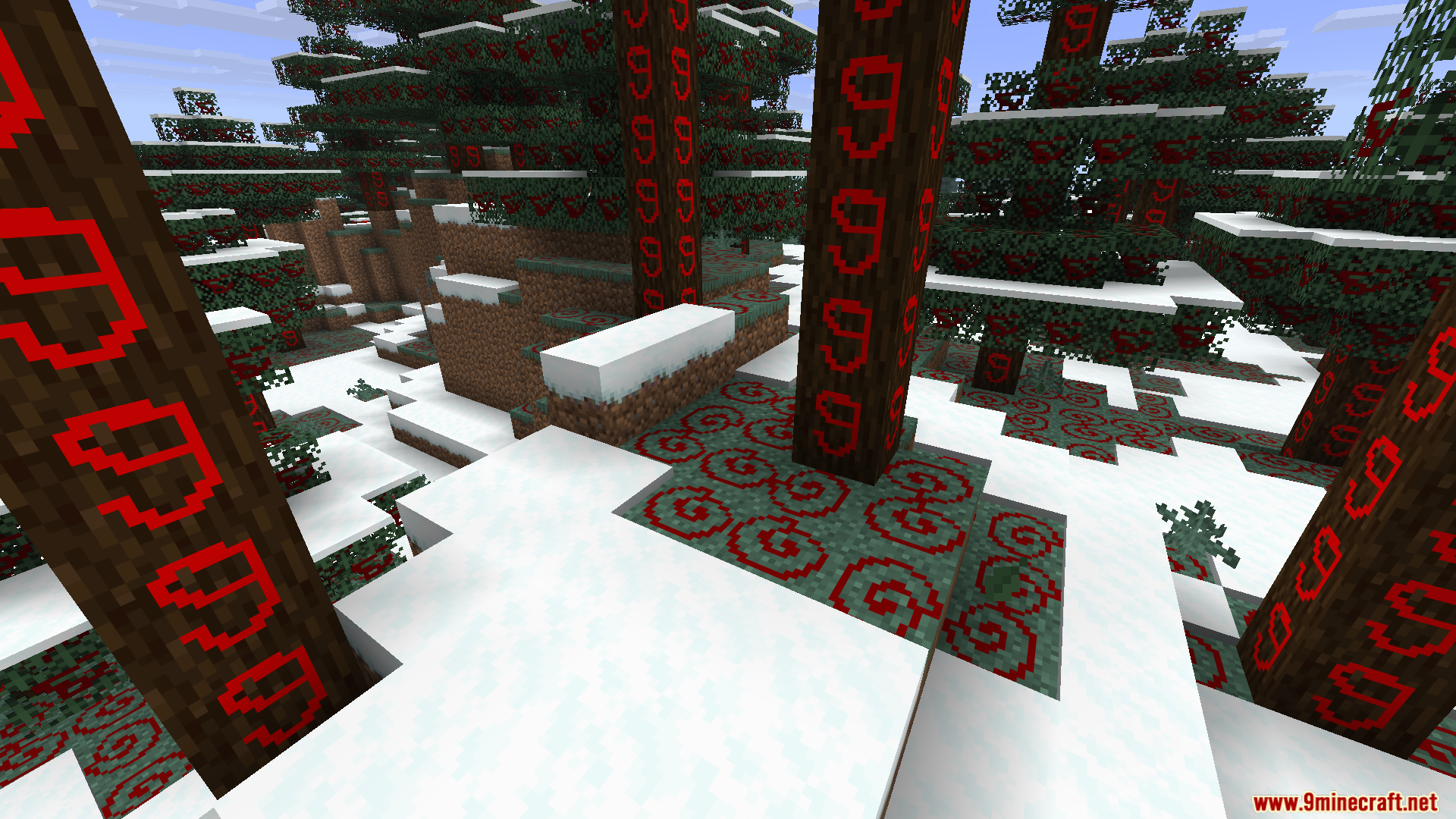
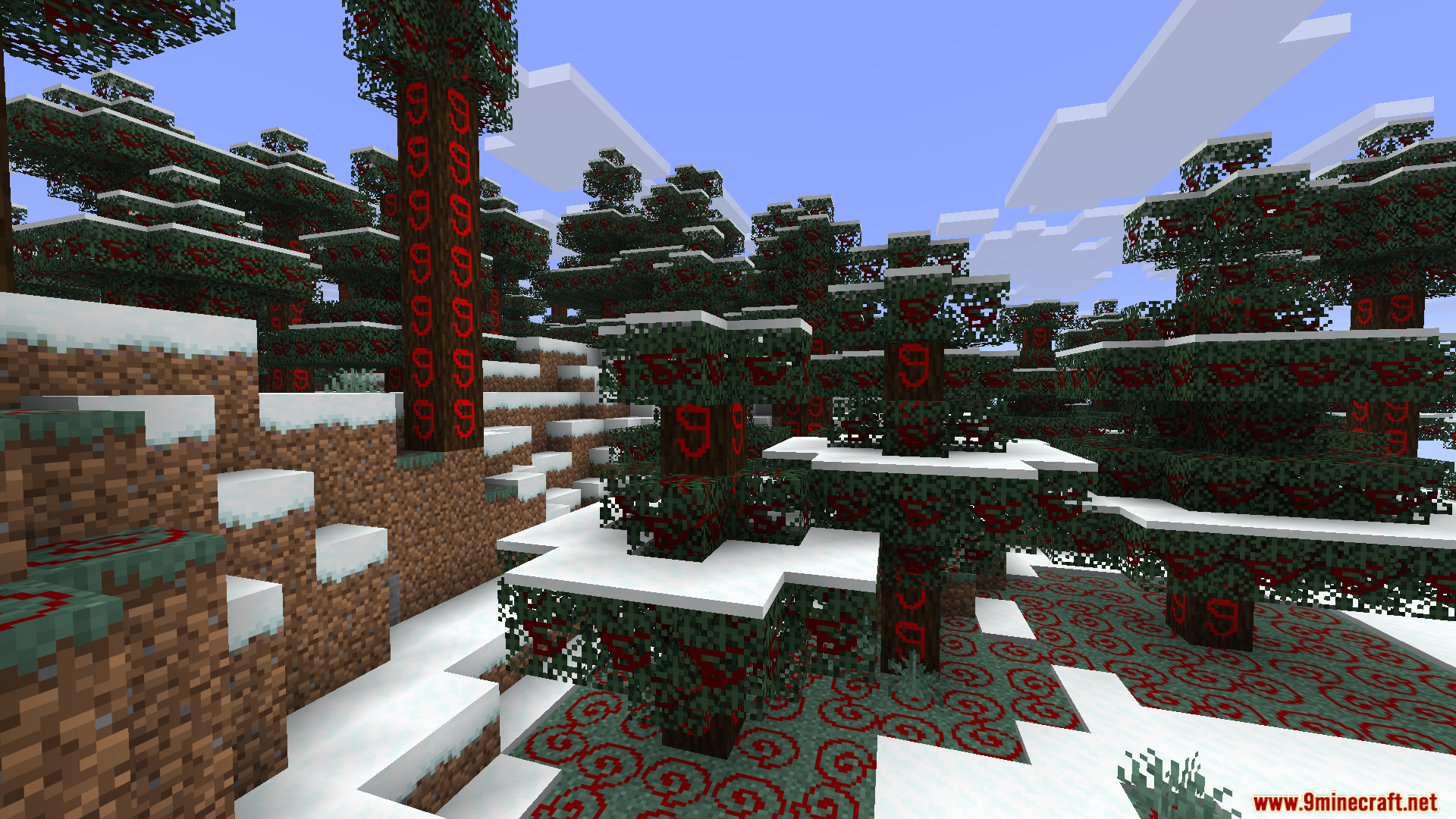
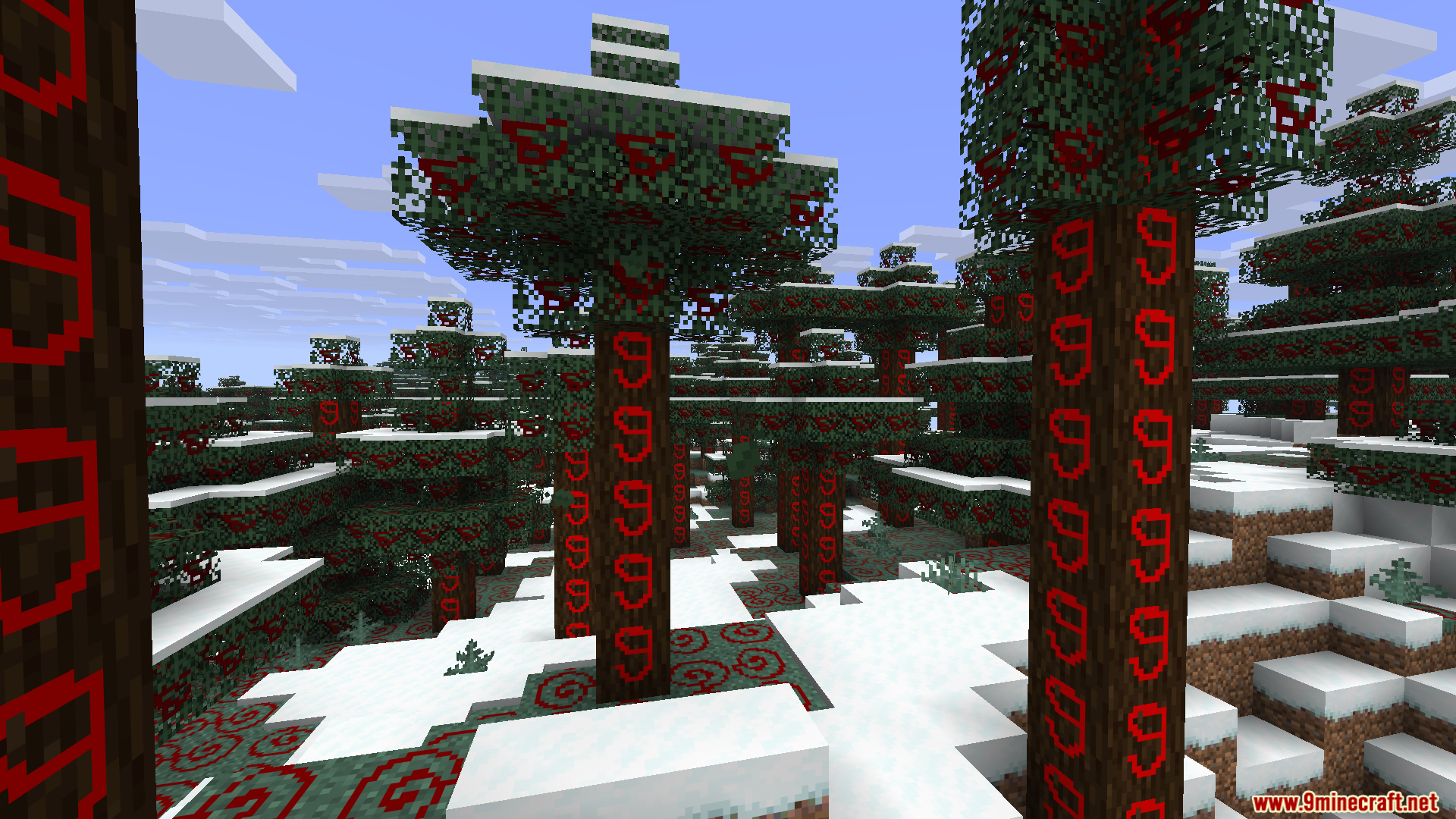
Yes, the mod reads your currently active resource pack and lets you add new changes on top of it. Your edits will layer over the existing textures.
See all 10 Live Texture Editor questions ›
Gallery
12 images from the Live Texture Editor Mod page.
You May Also Like
Wikis that share the most with this one
More mod wikis on the site
The most downloaded mods that have a wiki here
A few wikis from each of the other kinds