

 DownloadScreenFX Mod
Get the files on 9Minecraft
Guides
Step-by-step, in-game.
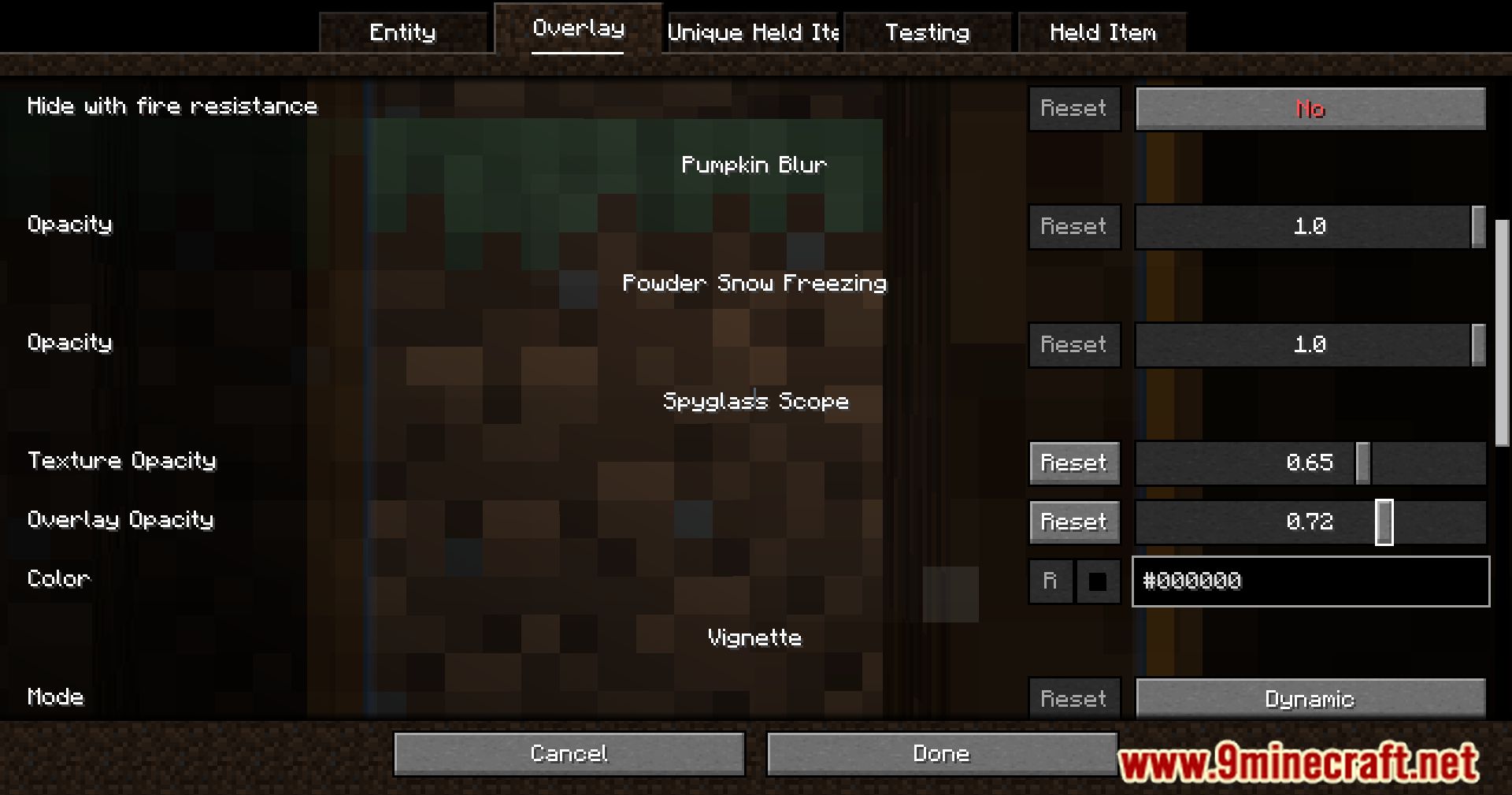
Adjust Screen Effects for Different Lighting ConditionsCreate Condition-Specific Profiles ScreenFX works best when effects adapt to your environment. Set up separate…Create a Custom Vignette OverlayAccess the Overlay Menu Open your mod settings through the in-game configuration screen. Navigate to the overlays…Layer Multiple Screen Effects TogetherEnable Multiple Overlays Simultaneously ScreenFX allows you to stack several effects at once. Open the effects menu…Troubleshoot Overlay Conflicts with Resource PacksIdentify Compatibility Issues If overlays appear distorted, flicker, or don't render at all, your resource pack may…
Frequently asked questions
How do I open the ScreenFX settings menu?
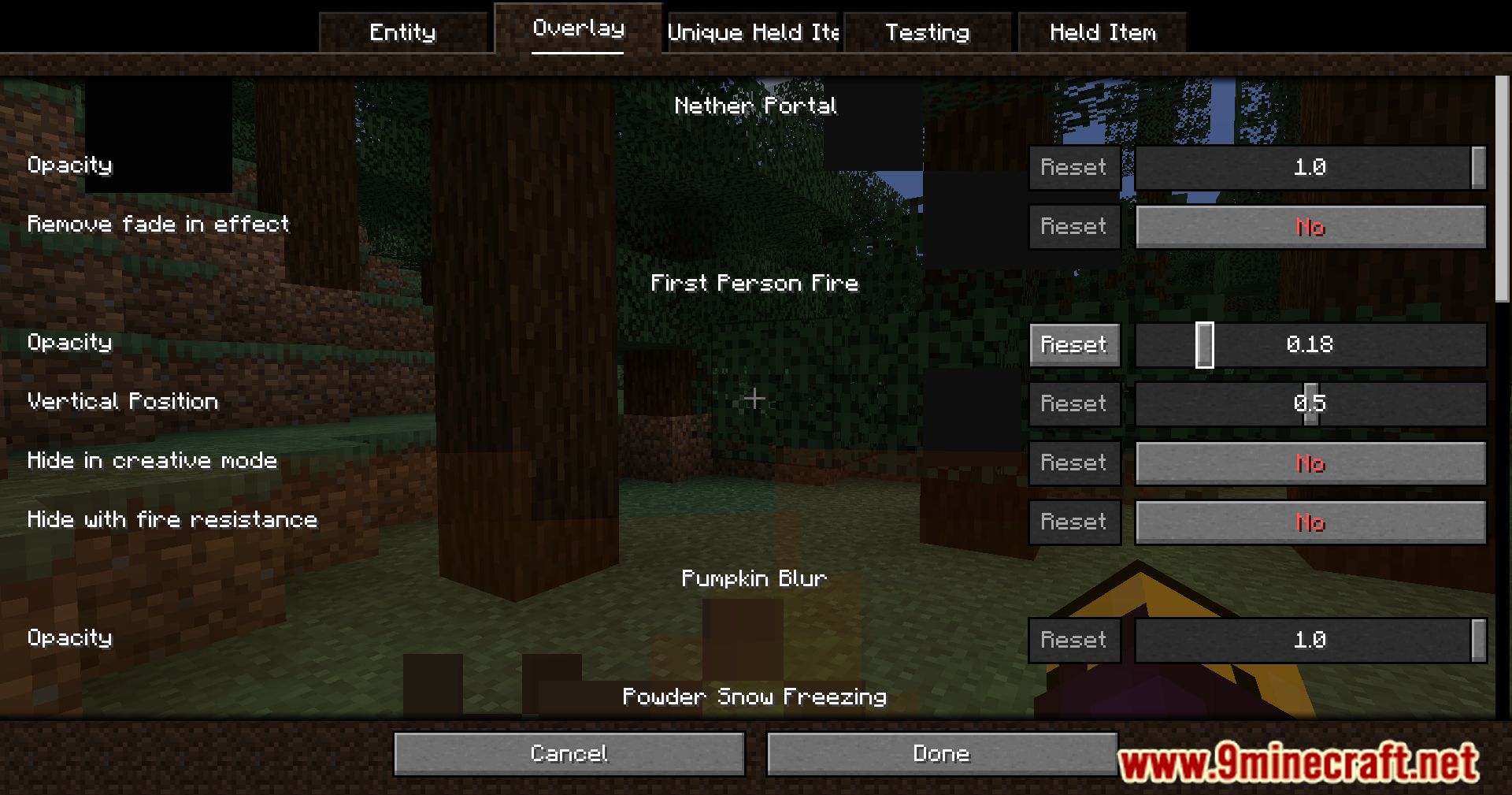
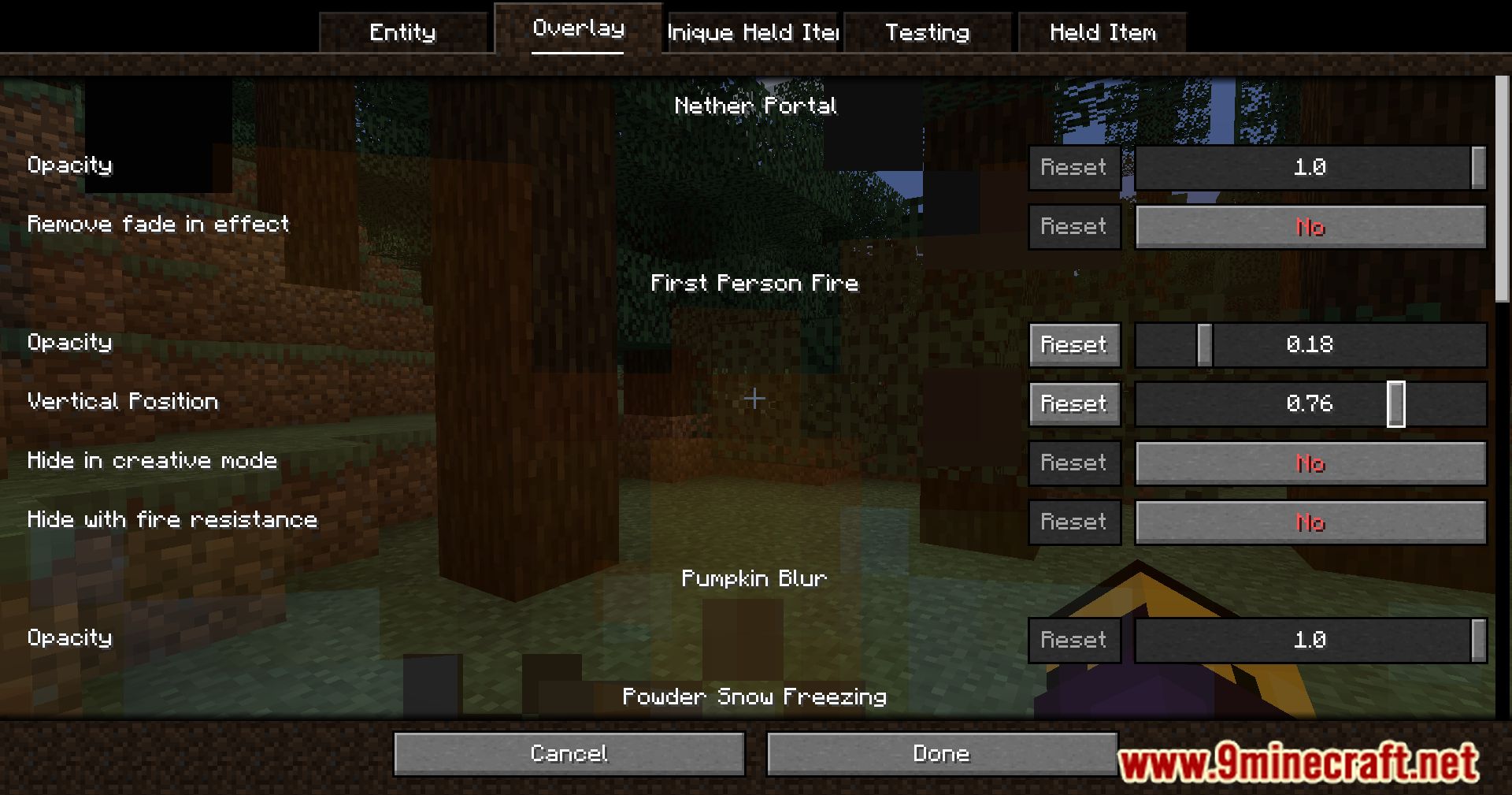
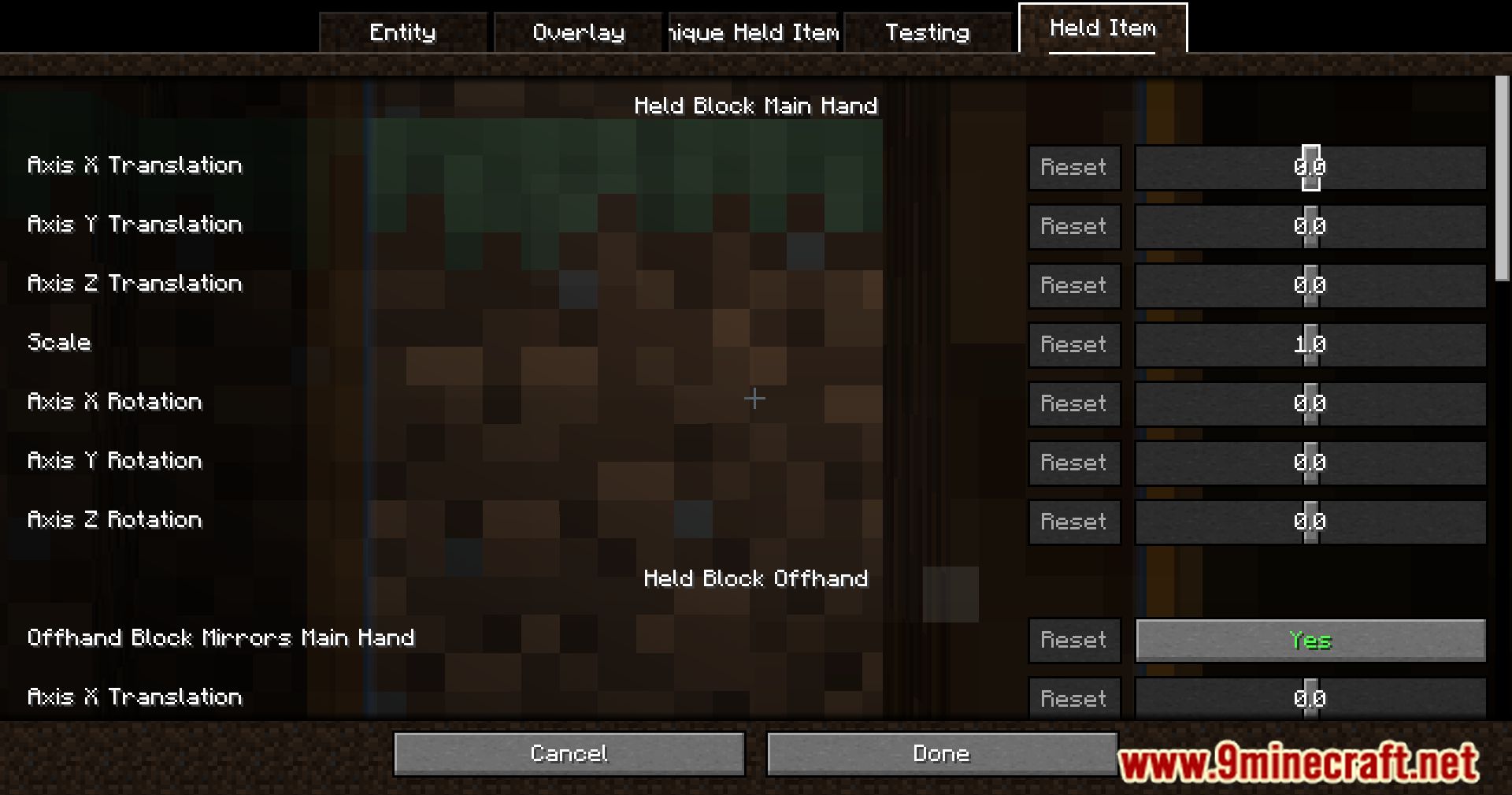
Press the designated keybind (configurable in your controls settings) to open the ScreenFX overlay menu. From there, you can enable, disable, and customize any active screen effects.
Can I use ScreenFX with my resource pack?
Yes, ScreenFX is designed to be compatible with resource packs. However, if you experience visual conflicts, check that your overlay opacity and blend modes don't clash with pack textures—adjust these settings in the ScreenFX menu.
Why do my screen effects look different in caves vs. the surface?
ScreenFX effects respond to your current lighting conditions. You can create separate effect profiles for different environments or manually adjust brightness and color values when you change locations.
How do I layer multiple effects without them canceling each other out?
Enable multiple effects in the ScreenFX menu and adjust their opacity and blend modes individually so they blend together rather than overlap destructively. Start with lower opacity values and increase gradually.
See all 10 ScreenFX questions ›
Gallery
12 images from the Screenfx Mod page.


You May Also Like
Wikis that share the most with this one
More mod wikis on the site
The most downloaded mods that have a wiki here
A few wikis from each of the other kinds