

 DownloadTab Tweaks Mod
Get the files on 9Minecraft
Guides
Step-by-step, in-game.
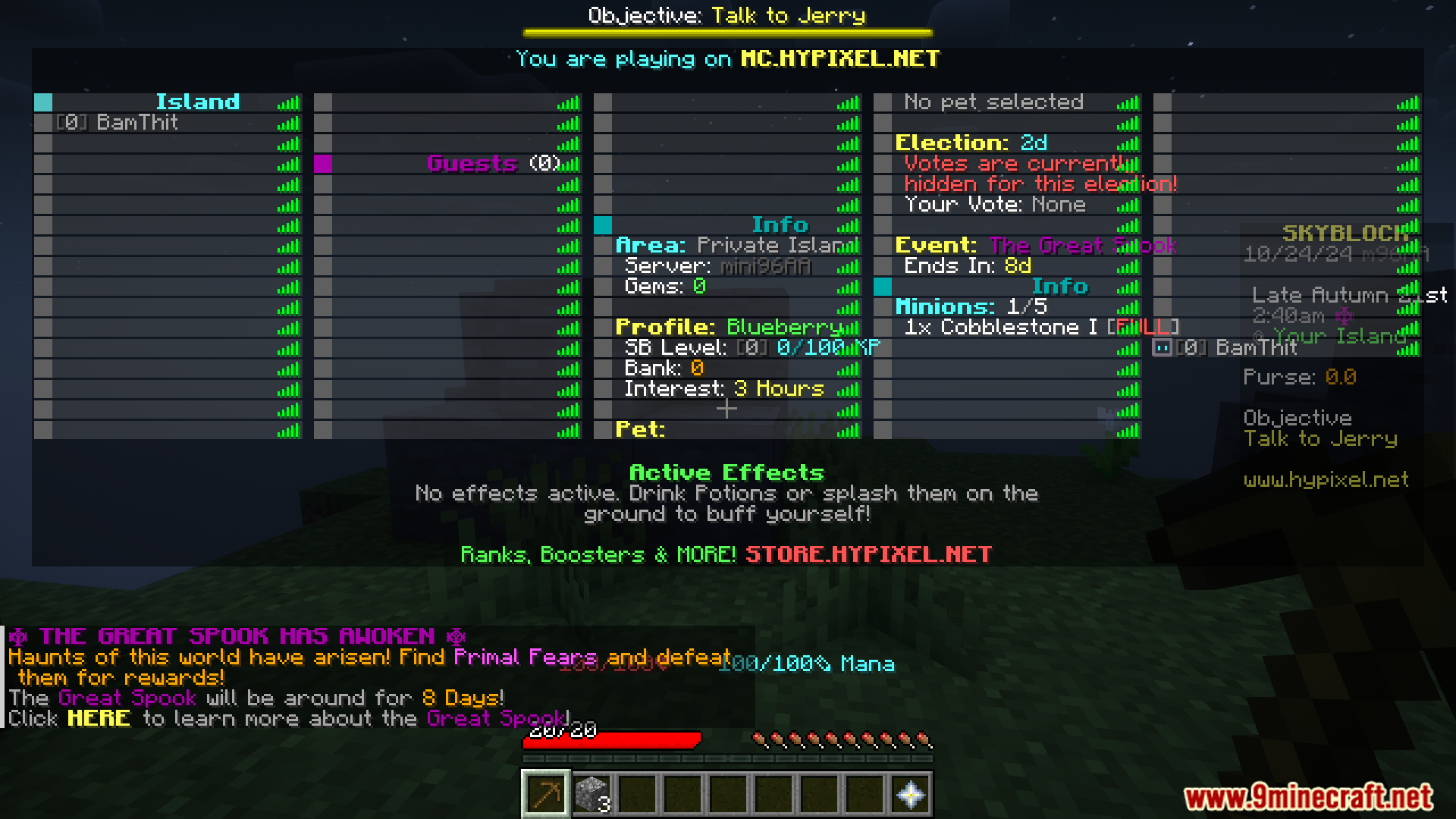
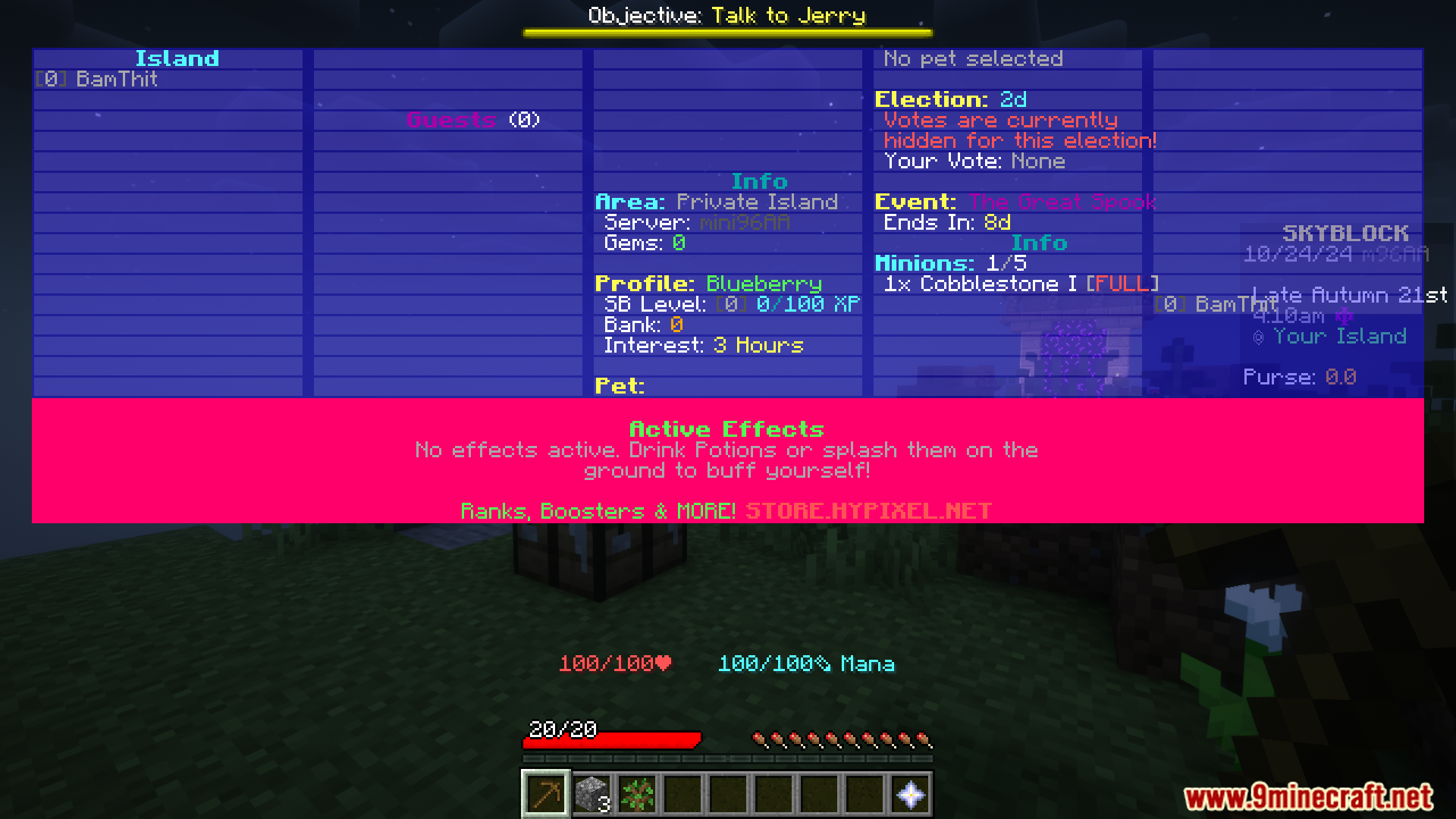
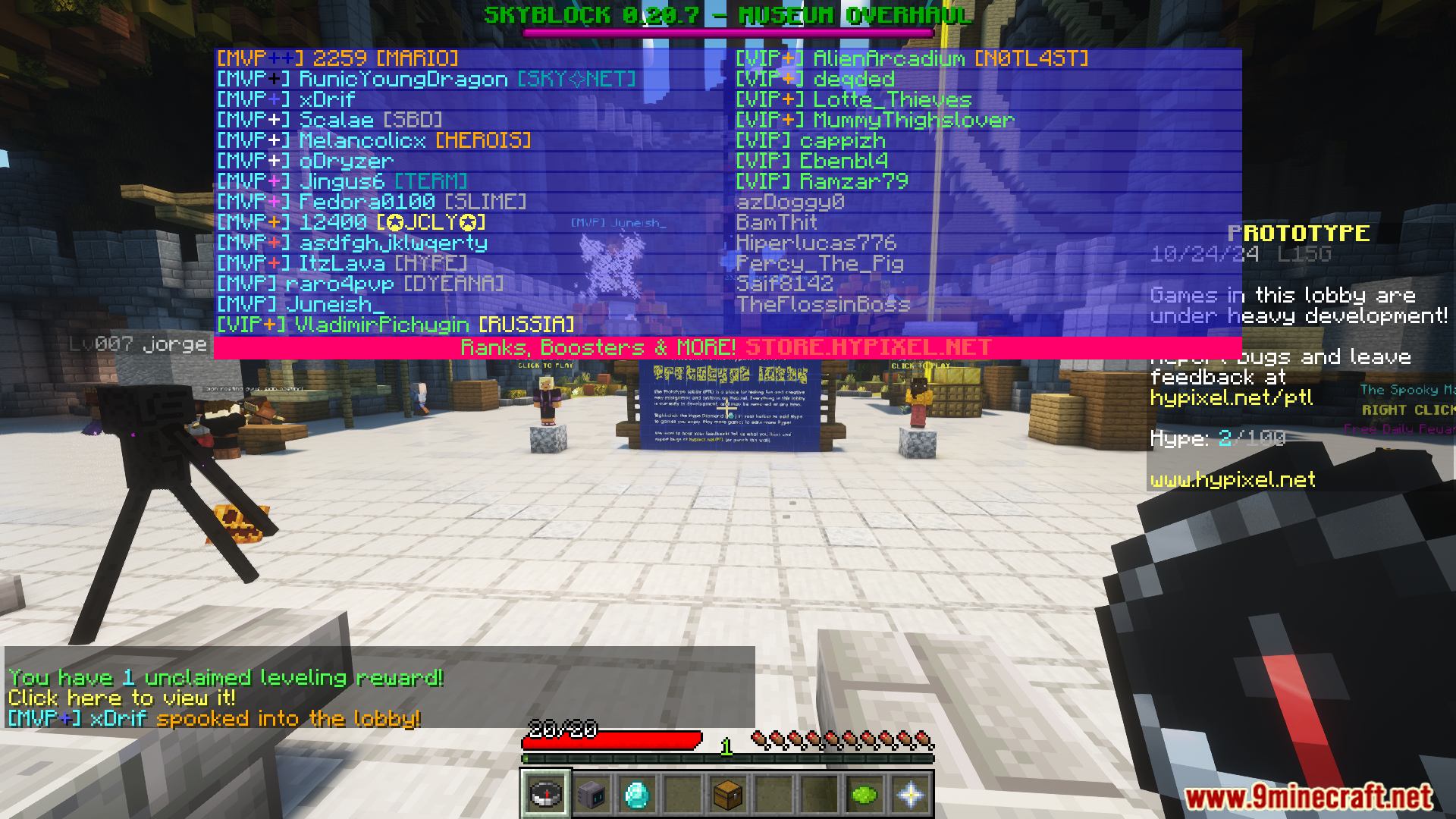
Customize Your Tab List Colors for Better VisibilityAccess the Color Settings Open your Tab Tweaks Mod configuration menu. You'll find separate color options for…Display Ping Information ClearlyChoose Your Ping Display Style Tab Tweaks offers flexible ping visualization options: Remove Ping : Hides all ping…Remove Clutter from Your Tab List DisplayHide Unwanted Elements Tab Tweaks lets you strip away visual noise from the player list. Open the mod's configuration…Reposition and Resize Your Tab ListAdjust Tab List Position Tab Tweaks gives you control over where the player list appears on your screen: Position Tab…
Frequently asked questions
How do I open the Tab Tweaks config?
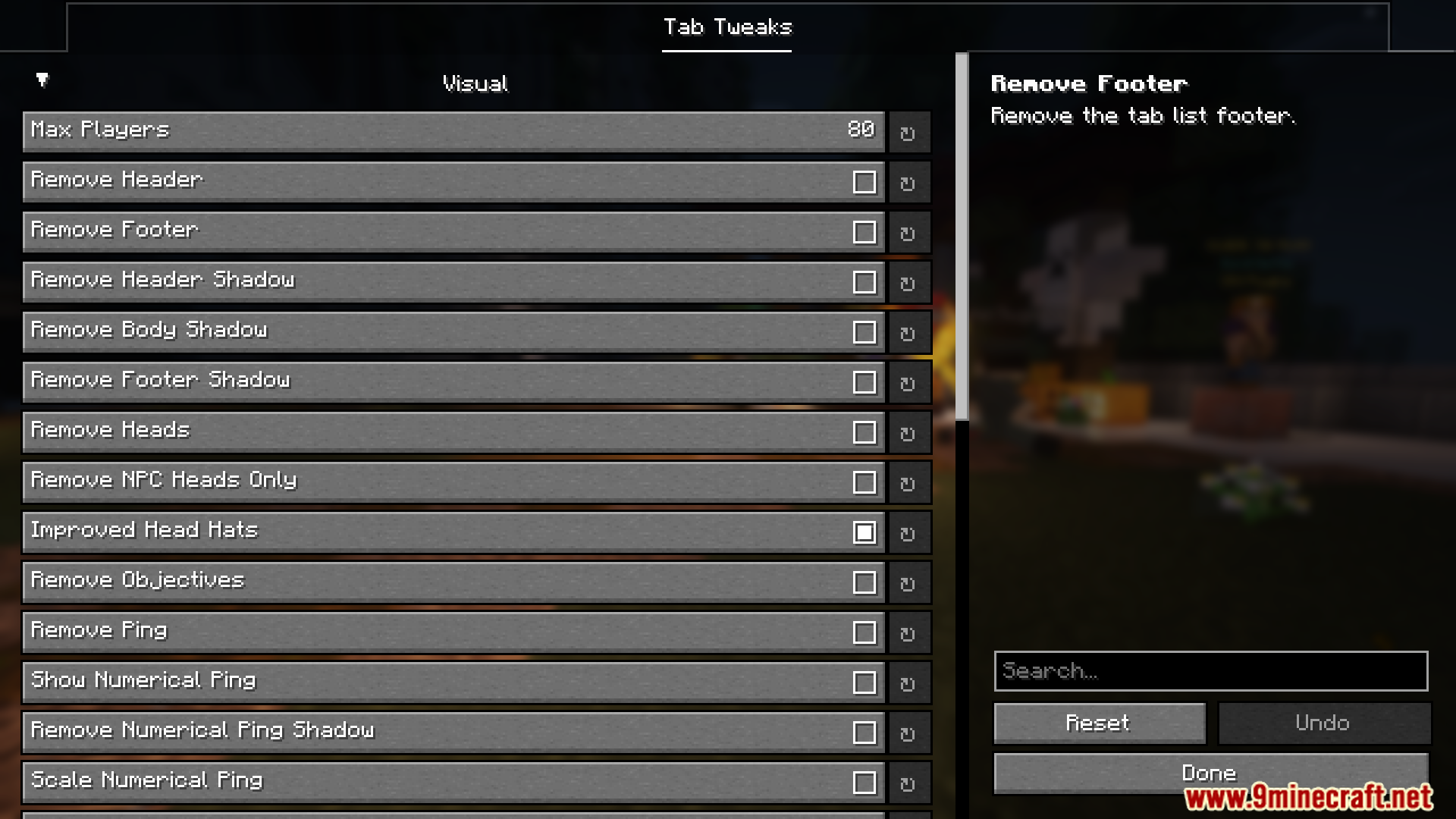
Open your mod menu (usually by pressing a key like M or through your mod loader's menu), find Tab Tweaks, and click on it to access the configuration options. All settings are organized into categories like Visual, Position, and Colors for easy navigation.
Can I hide just the player heads without removing other elements?
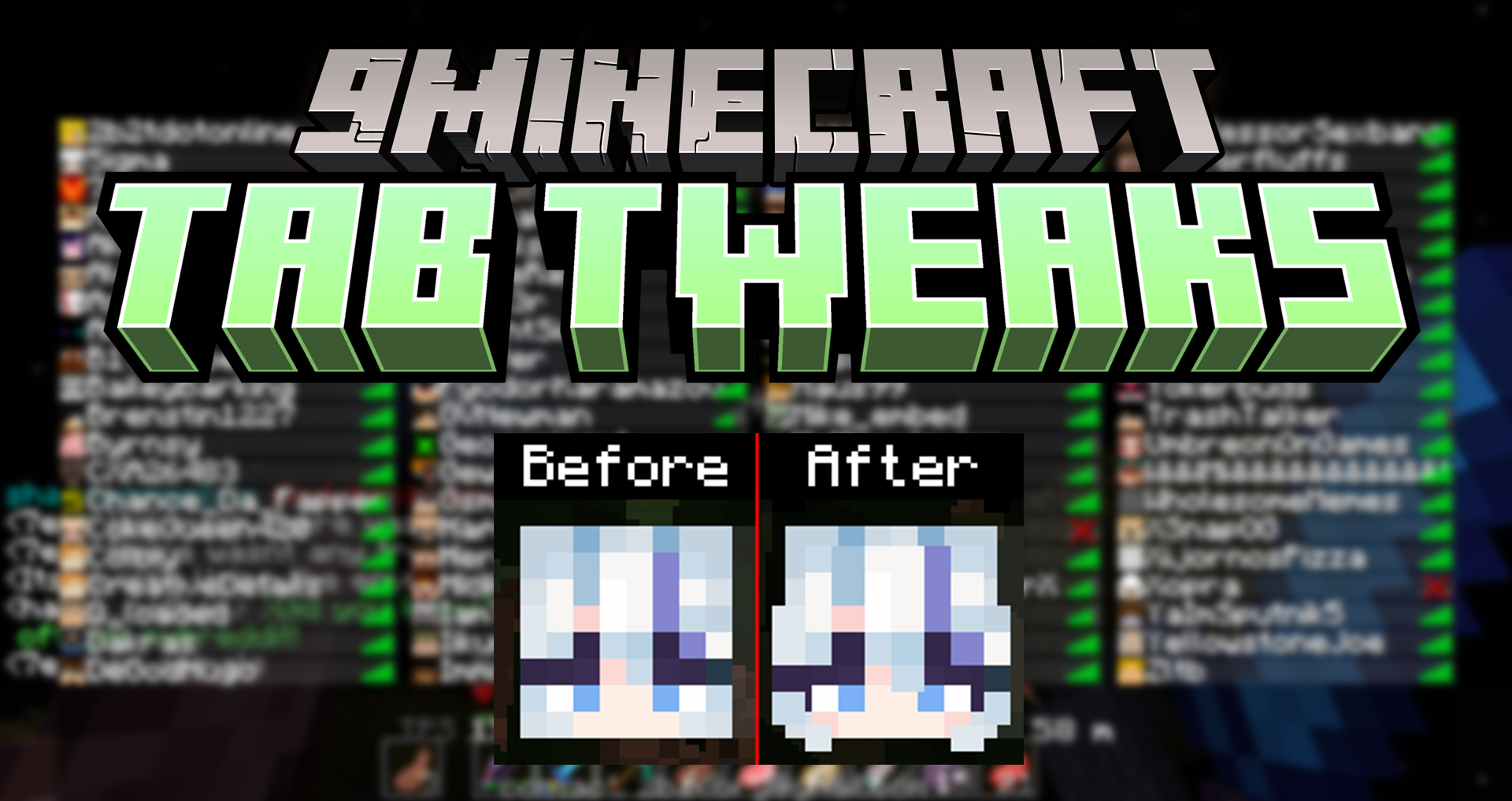
Yes, use the "Remove Heads" option to hide all player heads, or use "Remove NPC Heads Only" if you want to keep heads for real players and only hide NPC/bot heads.
Why is my ping showing as a bar instead of numbers?
Enable "Show Numerical Ping" in the config to display your ping as a number instead of a bar. You can also customize the scale of the numerical display separately.
How do I move the tab list to a different position on my screen?
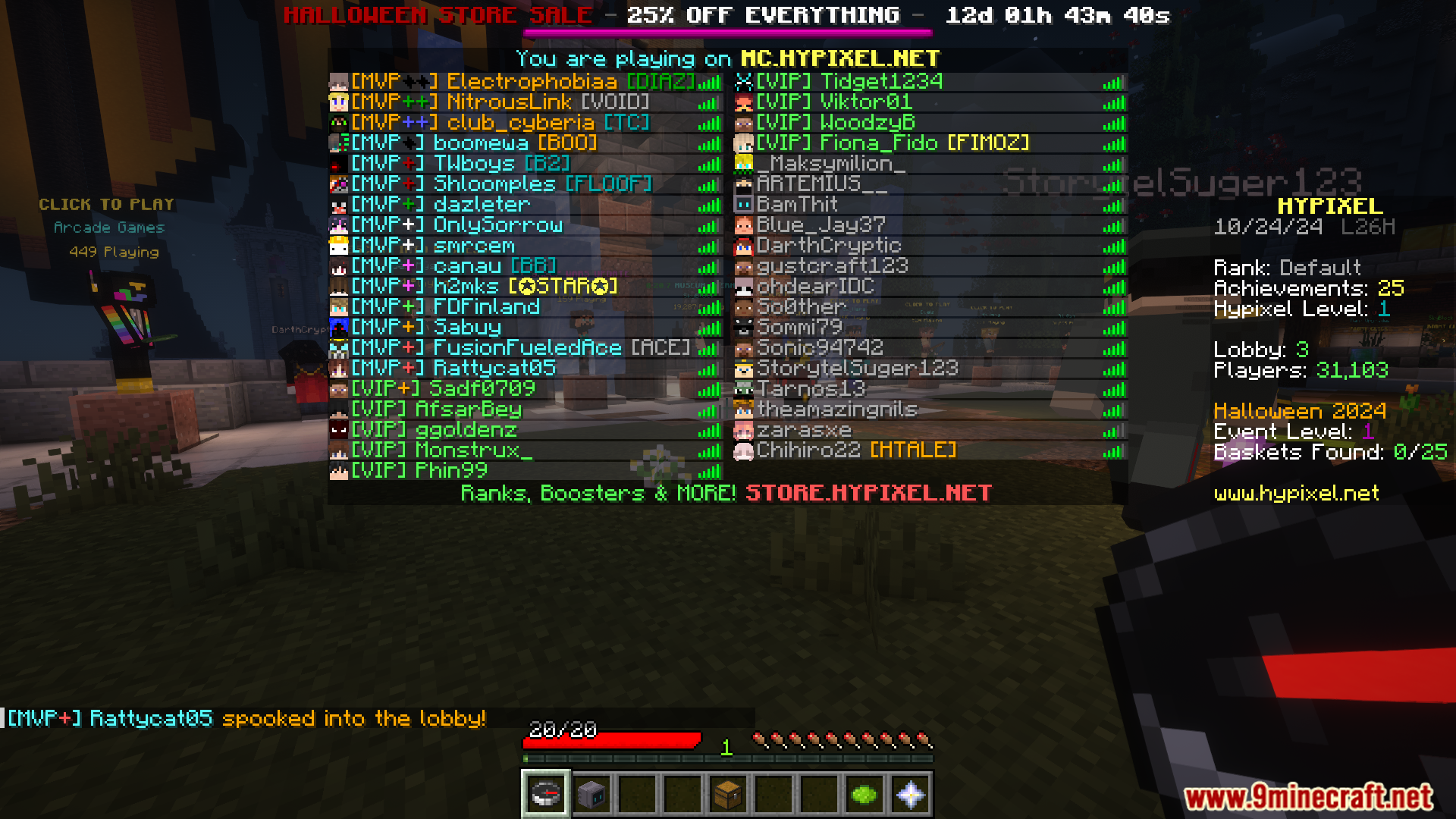
Use the "Position Tab" setting to choose where the tab list appears, and adjust "Scale" to make it larger or smaller. The "Move Tab List Down" and "Move Tab List Below Bossbars" options let you fine-tune vertical placement.
See all 10 Tab Tweaks questions ›
Gallery
7 images from the Tab Tweaks Mod page.
You May Also Like
Wikis that share the most with this one
More mod wikis on the site
The most downloaded mods that have a wiki here
A few wikis from each of the other kinds