Terrain Blending
Required:
Items & Blocks.
Building A Structure In Depth.
WorldEdit. Including brushes (masking, spheres, and smoothing) and basic editing (area selection, replacing, and filling).
So what is the purpose of terrain blending? Terrain blending makes structures look more natural by integrating them into the terrain, instead of the default behavior which often ends up causing structures to float. Take the following example:
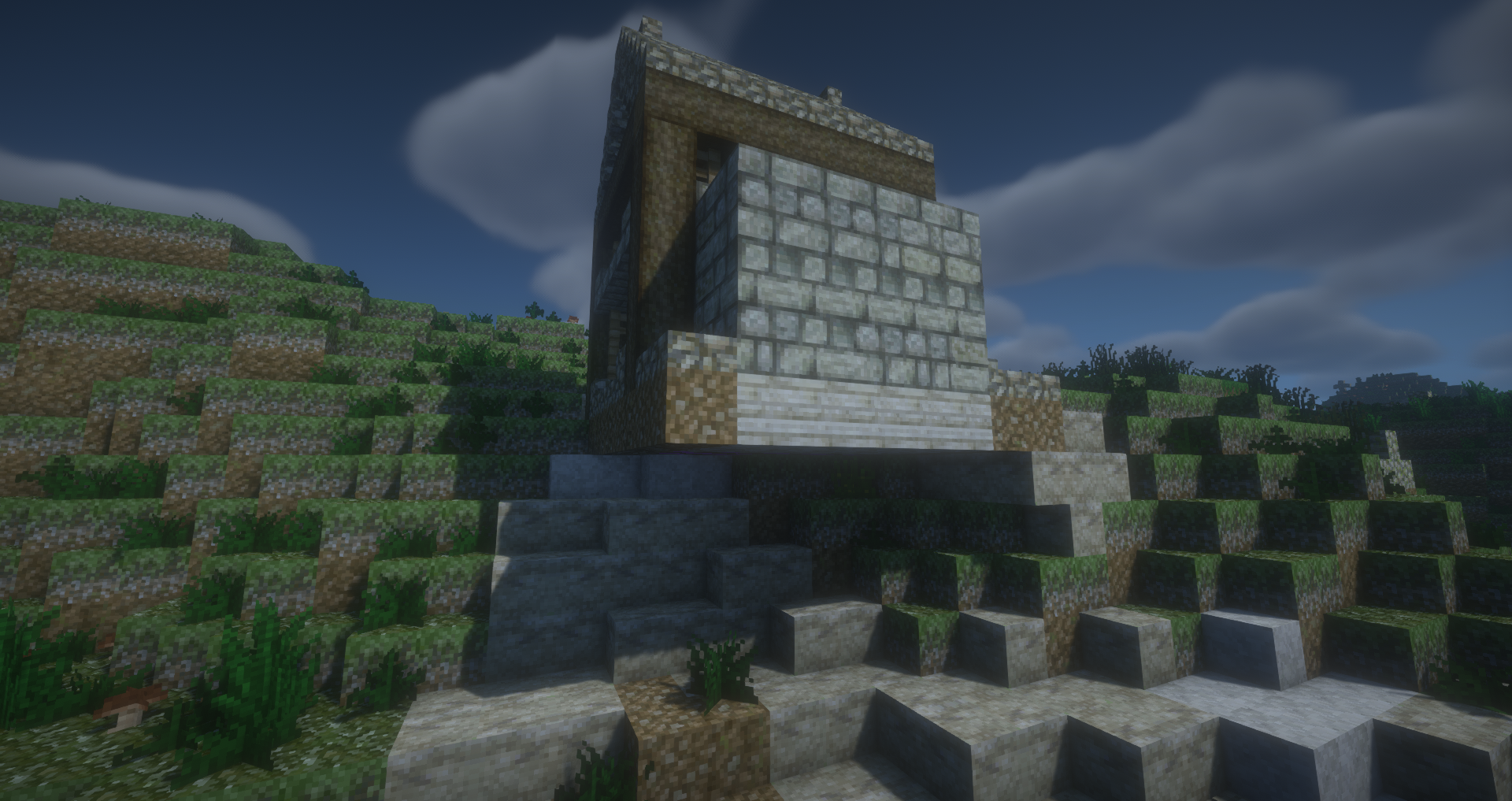
As you can see, without blending, structures look pretty ugly. One basic method of blending was covered in the Building A Structure In Depth page, but now we'll go into detail. Terrain blending largely relies on transformer blocks, namely the "natural ground" and "blank space" blocks. But just placing a slab of natural ground on the bottom of your structure doesn't always have the best results. Using a combination of transformer blocks, vanilla terrain blocks, and even custom transformers, can help increase the natural look of your structure. The idea is to have a section of terrain below your structure that will become a stand in for missing terrain on very uneven ground, and using negative space tapering to gradually carve out blocks around your building so that it doesn't create ugly right angles in surrounding terrain and trees. In fact, for fancier rules, you have an additional 16 generic transformer blocks that can be included in your structure.
(Note: These blocks only trigger their transformations upon generation. If you want to edit them, use the RC /#import command. If you want to test them out, use the RC /#gen command).
Below is a visualization of the concept. A blob of terrain below the structure that is partially buried when it generates acts as the ground part of the blending, and a bowl shape of air centered on your structure that carves out a filling of negative space blocks acts as the above ground portion of the blending. In the diagram on the left of the image, you see an example of how this cuts into nearby terrain in a gradual slope, making it look more natural:
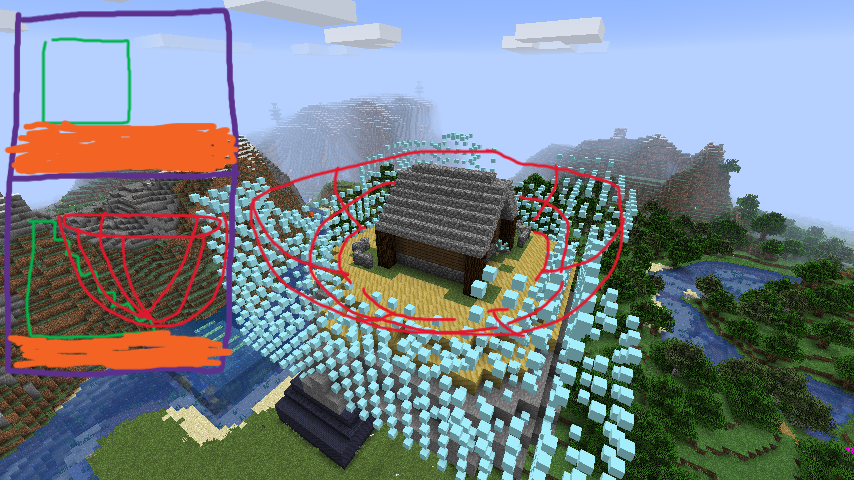
The different methods of terrain blending are explained in depth below. For a detailed step by step guide, see this example.
There are several methods you can use to terrain blend your structures. Which one is dependent on the type and size of your structure, as well as the terrain/ biomes it's going to generate in. There are also two types of "air blending," which is used on the portion above ground, and includes tapering and full encasement (replacing every air block outside your building with the quick and easy "natural" RC command).
(Note: The examples shown here all use air tapering).
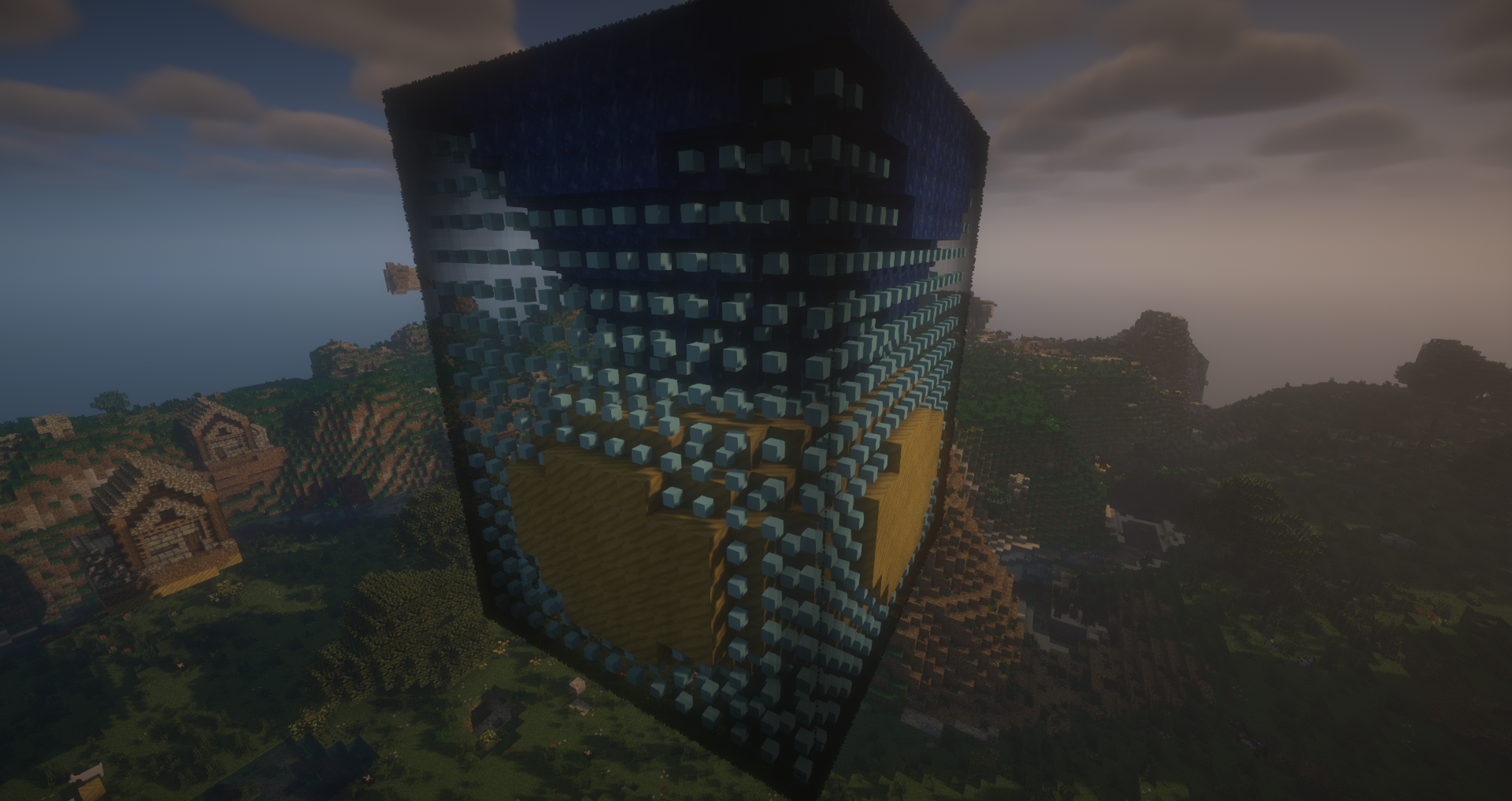
Air tapering is done by creating a kind of bowl of negative space blocks with the "surface" part of your structure at the center. You can either do this by creating an expanding pillar of blocks where your building will be, replacing the air blocks with negative space, and then replacing the pillar with air:
Or by filling in your structure's air with negative space and then applying a WorldEdit brush with air blocks as the source and negative space blocks as the mask. Then chiseling away at it until you get a bowl shape (a smoothing brush can help get rid of awkward holes). The end result is to get something that looks like this:
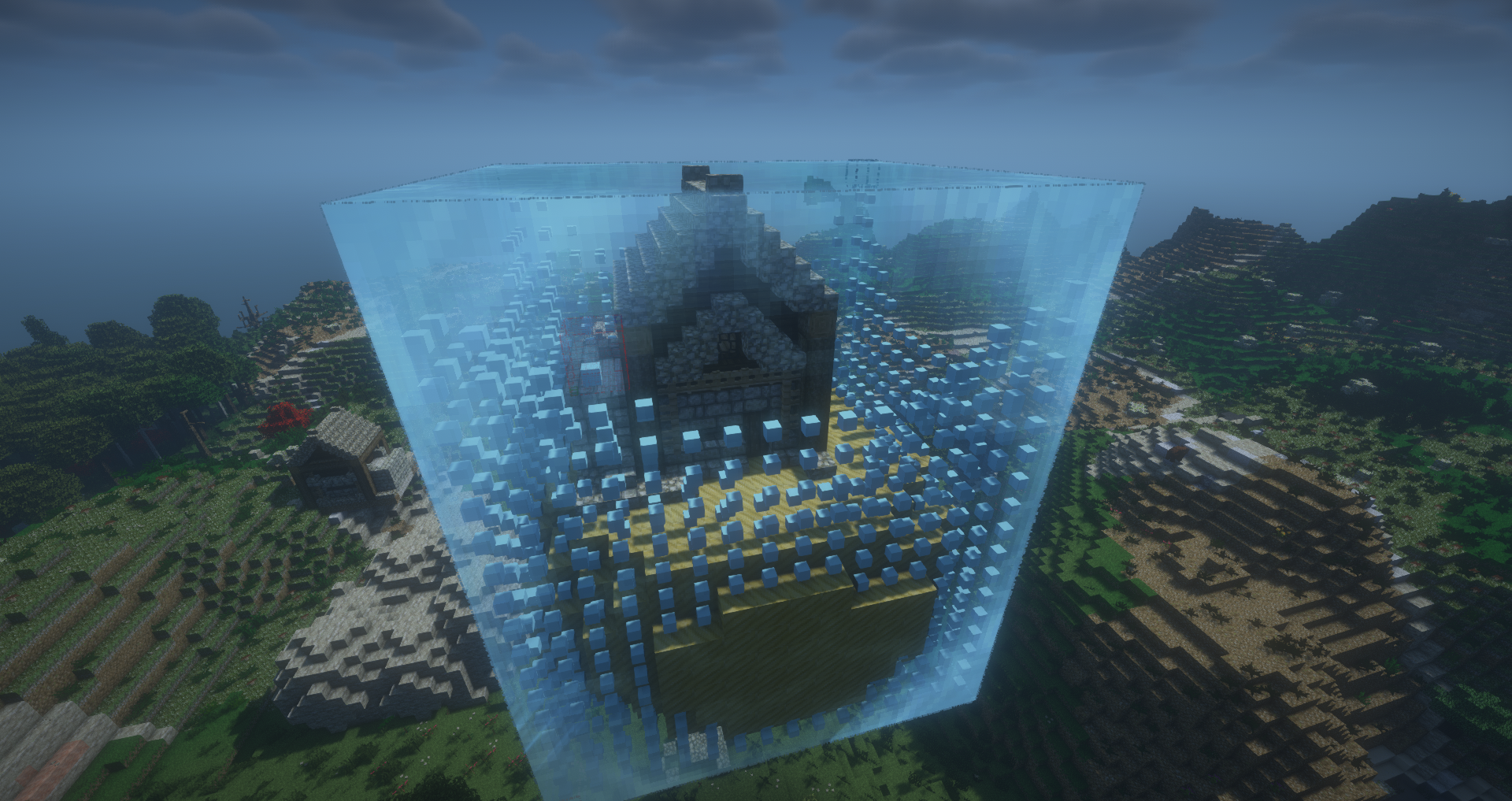
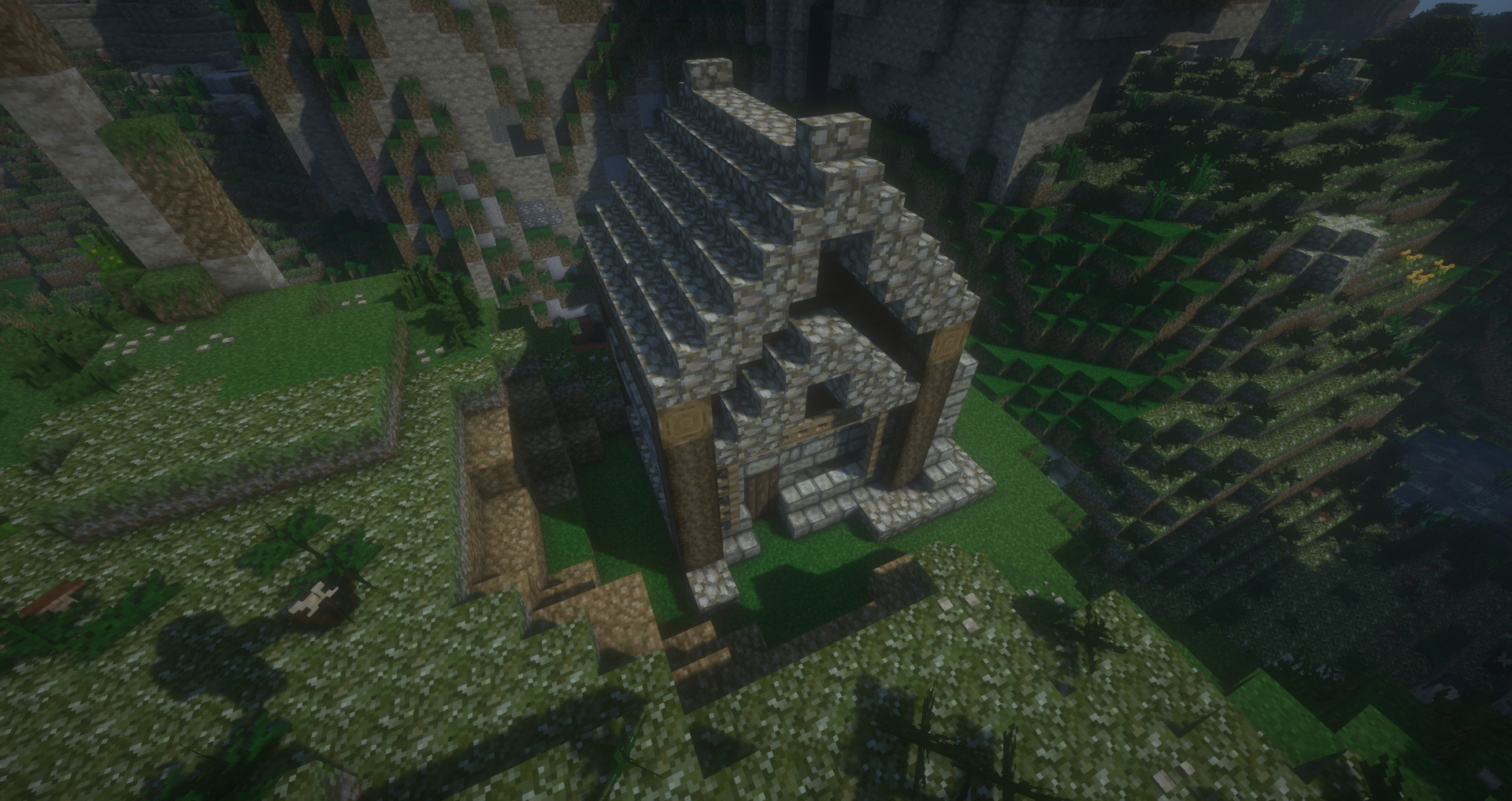
When generated near hilly terrain, you get a smooth carving like this:
 \
\
The first method of terrain blending is what I like to call the "blob." This creates a smushed sphere for your structure to sit on, and is best suited to biomes which are relatively flat or have soft rolling hills.
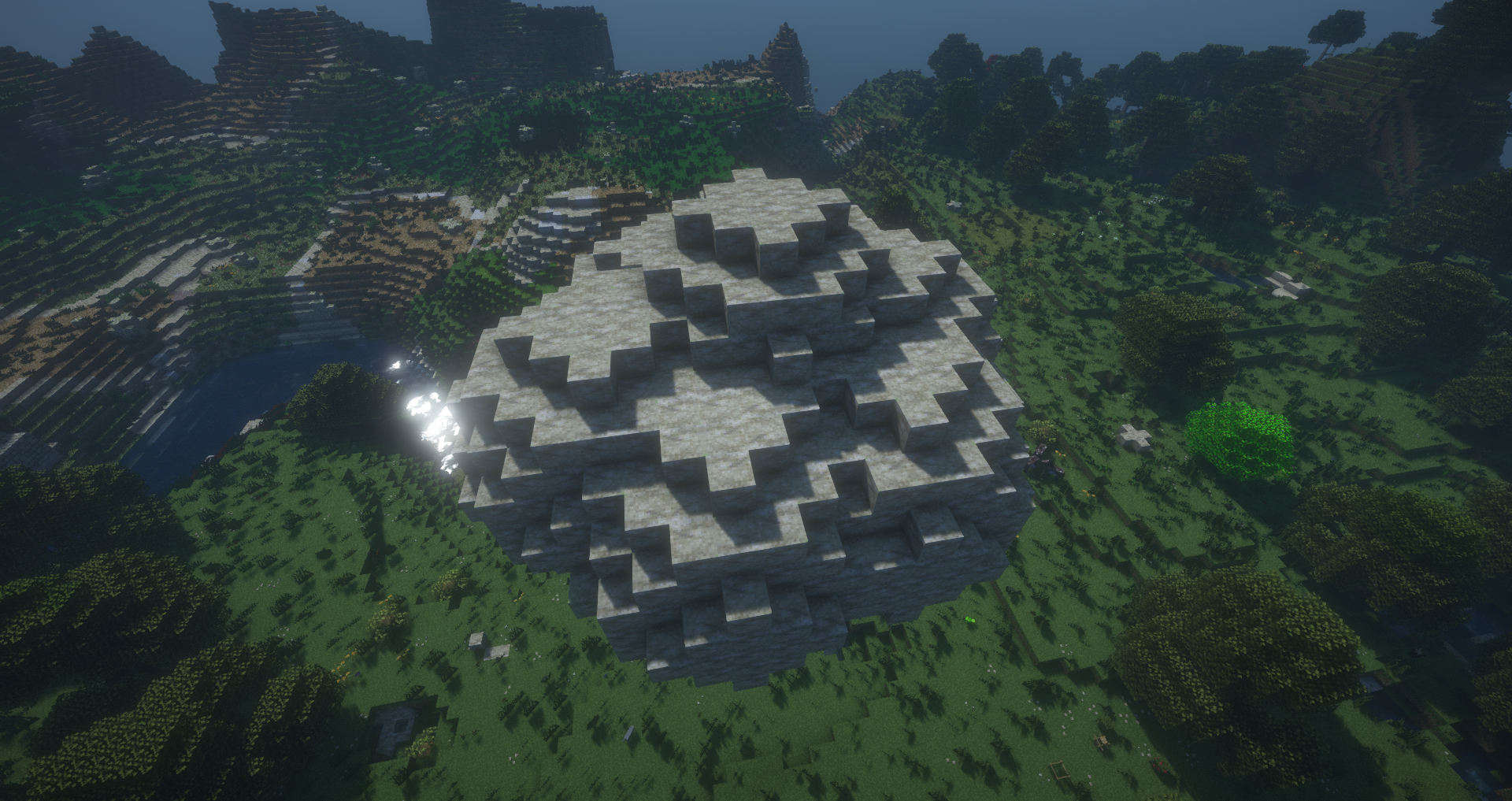
The first step is to use a WorldEdit sphere brush to create a flat grid of spheres (using whatever terrain block you want to match the primary terrain filler, e.g stone), and then slap on a few extra to round it out a bit. You want to create more volume horizontally than vertically:
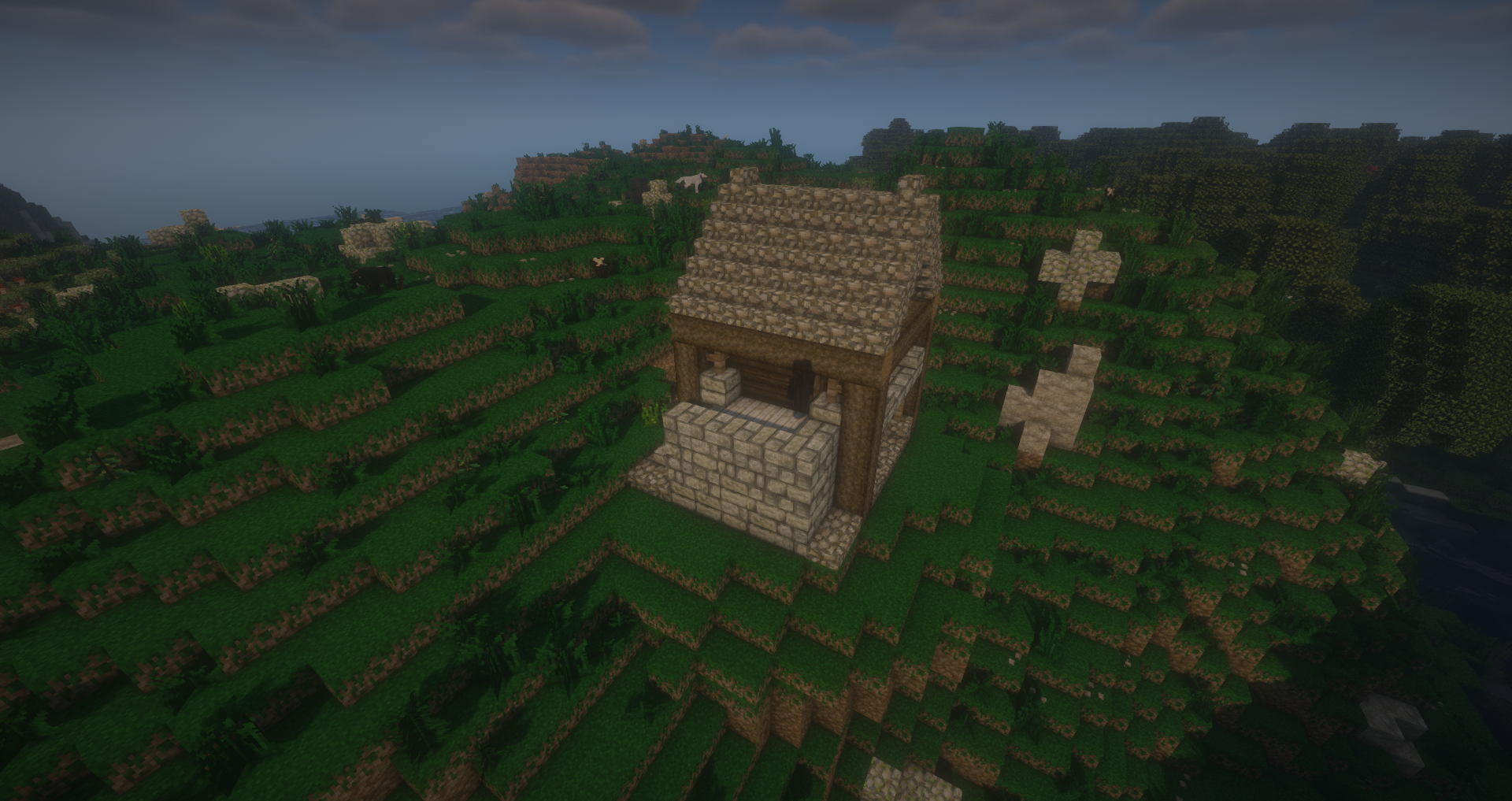
Once this is done, you can manually smooth out some of the worst offending blocks as well as creating a proper top to build your structure on, and then use WorldEdit to replace the top three blocks of the blob with "natural ground." This will cause the surface portion of the ground to mimic surrounding terrain, and prevents weird portions sticking out as is the case when replacing the entire blob with natural ground. To prevent having a clear transition between the stone and your mimicked block, you can add some natural ground cutting into the stone portion if you want. Remember to fill in your structure's bottom half with negative space and set the baseline! Here is an example of this in action:
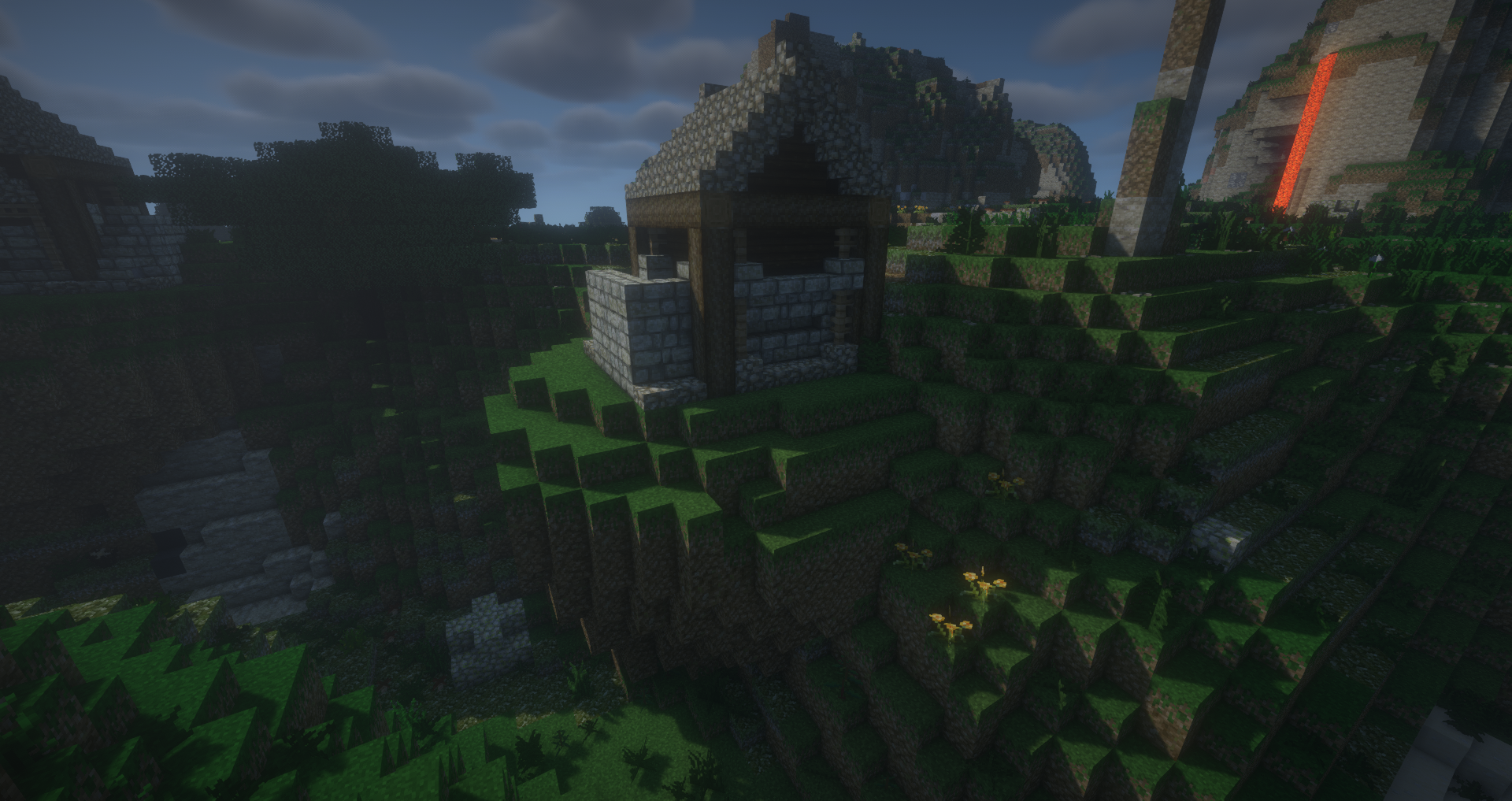
And an example of why you don't want to use it on very hilly terrain:
 \
\
The second method is the pillar method, which creates a tall pillar underneath your structure instead of a blob. It's best used for structures that generate in very hilly terrain, and is generally better suited for smaller structures (you don't really want very large structures generating in hilly terrain anyway).
To properly create a pillar, you'll want to set your brush source to sand, and then create a tower of cylinders that gets slightly wider as it goes down. The reason for using sand is that it falls, creating a proper sharp gradient. You may also use the blending brush to smooth it out a little. Finally, use WorldEdit to replace the sand with stone, and then mix some natural ground blocks into the top and flatten it out a little. The end product should look something like this:
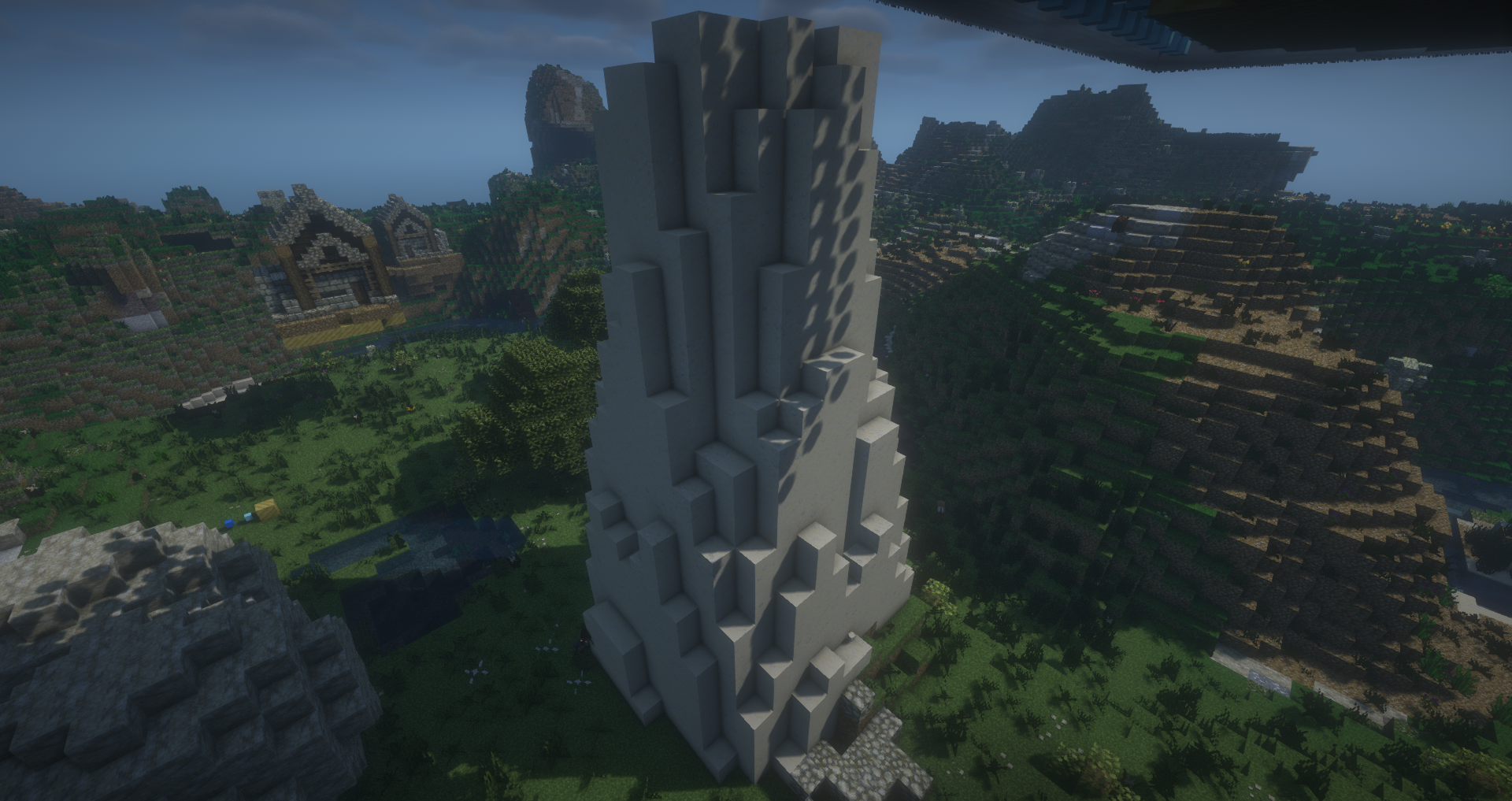
And here are a couple examples of it in action:
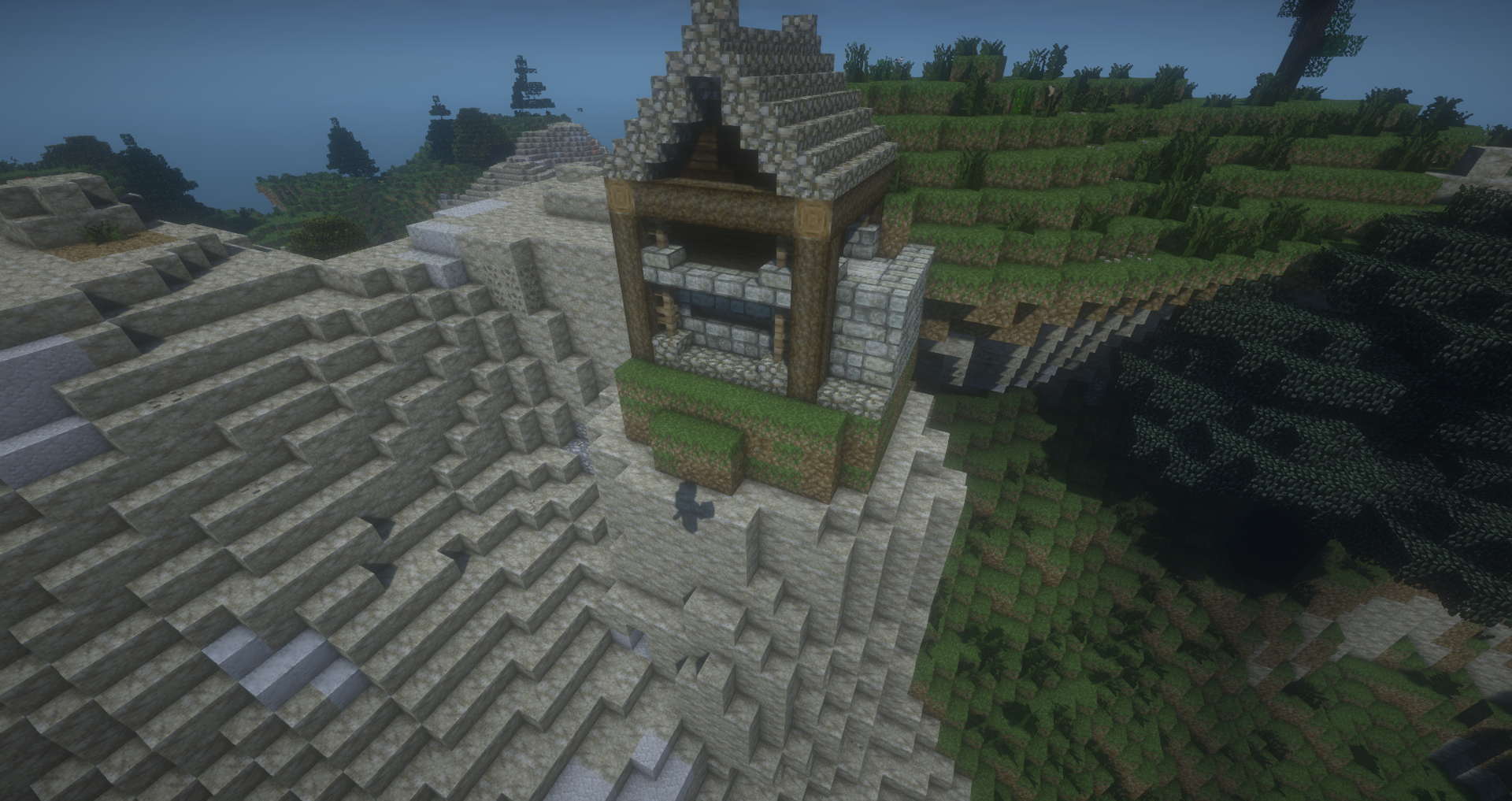
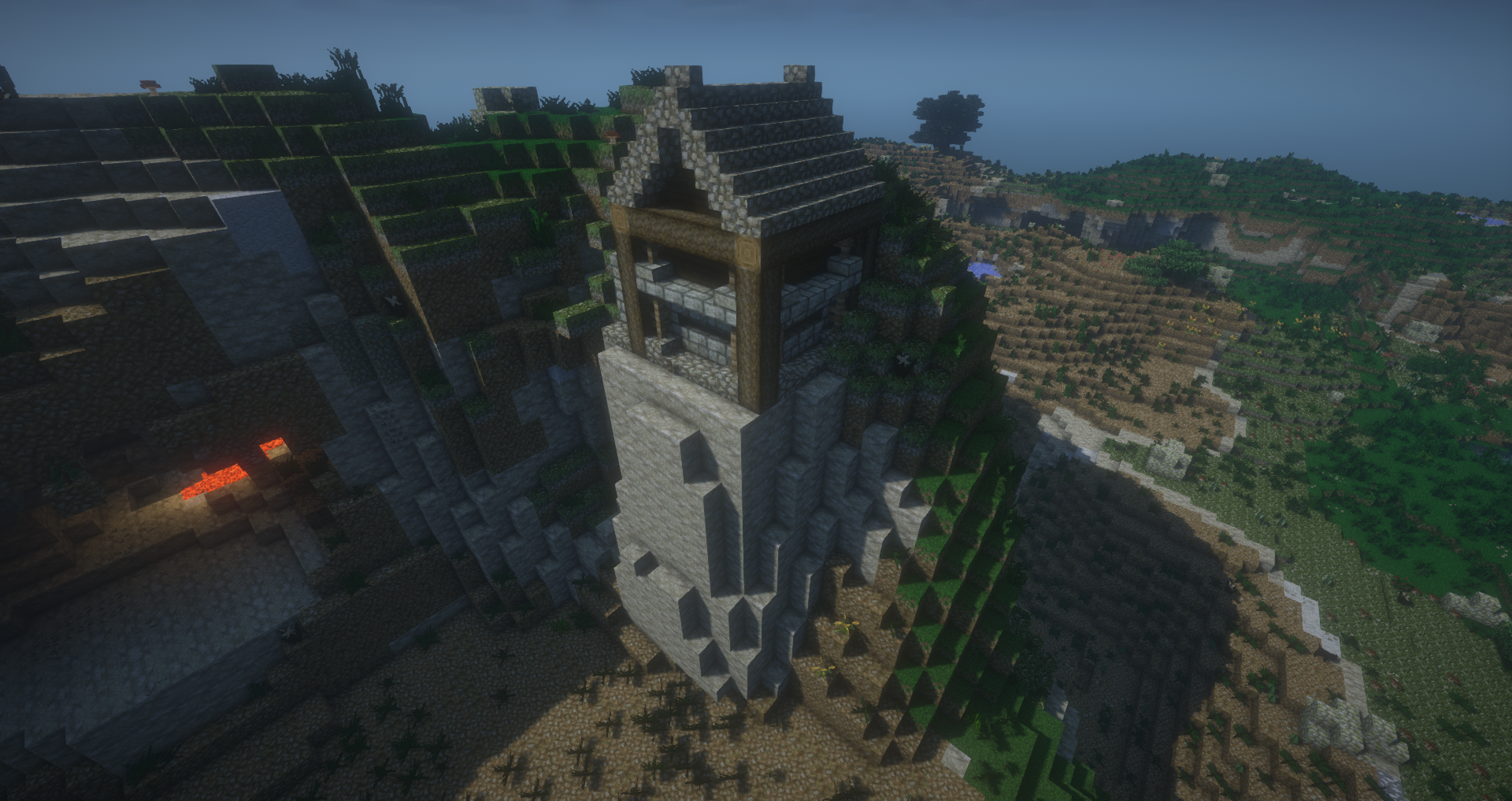
The wider your pillar, the smoother the transition can be (the above example actually uses the "air encasement" air blending method, and gets partially buried by the terrain, which demonstrates why it's not the best option for buildings).
There are additional fancy rule sets you can create using the extra "solid" blocks or transformers. How you use these sort of depends on what you're trying to achieve. The Solid blocks can be targeted by transformer rules to do things like spreading them in the ground and having them turn into mud blocks if the structure generates in a swamp. You can also edit the existing transformer rules for things like the "natural air" blocks, and make them generate air except when they encounter logs, which could be used to carve out the surrounding terrain to create space around your building and remove the leaves from trees, but leave the trunks to create an eerie look. Transformers are covered in detail in their own page here.