Structure Gui Basics
The structure GUI is where you will be doing all of your rules editing, and can be brought up during structure export or at any time with the structure edit command.
The root window is the first window you get. Be careful not to exit this window while editing, as you will lose any unsaved work!
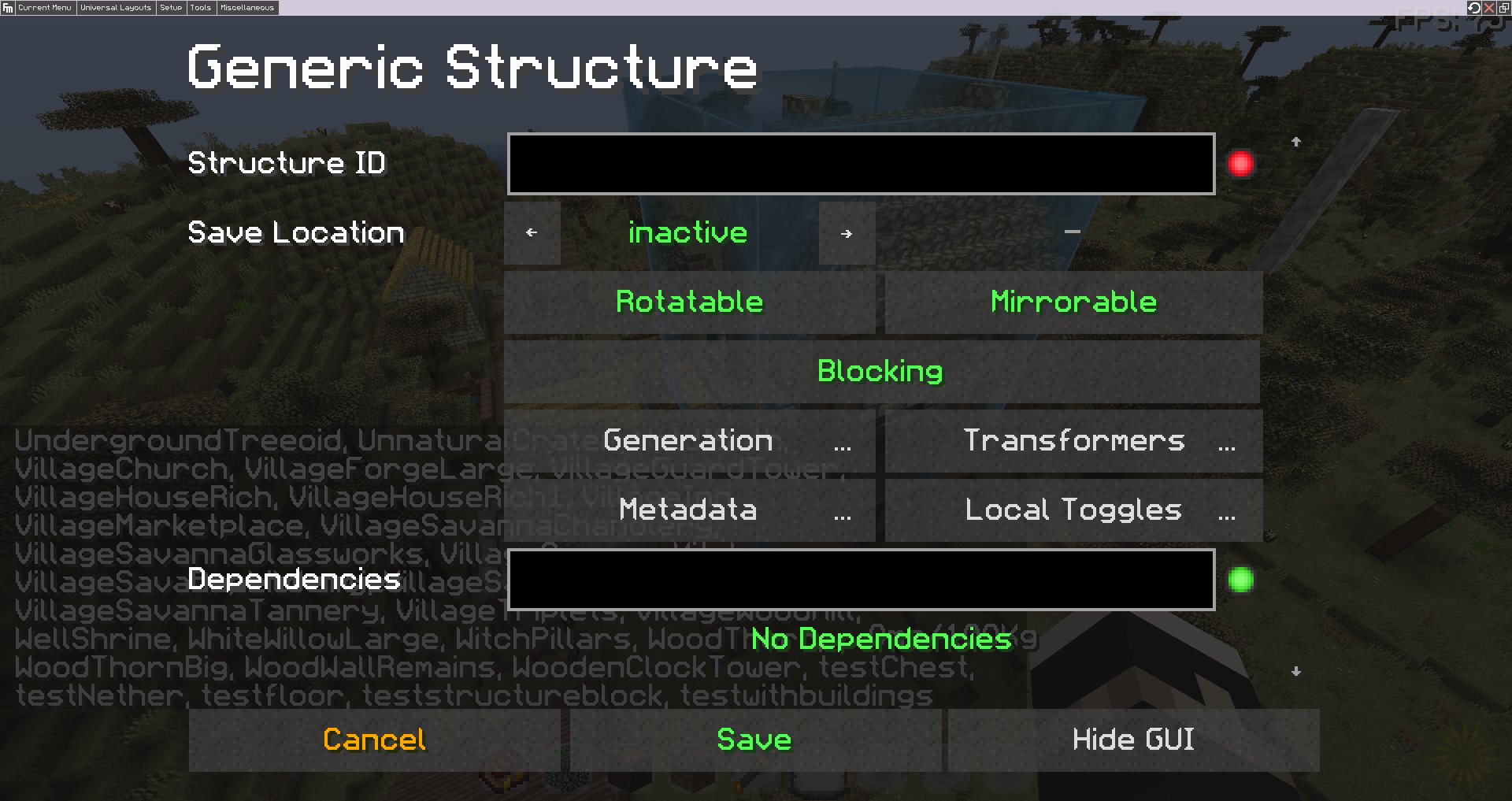
The root window conists of:
- StructureID: The unique name of the structure. This will be the name used in commands targeting the structure, and the name of the generated file.
- Save Location: The save destination. Structures in the "active" folder will actively generate in worlds, and ones in the "inactive" folder will be disabled. The "world" version folders are covered later in Managing Structure Files.
- Rotatable: Whether or not the structure will choose a random direction to face when generating. Generally you'll want this enabled unless using modded blocks, some of which don't support this feature (e.g HBM NTM doors). You'll need to test your structure for mod compatibility.
- Mirrorable: This controls whether the structure can be "flipped" across its vertical axis to produce a mirror image. This improves the feeling of "randomness" by further increasing the number of unique layouts a structure can have, and is most often used for natural terrain structures. For ones using modded blocks, it's usually better to keep this off. You'll need to test for mod compatibility.
- Blocking: This option determines whether the structure blocks other structures from generating on top of it/ within its bounds. This option is one you'll always want on unless you're creating a terrain feature such as trees or boulders. In which case you may want to allow other structures to overwrite them, as having frequent terrain features may otherwise block regular structures from generating.
- Generation: This window opens all further windows for rule sets and structure customization, covered further below, and in full detail later.
- Transformers: This is an advanced feature window that is covered in Transformers.
- Meta Data: This window allows you to add info to a structure, such as the author's name and any comments you may want to add about it. Useful for large projects in crediting different builders for their contributions.
- Local Toggles: This is an advanced feature covered in WIP.
The "generation" window is where you do all of your rule editing. The first window inside it is "generation types." Here you can click the "+" button to add a generation type and use the arrows to cycle through them, then click on the desired type to add it to the list. All generation types are treated separately and have their own rule sets. You can also use the "-" button to remove a generation type.
The generation types are:
- In Structure: Generates the structure as part of a vanilla village, used for replacing houses. You can either add to villages or completely replace the default structures.
- Maze Component: Generates the structure as part of a maze.
- Natural: Generates the structure in biomes randomly based on rule sets. The most common type used for most structures.
- Sapling: Generates the structure from growable blocks, such as saplings.
- Static: Generates the structure statically (at a fixed position).
- Structure List: Adds the structures to a list for the structure script block to use.
- Vanilla Decoration: Used to replace vanilla decorations on generation, such as trees, giant mushrooms, mineshafts, etc.
The other generation types are covered in Structure Types. This page will go over the basics of the "natural" type only, the one used for most structures.
To edit the rules of a generation type, click on it from the active list after adding it. In this case, we'll be entering the "natural" type window.
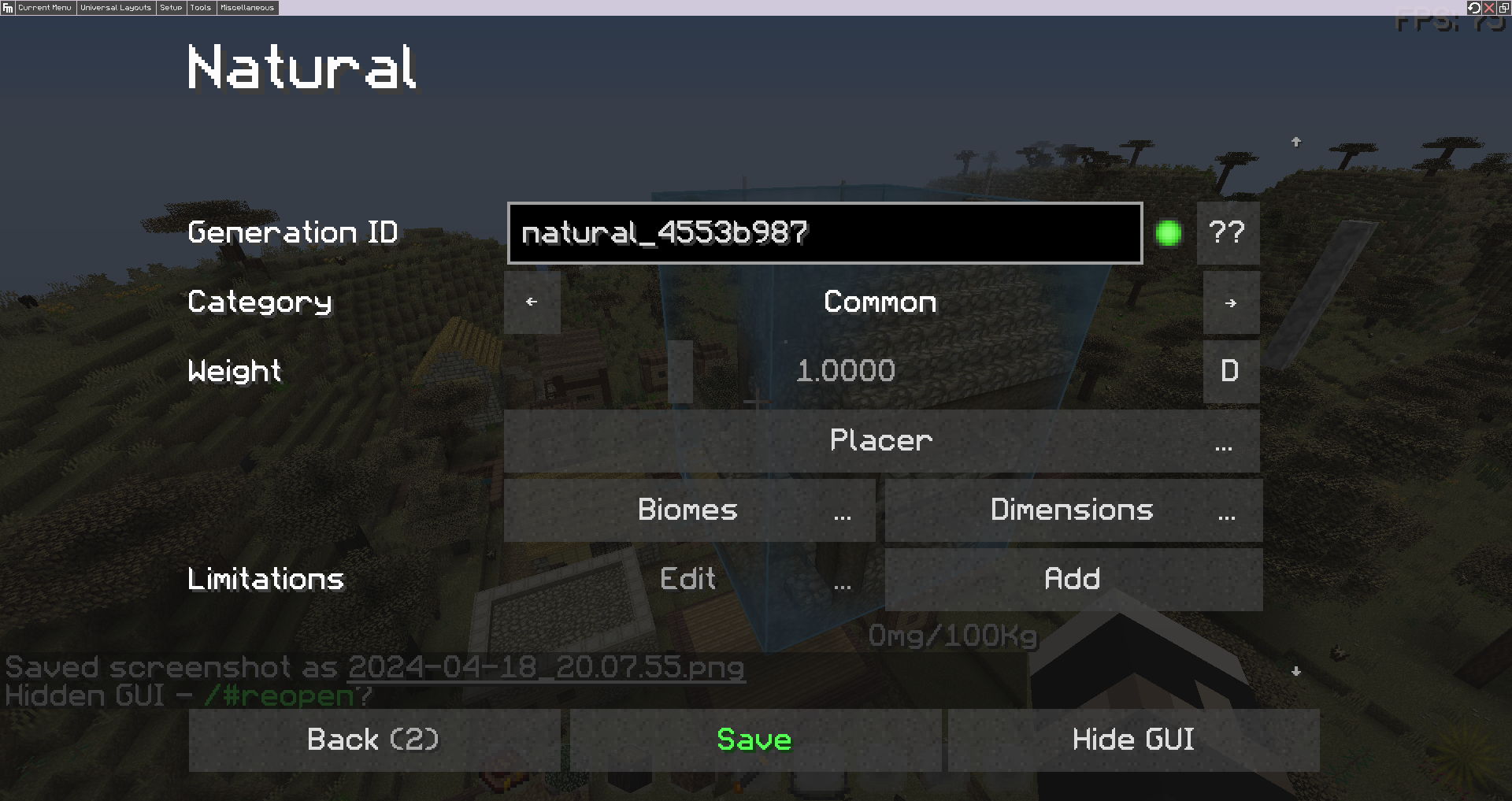
The options in this window include:
- Generation ID: The internal ID used to identify the structure. This is automatically generated and, generally, should not be manually edited.
- Category: Determines the generation category the structure is added to, aka its generation frequency. It determines, roughly, the spacing separation enforced on the structure.
- Weight: Determines the weighted chance of generating this structure compared to other structures within the chosen category. Select the button to the right to switch between D (default) and C (custom).
- Placer: Determines how the structure is placed in world, and the conditions under which it is allowed to generate at a given location.
- Biomes: Determines which biomes the structure can spawn in, based on expressions.
- Dimensions: Determines which dimensions the structure can spawn in, based on expressions.
- Limitations: Determines limitation rules. Currently only has 1 type, "max occurrences," which determines how many times the structure can spawn per dimension. This will make the structure extremely rare and it's recommended you implement methods for making locating them easier.
These sections will be covered in depth in Building A Structure In Depth. For now I'll cover some basic customization options and rules:
Once Recurrent Complex has determined a structure is allowed to generate at a location, it follows the rules in the "placer" window to determine how it should be generated, and to run a final check to determine if the location is valid for doing so.
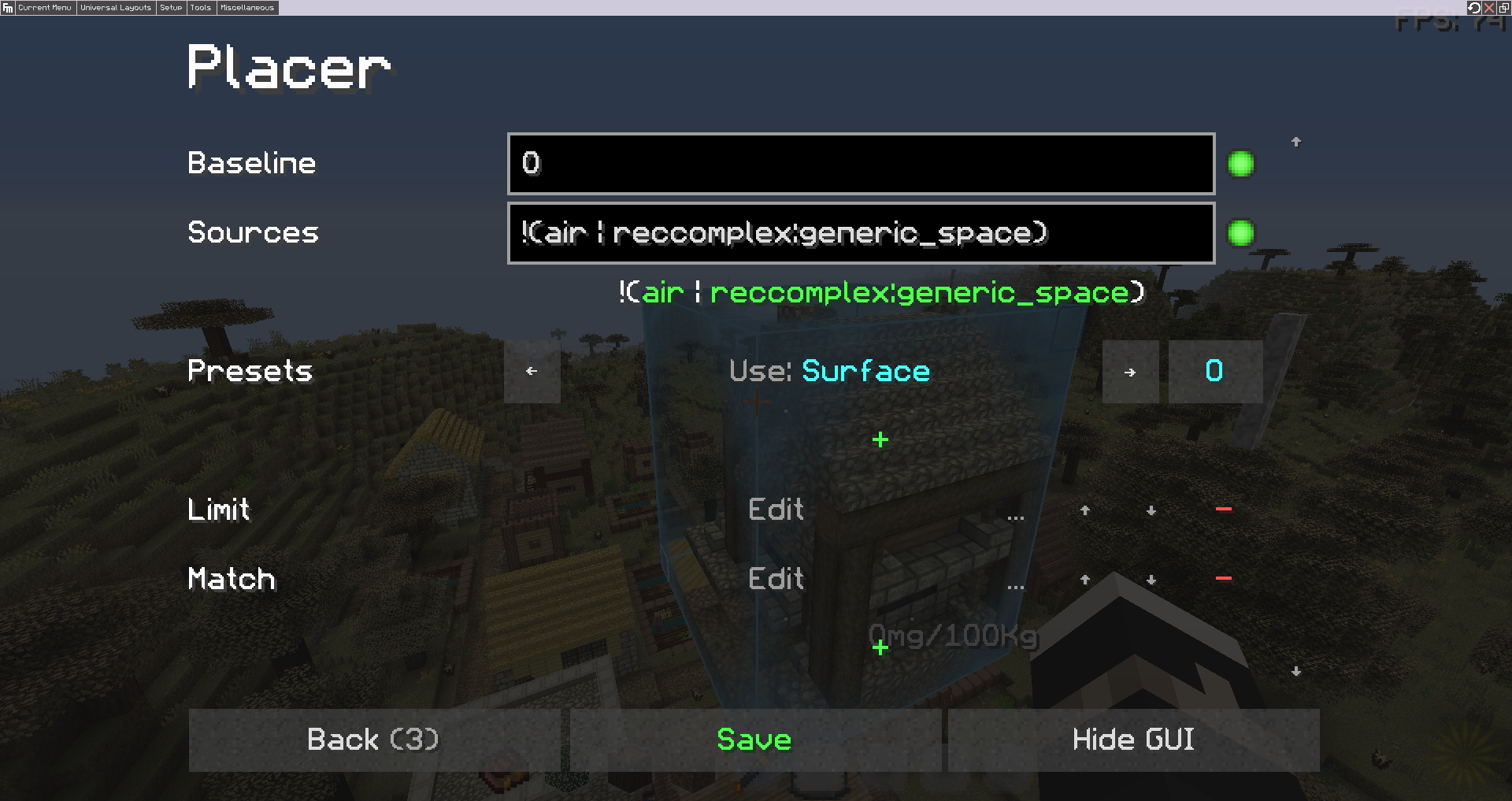
The options in this window include:
- Baseline: Determines the relative distance from the ground that the structure will generate at, evaluated from the bottom most block, used for structures which have "ground" beneath the actual building. Positive values will increase the baseline and cause the structure to sink further into the ground. Negative values will decrease the baseline and cause structures to rise into the air (effectively causing them to hover). Note that for very uneven terrain, this will not always get the ground level of the structure perfect as RC determines the terrain level based on an average.
- Sources: An expression which determines which blocks the baseline will evaluate from. The default causes the baseline checker to ignore air and RC "generic space" blocks, meaning it will look for solid ground to measure baseline from).
- Presets: Placer presets which can be used to determine generic rules. To edit a rule set, select the blue "0" to the right. To setup your own, simply remove the existing ones and use "+" to add your own.
The biome and dimension windows are essentially identical. They are used to determine which biomes and dimensions the structure can spawn in.
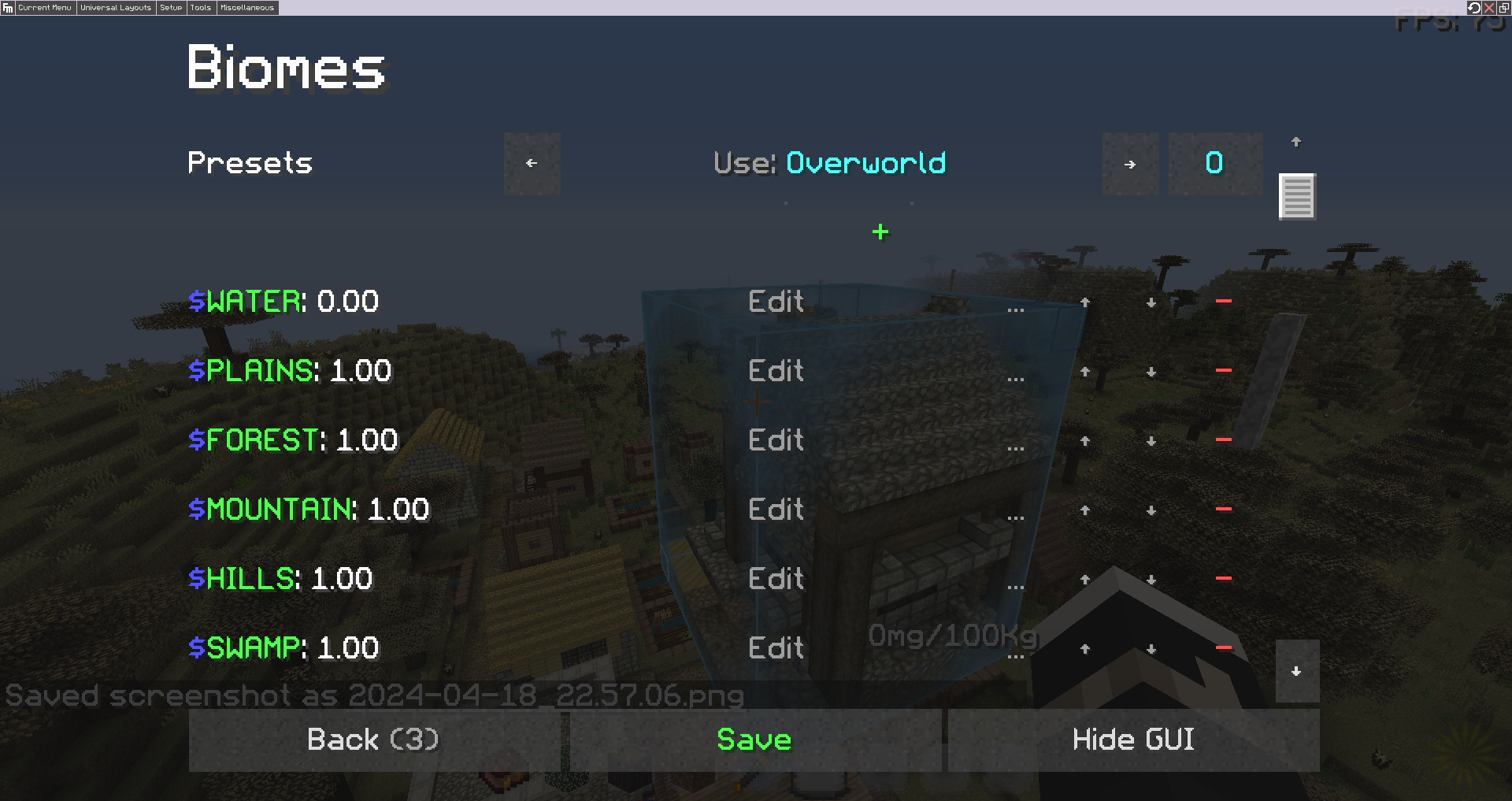
There are several presets which have default entries you can apply, or you can clear them and edit your own. The edit window has a single text box for expressions and a slider for weight, which determines the chance of the expression being evaluated vs any other expressions you have added. E.g this can be used to have a rule which allows the structure to generate in plains biomes with a weight of 0.5. This would allow the structure to generate in plains only 50% of the time.
For now, we'll use an example of a simple single entry matcher. id=entry, where "entry" is a biome or dimension ID, depending on which window you're in. E.g id=forest and id=0 would allow the structure to only spawn in the forest biome, and only within the overworld dimension. You can also specify a namespace for the biome with minecraft:forest if another mod happens to add a biome with the same name.