
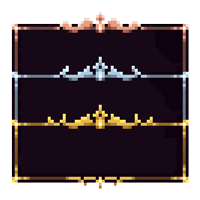
 DownloadEclectic Trove Resource Pack
Get the files on 9Minecraft
What the Simple Version Does
Eclectic Trove includes a simple setup option that configures everything for you automatically. Instead of assigning a border to every item yourself, you let the pack apply its default mapping so items immediately get fitting frames based on their type.
Enabling the Automatic Setup
1. Make sure  Legendary Tooltips is installed and working — Eclectic Trove cannot function without it.
2. Open the Legendary Tooltips configuration.
3. Find the option that enables the pack's preset or automatic border assignment.
4. Turn it on and save.
5. Reload or restart the game so the preset takes effect.
When to Use It
Choose automatic setup if you want the pack to just work without fiddling. It's ideal for players who want the visual upgrade but don't care about controlling every item. If you later want finer control, switch to manual configuration and override individual items — your automatic defaults stay as a base, and your manual entries take priority.
Troubleshooting
If borders look wrong or missing after enabling the preset, confirm the resource pack is actually selected in your resource pack list, not just present in the folder. Load order matters too: keep Eclectic Trove above any pack that also changes tooltip frames.


