
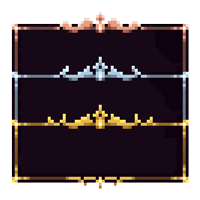
 DownloadEclectic Trove Resource Pack
Get the files on 9Minecraft
Understanding How Borders Are Assigned
Eclectic Trove works through  Legendary Tooltips, which decides a border based on rules you configure. The pack itself supplies the border textures; Legendary Tooltips decides which texture each item receives. To change an item's border, you edit the tooltip configuration rather than the resource pack.
Steps to Reassign a Border
1. Open the Legendary Tooltips config file (found in your config folder after first launch).
2. Locate the section that maps items or item tags to border styles.
3. Find the entry for the item you want to change, or add a new entry using the item's registry name.
4. Point that entry at the border style you want — for example, a metal frame for tools or a spooky frame for undead-themed items.
5. Save the file and reload. In most setups you can reload configs in-game, but a full restart is the safest way to guarantee the change applies.
Tips
- If you use the pack's automatic setup option, it assigns sensible defaults so you don't have to configure anything. Switch to manual mode only when you want per-item control.
- Group similar items together using tags so you don't have to list every single item by hand.
- If a border doesn't appear, double-check that Legendary Tooltips is installed and that the item's name matches exactly.


