

The main reason players install this mod is to move past the plain vanilla crosshair charge bar. 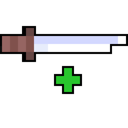 Enhanced Attack Indicator lets you pick from several visual styles so the indicator matches how you actually read combat timing.
Opening the Style Options
Open the mod's configuration screen from the in-game  mod menu (or the config file if you prefer editing it directly). Look for the section that controls the indicator's appearance. You will find a list of selectable styles rather than a single toggle — the mod ships with multiple visual modes, and you can switch between them freely without restarting the game in most cases.
Choosing a Style That Fits Your Combat
- If you rely on the vanilla-style bar, keep the default so nothing changes about your muscle memory.
- If you want the indicator to sit closer to the crosshair, pick a style that renders around or near the center of the screen.
- If you play with a busy HUD, choose a minimal style that only appears while the attack is charging.
After selecting a style, test it against a mob or a training dummy. The charge timing itself does not change — only how it is drawn — so use the new look to confirm you can still read the moment the bar fills. If a style feels distracting, return to the config and try another; the choice is purely visual and safe to swap mid-session.


