

 DownloadLoad Support
Get the files on 9Minecraft
Contents (10)
Since the Load Support Mod identifies memory issues, it is vital to know how to fix them. Below is an exhaustive guide for allocating more RAM across all major Minecraft launchers.

Minecraft Launcher (Vanilla)
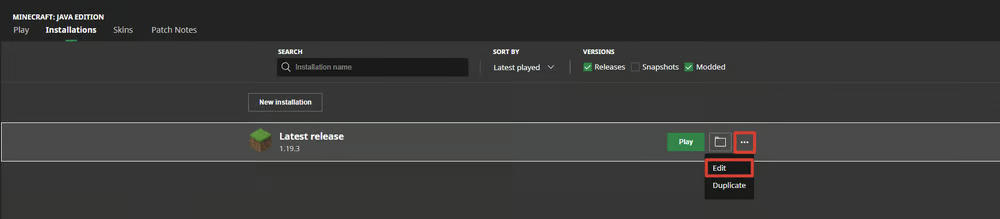
- Open the Launcher and navigate to the Java Edition section.
- Click on the Installations tab.
- Hover over your desired installation, click the three dots (...), and select Edit.
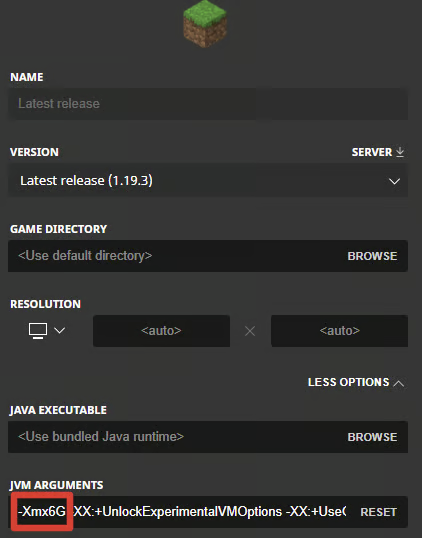
- Click More Options at the bottom.
- Locate the JVM Arguments field. Change the value after
-Xmx. For example, change-Xmx2Gto-Xmx6Gto allocate 6GB of RAM.
Modrinth Launcher
- Select the Settings button (gear icon).
- Under the Java Memory section, use the slider or type the exact amount of RAM needed.
Prism Launcher
- Select your Instance and click Edit on the left sidebar.
- Navigate to the Settings tab on the right.
- Check the Memory box.
- Set both Minimum and Maximum Memory to your desired value.
TLauncher
- Click the Settings button in the bottom right corner.
- Select the Settings text in the popup.
- In the Minecraft Settings tab, adjust the Selection Java slider to the desired RAM amount.
- Click Save.
Lunar Client
- Click the Settings button in the bottom left.
- Under the Game tab, locate the RAM slider and adjust it accordingly.
ATLauncher
- Select the Settings tab on the right.
- Choose the Java/Minecraft tab at the top.
- Change the Maximum Memory/Ram value.
- Click Save at the bottom.
FTB Launcher
- Select the Settings button on the left.
- Go to the Instance Default tab and scroll to Java.
- Drag the slider to your preferred memory allocation.
Feather Launcher
- Select the Settings button in the top right.
- Under Allocated RAM, drag the slider to the desired amount.


