

Guides
Step-by-step, in-game.
How to Add Custom Text and Images to Station LCD PanelsHow to Build Platform Screen Doors with Live LCD Arrival ScreensHow to Change Door and LCD Panel Designs Using the BrushHow to Install Overhead Informational Ceiling Screens
Recipes
Every recipe the mod adds, grouped by how it is made.
Items
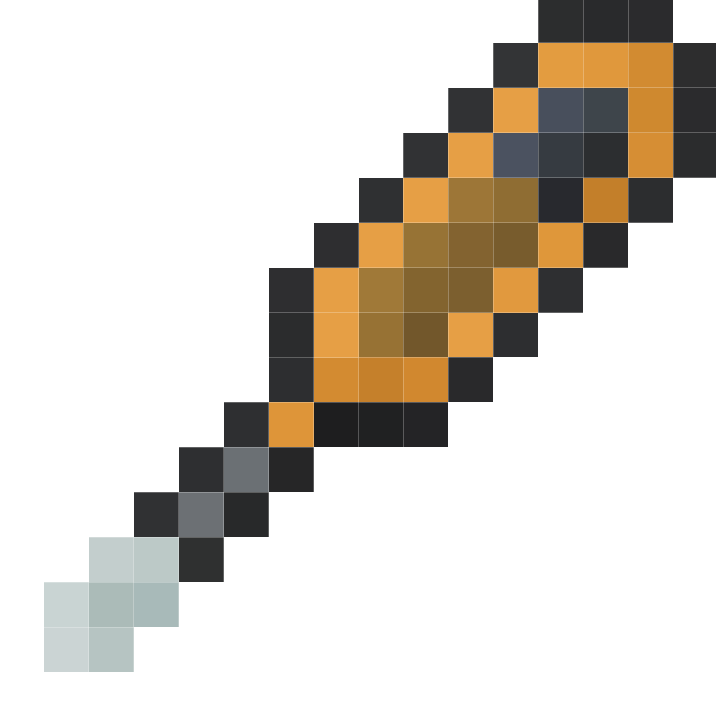 Screwdriver
Blocks
H
 High Platform Door 1 (LCD v1)
 High Platform Door 1 (LCD v17)
 High Platform Door 1 (LCD v2)
 High Platform Door 1 (LCD v3)
 High Platform Door 1 (LCD v4)
 High Platform Door 1 (LCD v5)
 High Platform Door 2 (LCD v1)
 High Platform Door 2 (LCD v2)
 High Platform Door 2 (LCD v3)
 High Platform Door 2 (LCD v4)
 High Platform Door 2 (LCD v5)
 High Platform Glass (LCD17)
 High Platform Glass 1 (Vanilla PSD Glass)
 High Platform Glass 2 (Vanilla PSD Glass)
I
 Information Top (LCD) 19
L
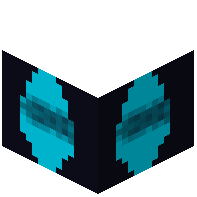 LCD Block
P
 Platform Screen Door Pillar (Single)
 PSD Glass (LCD13)
 PSD Glass (LCD14)
T
 Top Info Module (LCD) 1
 Top Info Module (LCD) 13
 Top Info Module (LCD) 14
 Top Info Module (LCD) 16
 Top Info Module (LCD) 2
 Top Info Module (LCD) 3
 Top Info Module (LCD) 4
 Top Info Module (Vanilla) 1
信
 信息顶板(LCD)18
Frequently asked questions
Why are my LCD panels not showing any train arrival times?
The screens only show live schedules if they are connected to an active station. Make sure you have linked the station tracks properly so the panels can pull real-time arrival info and route details automatically.
How do I change the style of the platform screen doors?
Right-click the placed platform screen doors or ceiling panels using a brush from the base Minecraft Transit Railway mod. Each click will cycle the block through the different visual designs available.
How do I put custom text or pictures on the LCD screens?
Equip the screwdriver tool added by this mod and interact with the display panel you want to edit. This lets you set up custom text and import your own images onto the screen.
Can I get the LCD platform doors in survival mode?
Yes, all platform screen doors, ceiling displays, and support blocks can be crafted directly in survival mode. You do not need to be in creative mode to build or configure them.
What is the difference between the brush and the screwdriver?
The brush from the base train mod changes the outer visual model and design of the doors and panels. The screwdriver tool is used to configure the screen's content, such as custom text and imported images.
Can I put LCD screens in my station without using platform screen doors?
Yes, the mod includes standalone informational ceiling panels that work independently of the doors. You can mount these overhead along your platforms or above the tracks to display route alerts and station info.
How do I hang the overhead ceiling screens so they don't look like they are floating?
Use the dedicated support pillars and header blocks included in the mod. Placing these blocks connects the standalone ceiling panels to your station's roof or walls to hold them in place.
Do I need the base Minecraft Transit Railway mod for this to work?
Yes, this mod is an extension for Minecraft Transit Railway and relies on it to function. You need the base mod's track linking system for live arrival data and its brush tool to change door designs.
What information do the platform door LCD screens show by default?
Once placed at a linked station, the built-in LCD panels automatically display upcoming train arrival times, station names, and active route details right above the doors.
Why is the brush not opening the text and image menu on my LCD panel?
The brush only cycles through the physical block designs and models. To edit the actual text or images shown on the screen, you must hold the screwdriver tool and interact with the panel instead.