
Turn On the Pack and See the PBR Effects with Shaders
Without shaders this pack shows sharper 256x textures but none of the depth or shine. To see the surface maps react to light, run it alongside a compatible shader. The pack names Kappa and Sparkle as examples.
Activate the resource pack
1. From the title screen or pause menu, open Options > Resource Packs.
2. Find High Resolution Vanilla PBR Resource Pack in the *Available* list and click the arrow to move it to *Selected*.
3. If you use other packs that change the same blocks, place this one above them in the Selected list so its textures take priority.
4. With high-resolution textures, this can take noticeably longer than usual.
Add a shader
1. Make sure a shader loader such as Iris or OptiFine is installed.
2. Open Options > Video Settings > Shader Packs and select a compatible shader such as Kappa or Sparkle.
3. Open that shader's settings. If it has options for resource-pack normals, specular or material maps, make sure they are turned on.
4. Return to your world and stand near a 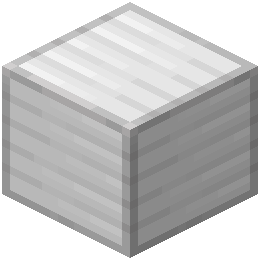 block of Iron, Gold or Diamond in sunlight. You should see metallic reflections shift as you move the camera.
If the blocks look sharp but flat, the resource pack is working but the shader isn't reading the surface maps. Recheck the shader's material settings or try the other recommended shader.