
Keep the Game Running Smoothly with 256x Textures
This pack's textures are 256x, far larger than the default ones. Combined with a shader, that can mean long reload times, high memory use or lower frame rates on modest hardware. These adjustments help without removing the pack.
Reduce the load
1. Lower render distance. In Options > Video Settings, reduce Render Distance until your frame rate is comfortable. This often gives the biggest gain.
2. Adjust mipmap levels. Lowering Mipmap Levels in Video Settings can shorten texture reload time.
3. Use lighter shader settings. Open your shader's options and lower demanding features such as shadow quality, while keeping its material or PBR options on so the pack still has an effect.
4. Avoid stacking large packs. Remove other high-resolution resource packs you aren't using from the Selected list.
Fix crashes or freezes on reload
- Large textures need memory. If the game freezes or crashes when you enable the pack, give Minecraft more RAM in your launcher's installation settings.
- Expect a pause after you click Done on the Resource Packs screen. Give it time to finish before assuming it has frozen.
- If performance is still poor, try playing without a shader. You'll lose the reflections and depth, but you keep the crisper textures on concrete, wood,
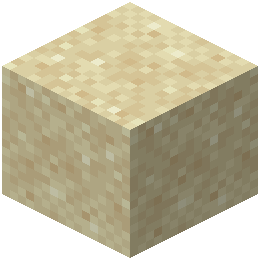 sand, grass tops and mineral blocks.