
Yuushya 16X Model Wiki › Guides › How to Load Priority and Troubleshoot Missing 3D Models
How to Load Priority and Troubleshoot Missing 3D Models
Because Yuushya 16x Model replaces 516 block and item shapes alongside over 3,600 textures, running it alongside other resource packs can sometimes overwrite its custom models. Setting up your load order properly ensures all 3D shapes render as intended.
Setting Resource Pack Load Priority
1. Launch the game and navigate to Options > Resource Packs.
2. Ensure the Yuushya 16x Model zip file is in the right-hand Selected column.
3. Click the up  arrow on the pack's icon to move Yuushya 16x Model to the very top of your active list.
4.
Minecraft loads resource packs from bottom to top. Keeping Yuushya at the top prevents lower-priority texture packs from replacing its custom acacia doors, wall-mounted lanterns, and 3D jukeboxes with flat vanilla cubes.
Fixing Missing Textures or Static Animations
- Static Surfaces: This pack requires a setup that supports animated textures. If active blocks or
 bucket surfaces appear frozen, check your video settings or installed visual mods to make sure texture animations are enabled.
- Missing 3D Shapes: If an
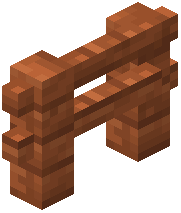 acacia fence or amethyst cluster still looks like vanilla, check whether a pack above Yuushya in the Resource Packs menu modifies those same blocks, and move it below Yuushya.