 DownloadWho Am I? Mod
Get the files on 9Minecraft
Contents (3)
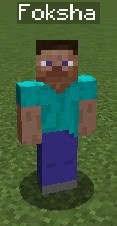
You installed the mod expecting to see your name in the Inventory and in third person, but nothing appears. This is almost always a loading or conflict issue rather than a bug in the mod itself. Work through these steps in order.
Step 1: Confirm the Mod Is Loaded
- Launch the game and check your mod list screen. If the mod is not listed, it is not being loaded by that profile.
- Confirm you launched the correct profile or instance. It is common to install into one instance and launch another.
- Ensure any required dependency (the mod loader's API, if the mod needs one) is present. Missing dependencies cause silent non-loading.
Step 2: Rule Out Conflicts
- Disable inventory-replacement mods and HUD mods temporarily. These are the most frequent cause of a missing nametag on the Inventory screen.
- Disable minimap mods that draw player labels, as they can overlap or suppress the nametag.
- Test with only this mod and its dependencies enabled. If the nametag appears, re-enable mods in small groups until it disappears again.
Step 3: Check the Right Conditions
- The Inventory nametag only shows on the Inventory screen, not in chests, crafting tables, or other GUIs.
- The third-person nametag only shows in third person, not first person. Press F5 to switch.
If it still fails after a clean test with no other mods, check the mod's issue tracker for reports matching your game version.