
Redstone Signal Towers Wiki › Guides › How to Set Up and Name a Custom Network with the Screwdriver
How to Set Up and Name a Custom Network with the Screwdriver
Every antenna needs to be configured before it's useful. All of that happens through the  Screwdriver, which opens the antenna's settings screen.
Opening the Antenna Settings
1. Place the antenna. You can use a Copper, Iron, or 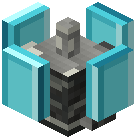 Diamond antenna.
2. Hold the Screwdriver in your hand.
3. Use it on the antenna to open the setup screen. You can come back the same way any time you want to change the settings.
Naming the Network and Picking a Speed Tier
- Network name: Choose something your group will recognize in a list, like your base or team name. The name is what appears when players browse the Networks tab on their phones. A clear, unique name keeps people from joining the wrong network when several are nearby.
- Speed tier: Pick 5G+, 4G, or LTE. If you aren't sure which one suits your setup, try one and watch the connection status on your phone. You can reopen the antenna with the Screwdriver and switch tiers later.
Check Your Work
1. Open your cell phone and go to the Networks tab.
2. Confirm your new network name shows up with a connection strength.
3. Connect to it, then test it by sending a message from the Messages tab.
If the name doesn't appear, make sure you're standing near the antenna and that you saved the setup screen.