
Good Lookin Ground Resource Pack FAQ
10 questions players actually ask, answered.
Why do some of my ground blocks still look blurry or low-res?
Make sure you've selected the resource pack in your resource pack menu and it appears above any conflicting packs in the list. If blocks still look off, check that your texture filtering settings in Video Options aren't set to blur textures—set Mipmap Levels to 0 or 1 for the sharpest appearance.
Can I use Good Lookin' Ground with shaders?
Yes, Good Lookin' Ground works with most shader packs, though visual results depend on how the shader handles texture detail. Test with your preferred shader to ensure ground textures display as intended, since some shaders may override or interact unpredictably with texture packs.
Does this pack work in older Minecraft versions?
Good Lookin' Ground is designed for specific Minecraft versions—check the pack's compatibility information to confirm it supports your version, as texture formats and block lists vary between releases.
How do I fix textures that look misaligned or tiled weirdly?
Misalignment usually means the resource pack didn't load correctly or conflicts with another pack above it in your list. Try removing other texture packs temporarily, restart Minecraft, and verify Good Lookin' Ground is the only ground-focused pack active.
Will this pack affect my FPS?
Good Lookin' Ground is a 16× texture pack, so performance impact is minimal—it's much lighter than ultra-high resolution packs. If you notice frame drops, the issue is likely unrelated to this pack, but you can test by temporarily disabling it.
What blocks does this pack actually retexture?
Good Lookin' Ground focuses on ground and terrain blocks like stone, dirt, sand, gravel, 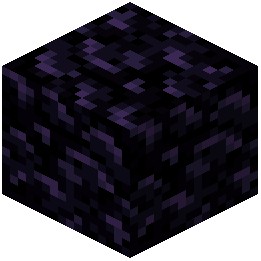 obsidian, and similar foundation blocks. Check the pack's description or screenshots to see the full list of retextured blocks, as it doesn't cover every block in the game.
obsidian, and similar foundation blocks. Check the pack's description or screenshots to see the full list of retextured blocks, as it doesn't cover every block in the game.Can I combine Good Lookin' Ground with another texture pack for different blocks?
Yes—place Good Lookin' Ground higher in your resource pack list than other packs so its ground textures take priority, while other packs fill in blocks this one doesn't cover. Test in-game to ensure no unwanted overlaps or conflicts.
Why do my ground textures look different in Creative mode vs. Survival?
This is usually a lighting or render distance issue, not the pack itself. Make sure your lighting settings, brightness, and render distance are the same in both modes, and that the resource pack is active in both.
Does Good Lookin' Ground change connected textures or block variants?
Good Lookin' Ground updates the base textures of ground blocks to look cleaner and more cohesive, but doesn't add advanced features like connected textures unless specified in the pack details. Check the documentation to see exactly what visual enhancements are included.
How do I uninstall or disable this pack without losing my world?
Open your resource packs menu, find Good Lookin' Ground in the active list, and click the arrow to move it to the inactive side—your world and blocks remain unchanged. You can re-enable it anytime by moving it back.