
Yitality Resource Pack Wiki › Guides › Set Up Your Shader for Maximum PBR Quality
Set Up Your Shader for Maximum PBR Quality
Choose a Compatible Shader
Yitality requires a shader pack that supports labPBR and parallax mapping. Popular options include Complementary, BSL, and Seus Renewed. Install your chosen shader through your shader folder.
Configure Shader Settings
Once in-game, open your shader menu (usually Shift + O or through Video Settings).
Essential changes:
- Locate the PBR format option and switch it to labPBR mode
- Find and disable any "Hardcoded Lighting" settings
- Turn off the "Normals by Parallax" option to avoid conflicts
- Enable Subsurface Scattering so light passes through
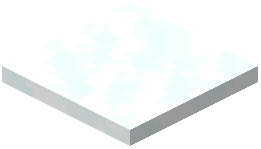 snow and resin naturally
 - Enable Smooth Parallax for refined 3D depth on block surfaces
- Enable Porosity to let materials absorb and show water effects
- Turn on Screen Space Reflections or Global Illumination for realistic reflections on polished blocks and metal surfaces
- Enable labPBR Emissive Textures so glowing blocks like lanterns and
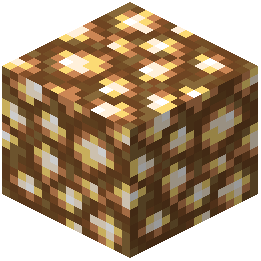 glowstone emit light correctly
Test Your Setup
Place some glowing blocks and polished materials in a test area. You should see soft light emission, realistic reflections, and bumpy surface detail. Adjust individual settings if performance drops.