
How to Read Note Block Tone and Instrument Displays
What the 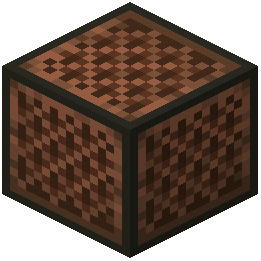 note block overlay tells you
Note blocks change pitch each time you right-click them and change instrument based on the block underneath. XK Redstone Display shows the current tone and the instrument (timbre) directly on the block, so you no longer have to click a block repeatedly to figure out where its pitch sits.
Tuning a note block to a  target pitch
1. Place the note block and right-click it once to hear the starting pitch.
2. Watch the tone readout as you right-click. Each click steps the pitch up by one, and the display updates to match, so you can count steps instead of guessing by ear.
3. Stop when the readout matches the note you want. If you overshoot, keep clicking — the pitch wraps back around to the lowest note after the highest.
Choosing an instrument
1. Decide which instrument you want, then check which block the note block must sit on to produce it — the block beneath determines the timbre.
2. Place the note block on that block and confirm the instrument readout matches your intent.
3. If the readout shows the wrong instrument, the supporting block is wrong. Swap the block underneath and re-check.
Building a melody
Lay out your note blocks in a row, tune each one using the tone readout, and verify every instrument label before wiring them to a clock. This turns a tedious trial-and-error tuning session into a quick visual pass, and makes it easy to reproduce a melody later.