
Resolve Texture Conflicts with Other Resource Packs
Understanding Pack Order
When multiple resource packs are active, the one loaded last takes priority. Conflicts occur when packs override the same textures differently.
Fixing Conflicts
1. Open your resource pack list in the launcher.
2. Identify conflicting packs: look for packs that modify similar blocks (e.g., multiple  stone or wood texture packs).
3. Reorder packs by dragging Vanilla Mashup to the position that gives you desired results. Usually, place it above general texture packs but below cosmetic overlays you want to keep.
4. Test in-world: load a world and check if textures appear as intended.
5. Remove conflicting packs if reordering doesn't help—choose either Vanilla Mashup or the conflicting pack.
Common Conflicts
- Other PBR packs (disable one).
- Overlay packs that modify connected textures.
- Mods that inject their own textures.
Verification
After adjusting, check a variety of blocks—stone, wood, 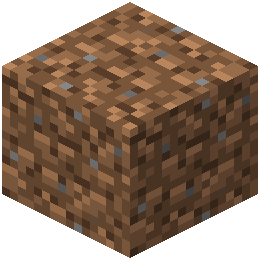 dirt, and ores—to ensure they display correctly without visual glitches or mismatched colors.