
Troubleshoot Glass Appearance Issues
Common Visual Problems
If your 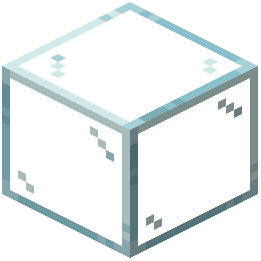 glass doesn't look smooth or transparent after installing the pack, check these common issues.
Diagnostic Steps
1. Verify the pack is active: Open Options > Resource Packs and confirm Smooth Glass appears in the active list on the right
2. Check pack order: If another resource pack is listed above Smooth Glass, it may be overriding the textures. Reorder packs so Smooth Glass is on top
3. Clear cache: Close Minecraft completely, delete the shader cache folder (if using shaders), and restart
4. Test with vanilla glass: Place a new glass block and compare it to older glass in your world. Newly placed blocks should show the smooth texture immediately
5. Disable other packs temporarily: If issues persist, disable other resource packs one at a time to identify conflicts
Graphics Settings
Ensure your graphics settings aren't interfering. Use Fancy graphics mode rather than Fast for better transparency rendering. If using shaders, verify they're compatible with resource pack modifications.