
Troubleshooting Texture Issues with Dirt and Grass
Common Visual Problems
If 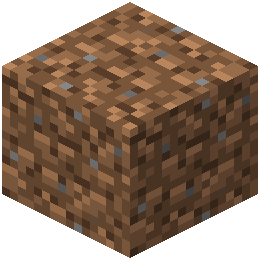 dirt or grass blocks appear incorrect, check these factors:
Verify pack load order. If you use multiple resource packs, ensure Mossy's Better Dirt is positioned correctly in your pack list. Packs loaded later override earlier ones, so place this pack where you want its textures to take priority.
Check texture filtering settings. In your Minecraft launcher settings, ensure texture filtering isn't set to blur textures excessively. Nearest neighbor or default filtering usually works best with detailed resource packs.
Confirm the pack is active. Open your world, go to Settings > Resource Packs, and verify the pack appears in the active list (right side) rather than the available list (left side).
Test in a new world. Create a test world with only this pack active to isolate whether conflicts come from other mods or packs.
Look for mod conflicts. Some mods that heavily modify terrain rendering or block textures may conflict. Try disabling other mods temporarily to identify the source.