

Checking Your Resource Pack Load Order
Because this pack is an add-on that provides matching textures for the Vanilla Backport mod, it must be loaded alongside the base Excalibur resource pack in the proper priority order.
1. Open the game menu and click on Options, then select Resource Packs.
2. Locate both the base Excalibur resource pack and the Excalibur | Vanilla Backport Support Resource Pack in the left-hand column of available packs.
3. Click the  arrow on the base Excalibur pack to move it to the right-hand active column.
4. Move the Excalibur | Vanilla Backport Support Resource Pack to the right-hand active column as well.
5. Use the up and down priority arrows on the support pack so that it sits directly above the base Excalibur pack and above your Mod Resources entry.
Verifying the Textures in Game
Once you click Done and allow the game to reload its assets, you can verify that the pack is ordered properly without leaving your world.
1. Open your inventory or the creative search menu and look for items added by the Pale Garden or Chase the Skies updates, such as a 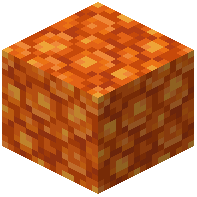 Block of Resin, a
 Black Harness, or a
 Bamboo Shelf.
2. Confirm that these items display dark, weathered, medieval visuals rather than bright default textures.
3. If any backported blocks still look like default vanilla assets, return to the Resource Packs menu and verify that no other resource pack is sitting above the support pack and overriding its files.