
How to Enable Random Block Variations and Natural Overgrowth
Enabling Alternate Block Textures
To see the full range of weathered stones, loose wall 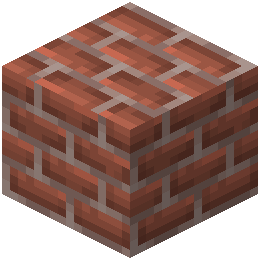 bricks, and natural overgrowth details in Everwild, you must ensure random alternate blocks are enabled in your video settings. Without this setting active, walls and landscapes will only display a single base texture per block type.
1. Open the pause menu and navigate to Options, then select Video Settings.
2. Locate the toggle for Alternate Blocks (or check under the Details or Quality submenu if you use a visual optimization mod like OptiFine or Sodium).
3. Set the option to On or Fancy.
Checking Resource Pack Load Order
If you play with multiple resource packs active, another pack may override Everwild's block model variations, such as bird nests in canopies, shelf fungus on tree trunks, or sacks resting on storage barrels.
1. Go to Options and select Resource Packs.
2. Look at the Selected column on the right side of the screen.
3. Hover over the Everwild Resource Pack icon and click the Up  Arrow until it sits at the very top of your active list.
4. Click Done to reload your game assets. Once reloaded, large  stone walls, village pathways, and forest floors will automatically break up repetitive patterns using the pack's randomized textures.