
Grey64 S Animated Items Resource Pack Wiki › Guides › Ensure Animations Display Correctly
Ensure Animations Display Correctly
Checking Resource Pack Status
Animations only appear when the resource pack is properly loaded. Open your resource packs menu and verify the pack appears in the "Selected" column, not the "Available" column.
Load Order Matters
If animations don't appear or look wrong, check your resource pack load order. This pack should be positioned above any other packs that modify item or block textures. Move it higher in the list by dragging it in the resource packs menu.
Compatibility Issues
If animations conflict with another pack:
- Disable conflicting packs temporarily to test
- Ensure no other packs override the same items (redstone, ingots, buckets,
 pufferfish,
 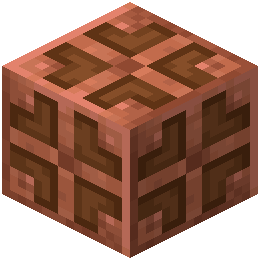 Copper Bulb)
 - Check that your Minecraft version matches the pack's requirements
Visual Settings
Animations should be visible at any graphics setting, but ensure:
- Mipmaps are not set too high (this can blur animations)
- Texture filtering is set to default or nearest
- You're not using a conflicting shader pack that disables item animations