
Getting the Best Visual Results with Good Lookin' Ground
Optimize Your Graphics Settings
To fully appreciate the texture improvements, ensure your graphics settings support the resource pack's detail level. Set your graphics mode to Fancy (not Fast) so that all block sides render with their enhanced textures. Enable Mipmaps in your video settings—this prevents texture flickering and shimmering when viewing ground blocks from a distance.
Pair with Complementary Shaders
While Good Lookin' Ground works standalone, it pairs well with subtle shader packs that enhance lighting without overwhelming the vanilla aesthetic. Look for shaders labeled "vanilla-friendly" or "subtle" rather than dramatic cinematic ones. Test a few to see which complements the cleaner ground textures without clashing with the pack's design philosophy.
Check Block Consistency Across Biomes
Walk through different biomes—deserts, mountains, caves, and beaches—to see how the refreshed ground textures adapt. The pack maintains visual cohesion across  stone variants,
 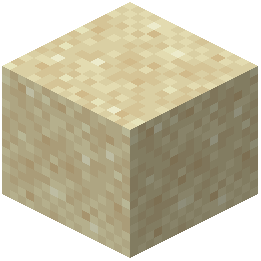 sand types, and other terrain blocks. If textures appear misaligned or jarring in specific biomes, verify the resource pack loaded correctly and no conflicting packs are active above it in your load order.