
Acquiring and Placing Command Blocks
Command blocks do not appear in the Creative inventory menu and cannot be crafted or mined in Survival. To obtain one, your world must have cheats enabled, and your player account must have Operator permissions. You acquire them using the `/give` command or place them directly into the world using `/setblock`.
There are three distinct block identifiers corresponding to the three execution modes: `minecraft:command_block` (Impulse), `minecraft:chain_command_block` (Chain), and `minecraft:repeating_command_block` (Repeating). Even though you can change a command block's type inside its user interface after placing it, knowing the raw identifiers is necessary when generating structures via commands or checking for blocks in behavior pack conditions.
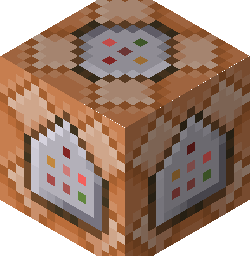
When you place a command block, it orients itself to face the player. The arrows on the side textures indicate the facing direction. This direction is not purely cosmetic; it dictates which adjacent block gets triggered next when you build a linked sequence of Chain command blocks. A player must be in Creative mode alongside having Operator status to open the block's interface or break it.
Block Types, Conditions, and Redstone States
Inside the command block interface, behavior is governed by three dropdown menus along the left side: Block Type, Condition, and Redstone. Combining these three settings determines when and how often your command string is evaluated.
Additionally, Bedrock Edition includes a 'Delay in Ticks' input field. In Minecraft, one second of real time equals 20 game ticks (assuming the game is running at full speed without lag). Setting a delay of `20` on an Impulse block means it waits one full second after receiving power before executing. On a Repeating block, a delay of `20` means the command runs once per second instead of 20 times per second. You can also toggle 'Execute on First Tick' for Repeating blocks, which controls whether the block fires immediately upon being powered or waits out its delay timer first.
| Setting | Option | Behavior |
|---|---|---|
| Block Type | Impulse (Orange) | Executes its command once each time it transitions from unpowered to powered. |
| Block Type | Chain (Green) | Executes only after the command block pointing directly into it has attempted to execute. |
| Block Type | Repeating (Purple) | Executes every game tick (or on a custom tick interval) for as long as it remains powered. |
| Condition | Unconditional | Runs its command regardless of whether the block behind it succeeded or failed. |
| Condition | Conditional | Only runs its command if the command block physically behind it (facing the same way) executed successfully on the same tick. |
| Redstone | Needs Redstone | Requires an active redstone signal (lever, button, redstone block, observer) to trigger or stay active. |
| Redstone | Always Active | Treats the block as permanently powered. Impulse runs once on placement; Repeating runs forever; Chain runs whenever triggered by a predecessor. |
Execution Context and Target Selectors
Every command in Bedrock Edition executes within a specific context consisting of an executor (who is running the command) and a position (where the command is running). When you type a command into chat, your player entity is both the executor and the origin position. When a command block runs a command, the block's own coordinates become the execution position, and there is no entity executor by default.
Because the command block itself is not an entity, you cannot use the `@s` (self) selector directly at the start of a command block's input—it will immediately fail with a target error. Instead, you must use `@p` (nearest player), `@a` (all players), `@r` (random player), or `@e` (all entities), which calculate distances starting from the center of the command block.
To run a command as an entity from inside a command block, you wrap the instruction in the new `/execute` syntax introduced in version 1.19.50. For example, writing `execute as @a at @s run particle minecraft:villager_happy ~ ~1 ~` shifts the executor to every player (`as @a`) and moves the execution position to each player's location (`at @s`) before spawning the particle. Note that leading forward slashes (`/`) are optional inside the command block text box; `say Hello` and `/say Hello` function identically.
Building a Physical Chain vs. Behavior Pack Functions
In map-making, a common pattern is detecting a player entering an area, giving them an item, playing a sound, and setting a tag so they cannot claim the reward twice. In pure command blocks, you build this by placing a Repeating block (Always Active) pointing into a line of Chain blocks (Always Active). The Repeating block checks for the player or performs the first action using a target filter like `@a[r=5,tag=!rewarded]`, and the subsequent Chain blocks run the follow-up commands.
However, managing dozens of physical blocks in the world becomes difficult to debug and makes your creation hard to port to other worlds. This is where a Behavior Pack bridges the gap. Instead of placing ten Chain blocks in a row, you place a single Repeating or Impulse command block in the world and have it call a `.mcfunction` file from your behavior pack using the `/function` command.
Below is an example of a function file saved at `BP/functions/zone_reward.mcfunction`. You can trigger this entire sequence from a single Repeating command block in your world containing the command `execute as @a[r=5,tag=!claimed_kit] at @s run function zone_reward`. Because the command block already established who `@s` is and where they are standing, every line inside the function file inherits that exact player context.
# This function is called from a command block using:
# execute as @a[r=5,tag=!claimed_kit] at @s run function zone_reward

give @s iron_sword 1
give @s cooked_beef 16
playsound random.levelup @s ~ ~ ~ 1.0 1.0
title @s actionbar You have claimed the starter kit!
tag @s add claimed_kit
Replacing Repeating Command Blocks with tick.json
One major drawback of physical Repeating command blocks is chunk loading. If all players walk far away from a command block, the chunk unloads and the block stops running unless you manually configure a `/tickingarea` around it. When you are developing a full add-on rather than a fixed adventure map, relying on physical blocks placed in the world is not practical.
Bedrock behavior packs provide a cleaner alternative to 'Repeating + Always Active' command blocks: `BP/functions/tick.json`. Any function file listed inside `tick.json` is executed by the game engine automatically on every single game tick, globally, from the world spawn context, without needing a physical block or a ticking area.
If you have a system you prototyped using a Repeating command block in-game, you can move the command into a `.mcfunction` file and register that file in `tick.json`. Just remember that `tick.json` runs every tick (equivalent to a Repeating block with 0 tick delay). If you only want your commands to run occasionally, you will need to filter execution using scoreboard timers or entity tags inside your function.
{
  "values": [
    "zone_reward"
  ]
}
Capturing Command Block Data in Structure Files
There are still cases where an add-on needs to place pre-configured command blocks into the world dynamically—for instance, when generating custom dungeon rooms that rely on redstone puzzles. You cannot set the internal command string of a command block using `/setblock` in Bedrock Edition because Bedrock commands do not support inline NBT data tags like Java Edition does.
To deploy a configured command block from a behavior pack, you must use a `.mcstructure` file. Build your command block contraption in a test world, type the commands and tick delays into the blocks, and then use a `minecraft:structure_block` (set to Save mode with 'Save to Disk' enabled in modern versions) to export the area.
Place the exported `.mcstructure` file into your behavior pack under the `BP/structures/` folder. Your add-on can then spawn the entire pre-configured command block chain anywhere in the world using the `/structure load` command. The saved structure preserves the exact command text, conditional toggles, tick delays, and hover names you configured in the UI.
Which versions this applies to
Applies to Minecraft Bedrock Edition 1.19.50 and newer (uses the modern /execute syntax). No experimental toggles are required for command blocks, .mcfunction files, or tick.json.
When it does not work
| What you see | Why | The fix |
|---|---|---|
| Previous Output shows: 'CommandBlockChainTriedToExecuteMoreThanOnce' or Chain blocks do not fire at all. | The arrows on your Impulse or Repeating block are not pointing directly into the Chain block, or a Chain block in the middle of the line is accidentally left on 'Needs Redstone' instead of 'Always Active'. It can also happen if your chain loops back into itself during the same tick. | Break and replace the blocks while facing the exact direction you want the signal to travel so all side arrows align head-to-tail. Open every Chain block in the line and change the Redstone setting to 'Always Active'. |
| Previous Output shows: 'Syntax error: Unexpected "@s"' or 'No targets matched selector'. | You used `@s` in a command block without first defining who `@s` is. A command block is a tile, not an entity, so it has no 'self' identity. | Replace `@s` with `@p` or `@a`, or prefix your command with `execute as <target> run ...` so the command block assigns an entity executor before evaluating `@s`. |
| Command blocks run fine when standing nearby, but stop working when players travel far away. | Command blocks only process ticks when the chunk they occupy is loaded in memory. When players leave the simulation distance around the blocks, the chunk unloads. | Stand next to your command blocks and run `/tickingarea add circle ~ ~ ~ 2 command_hub` to keep those chunks permanently loaded, or migrate the commands into a behavior pack using `BP/functions/tick.json`. |
| Chat is spammed with '[! : Executed ...]' messages every tick. | The world's `commandblockoutput` gamerule is set to `true` (the default in new worlds), which broadcasts the output of every command block to Operators. | Run `/gamerule commandblockoutput false` in chat. If you also want to hide feedback from functions running via command blocks, run `/gamerule sendcommandfeedback false`. |
Reference, straight from the game files
Read out of the game itself, so the ids match the version you are building for.