
Set Up Destiny 128x with Shaders for Best Visual Quality
Install a Compatible Shader
Destiny 128x is designed to work with modern shader systems. Install either OptiFine or Iris alongside your resource pack. These shader loaders enable PBR (Physically Based Rendering) and POM (Parallax Occlusion Mapping) support, which bring out the full detail in Destiny's 128x textures.
Enable PBR and POM in Shader Settings
Once your shader is active, open the shader options menu in-game. Look for settings labeled PBR Materials or Parallax Mapping. Enable both to see the surface depth and realistic material properties that Destiny's textures provide. Without these enabled, you'll see the textures but miss the dimensional effects.
Adjust Lighting for Your Preference
Shader packs offer lighting intensity, shadow distance, and ambient occlusion sliders. Start with default settings, then tweak based on your hardware. The realistic  stone,
 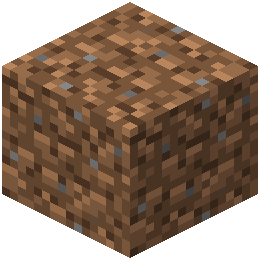 dirt, and grass textures in Destiny respond well to pronounced shadows—this makes underground caves and natural terrain feel more immersive.
Test in Different Environments
Visit the overworld surface, dig into caves, and explore the Nether and End. Each area uses different texture modules, and shader lighting will interact differently with each. This confirms your setup is working across all three Destiny components.