
Set Up Your First Control Panel
Creating and Placing the Panel
Craft a 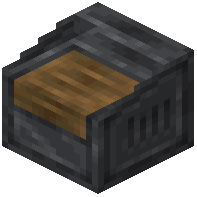 Control Panel block and place it anywhere in your base. This block serves as your central hub for all redstone control modules. You can place multiple panels if you want to organize different machine systems separately.
Adding Modules to Your Panel
Gather the modules you want to use—these include bulbs, levers, knobs, buttons, and switches. Hold nothing in your hand, then Shift + Right-click the Control Panel. Your inventory will display available modules. Select the ones you want to attach. They'll appear on the panel's surface, ready to use.
Testing Your Setup
Interact with the modules on the panel (right-click levers, press buttons, turn knobs) to emit redstone signals. The panel will output these signals to adjacent redstone dust, repeaters, and other redstone components. Start simple with one or two modules before expanding your system.
Organizing with Color
Dye your bulb modules different colors to visually organize your controls and make it easier to identify which bulb corresponds to which machine at a glance.