
Enable OptiFine Features to See Full Pack Details
Why OptiFine Matters
Avalon 32x is designed to work best with OptiFine installed. Without it, you'll miss custom lighting effects, enhanced shadows, and special visual tricks that make the pack's fantasy aesthetic shine. Many of the pack's 3D block shapes and atmospheric details require OptiFine to render properly.
Enabling the Features
1. Launch Minecraft with OptiFine installed and active
2. Open Video Settings from the main menu
3. Look for Shaders option and select a shader pack, or leave it off for enhanced vanilla lighting
4. Enable Custom Colors to see the pack's color adjustments
5. Turn on Connected Textures so blocks blend seamlessly
6. Enable Better  Grass and Better
 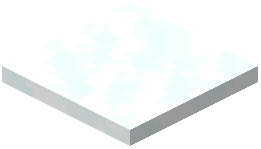 Snow for improved ground textures
7. Adjust Brightness and Contrast to your preference—Avalon's bright fantasy style works best at default or slightly higher brightness
8. Save and return to your world
If you notice lag, try disabling Fancy Graphics or reducing shader complexity. The pack runs smoothly on most systems, but older hardware may need these adjustments. Test different settings to find the balance between visuals and performance that works for you.