Little Paint Brush (1.12)
The Little Paint Brush is a tool that allows you to paint any tile of any material. However, the painted color is added over the normal block texture, meaning you can't make things brighter.
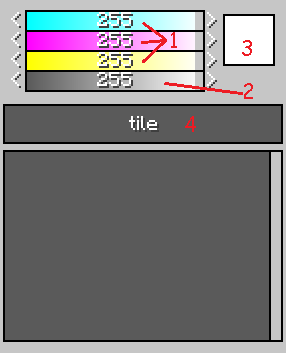
- 1 - Color sliders
- 2 - Transparency slider
- 3 - Color preview
- 4 - Paint mode selection
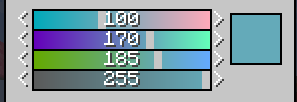
By moving the sliders you can select the CMY values for the color that you want to apply. The box on the left will allows you to preview the base color. You can also right click on the number and it'll allows you to alter it directly.
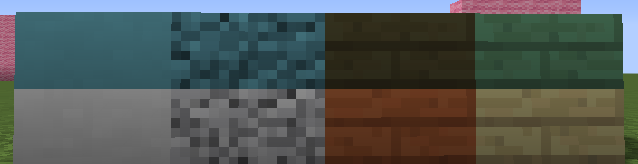
The image above shows 4 different blocks with a turquoise color applied.
The forth slider is for transparency, meaning you can make any texture as transparent as you wish (even invisible). Transparency is disabled by default in Survival mode, but you can use IGCM to set a enable transparency in survival and set a minimum transparency value.
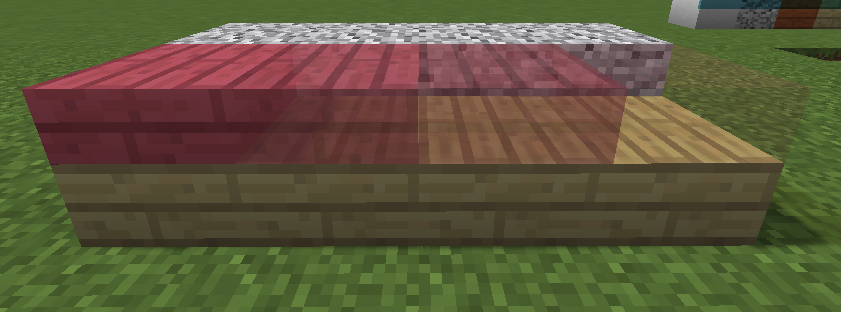
The image above shows a pink color applied to a birch plank block. Each block has a decreasing transparency level.
All point modes work similarly to the Little Hammer's, so please refer to that page for more information.
With the Little Paint Brush, you can use Sneak + Left Click (default to Shift + Left Click) to pick a color from a previously painted tile. You can only pick colors from the paints applied via the brush, meaning you can't pick a color that's from the vanilla block texture.